

CreekPOS Online
Signing up, the getting-started checklist, connecting tills (the till app for Windows, Mac and Linux, or the Windows program), selling offline, the Today dashboard, branches, the online menu, shop and table QR ordering, plans, billing and LAUNCH25, and your account.
creekpos · Choose your edition · SaaS / Online
This guide uses fictional training data. Available controls depend on your enabled features, plan and permissions.
Choose a focused business workspace
Sign in as owner or manager and open Settings → Business type & features. Choose the branch first; a branch can inherit the shop default or keep its own choice.
Roles, duties and branch access
Open Team as owner. Create a separate account for each employee; do not share the manager password.
Tablet navigation and the finder
Use the menu button to collapse the sidebar. Pin the expanded menu when there is enough width; the saved preference belongs to the current user/browser.
Products, variants, units and modifiers
Open Products with catalogue-management rights. Enter the complete product name and alternative-language name where needed.
Checkout and paper-light receipts
Sign in as a cashier and open the required shift where the shop uses shifts. Select the correct branch and till.
Enter a table order as a waiter
Sign into the waiter workspace and go on duty. Select or claim the tables you serve. An unassigned table notifies all on-duty waiters in that branch.
Kitchen progress, service timing and cleaning
A chef opens their kitchen workspace and claims work for the appropriate station. Record Start, pause/resume with a reason, Ready and any rework or waste accurately.
Share restaurant items and payments
Open Split between guests on the active bill. Add at least two named guests and choose items, equal shares or custom amounts.
Recipe ingredients and prepared stock
Choose one fulfilment mode for each finished product: made to order or prepared stock. Do not configure the same sale to consume both finished stock and recipe ingredients.
Carcass yields, waste and cut costs
Receive the source carcass into the correct branch with its actual quantity and cost. Use a supported unit; a kilogram and a piece are not interchangeable quantities.
Branch stock, transfers and counts
Choose the authorized branch before reading or changing stock. Distinguish shop-wide product details from quantities held at each branch or warehouse.
Charts, datetime ranges and profit
Open the report with the required read right and select the branch scope. Set an explicit start and end date/time for reports that use transaction timestamps.
Export safely to Excel, JSON and BI
Select the intended dataset/report, authorized branches and time range before exporting. The export must contain the same permitted rows and scope as the report.
Customer stamps and points
Configure the live loyalty scheme and redemption rules with owner permissions. Explain eligible visits/purchases rather than promising a reward for every event.
Employee sign-in and HR workspace
Create the employee and permitted duties as owner/HR administrator. Separate attendance rights from selling, payroll approval and staff-performance access.
Scale, printer and label setup
Record the exact scale/printer manufacturer, model, connection and protocol. We provide software; hardware supply, installation and certification are separate facts.
Offline sales and safe recovery
Pair the cloud till while online and sign in with the intended employee. Let the authorized catalogue and settings synchronize before relying on offline operation.
Diagnose a refusal without duplicating work
Record the exact visible error code, screen, branch and action. Remove credentials, customer identifiers and private payment details before sharing a screenshot.
CreekPOS Online is two things: the web app at app.creekpos.com, where you manage products, stock, customers, reports, the team and the settings from any browser or phone, and the tills: the computers at the counter, connected to your account, either with the CreekPOS till app (Windows, Mac or Linux) or with the CreekPOS program on Windows. Selling happens on the tills; the web app shows everything as it happens.
Signing up
- Open the sign-up page (or Start your 14-day trial on this site).
- Type the Shop name, Your name, E-mail and Phone; choose One shop or A chain of branches, and the plan you expect to take after the trial (or I'll decide after the trial). A coupon code is optional.
- Tick the terms and press Start the trial.
- We send a 6-digit code to your e-mail (check Junk / Spam). Type it and press Log in.
The trial lasts 14 days with everything in the Restaurant plan, and needs no card.
Signing in
The web app has no password: on the sign-in page type your e-mail and press Send the code; type the code you receive (valid 10 minutes). Tick Remember my e-mail on this device if it is your own device. A session lasts 30 days. Managers can add an authenticator app as a second step at app.creekpos.com/security/two-step (with 8 recovery codes).
Lost your access? The page Lost your sign-in? explains each case: a cashier's till password is reset by a manager in Team; a lost e-mail is changed by the owner, or we send a one-time code; a lost owner account, write to us on WhatsApp with the tenant id from the Billing page.
The getting-started checklist
Get started in the menu (managers) lists five steps:
- Name the shop and pick its type: name, shop type, receipt language, VAT 5 % included, the TRN (15 digits) and the receipt lines, with a preview.
- Add the first product: from the catalogue, by importing a CSV / Excel file, or start empty. See Products.
- Connect a till: below.
- The first sale.
- A second account for the team: a cashier with a till password, or an invitation by e-mail. See Users.
Connecting a till
With the till app (Windows, Mac or Linux):
- Download the till app for your computer from the Download page and install it.
- Open it and sign in with your e-mail (as in the web app).
- Open Settings → Tills and press Connect this computer on the This computer card. The computer becomes a till of your shop.
With the CreekPOS program on Windows:
- On the till PC, download and install CreekPOS for Windows (Download).
- In the web app: Settings → Tills → New pairing code (or Get started → Connect a till). Give the till a name if you like (Till 1) and its role: Till, Kitchen screen or Customer display. You get a 6-digit code, valid 10 minutes.
- On the PC, at the first start choose CreekPOS (the online edition, not On this PC). The window Connect this till to CreekPOS asks for the code and the till's name. Press Connect.
- The till restarts connected. Cashiers sign in with their accounts from Team.
A program already running On this PC is switched from Settings → CreekPOS → Switch to CreekPOS…; its products and receipts are not moved by this (see Moving to CreekPOS Online).
Settings → Tills lists the connected devices with their status, cashier, last contact and version. Sign out this till signs it out; Revoke removes it for good (it needs a new code). The number of tills online at once depends on the plan: 2 on Retail, 4 on Restaurant, no limit on Chain; kitchen screens and customer displays do not count.
The till app has its own Sell screen with the same functions (search and scan, sizes and variants, discounts, customers and points, cash, card, split and credit, hold and tables); its keys are in Keyboard shortcuts. The program's sales screen is described in Selling. Things that change on the program when it is connected: Reports, Inventory, Users and Promotions open the web app; the subscription replaces the licence key; the backup is ours.
A plain browser cannot sell: the Sell page of the web app says Sell from the CreekPOS app. The till that signs each sale and drives the printer, drawer and scale is the till app or the program on the PC.
The printer, drawer, scale and customer display of a till are set on that computer: in the till app, Devices in its menu (receipt printer and paper width 80 or 58 mm, printing as an image so Arabic prints on any printer or as ESC/POS text, the drawer, the scale and a 2-line display); in the program, see Devices.
Selling offline
If the internet drops, the till keeps selling from its saved copy of the products and prices. The status pill on the top bar shows Selling offline and the number of receipts waiting. The till app numbers every receipt itself from the till's own series (T1-000001, T2-000123…), online or offline, so the number on the paper is final. The program on Windows gives a receipt made offline a provisional number (the till's letter and a running number, such as A-1043) and its final number when it reaches the server. Either way the receipts are sent in order as soon as the line is back. Sync now sends at once.
What waits for the line: editing products and prices, saving settings, reports and statements, and recording a payment on account. The web app shows the last state it received.
The Today dashboard
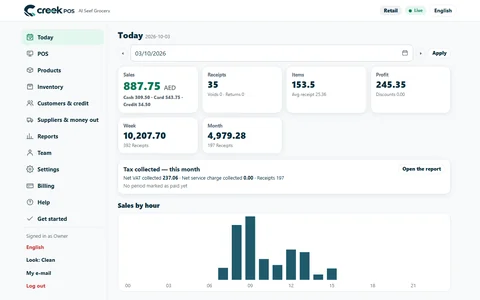
Today shows the day's Sales (cash · card · credit), Receipts (voids · returns), Items (average receipt), Profit (discounts), the Week and the Month, then Tax collected — this month, Sales by hour, the latest receipts, the best sellers, what is running low or expiring, who owes money and the open shifts. Pick another day with the date bar. The page updates by itself when a sale arrives.
On a phone the menu folds into a button; Install CreekPOS on your phone puts the web app on the home screen like an app.
The menu of the web app
| Menu | Pages |
|---|---|
| Today | The dashboard |
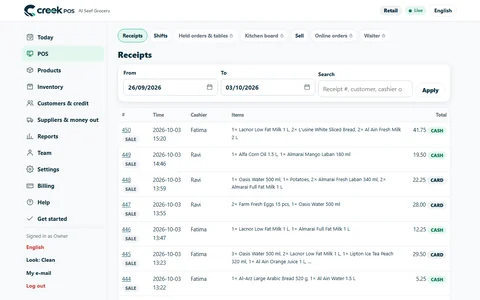
| POS | Receipts, Shifts, Held orders & tables, Kitchen board, Sell, Online orders, Waiter |
| Products | Product list, Categories, Import & export, Bulk edit & price change, Catalogue picker, Catalogue updates, Labels, Price levels |
| Inventory | Current stock, Receive, Stock-take, Movements, Running low, Expiring, Transfers, Lots, Purchase orders, Prepare, Waste |
| Customers & credit | Customers, Who owes, Record a payment |
| Suppliers & money out | Suppliers, Expenses, Net profit |
| Reports | See Reports on CreekPOS Online |
| Team | Users, Invite, Activity log |
| Settings | Shop, Selling, Loyalty points, Promotions, Tills, Devices, Features, E-mail, Daily summary, Integrations, Branches, Data, Sync, Online |
| Billing | Plan & usage, Change plan, Payment, Invoices |
| Help | Manual, Support, What's new, Ordering from the table |
A page your plan does not include shows a lock and This needs the … plan with an Upgrade button. A cashier sees only the pages their rights allow.
Settings → Modules switches whole parts of the app on and off: a module that is off leaves the menus and the quick search. See Modules.
Branches
With the Chain plan (2 branches included; each extra branch adds 132 AED a month from the next cycle):
- Settings → Branches: add a branch with its name, phone, address and tax number; move a till to it; limit a user to one branch; Block negative stock per branch.
- Each branch has its own stock; Inventory → Transfers moves stock between them (see Transfers).
- Today can show all branches or one, and Reports → Branches report compares them.
Online menu, shop and table QR
Three ways for customers to order from their phone. They are part of the Restaurant and Chain plans and can be added to Retail on Billing → Change plan → Add-ons.
- Settings → Online: choose your shop's address (lowercase letters, digits and dashes; it is printed on the table codes, so pick it once) and switch on Online menu, Table QR codes and/or Online shop. Choose what the menu shows (prices, descriptions, hide out-of-stock items), the language, a message, your logo, and whether to appear in Google.
- Online menu: your menu at your own address, to share on social media or print as a QR code (QR code of the address). Products shown online hides items from the web while the till still sells them.
- Table ordering: the setup wizard asks one question per step (tables or seats, when guests pay, the kitchen, the bill, where orders go, staff, a test) and recommends an answer at each. Tables and seats: add tables one by one or many at once (rows A–K × 1–20), and print their QR codes on A4 sheets (6 or 12 per sheet). Make a test table creates a table for 30 minutes whose orders never become sales.
- Online shop: delivery areas with a fee and minimum order, pickup, opening hours, and payment on delivery (cash). Orders can go straight to the till or wait for Accept.
Orders arrive in POS → Online orders: Accept → to the till turns an order into a held order on the tills; then Out for delivery, Delivered and a delivery slip. The Waiter page (made for a phone) shows each table's state: order waiting, bill asked, calling the waiter, paying. Guests can Call the waiter and Ask for the bill from the menu. Help → Ordering from the table explains it step by step.
Plans and billing
| Plan | Price (AED a month, + 5 % VAT) | Tills online | Accounts | Branches |
|---|---|---|---|---|
| Retail | 132 | 2 | 6 | 1 |
| Restaurant | 200 | 4 | 15 | 1 |
| Chain | 400 for 2 branches, + 132 per extra branch | no limit | no limit | as many as you pay for |
There is no limit on products or report history. Retail has stock, expiry, suppliers, customers and credit, shifts, the VAT report, loyalty, promotions, lots, recipes and purchase orders. Restaurant adds the kitchen, tables, sizes and add-ons, the customer display, price levels, the e-mail report, exports, the online menu, table QR and online shop, preparation and waste. Chain adds branches and transfers. See Pricing.
- LAUNCH25: 25 % off the plan, extra branches and add-ons for the first 12 paid months. It is applied automatically to every new shop until 13 November 2026; you never type it. Other codes go in Billing → Have a code? or the coupon field at sign-up.
- Yearly: pay 10 months, get 12 (Billing → Change plan → Billing cycle).
- Billing → Plan & usage: your plan, trial days left, paid until, your tenant id, and how many tills, accounts and branches you use.
- Change plan: an upgrade costs the difference for the rest of the month and starts when paid; a downgrade starts at the next cycle.
- Payment: by card (it renews by itself) or by bank transfer with the reference, then I have paid; we confirm it within working hours.
- Invoices: every payment has a tax invoice with VAT 5 % and our TRN, ready to print.
When the trial ends unpaid the account becomes read-only: selling stops, but every report and export works and nothing is lost. After a paid month ends unpaid there are 7 days of grace first. Cancel the subscription (owner) keeps it running to the last paid day; Keep the subscription undoes it. An account that stays read-only is deleted after 90 days, with warning e-mails before.
Your data
Settings → Data (owner): Download a copy of everything (in the same format as the program's backups, so the program can restore it); Import a desktop copy (see Moving to CreekPOS Online); and deleting the account, which happens after 7 days and can be cancelled until then.
Your account
At the foot of the menu: Your language (English, العربية, हिन्दी, اردو), Look (Clean, Classic, Dark, or as the shop), My e-mail (change it with a code sent to the new address) and Log out (here or everywhere).
