

HR: settings, attendance devices and payroll
The HR settings, employee files, documents, leave, the roster and clock-in; fingerprint and face terminals by push, LAN bridge or file; then timesheets, payroll, the WPS salary file, the gratuity estimate, self-service links and HR in the desktop program.
HR sits on top of Staff in CreekPOS Online. Files, documents, leave, the roster, timesheets and clock-in come with every online plan, Retail too; payroll, payslips, the WPS file and the gratuity estimate with Restaurant and Chain. Attendance devices: 2 on Retail, 5 on Restaurant, 20 on Chain. First steps: Staff and HR. The buy-once desktop program: last section.
HR settings
With Staff on, the owner opens Settings → HR and ticks HR: employee files, documents, leave, payroll. The same page sets who may see HR, manage HR, and see salaries and payroll; leave types and public holidays (check them every year); payroll rules and WPS details; reminders; phone clock-in; self-service links; and how long a leaver's data is kept.
The attendance and overtime rules start from UAE defaults, each marked as published law to confirm with your adviser, or as the shop's own choice.
Employee files
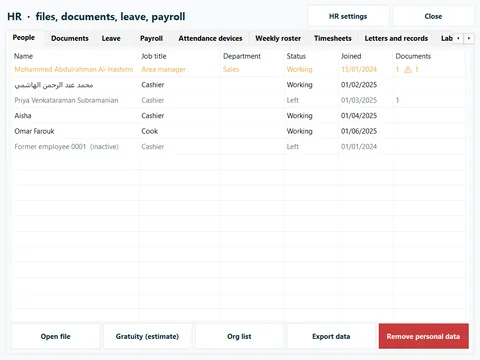
One file per person: job, branch, joining date, probation, contacts and an emergency contact. The pay part (bank, IBAN, WPS person ID, salary) is seen only by the owner and people with the payroll right.
Documents and reminders
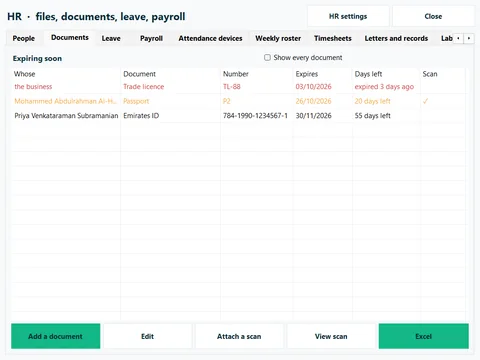
Passport, residence visa, Emirates ID, labour card, health card, the shop's trade licence and more, each with its number, dates and an encrypted scan. HR → Documents lists what expires soonest, with reminders at 90, 60, 30 and 7 days.
Leave
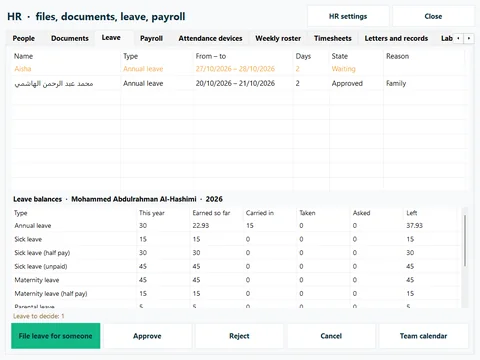
Leave types start from UAE defaults you can change (annual 30 days, sick, maternity, parental, bereavement, hajj, unpaid); they are defaults, not advice. Requests are approved in one inbox, balances count themselves, and the team calendar shows who is off.
The roster
- Make shift templates.
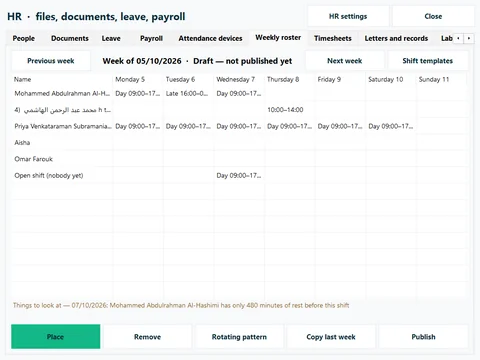
- Place them on the week, use Copy last week, or lay a rotating pattern such as 6-1, 5-2 or 2-2-3.
- Read the warnings: double shifts, short rest, a long week, a minor at night, leave. They warn; they never block.
- Press Publish: staff get the week by e-mail or Telegram and on their own page.
Clocking in
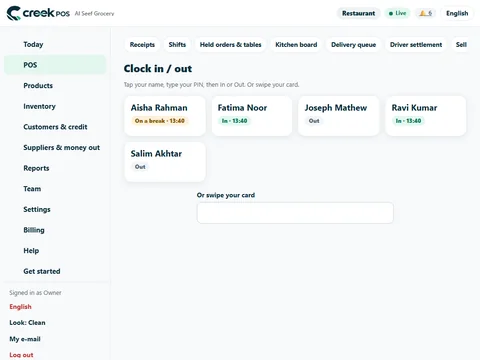
At the till, POS → Clock in / out: each person taps their name and types their own PIN, or swipes a card. With phone clock-in on, a new phone's first punch waits for a manager's approval, and the location check keeps only inside or outside, never the coordinates. Kiosk mode turns a tablet at the door into a clock.
Attendance devices
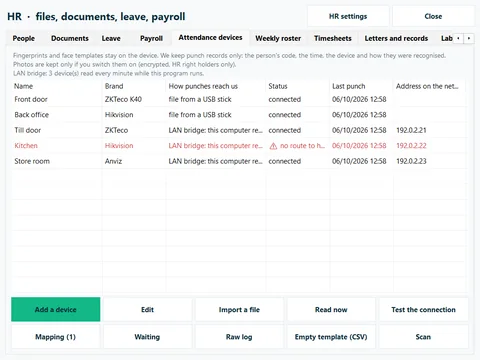
With HR on, open Settings → Attendance devices, switch them on and add each terminal by brand and model; its card shows the setup steps. Punches arrive by push, through the LAN bridge or from a file. Fingerprints and faces never leave the device: only the person's code, the time, the device and the method arrive.
Devices are checked with simulators and real export files: try one unit of your model before you buy one for every branch.
Live push
For common ZKTeco and Hikvision terminals, or any system that can call a webhook:
- Add the device and copy the address from its card.
- Type it into the device's network or cloud menu, as the card shows.
- Approve the device's serial number on its card. Until then the device keeps its punches.
With owner alerts on, a silent device alerts you.
The LAN bridge
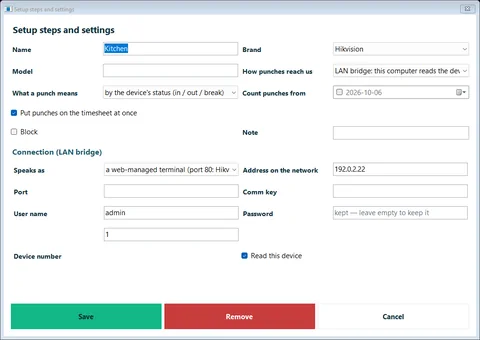
For a terminal that cannot push, the CreekPOS till app on the same network reads it every minute. In the till app, open Settings → Attendance devices → The LAN bridge on this till and enter the device's address and its key or password, which stay on the till. Test the connection checks it; Read now reads at once. Punches wait in the till's queue while the line is down.
Device files
Export the log to a USB stick and upload it on the attendance page. Check the preview (known people, unknown codes, skipped rows), then run it. The same rows never count twice, and a file can be undone. Any CSV or Excel file with a code, a date and a time works with our template.
Mapping codes to people
Type each person's device code on their file (0007 and 7 are the same). An unknown code waits in HR → Attendance devices → Mapping with the name the device gave. Suggestions are never applied by themselves: map the code and its punches go on the timesheet at once.
Timesheets
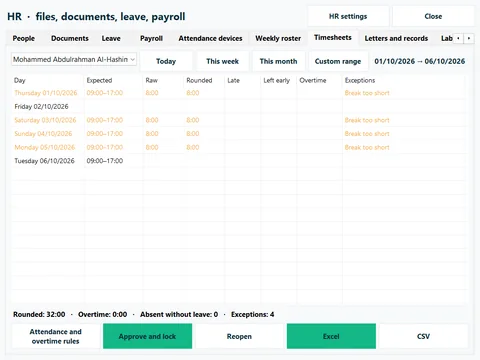
Timesheets compare every punch with the roster and mark late, early leave, absent and overtime, with raw minutes beside rounded ones. Approve and lock a period before payroll; later corrections need the payroll right and a reason.
Payroll
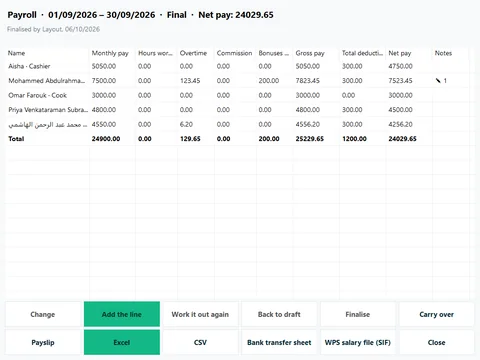
- Start a run for a branch and a month (or a week).
- Check each line: basic and allowances, overtime from approved timesheets, commission, tips and service charge, bonuses, deductions you switched on, loans and advances taken back.
- Change any figure with a reason; Work it out again keeps your changes.
- Review, approve and Finalise, with an optional second person.
- Print or e-mail the payslips; download the Bank transfer sheet and the WPS salary file (SIF).
Payroll is a calculator and a record, not legal or tax advice.
The WPS salary file
In Settings → HR → WPS, enter the employer ID, the bank routing code and your bank's preset; each person paid by bank needs a WPS person ID, routing code and IBAN. The file comes from a final run, with a list of anything to fix; cash-paid people are left out. Test-upload your first file with your bank before the first live payroll.
Gratuity and final settlement
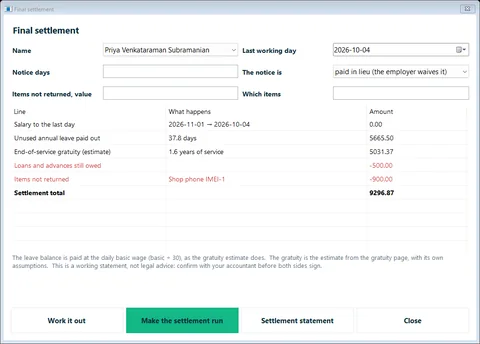
The end-of-service gratuity is an estimate under the UAE labour law as published: basic salary only, 21 days a year for the first five years and 30 after, capped at two years' wage. The final settlement adds the last salary, unused leave (also an estimate), notice, loans owed and items not returned. Confirm both with your accountant or MOHRE.
Self-service links
On CreekPOS Online only, each person can get a private link from their file. Without signing in, it shows their shifts, timesheet, leave and payslips, and takes their requests: leave, an advance, a letter, a missed punch. Revoke a link at any time; a leaked link shows that one person's page and nothing else.
In the desktop program
Switch HR on in Settings → Features (from Silver), then open the Staff screen → HR: People, Documents, Leave, Weekly roster, Timesheets, Attendance devices (files and the LAN bridge) and HR settings. Payroll and the WPS file need Gold. The desktop has no phone clock-in, self-service links, devices that push or e-mailed payslips.
