

Getting started
Choose between the program on your PC and CreekPOS Online, install CreekPOS on Windows, and get through the first start: the manager account, the shop type, the catalogue and the language.
CreekPOS comes in two editions that share the same sales screen. This chapter helps you pick one, install it and reach your first sale. If you already sell with CreekPOS, skip to Selling.
Program on the PC or CreekPOS Online?
| The CreekPOS program (desktop) | CreekPOS Online | |
|---|---|---|
| How you pay | Once per register PC (Silver, Gold or Platinum) | Monthly or yearly (Retail, Restaurant or Chain) |
| Where your data lives | On the shop PC, in C:\ProgramData\CreekPOS\data | On our servers; the till keeps a copy so it can sell offline |
| Without internet | Works fully, always | The till keeps selling and sends the receipts when the line is back |
| Reports from home | With the Platinum package (the phone view) | From any browser or phone, on every plan |
| Several branches | One shop | The Chain plan |
| Free trial | 7 days | 14 days |
The program runs on Windows. CreekPOS Online sells either with that same program connected to your online account, or with the CreekPOS till app on Windows, Mac or Linux, and you manage it from the web app at app.creekpos.com. You can start on the PC and move to CreekPOS Online later without retyping anything; see Moving to CreekPOS Online.
Not sure? One shop, one till and no need to look at the numbers from home: the program on the PC. Two tills or more, a branch, or you want to follow the shop from your phone: CreekPOS Online. The Which one? page asks four questions and recommends one.
What you need
- For the program: a Windows PC, Windows 10 or later, 64-bit. A touch screen is optional; everything also works with a mouse and keyboard.
- For CreekPOS Online: the same, or the till app on a Mac (macOS 14 or later) or a Linux computer (Ubuntu 24.04, Debian 13, Linux Mint 22 or later).
- For CreekPOS Online: an internet connection when you set it up (selling continues without it) and an e-mail address.
- Optional devices: a receipt printer (80 or 58 mm), a cash drawer that plugs into the printer, a USB barcode scanner, a scale, a second monitor for the customer. See Devices.
Install on Windows
- Download the installer from the Download page. The file is called
CreekPOS-Setup-v5.5.3.exe(the number is the version). - Run it and click Next until Finish. Windows asks for administrator permission once.
- On the options page you can tick:
- a desktop shortcut (ticked);
- Kitchen screen shortcut (CreekPOS-Kitchen) on the desktop (not ticked; tick it on the PC that will show the kitchen orders);
- Set up connected devices (printer and USB devices) (ticked). Plug in and switch on the receipt printer before you install, and the setup prepares it for you.
- The last page starts CreekPOS.
The program installs under Program Files\CreekPOS and keeps your products, sales and settings in C:\ProgramData\CreekPOS\data. Updating or uninstalling never removes that folder.
Updates
CreekPOS looks for a newer version every hour. When one is out, it tells the manager (never a cashier, and never in the middle of a sale) with Update now and Later. Updating downloads the new setup, checks it, installs it and restarts the till; your data stays as it is.
To change this, open Settings → Support → Updates: Ask me (the default), Automatic (download in the background and install when you close the program) or Never. Check for updates now looks at once.
The first start
The first time CreekPOS opens it asks a few questions, in this order.
1. How to run CreekPOS
The window How would you like to run CreekPOS? has two choices:
- On this PC: everything stays on this computer, no internet needed. This is the desktop edition with its 7-day trial.
- CreekPOS (the online edition; in Arabic «النسخة الأونلاين»): the till connects to your CreekPOS Online account with a 6-digit code. Choose it only after you have created the account; see Connecting a till.
You can switch later from Settings → CreekPOS (the online tab).
2. The manager account
Create the manager account: type a name and a password twice, then OK. The manager can do everything; every other account you add later is a cashier who sells and does only what you allow (see Users and rights).
Choose a password you will remember. The program accepts a blank one, but then anyone at the till can open Settings.
3. The shop type
What kind of shop is this? Pick the closest type: Grocery / supermarket, Café / coffee shop, Restaurant / takeaway, Canteen / cafeteria, Pharmacy, Boutique (clothes / shoes), Mobiles & electronics, Bakery / pastry, Butcher / greengrocer, Warehouse / wholesale, or General shop / other. Or press Skip — just the basics.
The type switches on the features that usually suit that kind of shop: tables and the kitchen for a café, selling by weight and scale labels for a grocery, expiry warnings for a pharmacy. A message lists what was switched on. You can change any of them in Settings → Features, and the type itself in Settings → General → Shop type → Change.
Check the VAT after this step. Open Settings → Features, find VAT and make sure it reads 5 % (press UAE 5% if it does not) with Prices include VAT chosen. See VAT and the TRN.
4. The printer
If no receipt printer is found, the panel Printer and devices explains what to plug in. Look again searches again; I have no printer now carries on without one. You can set the printer up later from Settings → Devices.
5. Your products
When the shop has no products yet, CreekPOS offers the ready-made catalogue: thousands of products sold in the UAE with their names, barcodes and most of them with a picture. Tick what you sell, add your prices and you are ready. See The UAE catalogue. You can also import an Excel file or type products yourself.
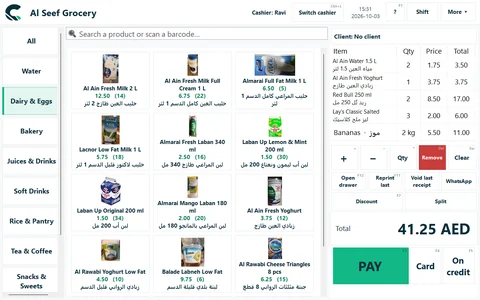
Signing in and switching cashier
Every start shows the sign-in: pick your name, type the password and press Log in (or swipe your login card). The arrow keys choose the name and Enter moves on.
At the end of a shift, Switch cashier (Ctrl+L) on the top bar hands the till to the next person without closing the program. Every receipt records who issued it.
Language and look
CreekPOS speaks English, Arabic, Hindi and Urdu. A new shop starts in English. To change it, open Settings (F10) → General → Language and pick English, العربية, हिन्दी or اردو. The whole program changes when you close Settings; Arabic and Urdu read from right to left.
On the same tab, Look changes the colours: Clean (white with one green accent, the default), Classic or Dark. The language and look apply to the whole shop.
Product names can be shown in two languages at once: each product has a main name and an alternative name. See Second names.
Your first day, in order
- Set the shop name, logo and receipt lines: Settings.
- Check VAT 5 % and type your TRN: VAT and the TRN.
- Add products from the catalogue or a file: Products.
- Print a test receipt and open the drawer: Devices.
- Add your cashiers: Users.
- Make a test sale, then void it: Selling.
- Switch on the daily backup: Backups.
