

Products and the UAE catalogue
Adding and editing products, second names in another language, categories, the UAE catalogue, barcodes and labels, scale labels, wholesale price levels, variants, sizes and add-ons, and importing from Excel.
On the program, products are in Products on the top bar (Settings → Products). On CreekPOS Online they are in the Products menu of the web app, and the till takes them from there. A cashier can be allowed to edit products with the right Edit products & prices.
The product list
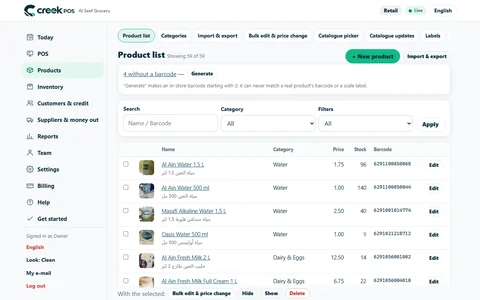
The list shows every product with its category, price and stock. The search box finds a product by name or barcode, and the filter above the list shows only those with no barcode, No price (0), no cost, hidden ones, running low, expiring, no picture, variants, a duplicate barcode or a duplicate name.
The buttons beside it: Add (Ctrl+N), Edit (Enter or a double click), Delete, Visible / Hidden, Categories, Bulk actions, Import from file (CSV), Export to file (CSV), Import from another program and Pick from the catalogue.
Adding or editing a product
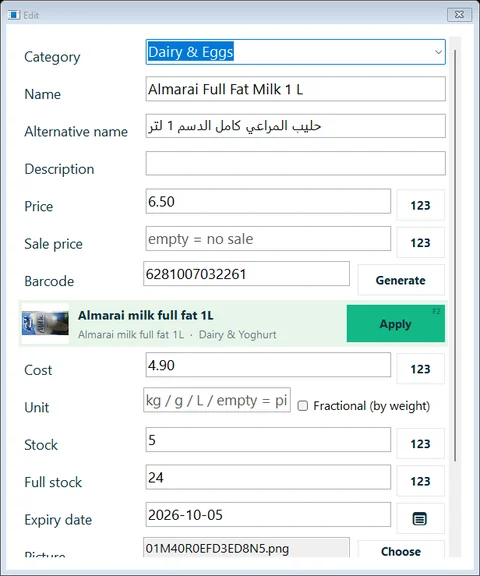
| Field | What it is |
|---|---|
| Category | Pick one or type a new name to create it. Empty means General |
| Name | Required. The name on the tile, the receipt and the reports |
| Alternative name | The same product in another language; see Second names |
| Description | Optional; can print under the name |
| Price | The selling price. With VAT included unless you set prices to exclude VAT |
| Sale price | A temporary lower price; empty means no sale (needs Discounts) |
| Wholesale price | Needs price levels; see Price levels |
| Barcode | Scan it into the field or press Generate; see Barcodes |
| Cost | What the product costs you, for the profit report. Receiving stock updates it |
| Unit / Fractional (by weight) | See Units and weight |
| Stock | How many you have now |
| Full stock | How many you keep when the shelf is full. 0 means the product's stock is not tracked (a service, a fresh juice…) |
| Expiry date | The nearest expiry, for the expiry warnings |
| Sizes / add-ons | See Sizes and add-ons |
| Picture | Choose a picture; it shows on the tile when pictures are on |
| Variants | See Variants |
| Show on the sales screen | Untick to hide the tile (the product is kept) |
| Needs cooking (kitchen) | Sends the product to the kitchen screen and ticket |
Press Save, Save & add another (keeps the category and unit, for typing a list) or Save & next.
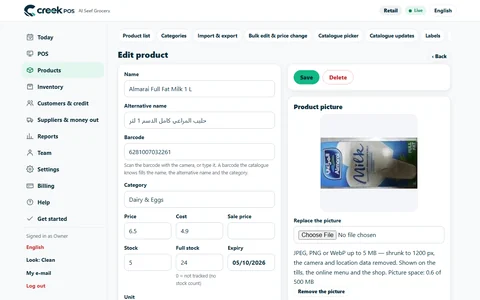
There is no VAT field on a product: VAT is set once for the whole shop, 5 % in the UAE (see VAT and the TRN). The cost, stock and expiry fields can be hidden in Settings → Features → Product editor fields if you do not use them.
Low stock is a share of Full stock: with the default 25 %, a product with full stock 24 is "running low" at 6 or fewer. See Running low.
Second names
Each product has a main name and an Alternative name, usually the other language: Mineral Water 1.5 L and مياه معدنية 1.5 لتر. Search finds either.
- Settings → General → Which name the cashier sees first: both (main, then alternative; the default), the main name only, or the alternative first.
- Settings → Printer & receipt → Print the alternative name under the main one prints both on the receipt.
On CreekPOS Online both options are in Settings → Selling.
Categories
Categories opens Manage categories: rename a category (renaming to an existing name merges them), Merge into… another one, delete it (its products move to the category you choose), and move it up or down: that is the order of the category buttons on the sales screen. No receipt on its own marks a category whose items do not print a receipt when they are the only items of a sale (a bag of bread, a quick service line); as soon as the sale has another item, the whole receipt prints as usual.
On CreekPOS Online, Products → Categories also lets you add an empty category before it has products.
Deleting and hiding
Visible / Hidden (or untick Show on the sales screen) removes a tile without losing the product, its stock or its history. Delete removes it; past receipts keep the name. On CreekPOS Online a product that was ever sold is hidden instead of deleted, so reports stay complete.
The UAE catalogue
CreekPOS comes with a catalogue of 29,274 products sold in the UAE and the Gulf: their names, barcodes, categories and, for most of them, a picture. It has no prices: every shop types its own. Product data comes from Open Food Facts (ODbL); the credit line is shown in the catalogue window. On the program the catalogue is inside the installer and works without internet. Where they come from and what to check: see the UAE catalogue with pictures.
Picking products from the catalogue
- Products → Pick from the catalogue (also offered at the first start). The window is Ready-made catalogue.
- Search by name or barcode, or pick a category.
- Tick what you sell (Space ticks the selected row; Ctrl+A ticks everything shown).
- Press Add the ticked items. The products are added with their pictures and price 0; a barcode or name you already have is skipped.
- Filter the list on No price (0) and type the prices.
On CreekPOS Online: Products → Catalogue picker. Search or pick a category, type a price on each row if you like (optional), tick and press Add selected.
Matching a barcode
Type or scan a barcode in the product editor and CreekPOS looks it up:
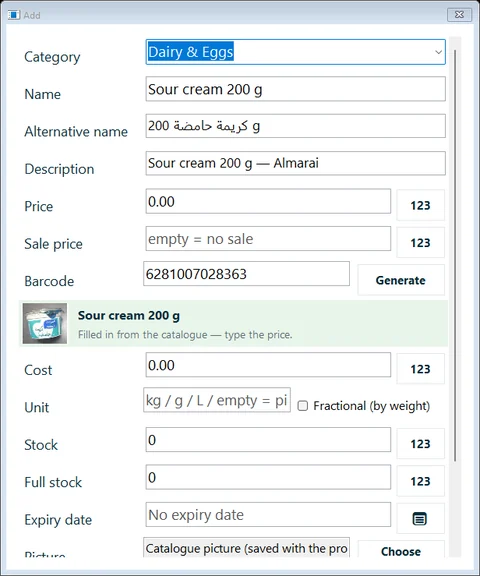
- A new product: the name, alternative name, category, description and picture are filled in. Type the price and save.
- An existing product: a green strip shows the catalogue's version. Apply (F2) takes its name, category and picture; your price, cost and stock never change. Then press Save.
At the till, scanning a barcode that is in the catalogue but not in your products offers to add and sell it; see A barcode you do not sell yet.
Catalogue updates
When a newer program version brings better names or pictures for products you have, a banner offers Catalogue updates for n of your products with Show me. Tick what you want, then Accept selected (a backup is made first) or Ignore. Prices, cost, stock and expiry are never changed by an update. On CreekPOS Online: Products → Catalogue updates.
Barcodes
- Products that have a barcode: scan it into the Barcode field. Two products cannot share a barcode.
- Products without one (loose items, your own preparations): press Generate. CreekPOS makes an in-shop EAN-13 code starting with 29 that no other product uses. Bulk actions → Give a barcode to the products without one does it for many at once, then offers to print their labels.
Printing labels
Labels need the Silver package. Open Inventory, select a product and press Print label. The Barcode labels window shows a preview at real size:
- Size: a 3-across 12 × 38 mm roll (the default), 25 × 25 mm split labels, 40 × 10 mm pharmacy labels, single labels from 25 × 15 to 100 × 50 mm, or your own size.
- Layout: barcode + name + price, or text only.
- How many: 1 to 999. Print all products prints one set for the whole list.
The label shows the name, the price with AED (the sale price when there is one) and the barcode. Choose the label printer in Settings → Printer & receipt → Label printer (empty = the receipt printer).
If the print is off the edges, press Calibrate…: choose the printer, the label size and the resolution (203 or 300 dpi), move the print in 0.1 mm steps, and print the test frame until it sits on the label. The calibration is saved per label size.
On CreekPOS Online: Products → Labels prints from the browser on a roll, pharmacy labels, an A4 sheet of 63 × 38 mm labels or single labels.
Scale labels
A shop scale can print a label for a weighed item whose barcode carries the price or the weight. Switch on Scale barcodes: EAN-13 labels with price or weight in Settings → Features, then set:
- Scale barcode prefix: the first digit the scale uses,
2unless your scale is set otherwise; - Barcode value: Price (in fils) (the default) or Weight (in grams).
The label is 13 digits: the prefix and the product's item code (6 digits, typed in the product's Barcode field, as on the scale), then 5 digits of price or weight, then a check digit. A price label charges exactly the printed amount. The product must be marked Fractional (by weight).
Units and weight
With Fractional quantities & units: sell by kg, g, litre on (Settings → Features), the product editor shows Unit (kg, g, L… empty means a piece) and Fractional (by weight). A product sold by weight takes quantities like 0.75. See Weighed items.
Price levels: retail and wholesale
Price levels (Settings → Features; the Gold package or the Restaurant plan) gives each product a second price, the Wholesale price (empty means the same as the retail price).
- Type it in the product editor, or for all products at once with Bulk actions → Wholesale = retail ± %…. On CreekPOS Online: Products → Price levels → Fill wholesale by % of retail.
- Tick Wholesale client (buys at the wholesale price) on clients who buy wholesale.
- At the till the Retail button switches the sale to Wholesale ✓ and back. Picking a wholesale client switches it by itself. The level goes back to retail after each sale.
Variants
Variants (Settings → Features) are versions of one product, for example colours and sizes, each with its own barcode, price, cost and stock.
- Save the product, open it again and press Manage… next to Variants.
- Type the Attribute names (for example Colour / Size).
- Press Generate all combinations and type the values (Red, Blue and S, M, L), or add the variants one by one.
- Give each variant its barcode, price and stock.
A new variant copies the main product's price, cost, unit and picture. At the till the main tile opens the list of variants.
Sizes and add-ons
Sizes & add-ons (Settings → Features; the Gold package or the Restaurant plan) lets a product ask for options when it is sold. In the product editor the Sizes / add-ons field takes groups like this:
Size:Small=0|Medium=3|Large=5;Extras*:Extra shot=4|Oat milk=3
Each group has a name, a colon, and its options separated by |, each with what it adds to the price. Groups are separated by ;. A star after the group name (Extras*) means the customer can pick several; without it, exactly one is picked and the first is the default. Press ? beside the field for help. On CreekPOS Online the product's Sizes & add-ons tab has a form for up to four groups.
Changing many products at once
Select several products (Ctrl or Shift + click) and press Bulk actions:
- Edit selected…: change only the fields you touch, on all of them;
- Move to category…;
- Change price…: by a percent or an amount, up or down, rounded to 0.25 (or none, 0.5, 1), with a preview;
- show, hide, needs cooking on or off;
- Give a barcode to the products without one;
- delete.
On CreekPOS Online: tick products in the list, then Bulk edit & price change.
Import from Excel
- Press Export to file (CSV) first: the file has the right columns and works as your template.
- Fill it in Excel (or another program). Only the name column is required. Other columns: category, price, cost, barcode, stock, full stock, unit, by weight, expiry, sale price, description, wholesale price, alternative name, and more. Headers in English or Arabic are both understood.
- Save it as CSV UTF-8 or keep it as .xlsx.
- Press Import from file (CSV), pick the file and confirm n products: x new and y updates.
Rules: a row updates an existing product when its code, barcode or name matches, otherwise it adds one; an empty cell keeps the current value (so a file with only names and new prices changes only the prices); a stock cell sets the stock.
If barcodes turn into numbers like 6.29E+12, Excel changed them: format the barcode column as Text before typing, or save as .xlsx.
Import from another program reads a file, an Excel sheet or another program's database (Access, dBase/FoxPro, SQL Server, MySQL or SQLite through ODBC): you match their columns to ours on a preview, then import. A backup is made first when many products change.
On CreekPOS Online: Products → Import & export (CSV or .xlsx up to 5,000 rows; it imports at once, so keep a copy of the file).
The UAE catalogue with pictures
The catalogue grows to 29,274 products sold in the Gulf: 7,029 of them are listed as sold in the UAE, the rest in Saudi Arabia, Qatar, Kuwait, Bahrain and Oman. 23,485 have a product picture. About half have an Arabic name, and many of those names are machine-translated: check the Arabic name before it goes on a shelf label or a receipt. On an English, Hindi or Urdu screen the categories show in English.
You add from it as before: pick products in the catalogue window (Picking products from the catalogue), or scan a barcode in the product editor or at the till (Matching a barcode). The name, the category and the picture come in; you set the price, and the cost and stock stay yours.
The data and the pictures are open: wherever the catalogue is shown, CreekPOS shows this credit line, word for word:
Product data: Open Food Facts, ODbL · Pictures: Open Food Facts contributors, CC BY-SA 3.0
