

creekpos · SaaS / Online
Enter a table order as a waiter · SaaS / Online
This guide uses fictional training data. Available controls depend on your enabled features, plan and permissions.
Prepared against the tested 13 October 2026 build; check your deployed build before following a new control.
Who can use this
Waiter / kitchen / cashier
Required tools
Tables and waiter tools. Requires the appropriate enabled features and entitlement; this guide does not add plan inclusions.
Before you begin
If a control is absent, check role, branch, enabled features and entitlement. If an order or price changed, refresh and review again. Do not repeat an uncertain financial action with a new request.
Steps
- Sign into the waiter workspace and go on duty. Select or claim the tables you serve. An unassigned table notifies all on-duty waiters in that branch.
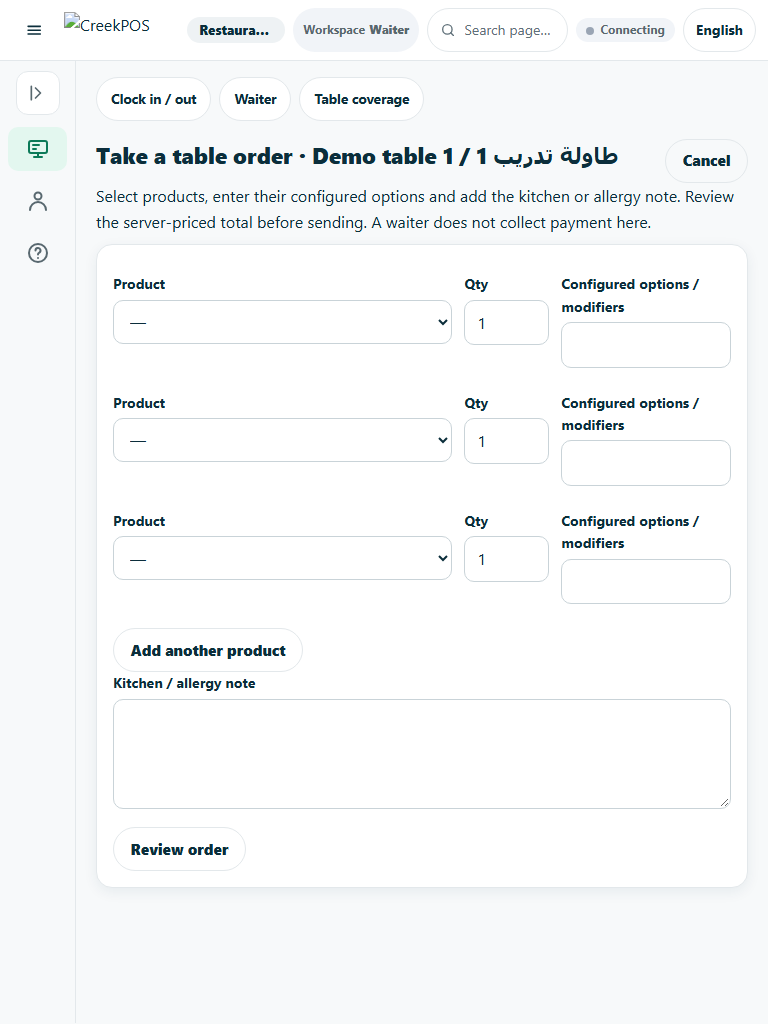
- Open the table’s active visit and choose Add order. Choose products, quantities, modifiers and preparation/allergy notes. Use Add row for more lines.
- Select Review. Check the server-priced subtotal, discounts, service, VAT and final total. If you change the draft or the shop changes prices, review again.
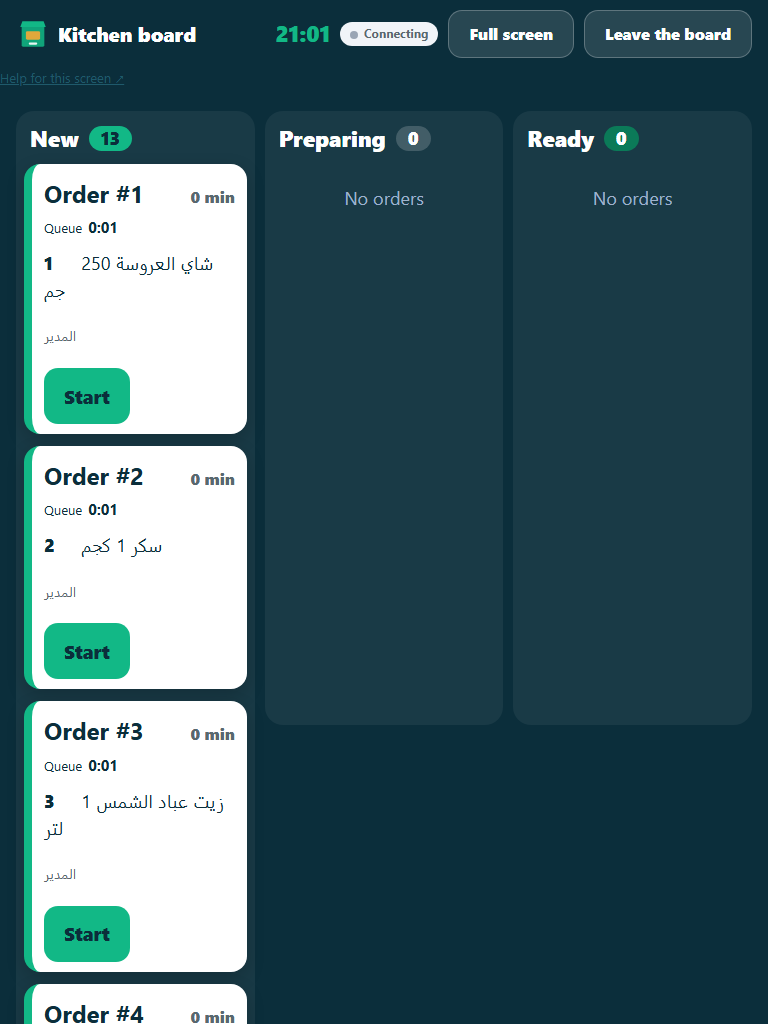
- Send once. Pay-first orders wait for cashier settlement; ordinary accepted rounds create kitchen work. Follow Preparing/Ready, mark actual service and send further rounds against the same visit.
Check the result
Review the saved record and its audit/stock/payment state before continuing. A preview, queued request or accepted send is not proof of completed delivery or settlement.
Edition differences and limits
The dedicated waiter visit/order workflow is online. Classic Desktop can hold and resume table-labelled orders, but does not supply this full browser visit/assignment workflow. Use the online waiter workspace for the sequence shown here.