

creekpos · SaaS / Online
Branch stock, transfers and counts · SaaS / Online
This guide uses fictional training data. Available controls depend on your enabled features, plan and permissions.
Prepared against the tested 13 October 2026 build; check your deployed build before following a new control.
Who can use this
Stock manager
Required tools
Inventory and authorized branch access. Requires the appropriate enabled features and entitlement; this guide does not add plan inclusions.
Before you begin
If a control is absent, check role, branch, enabled features and entitlement. If an order or price changed, refresh and review again. Do not repeat an uncertain financial action with a new request.
Steps
- Choose the authorized branch before reading or changing stock. Distinguish shop-wide product details from quantities held at each branch or warehouse.
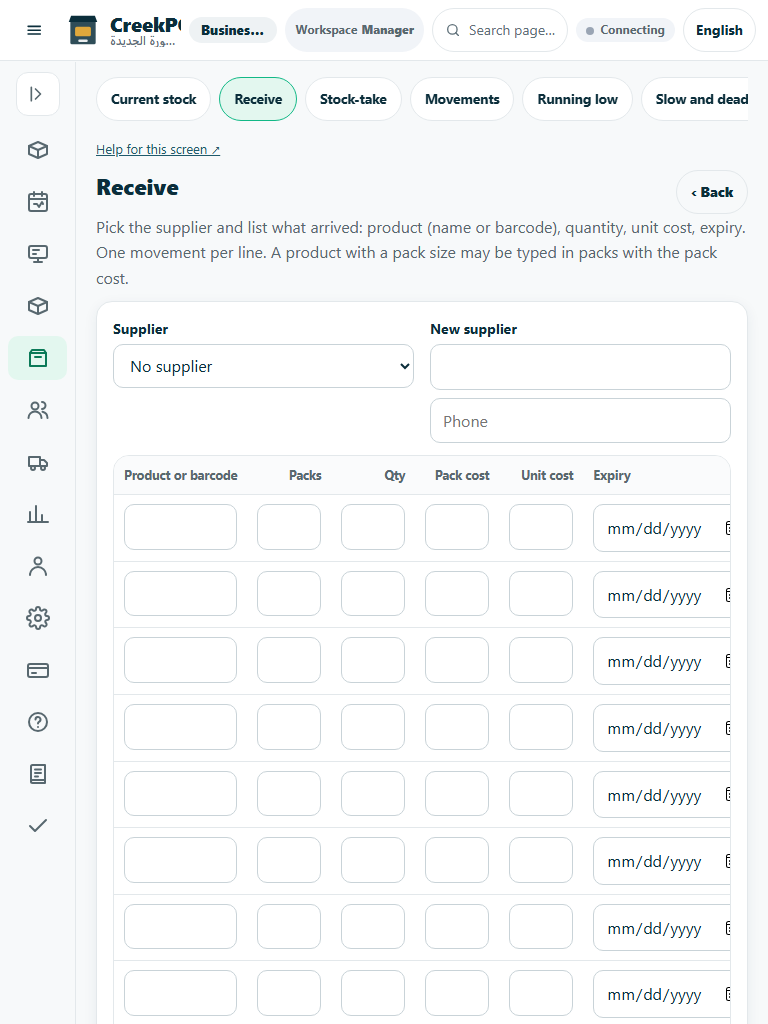
- Receive purchases as inventory. Record the actual supplier, quantities, unit costs and relevant lot/expiry details. Purchasing is not automatically an immediate cost of sales.
- Transfer through the supported source/destination workflow and verify both sides. A transfer does not create sales revenue. Use distinct staff accounts so the audit identifies who moved stock.
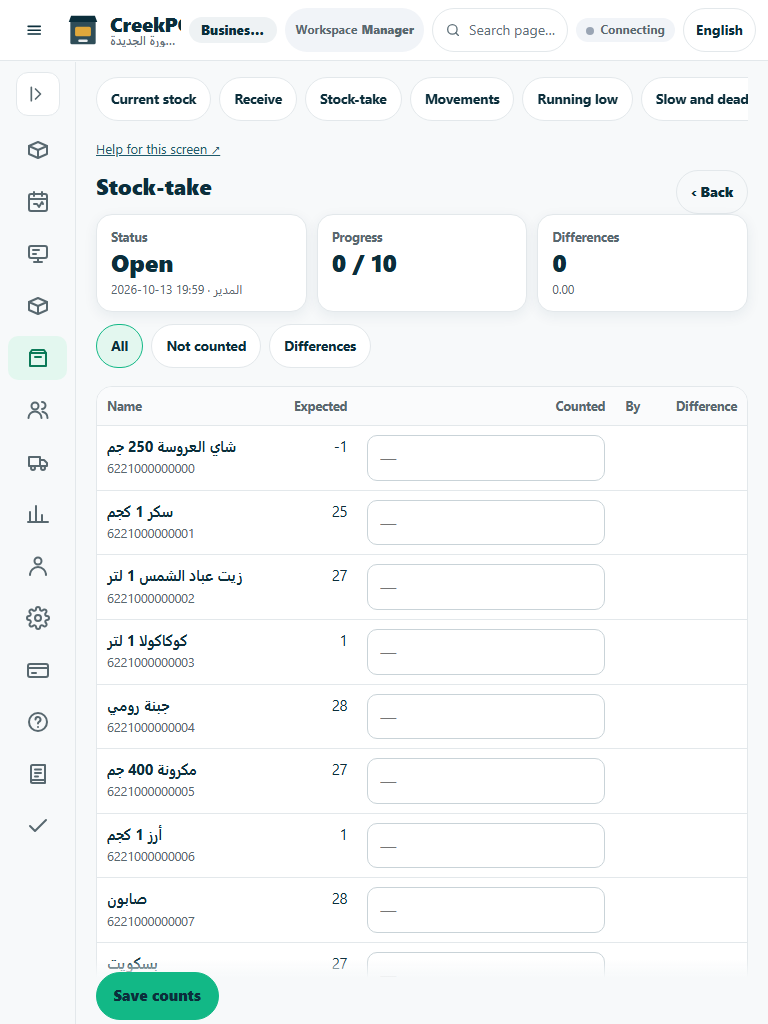
- For a count, enter observed quantities, review differences and post the authorized adjustment with its reason. Inspect shortages, waste and stock movements rather than forcing the count to the expected number.
Check the result
Review the saved record and its audit/stock/payment state before continuing. A preview, queued request or accepted send is not proof of completed delivery or settlement.
Edition differences and limits
Classic Desktop stores its shop’s local inventory. Online branch/warehouse scopes and server-side transfers require the corresponding online capabilities. Back up native data before importing or migrating; do not use a data copy as a stock transfer.