

Your shop online — on any device
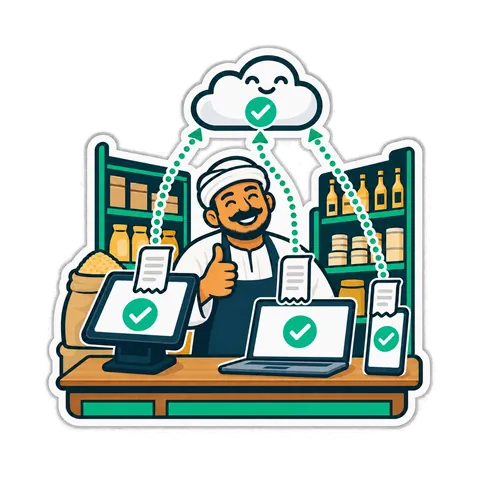
No server, no network setup, no IT person. Sign in from any browser, pair a register with a 6-digit code, and see sales, stock and credit from your phone. The till keeps selling when the line drops.

Sell and manage from any phone or browser, with nothing to install; the CreekPOS program on a Windows PC or CreekPOS Till for Android from Google Play adds offline selling and direct printing.
On an Android tablet, install CreekPOS Till from Google Play, open it and sign in, then Settings → Tills → “Connect this computer”. On Windows, install the Offline program from the download page and choose “CreekPOS Online” on first run.
Get the tillOn an Android tablet or handheld, CreekPOS Till from Google Play sells the same way. In your shop you can take cash and card payments in the browser, and the live demo lets you try it first; the Android till and the program on Windows add offline selling and direct printing. Every step with real screens: the Online manual →
14-day money-back on your first payment (online plan's first month/year, or a desktop licence). Refund policy
What changes when the shop is online
Selling, the receipt, the drawer and the scanner are identical to the program. Online adds everything around the till.
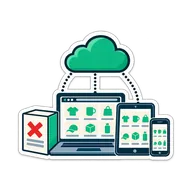
Open it anywhere, nothing to set up
No server, no network, no IT person. Sign in from any browser.

The owner sees the shop from anywhere
Sales, receipts, stock, credit, expenses and Z reports — live.
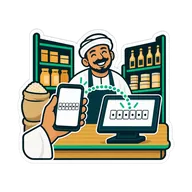
A new register in a minute
Install the till program, type the code. Every register shares live data; there is no primary PC.
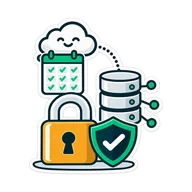
Updates itself, backed up daily
A dead PC costs you a PC, not your history.
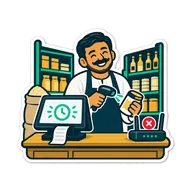
Sells when the line drops
Ordered sync when it returns; nothing doubled.
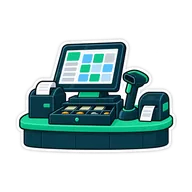
Your hardware as it is
Printer, drawer, scanner, scale, display, kitchen printer — the same as the program.
Your data stays yours
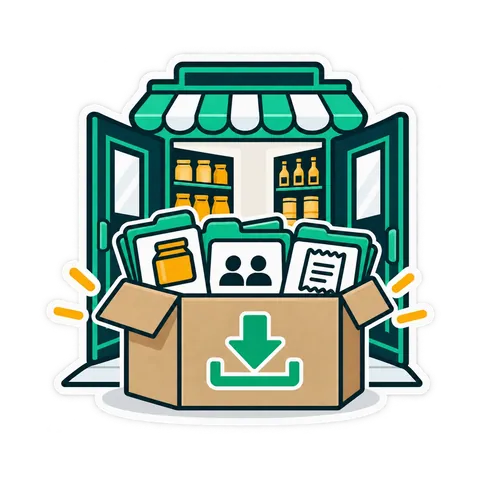
Download everything — products, customers, suppliers, sales, stock, credit and settings — in one file the program can restore, plus a spreadsheet of products. On every plan, even after you stop paying, with a window to take your data. Move back to the PC any time.
Three steps
Sign up
Shop name, e-mail and phone. A code arrives by e-mail — no password to remember, no card.

Pair the register
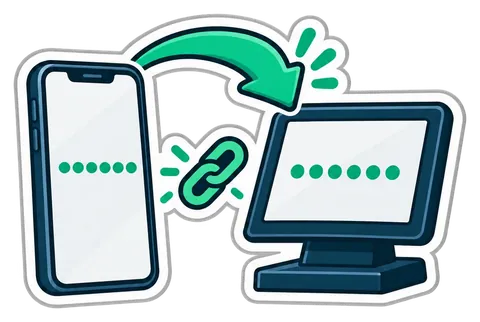
Install the till program on the register PC, open Connect a register, type the 6-digit code.
Sell
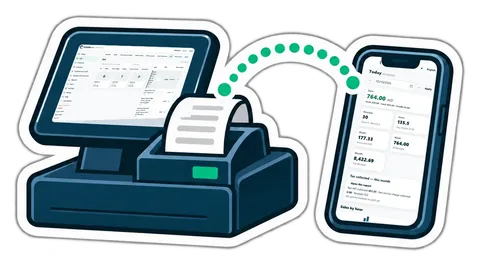
Add products from a spreadsheet or by scanning, pick the printer, print the first receipt — and see it on your phone.
The line drops. The till does not.
- An amber strip says "selling offline — 3 receipts waiting"; the cashier keeps going.
- Cash, card, credit and split sales work; so do returns of receipts the till holds, cash in and out, and opening or closing a shift.
- Receipts get a provisional number and the final one after sync; a reprint or return finds the receipt by either.
- Each sale has its own key, so nothing is ever doubled.
- Editing products, settings, reports and the phone wait for the line.
Five ways to get CreekPOS
Choose what fits your shop: the program on your Windows PC, one of the app stores, or a till that arrives with CreekPOS already installed. The store downloads are free: sign in with your shop's CreekPOS account, and new shops get 14 days free with no card. No in-app purchases, no ads.
Offline: the program on your PC
The CreekPOS program for Windows 10 and 11, 64-bit, bought once per shop; it sells without internet. The installer also sets up common USB receipt printers. Try it free for 14 days.
Google Play
CreekPOS Till for Android phones and tablets (Android 9 or newer): sell, scan barcodes with the camera and print receipts. It keeps selling when the internet drops and sends the sales when the connection is back.
App Store
CreekPOS Online as an app for iPhone and iPad. It needs an internet connection and a CreekPOS account.

Microsoft Store
CreekPOS Online as a Windows app. It needs an internet connection and a CreekPOS account; it is not the Offline program.

Preloaded till or tablet
A till or tablet that arrives with CreekPOS already installed, on BytesGlue OS (our locked-down system) or on Windows or Android, depending on the device. Supplied preloaded on hardware. Ask us.
Menu, table ordering and an online shop
They read the till's products and prices, so there is nothing to keep in sync.
Online menu
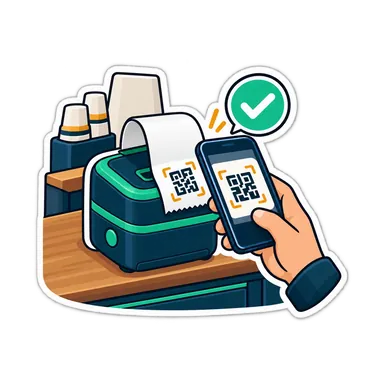
A public page with categories, pictures, sizes and add-ons; prices shown or hidden; sold-out items marked.
Ordering from the table
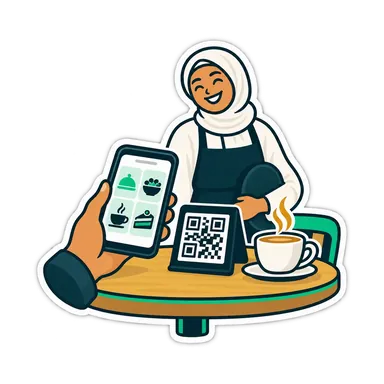
A QR code per table; guests order, call the waiter and ask for the bill; staff confirm; one running bill.
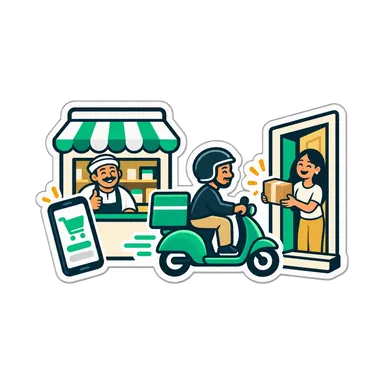
Online shop
Cash on delivery or pickup, delivery areas with a fee and a minimum, opening hours, a status page for the customer.
Questions about CreekPOS Online
Do I have to install anything?
Not for management. Selling works in the browser too; for offline selling and direct printing, install the CreekPOS program on a Windows register PC or CreekPOS Till from Google Play on an Android tablet.
What do I need to start?
An e-mail address, a computer with a browser (Windows, Mac or Linux) or an Android tablet per register, an internet connection with a phone hotspot as a fallback, and a printer. No card.
Does selling really work offline?
Yes. The till keeps a local copy of products and prices, queues receipts and syncs them in order when the line is back.
How do I pay?
By card with automatic renewal, or by bank transfer. Invoices are in the app.
Where is my data and who sees it?
On servers outside the United Arab Emirates: Amazon Web Services in the European Union (Milan, Italy), encrypted, backed up daily; accepting the Terms of service is your consent to that. Only your accounts see it; support looks only when you ask, read-only, and each look is logged.
Can I leave with my data?
Yes, on every plan, even after you stop paying.
Mac or Linux?
Yes. CreekPOS Online works in the browser on a Mac or Linux computer, for management and for selling. Offline selling and direct printing come with the Offline program on Windows or the Android till from Google Play. The program bought once runs on Windows only.
CreekPOS Online
CreekPOS Online free for 14 days, or the program on your PC for 14 days. Every feature, no card.
See also: compare with the PC program