

creekpos · SaaS / Online
Tablet navigation and the finder · SaaS / Online
This guide uses fictional training data. Available controls depend on your enabled features, plan and permissions.
Prepared against the tested 13 October 2026 build; check your deployed build before following a new control.
Who can use this
Authorized staff
Required tools
Pages authorized for this role. Requires the appropriate enabled features and entitlement; this guide does not add plan inclusions.
Before you begin
If a control is absent, check role, branch, enabled features and entitlement. If an order or price changed, refresh and review again. Do not repeat an uncertain financial action with a new request.
Steps
- Use the menu button to collapse the sidebar. Pin the expanded menu when there is enough width; the saved preference belongs to the current user/browser.
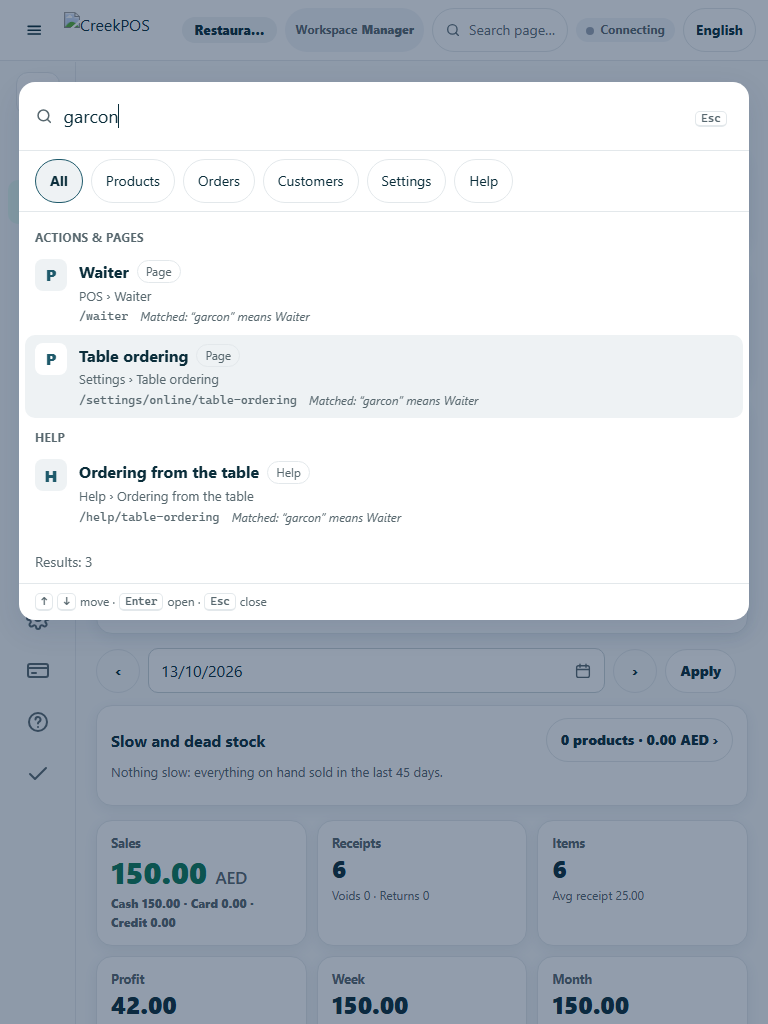
- Open Search pages, actions and records, or press Ctrl+K/Cmd+K when you are not entering a barcode. Start with a product name, setting concept or receipt reference.
- Use result groups and filters. Typo-tolerant name matches help with wording; check exact barcode and receipt numbers before choosing a record. More results means the initial list is bounded.
- Open a result to inspect its page. Search never executes a sale, refund or settings change. Use related-record links only within your branch and role scope.
Check the result
Review the saved record and its audit/stock/payment state before continuing. A preview, queued request or accepted send is not proof of completed delivery or settlement.
Edition differences and limits
The new browser finder and collapsible browser sidebar are SaaS controls. Classic Desktop uses its native menus, product search and keyboard shortcuts. Cloud-connected till screens may show the browser finder; that does not make it a classic Desktop feature.