

Stock
Receiving deliveries, packs and purchase orders, lots and expiry dates (first expiring, first out), running low, the stock-take, waste, recipes and prepared items, food cost, and transfers between branches.
Stock needs the Silver package of the program, or any CreekPOS Online plan. On the program everything is in Inventory on the top bar; on CreekPOS Online in the Inventory menu of the web app. A cashier can be given the right Inventory & receiving.
On a till connected to CreekPOS Online, Inventory opens the web app: receiving and stock-takes are done there (on the PC or a phone).
The stock screen
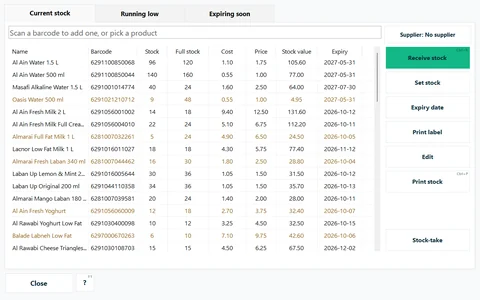
The tabs: Current stock, Running low and Expiring soon (and Ingredients when recipes are on). Beside the list: Receive stock (Ctrl+R), Set stock, Expiry date, Print label, Edit, Print stock (Ctrl+P) and Stock-take.
Only products with a Full stock above 0 are tracked; set it in the product editor (see Products).
Receiving a delivery
- If you keep a suppliers list, press Supplier: … and pick who delivered (Receiving from which supplier?).
- Scan each item into the box at the top: each scan adds one piece (or a whole pack, if you scan the pack barcode). Or select a product and press Receive stock (Ctrl+R) to type the quantity.
- With lots on, or for a product sold in packs, the delivery window asks for Packs, Pieces, the Pack cost or Piece cost (empty keeps the product's cost), the Expiry of this delivery and a Batch / invoice ref.
The stock goes up at once. A cost you type replaces the product's cost (CreekPOS keeps the last cost, not an average), and that is what the profit report uses from then on. A negative quantity corrects a mistake.
Set stock puts a product's stock to the number you type (after a count of one shelf, for example).
On CreekPOS Online: Inventory → Receive: pick the supplier, then up to 12 lines with packs, cost, quantity, expiry and batch; it prints a delivery note. Each branch has its own stock.
Packs and cartons
With Purchasing on (Settings → Features; Gold), a product has Pieces per pack and a Pack barcode. Scanning the carton's barcode at receiving (or at the till) counts all its pieces, and the pack cost is divided into the piece cost.
Purchase orders
Purchase orders also need Purchasing. The Purchase orders button on the top bar lists them (Open, Closed, All).
- New order: pick the supplier, scan or search the products, type how many packs or pieces and the piece cost; add the expected date and a note. Save order. It is numbered PO-1, PO-2… and CreekPOS offers to print it for the supplier. (You can also Import a supplier's CSV.)
- When goods arrive, open the order and press Receive delivery. Type what came on each line, or press Everything outstanding came, then Receive what is listed.
- An order can arrive in several deliveries; what is still to come stays outstanding. The status moves from Open to Partly received to Closed. Close order ends it even if something never came; Cancel order is for an order that received nothing.
When supplier accounts are on, each delivery books a supplier invoice on the supplier's account (see Suppliers). Purchase orders are printed; send the printout or a photo of it to the supplier.
On CreekPOS Online, Procurement adds the steps around an order: purchase requests and approvals, quotes from several suppliers by link, receiving with a delivery note and the supplier invoice checked against the order and the delivery. See Procurement.
Expiry dates and lots
Without lots, each product has one Expiry date: the nearest one on the shelf. Receiving a delivery with an expiry date updates it.
With Lots on (Settings → Features; Gold), every delivery becomes a lot with its own expiry and quantity:
- Sales take from the lot that expires first (FEFO, first expiring, first out); returns go back to the lot they came from.
- A pharmacist can pick the lot by hand with the Lot button at the till; First expiring first (automatic) is the default.
- Selling from an expired lot is not blocked, but the till warns Expired stock.
- The stock-take can count each lot. Inventory → Lots shows every lot, its history, and prints Stock by lot.
Stock received before you switched lots on stays as stock "not in any lot" and is sold after the non-expired lots.
Expiring soon
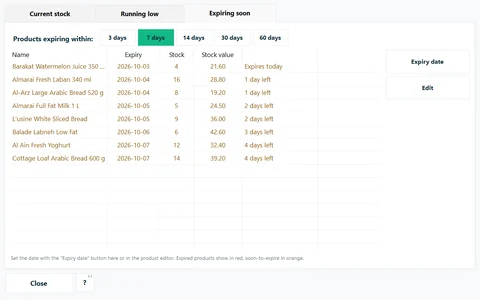
The Expiring soon tab lists products that expire within the days you choose (3, 7, 14, 30 or 60; 7 unless you change it) and those already expired, in red. When something is about to expire the top bar shows a red ⚠ n expiring button that opens this list. Put those items at the front of the shelf, or on a promotion.
On CreekPOS Online: Inventory → Expiring, also on the phone.
Running low
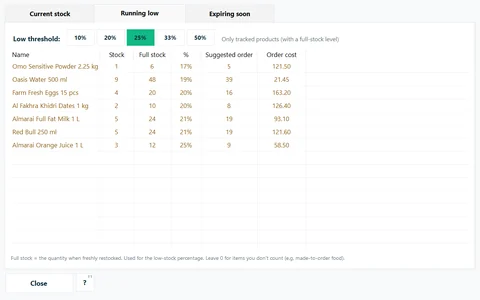
A product is running low when its stock falls to a share of its Full stock: 25 % unless you choose 10, 20, 33 or 50 %. Out of stock counts as low. The Running low tab shows, for each product, how many to order (full stock − stock) and what that costs at the current cost. Print stock prints it as your order list.
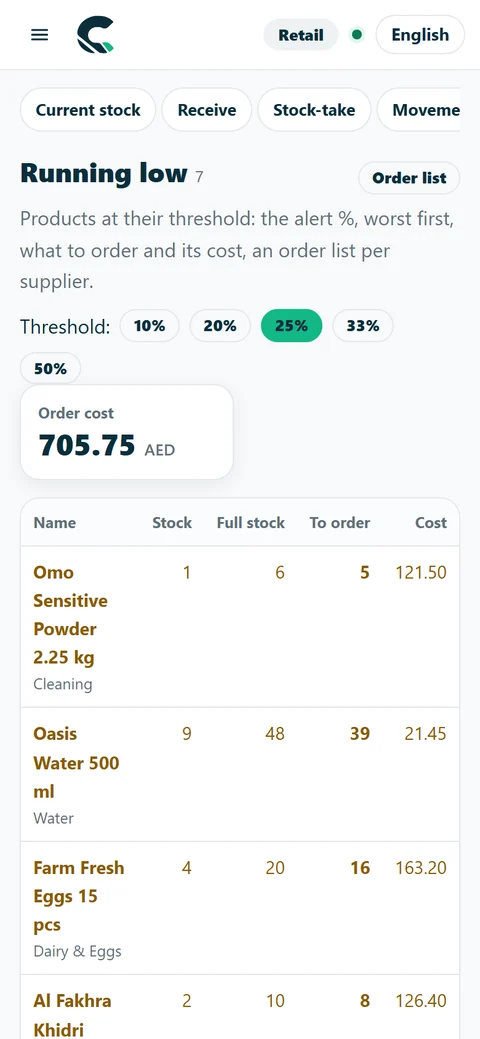
On CreekPOS Online: Inventory → Running low prints an order list, also from the phone.
The stock-take
- Inventory → Stock-take → start a stock-take.
- Scan or select each product and type what is really on the shelf. The expected quantity is shown beside it, and differences are coloured.
- You can count part of the shop. If you want everything you did not count set to zero, tick Uncounted = zero.
- Apply the stock-take: CreekPOS shows the value of the differences at cost, then sets the stock. Print differences prints what changed.
On CreekPOS Online several people can count at the same time from their phones (Inventory → Stock-take), and the differences can be downloaded.
Waste
Spoiled, broken or expired goods leave the stock with a reason: Spoiled, Dropped / broken, Expired or Other, and a note. Waste is valued at cost.
- Program: Inventory → Write off (waste) (with recipes on; Gold).
- CreekPOS Online: Inventory → Waste (Restaurant plan).
Recipes and prepared items
With Recipes & ingredient stock on (Settings → Features; Gold), selling a dish takes its ingredients out of stock: a coffee takes 18 g of beans and 250 ml of milk.
- Add the ingredients as products and tick Ingredient (they are stocked but do not show at the till).
- Open the dish and set its Recipe: each ingredient with its quantity in g/kg, ml/l or pieces, and the yield. Sizes and add-ons can change the quantities.
- The dish's cost is now worked out from its ingredients.
A sauce or a dough made in batches is a Prepared ahead (sell from stock) item. Prepare batch records a batch: How many units did you make? The ingredients leave the stock and the prepared units enter it.
A void or a return puts the ingredients back.
Food cost
The Ingredients tab (Inventory) and, on CreekPOS Online, Reports → Food cost show each dish's price without VAT, its cost, the margin and the food-cost percentage; dishes above 40 % are highlighted. Ingredient usage compares what the sales, preparation and waste used with what the stock-take found.
Stock movements
Every change of stock is recorded: sale, void, return, receiving, stock-take, edit, import, preparation, waste and transfer. On CreekPOS Online, Inventory → Movements shows one product's movements over a period with who did what, which answers why is the stock 3?. On the program, the lot history (Inventory → Lots) shows the latest movements of a lot.
Transfers between branches
With the Chain plan of CreekPOS Online, Inventory → Transfers moves stock from one branch to another: pick the two branches, add up to 12 lines and press Transfer. The stock moves at once (lots move with it) and a numbered transfer note prints for the driver. The sending branch must have the stock.
With Warehouses switched on, a branch can also keep stock in several locations (a back store, a warehouse, a van), and a transfer between branches can travel in transit until the other branch receives it. See Warehouses.
