Owner alerts and Ask your shop
Switching on owner alerts, choosing the events and amounts, quiet hours and the digest, reviewing and exporting alerts, and asking your shop questions in plain words in the back office or in Telegram.
Owner alerts tell you when something worth checking happens at the till: a void, a big discount, a short drawer. Ask your shop answers questions such as "sales today" from your own figures. Both are in CreekPOS Online, from the Retail plan; Telegram needs the Restaurant plan or higher. The desktop program does not have them yet.
Switching on
- Sign in as the owner and open Settings → Owner alerts.
- Tick Switch on owner alerts.
- Choose which events alert you and the amounts (the defaults: every void and return, discounts of 20 % or more, a drawer over or short by 50.00 or more, credit sales of 1,000.00 or more).
- Set your opening hours (used for "sale outside opening hours" and "till offline") and quiet hours.
- Choose the mode: serious ones at once and the rest hourly (default), everything at once, or everything hourly; and where alerts go: the back office always, plus e-mail and/or Telegram.
- Press Save. Only the owner can change these settings; each change is in Team → Activity.
For Telegram, the shop's bot must be set first in Settings → Integrations (token and chat id).
What raises an alert
A receipt voided or a refund; a big discount or one over the cashier's cap (with who approved it); an item sold below its listed price; a held order deleted; a shift closed over or short; a big credit sale; stock lowered by hand; a sale outside opening hours; many voids or returns by one cashier in a short time; lines removed from a cart; the drawer opened without a sale; repeated wrong passwords or a new device; a till offline while the shop is open.
With Procurement: purchase requests waiting too long, supplier invoices that did not match and late orders. With Warehouses: transfers late on the way and receipts with differences. With Projects: a project past its due date, costs over the budget, approved billable time not invoiced for 30 days, and retention due after a project is done. With Fixed assets: a warranty ending within 30 days, a month's depreciation waiting, and an asset count open over 7 days.
Each alert names the cashier, the branch and till, the shop time, the amount and the receipt, with a link to it. A sale made offline alerts when it syncs: "happened at 21:15, synced now".
Reviewing alerts
The bell in the header shows new alerts. The Owner alerts page filters them by type, cashier and date; mark each one reviewed with a note, and export the list to Excel or CSV. Managers see alerts only if the owner ticks Managers see the alerts too.
Every day the daily summary gets a Needs a look block that compares each cashier's day with their usual day over the last four weeks.
Ask your shop
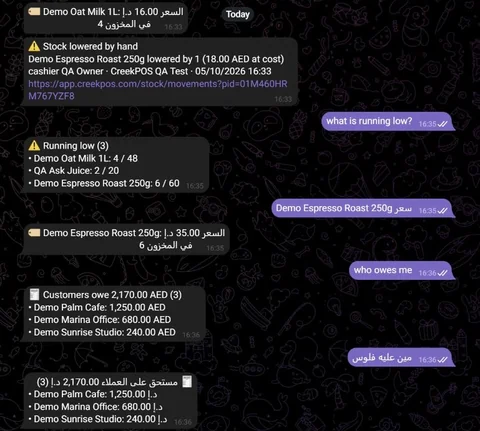
Open Reports → Ask your shop, or use the Ask box on the dashboard, and type a question in English, Arabic, Hindi or Urdu, or in Latin letters ("aaj ki bikri"): sales today, sales by cashier this week, best sellers this month, what is running low, who owes me, cash in the drawer, receipt 1024, price of rice, how are my projects, what is the book value of our assets. Buttons under each answer change the period or the branch.
It is not an AI service: fixed rules read the question and the server computes every number. A question it does not understand gets a short help with examples; it never guesses a number. Each person sees only what their rights allow. (A question outside the list goes to your AI (coming soon): see Your AI.)
Asking in Telegram
On Settings → Owner alerts, tick Let the linked owner and managers ask the shop's bot questions and save. Each person then opens Reports → Ask your shop, presses Link my Telegram and sends the 6-digit code to the shop's bot within 10 minutes. Set the chat id in Settings → Integrations before switching questions on.