

creekpos · SaaS / Online
Choose a focused business workspace · SaaS / Online
This guide uses fictional training data. Available controls depend on your enabled features, plan and permissions.
Prepared against the tested 13 October 2026 build; check your deployed build before following a new control.
Who can use this
Owner
Required tools
Business workspace settings. Requires the appropriate enabled features and entitlement; this guide does not add plan inclusions.
Before you begin
If a control is absent, check role, branch, enabled features and entitlement. If an order or price changed, refresh and review again. Do not repeat an uncertain financial action with a new request.
Steps
- Sign in as owner or manager and open Settings → Business type & features. Choose the branch first; a branch can inherit the shop default or keep its own choice.
- Select retail, restaurant/cafe, grocery, butcher, bakery/production, wholesale, services or mixed business. Select the appropriate subtype. Choosing a type does not save it.
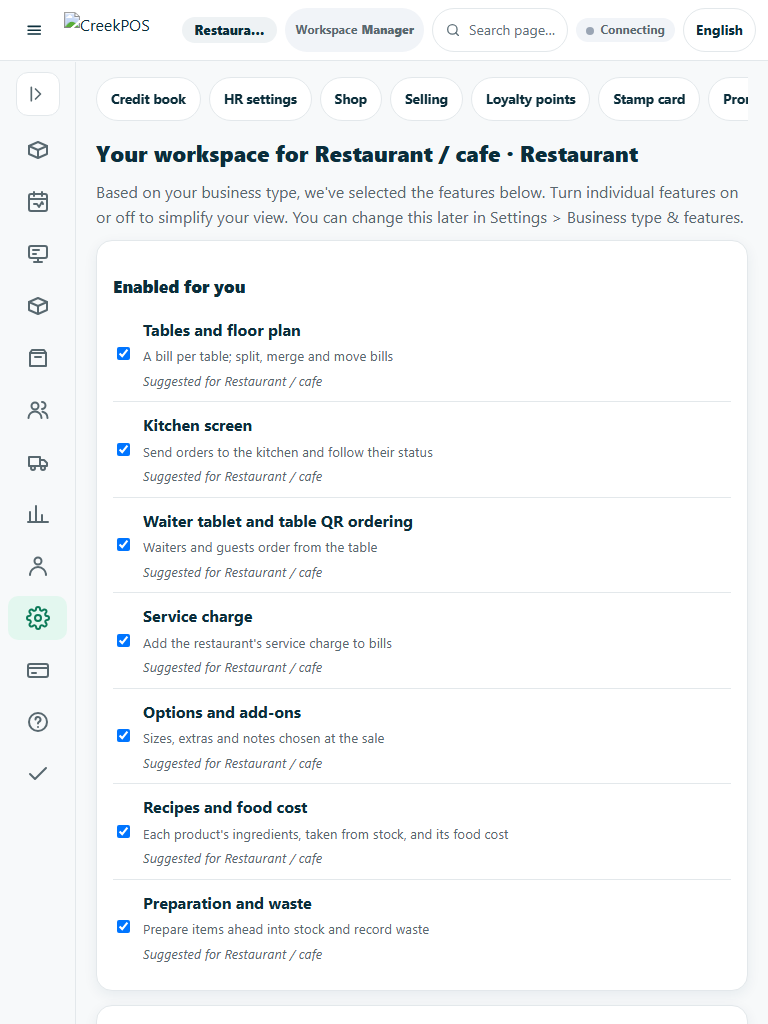
- Review the enabled, hidden and unavailable tools. A hidden tool is a presentation choice; an unavailable tool needs the relevant entitlement. Inspect the reason next to each default.
- Choose whether to keep custom choices or apply suggested defaults. Save the reviewed workspace. Return here to change individual switches; finish open table bills and kitchen work before hiding their tools.
Check the result
Review the saved record and its audit/stock/payment state before continuing. A preview, queued request or accepted send is not proof of completed delivery or settlement.
Edition differences and limits
The classic Windows program uses its own shop-type and optional-feature settings. It does not contain the browser’s branch-inheritance review screen. A cloud-connected till follows the online shop’s authorized feature settings.