

Reports, the daily close and VAT
Sales by product, day, hour and category, profit without VAT, the receipts list, the shift close with its Z report, the Tax collected (VAT) report for your return, expired stock sold, and exporting for the accountant.
On the program, press Reports (F9) on the top bar. A cashier sees it only with the right Reports. On CreekPOS Online the reports are in the Reports menu of the web app, on any computer or phone, and the Today page sums up the day.
The Reports window
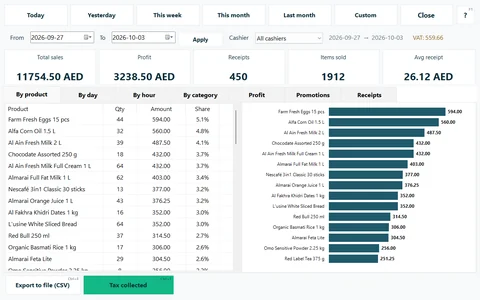
- Choose the period: Today, Yesterday, This week (from Monday), This month, Last month or Custom (from – to).
- Optionally pick one cashier instead of All cashiers.
- Read the tiles: Total sales (with VAT, after returns and voids), Profit, Receipts, Items sold and Avg receipt. A line under them shows the discounts, returns, service charge, VAT and promotions of the period when there are any.
- Pick a tab (Ctrl+1, Ctrl+2…):
| Tab | What it shows |
|---|---|
| By product | Quantity and sales of each product, best first, with a chart |
| By day | Each day of the period |
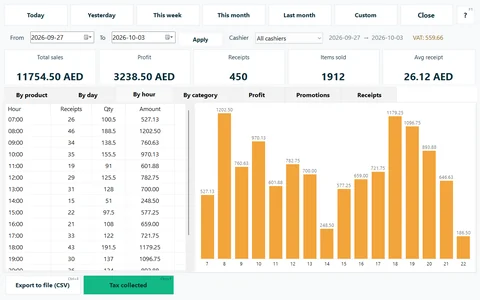
| By hour | The busy hours of the day |
| By category | Sales per category |
| Profit | Profit per product, without VAT |
| Promotions | Each promotion: receipts, what it gave away, sales on its lines |
| Expired stock sold | Sales from expired lots (with lots on) |
| Receipts | Every receipt: search, reprint, void, return, tax invoice |
Export to file (CSV) (Ctrl+E) saves the tab you are looking at as a file that opens in Excel.
Profit
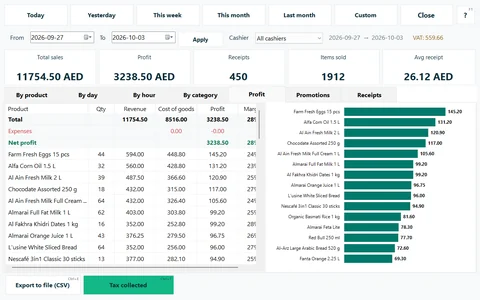
Profit is worked out without VAT: the sales without VAT minus the cost of what was sold. The VAT you collect belongs to the FTA, not to the shop, so it is never counted as profit. The cost is the product's cost at the moment of the sale, so a later price change does not rewrite past profit. With expenses on (see Expenses), the Profit tab also shows the expenses and the net profit.
Profit is only right when costs are right: type the cost when you receive stock, and check the No cost filter in Products.
The receipts list
The Receipts tab (also the Receipts button on the top bar) lists every receipt of the period. Search by receipt number, client, cashier or amount (Ctrl+F). For the selected receipt: print it again, Void selected receipt, Return (F8), or print it as a Tax invoice. See Returns and Voids.
Closing the day: shifts and the Z report
The daily close is done with shifts. Switch on Shifts: open/close, float, cash in/out, Z report in Settings → Features (Silver), then each cashier, from the Shift button:
- Open shift with the cash already in the drawer (the float).
- During the day Cash in and Cash out record money put in or taken out; X report (interim) prints the numbers so far without closing.
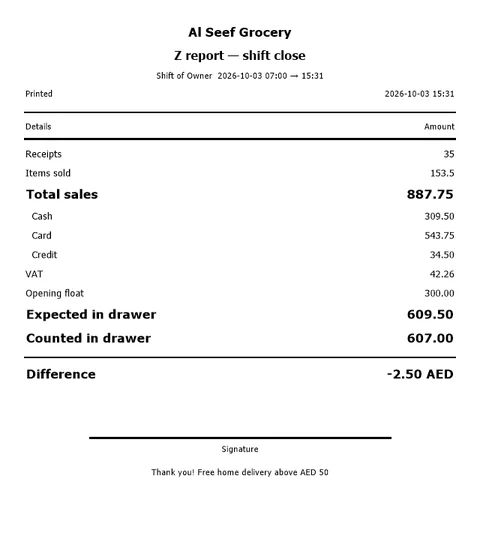
- At the end, Close shift: count the cash and type it in Counted in drawer. CreekPOS compares it with what should be there and prints the Z report — shift close.
The Z report shows the receipts, the sales by cash, card and credit, discounts, returns, voided receipts, service charge, VAT, credit payments collected, the opening float, cash in and out, Expected in drawer, Counted in drawer and the Difference, with a line for a signature. After a Z the automatic backup runs.
On CreekPOS Online: POS → Shifts shows the open shifts with a live X report and the closed ones with their Z; Reports → Shifts & Z lists them all. A manager can close a till's shift from the web by typing the cash counted.
The VAT report: Tax collected
Reports → Tax collected (Ctrl+T) adds up the VAT and the service charge printed on the receipts of a period, ready for your VAT return. It needs the Silver package and the right Reports.
- Choose the period: This month, Last month, This quarter, Last quarter, A day, A month, A quarter or a Custom range. Tick Split by category if you want it.
- Read the tiles: Net VAT collected, Net service charge collected, Net sales before VAT and the receipts (with voided and returns).
- The tabs: By VAT rate (sales before VAT, VAT collected, VAT returned, net), By day, By category and Settled periods.
- Print A4, Print on the till (80 mm), or save to Excel (.xlsx) or CSV for your accountant.
A return or void is taken off in the period it happens, even when the sale was in an earlier period; the report says how many.
When you have paid the FTA, press Mark this period as paid (F2): type the amount actually paid and the reference. The Today page and the summary then show what is not settled yet. If receipts change on days already marked as paid (a till that synced late, for example), the period shows Changed after settling. Editing or undoing a settlement needs a manager.
This report adds up what your receipts say. It is not tax advice: your accountant or the FTA decides what goes on the return.
On CreekPOS Online: Reports → Tax collected, the same report with a split by branch; the Today page shows Tax collected — this month.
Expired stock sold
With lots on, Expired stock sold lists what was sold from lots that had already expired, so you can see which products to watch. On CreekPOS Online: Reports → Expired stock sold.
Reports on CreekPOS Online
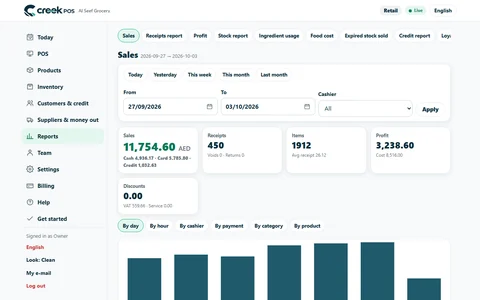
The Reports menu of the web app has: Sales (by day, by hour, by cashier, by payment, by category, by product), Receipts report, Profit, Stock report (stock value, low and expiring), Credit report, Expired stock sold, Shifts & Z, Tax collected, Loyalty points, Food cost and Ingredient usage, and with the Chain plan the Branches report. Each can be downloaded as CSV. Export & feed gives the accountant a download of everything or a live feed (Restaurant and Chain plans, owner only).
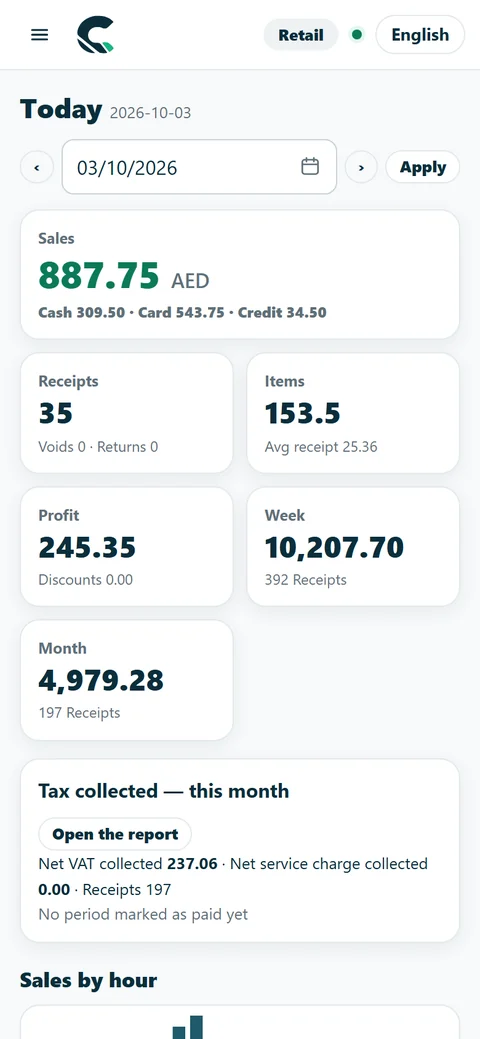
The daily summary by e-mail
- CreekPOS Online: Settings → Daily summary sends the day's sales, receipts, average, returns and discounts, cash and card, the top 5 products, the same day last week and low stock, at the time you choose, to the addresses you choose. It is on by default.
- Program (Platinum): Settings → E-mail sends the close report through your own e-mail account: recipients, the time, Send it when the shift is closed, and Send test now. Settings → Remote can also send a daily summary by Telegram.
