

CreekPOS Online manual
Everything you need to run your shop on CreekPOS Online, organised by what you want to do, with the real screens. Start with “Start” — it takes about ten minutes — then open the section you need.
CreekPOS Online in one minute
- CreekPOS Online is your shop's till and back office on the internet. You sign up at app.creekpos.com; your products, sales, stock and customers live in your account, backed up every day.
- You manage the shop from any browser — computer, tablet or phone: products, prices, stock, reports, staff, settings.
- You sell on a till: a computer or an Android tablet with the free CreekPOS till app, connected to your account with a 6-digit code. The till app drives the receipt printer, the cash drawer and the scanner, and keeps selling when the internet drops.
- You pay by the month (or the year) per shop. Every plan includes updates, daily backups and a full download of your data any day.
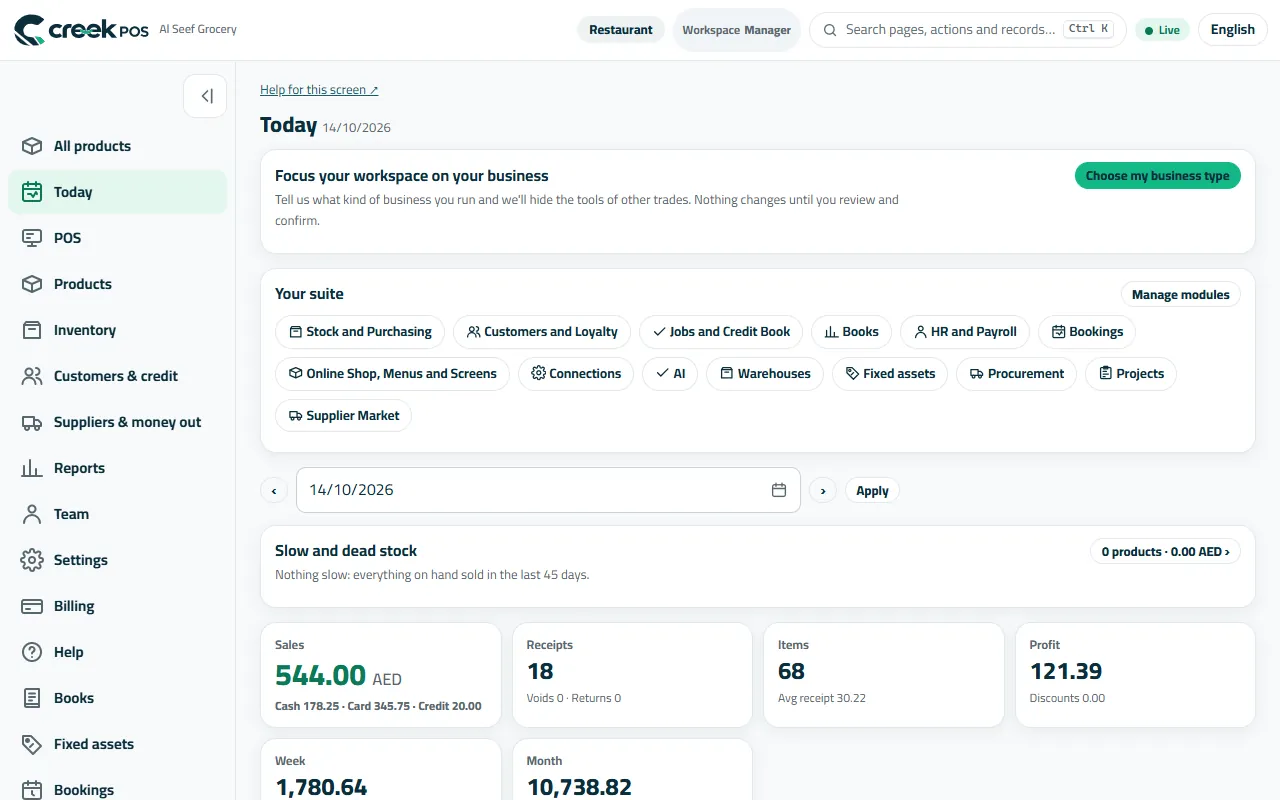
What do you want to do?
- 1Start: your first sale in 10 minutesSign up, add your first products from the ready catalogue, connect the till app and the printer, and ring up your first sale — the order the app's own checklist follows.
- 2Selling: the till, barcodes, discounts, returns and receiptsThe Sell screen step by step: tap or scan, discounts and offers, cash, card and credit, the paper or digital receipt, returns and voids, shifts, and selling when the internet drops.
- 3Products and stock: catalogue, expiry, low stock, counts and suppliersAdd products with pictures from the catalogue, receive deliveries, see what is running low and what to buy, track expiry dates, count the stock from phones and order from suppliers.
- 4Customers: credit, the stamp card, reminders and WhatsApp receiptsKeep customers with their balance, sell on credit and print a statement, send polite reminders, reward regulars with a stamp card or points, and send receipts on WhatsApp.
- 5Money: shifts, cash, the phone dashboard, reports and VATFollow the shop from your phone, read sales and profit, check the cash of every shift, record expenses, ask your shop in plain words and take the VAT figures for your return.
- 6Staff: accounts and rights, attendance and HR basicsGive every employee their own account with only the rights they need, let staff clock in and out, and keep files, leave and the roster in HR.
- 7Online shop and menu: QR codes, table orders and the delivery deskPut your menu online, let guests order from the table with a QR code, take delivery and pickup orders with cash on delivery, and follow every order to the till.
- 8Books: what it is and when you need itBooks is the accounting part of the app: invoices and quotes, supplier bills, the bank, VAT figures, profit and loss and the balance sheet, with the till's sales posted for you.
- 9Add-ons and modules: what each one is and how to switch it onThe difference between a module (a part of the app you switch on or off for free within your plan) and an add-on (a paid monthly extra), what each one does in one sentence, which plan has it, and where to switch it on.
- 10Settings: the shop, the receipt, selling rules, payments and your dataWhere everything is set: the shop's name and receipt, VAT, selling rules, the business type, payments, the tills and devices, your e-mail and your data.
- 11Help: the WhatsApp assistant, the guides and the error helpWhere to get an answer: Help for this screen on every page, the Help page in the app, the error guide, the WhatsApp assistant (+1 650 442 5630) and letting our support set something up for you.
See it before you sign up
The demo opens a ready shop with products, sales and customers for an hour — no e-mail, no password. Every picture in this manual comes from it. Try it in the demo →
Screen-by-screen guides
Detailed guides for single screens and trades (tables and the kitchen, butchers, branches, exports…) stay available here:
- getting started
- roles
- navigation
- catalogue
- checkout
- restaurant orders
- restaurant lifecycle
- split bills
- recipe stock
- butcher
- branches
- reports
- exports
- loyalty
- hr
- hardware
- offline
- troubleshooting
- CreekPOS Online: reference
Using the program on your PC instead?
The one-time program for Windows has its own manual. The desktop manual →