

Tables, the kitchen and splitting the bill
For cafés and restaurants: holding orders on tables, takeaway, moving and merging tables, splitting a bill by items or in parts, the kitchen screen, kitchen tickets and the service charge.
These features are part of the Gold package of the program and of the Restaurant and Chain plans of CreekPOS Online. Choosing Café or Restaurant as the shop type at the first start switches most of them on; otherwise switch them on in Settings → Features.
Tables and held orders
Switch on Tables & held orders in Settings → Features and set the Number of tables (12 unless you change it).
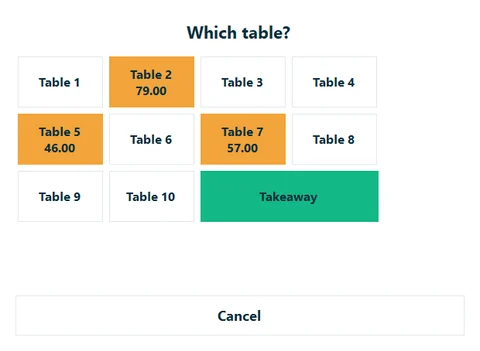
- Ring up the order as usual.
- Press Hold (F6). Which table? shows every table; the busy ones are coloured with their total. Pick a table or Takeaway.
- The receipt clears for the next customer. The kitchen gets the order if the kitchen is on.
- When the table orders more, open the held orders, Resume the table, add the items and hold it again on the same table. Holding new items on a busy table adds them to that table's order.
- At the end, Resume the table and take payment as usual.
With an empty receipt, F6 (or Tables) opens the list of Held orders:
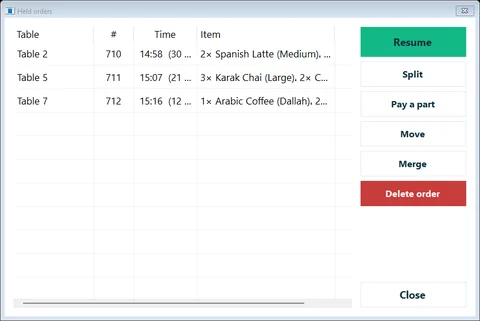
| Button | What it does |
|---|---|
| Resume | Brings the order back to the sales screen (the screen must be empty) |
| Split | Moves some lines to a new bill, paid now; the rest stays on the table |
| Pay a part | Splits the bill into equal parts or typed amounts, each paid in cash or by card |
| Move | Moves the order to another table |
| Merge | Joins two tables into one bill |
| Delete order | Deletes a held order; a cashier needs the right Delete a held order / table |
After Resume the order is on the screen and not in the list any more. Pay it, or hold it again; pressing Clear would lose it.
Splitting the bill
By items (Split): choose how much of each line goes on the new bill. The new bill gets its own number and opens on the screen to be paid; what is left stays on the table.
In parts (Pay a part): split the total into 2 to 50 equal parts, or type the amounts (they must add up to the total exactly). Each part is paid in cash or by card and prints Part n of m when receipts are printed. The last part closes the bill as one sale. While a bill is being paid in parts it cannot be resumed, moved, merged or deleted.
Sizes and add-ons
Small, medium, large; extra shot, oat milk, syrup, sugar level: each product can ask for its options when it is added, each option with its own price. They appear on the receipt and on the kitchen ticket. Setting them up: Sizes and add-ons. Selling with them: Sizes, add-ons and variants.
The kitchen screen
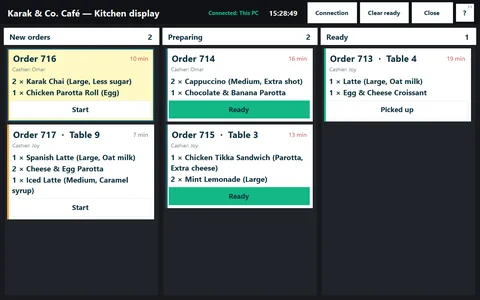
The kitchen screen shows every order that has something to prepare, from the moment it is held or paid.
- Mark the products the kitchen prepares: tick Needs cooking (kitchen) in the product editor. Drinks from the fridge do not need it.
- Switch on Send orders to the kitchen display in Settings → General.
- Open the screen: the Kitchen button on the top bar (Ctrl+K), or the CreekPOS - Kitchen screen shortcut. Drag the window to the kitchen monitor.
The board has three columns: New orders, Preparing and Ready. Each card moves on with its button (Start, Ready, Picked up), or with the keys: the arrows choose a card, 1–9 pick one, Enter moves it on. Clear ready empties the last column.
A kitchen screen on another PC
The kitchen screen can run on a second PC in the kitchen, connected to the till over the shop's network:
- On the till PC, with Send orders to the kitchen display on, Settings shows the till's IP address and the port (8077). The till works as the server.
- On the kitchen PC install CreekPOS and open the CreekPOS - Kitchen screen shortcut (tick it during setup).
- Choose Over the network (till PC IP) and type the till's IP address.
If the screen cannot connect, check that both PCs are on the same network and that Windows Firewall allows CreekPOS.
Kitchen tickets
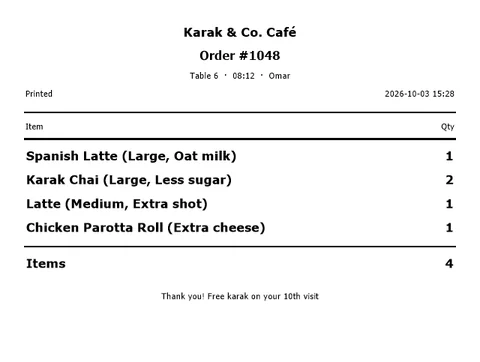
Instead of a screen, or as well, the kitchen can get a printed ticket: tick Print a kitchen ticket for every order with items to prepare in Settings and choose the kitchen printer (or leave the receipt printer). Only products marked Needs cooking print on the ticket. There is one kitchen printer per till.
Service charge
Service charge: a percentage added to every receipt (Settings → Features) adds a percentage, 10 % unless you change it, to every receipt. It shows on the receipt, in the totals and in the VAT report.
Table ordering with QR codes
With CreekPOS Online, guests can scan a QR code on the table, see the menu and order from their phone; the orders reach the till and the kitchen. See Online menu, shop and table QR.
