

creekpos · SaaS / Online
Diagnose a refusal without duplicating work · SaaS / Online
This guide uses fictional training data. Available controls depend on your enabled features, plan and permissions.
Prepared against the tested 13 October 2026 build; check your deployed build before following a new control.
Who can use this
Authorized staff
Required tools
Access to the affected page or local program. Requires the appropriate enabled features and entitlement; this guide does not add plan inclusions.
Before you begin
If a control is absent, check role, branch, enabled features and entitlement. If an order or price changed, refresh and review again. Do not repeat an uncertain financial action with a new request.
Steps
- Record the exact visible error code, screen, branch and action. Remove credentials, customer identifiers and private payment details before sharing a screenshot.
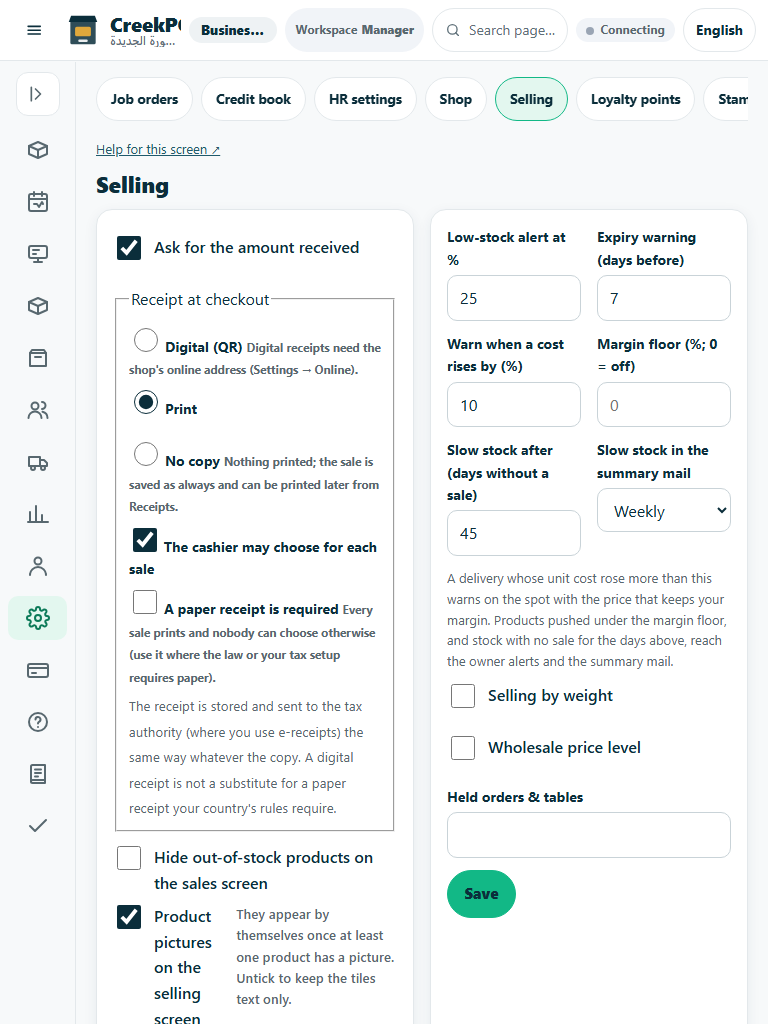
- Check role rights, business feature choices, plan entitlement, duty/shift and connection status before assuming the feature is missing. Follow Help for this screen or the error-specific guide.
- For stale prices or changed orders, refresh and review again. For a lost payment response, reconcile the saved receipt/payment and original request rather than sending another charge.
- For unsupported hardware, provider permissions, DNS/TLS or approval, state the exact external prerequisite. Do not bypass security, invent compatibility or enable a rejected/pending provider option.
Check the result
Review the saved record and its audit/stock/payment state before continuing. A preview, queued request or accepted send is not proof of completed delivery or settlement.
Edition differences and limits
Use the native program’s error/help buttons and retain a verified backup before recovery. Capture the actual Desktop window; do not attach a browser screenshot as evidence of a native error.