

Settings
The shop's name and logo, VAT 5 % and the TRN, the receipt, the look and the language, every feature switch, and where each setting lives on the program and on CreekPOS Online.
On the program, Settings (F10) is for managers. Changes apply when you press Save; the settings are saved for the whole shop, on this PC. On CreekPOS Online the settings are in the Settings menu of the web app and reach every till by themselves.
The tabs of the program's Settings
| Tab | What is there |
|---|---|
| General | Shop name, logo, header and footer lines, language, look, shop type, which name the cashier sees first, the clients list, the kitchen, updates, a second till |
| Printer & receipt | Receipt, label and A4 printers, paper width, font, copies, logo width, printing on every sale, the alternative name on the receipt |
| Cash drawer | How the drawer is connected and when it opens |
| Products | The product list (see Products) |
| Users | Accounts and rights (see Users) |
| Features | Every optional feature, VAT and the TRN, discounts, service charge |
| Remote | The phone view and the daily Telegram summary (Platinum) |
| Tests | Test print, drawer tests, receipt preview, recent errors |
| Backup | Back up now, automatic backup, restore (see Backups) |
| License | Trial, activation, package, release (see Activation) |
| Scale | A scale connected to the PC |
| The close report by e-mail (Platinum) | |
| Support | Updates, the remote support session, diagnostics |
| Export & link | A daily copy for your accountant |
| CreekPOS | The online edition: connect this till to CreekPOS Online, or move your data there |
| Devices | Printers, drawer, scale and display found on this PC (see Devices) |
| Loyalty points | See Loyalty |
| Sync | Link this PC with other PCs or with CreekPOS Online |
The shop: name, logo and receipt lines
Settings → General: the Shop name (top bar, receipts, labels), the logo (shown on the top bar and printed on receipts), a header line under the name (the address and phone) and a footer line (Thank you! Free home delivery above AED 50). The receipt preview on the Tests tab shows the result.
On CreekPOS Online: Settings → Shop has the shop name, the shop type, the receipt language, the currency, VAT, the look, the TRN and the receipt lines, with a preview.
VAT and the TRN
The UAE settings are ready from the start: VAT 5 %, prices include VAT. To check or change them, open Settings → Features and find the VAT block:
- VAT % (0 = no VAT line): 5. The UAE 5% button sets it.
- VAT mode: Prices include VAT (amount shown only) (the usual way in the UAE: the shelf price is what the customer pays) or Added on top of the prices.
- Tax registration number (printed on the receipt): your 15-digit TRN.
With a TRN, receipts are titled Tax Invoice and print the TRN and the VAT amount; returns print as Tax Credit Note; the A4 invoice carries the client's TRN when the client has one. The VAT you collect is reported in Tax collected.
VAT is set for the whole shop, not per product. If some products carry no VAT, ask your accountant how to handle them before you start selling.
On CreekPOS Online: Settings → Shop (VAT %, Included in the price or Added on top, and Tax registration number (TRN), which must be 15 digits) and Settings → Selling.
The receipt
Settings → Printer & receipt:
- the receipt printer and the Paper width (80 mm unless you choose 58, or 57, 76, 110);
- the printable width, the font size and the number of copies;
- the logo width (0 prints no logo) and the blank space after the receipt;
- Print a receipt on every sale (off at first: switch it on if every customer should get one);
- Print the alternative name under the main one for bilingual receipts;
- the label printer and the A4 printer.
Settings → General → Ask for the amount received (to show the change) decides whether PAY asks what the customer gave.
Look and language
Settings → General → Language: English, العربية, हिन्दी or اردو for the whole program. Look: Clean (the default), Classic or Dark.
On CreekPOS Online each person chooses for themselves at the foot of the menu: Your language (English, Arabic, Hindi, Urdu) and Your look (Clean, Classic, Dark, or as the shop).
Features
Settings → Features lists every optional part of CreekPOS: every feature here is optional and off by default; turn on only what your shop needs. Its buttons and fields appear after you save. A feature your package does not include shows — needs the ….
| Feature | See |
|---|---|
| Discounts, and the cashier's limit | Discounts |
| Returns | Returns |
| Shifts | The daily close |
| Split payment | Split payment |
| VAT, TRN | above |
| Service charge | Service charge |
| Variants | Variants |
| A4 invoice | Receipts |
| Customer display | Customer display |
| Payment QR (a bank or wallet app code on the customer display) | Customer display |
| Price levels | Price levels |
| Fractional quantities & units | Units and weight |
| Scale barcodes | Scale labels |
| Sizes & add-ons | Sizes and add-ons |
| Recipes & ingredient stock | Recipes |
| Tables & held orders | Tables |
| Product pictures on the sales buttons | Products |
| Suppliers: invoices & payments, plus expenses | Suppliers |
| Lots | Lots |
| Purchasing | Purchase orders |
| Product editor fields: cost, expiry, stock | Products |
On CreekPOS Online: Settings → Features (owner) has the same switches, each marked with the plan that includes it.
Settings → Selling on CreekPOS Online
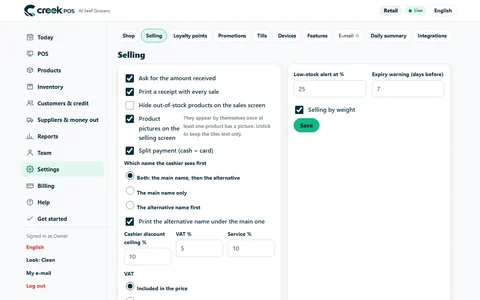
Ask for the amount received; print a receipt with every sale; hide out-of-stock products; product pictures on the selling screen; split payment; which name the cashier sees first and printing the alternative name; the cashier discount ceiling; VAT % and service %; the low-stock alert % and the expiry warning days; selling by weight.
The other pages of Settings on CreekPOS Online: Loyalty points, Promotions, Tills, Devices, Features, E-mail, Daily summary, Integrations, Branches, Data, Sync and Online (menu, shop and table QR). See CreekPOS Online.
Two tills in one shop
With the Gold package, two PCs on the shop network can work together: in Settings → General → This till is choose the primary (keeps products and stock) on one and a secondary (follows the primary) on the other, then pair them with Find the primary till and pair (a 6-digit code valid for 2 minutes). The secondary takes its products and stock from the primary.
Settings → Sync does the same over the internet with one code: products, prices, pictures, stock and sales move by themselves every minute between linked PCs (or with CreekPOS Online). With no internet each PC keeps working and catches up later.
Settings are saved on the PC
The program's settings are a file in its data folder (C:\ProgramData\CreekPOS\data) and are part of every backup. To copy them to another PC, back up and restore only Settings & logo (see Restore); passwords and tokens must be typed again there.
