

creekpos · SaaS / Online
Offline sales and safe recovery · SaaS / Online
This guide uses fictional training data. Available controls depend on your enabled features, plan and permissions.
Prepared against the tested 13 October 2026 build; check your deployed build before following a new control.
Who can use this
Cashier
Required tools
An offline-capable till or classic local Desktop. Requires the appropriate enabled features and entitlement; this guide does not add plan inclusions.
Before you begin
If a control is absent, check role, branch, enabled features and entitlement. If an order or price changed, refresh and review again. Do not repeat an uncertain financial action with a new request.
Steps
- Pair the cloud till while online and sign in with the intended employee. Let the authorized catalogue and settings synchronize before relying on offline operation.
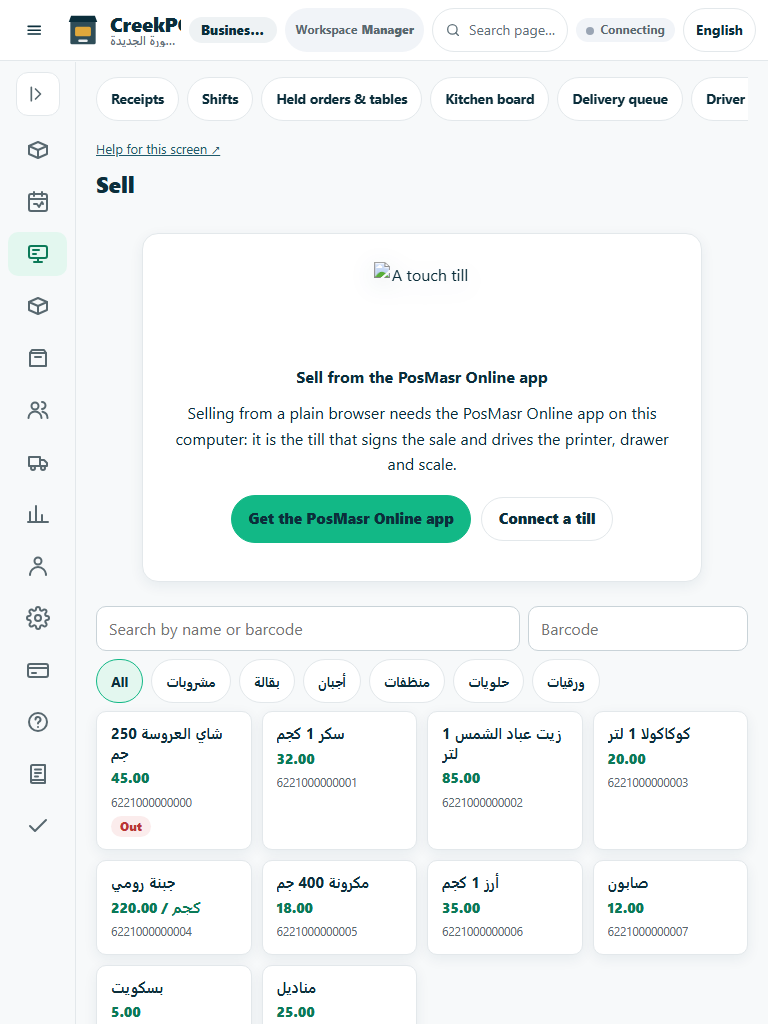
- When the network drops, use the till’s supported offline workflow. A disconnected browser management page is not a replacement for the offline till.
- Watch the pending/failed queue. Keep the same request key and body for an uncertain attempt; never create a second sale or guest payment merely because the response was lost.
- Reconnect, allow ordered replay and inspect accepted receipts/parts. Resolve real refusals and conflicts through the queue tools. Preserve unsynchronized data before updates, revocation or account changes.
Check the result
Review the saved record and its audit/stock/payment state before continuing. A preview, queued request or accepted send is not proof of completed delivery or settlement.
Edition differences and limits
Classic Desktop uses local shop storage and can operate without cloud service. Maintain and verify native backups. Cloud-connected till offline queues are a distinct synchronization mechanism; do not overwrite their data with a standalone backup.