

Settings: the shop, the receipt, selling rules, payments and your data
Settings is a long list; most shops only ever touch five pages. The list follows the modules you have on, so it is shorter on a small shop.
Step by step
1The shop and the receipt
Settings → Shop: the name and the lines printed under it, the logo, VAT included or added on top, your TRN, the footer line, the Google review link (a “rate us” QR on every receipt) and what customers may do from their receipt page.
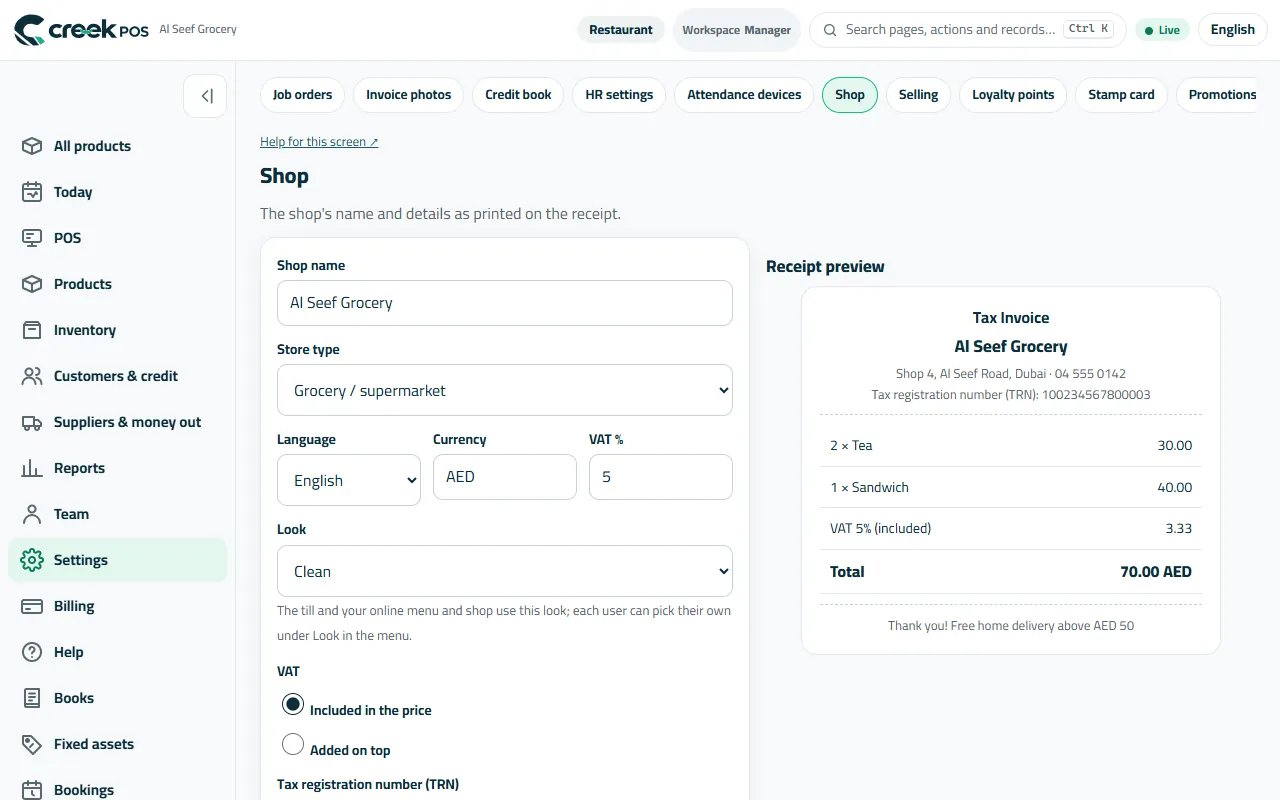
Settings → Shop with the receipt preview. 2Selling rules
Settings → Selling: the receipt at checkout, pictures on the tiles, split payment, the cashier discount ceiling, VAT and service %, the low-stock and expiry warnings and the cost-rise warning.
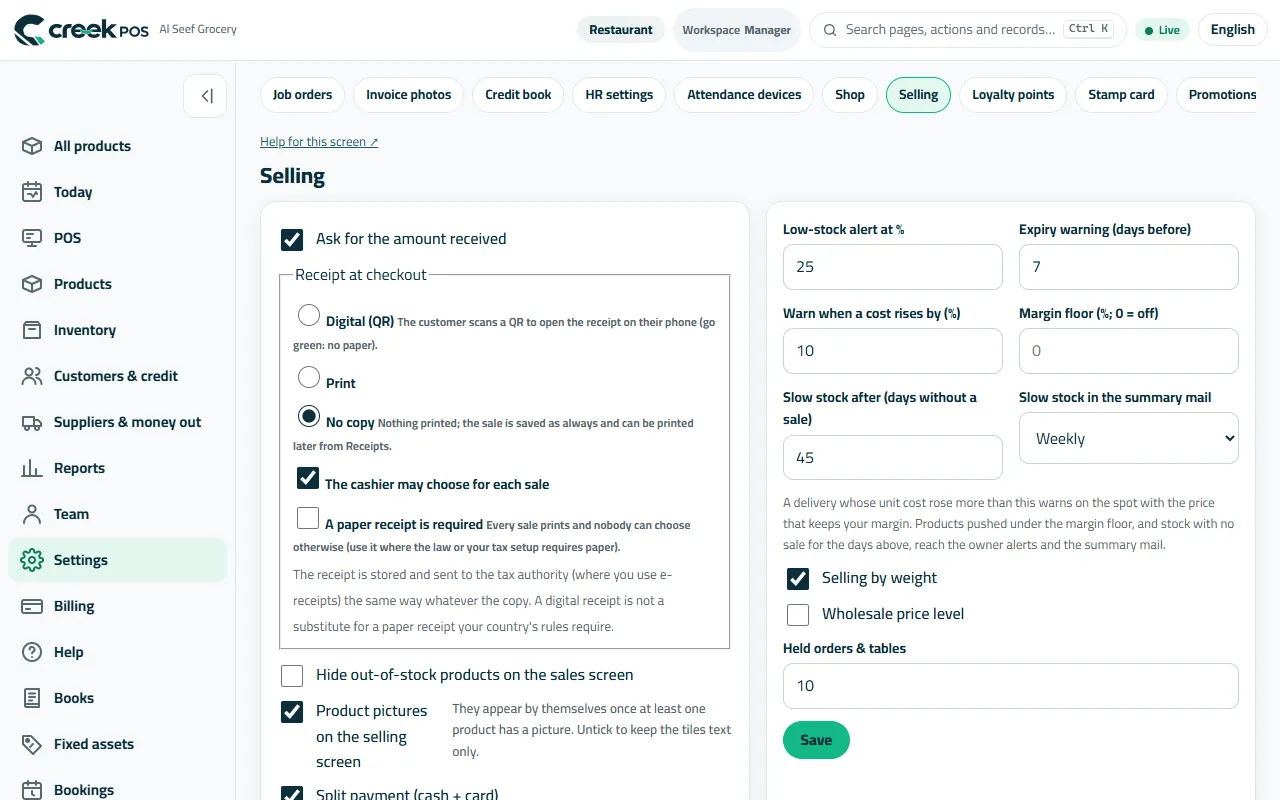
Settings → Selling: the rules every till follows. 3Your business type
Settings → Business type & features: tell the app what kind of business you run and it shows the tools of that trade and hides the rest. Nothing changes until you review and confirm.
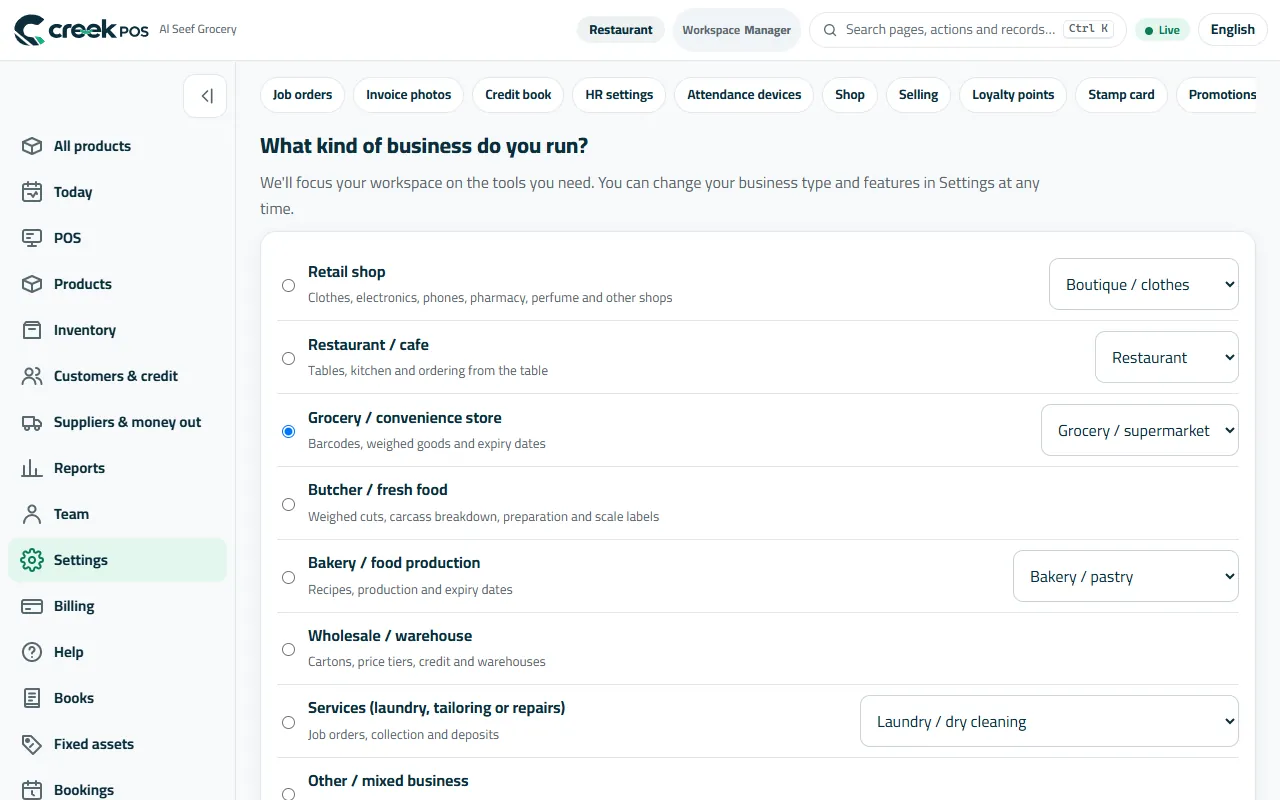
What kind of business do you run? — the menu follows your answer. 4Payments: card terminal and QR
Settings → Payments: how the shop takes cards (any card terminal, confirmed by hand on the till) and QR payments. The money goes straight to your account with the provider; CreekPOS never holds it.
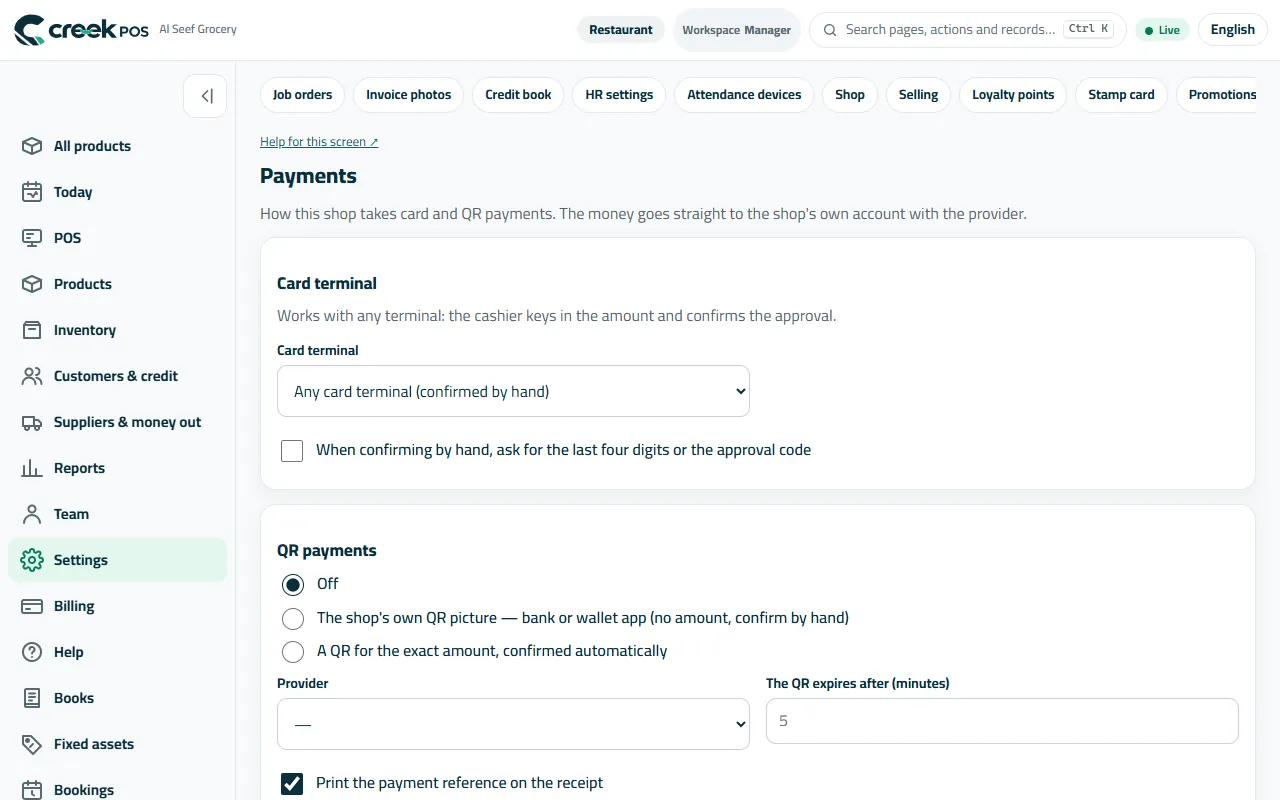
Payments: the card terminal and QR payments. 5Tills and devices
Settings → Tills lists every paired device, its role (till, kitchen screen, customer display, self-checkout) and the cashier signed in; Sign out this till or Revoke from here. The printer and the other devices are set on each till (Settings → Devices in the till app).
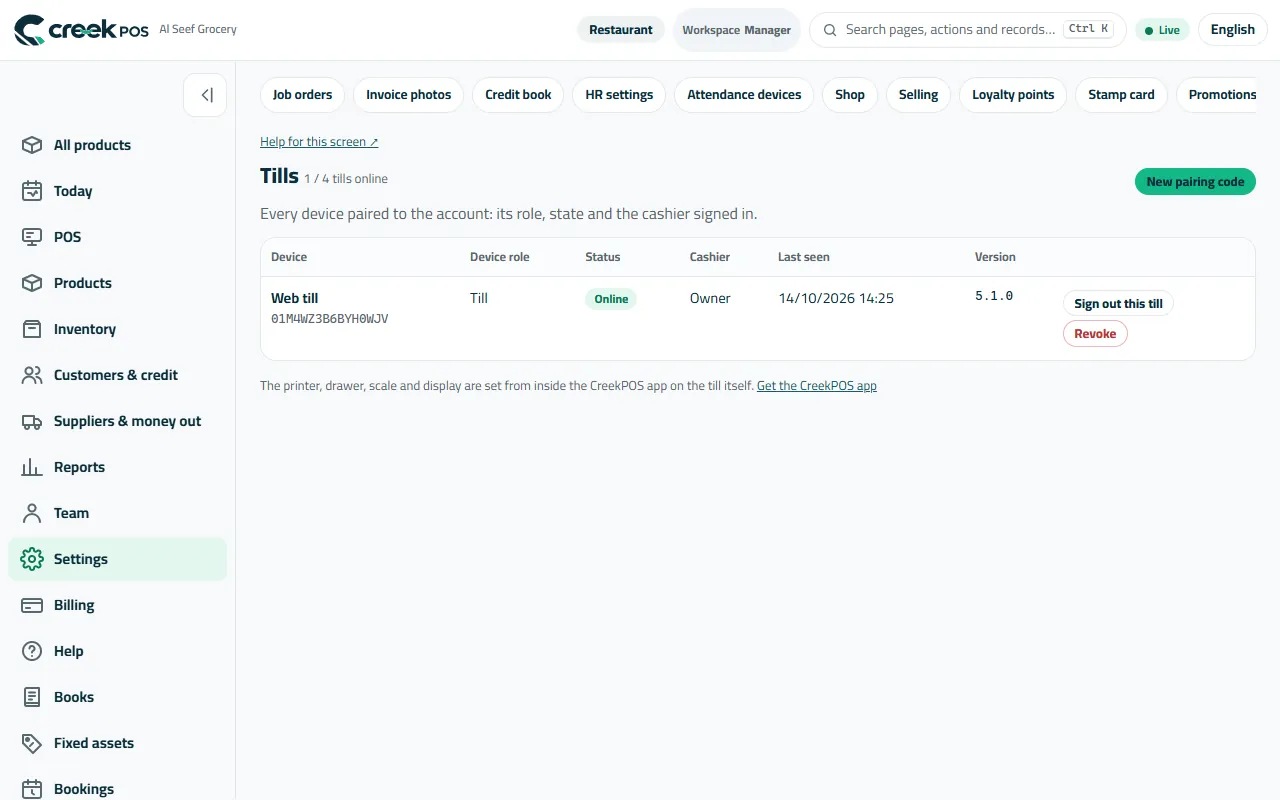
Settings → Tills: every paired device. 6Your e-mail, security and your data
My e-mail (in your account menu) changes the address you sign in with. Two-step verification adds a code from an authenticator app for the owner and managers. Settings → Data → Download a copy gives you every product, sale, customer and setting in one file, on every plan, even after you stop paying.
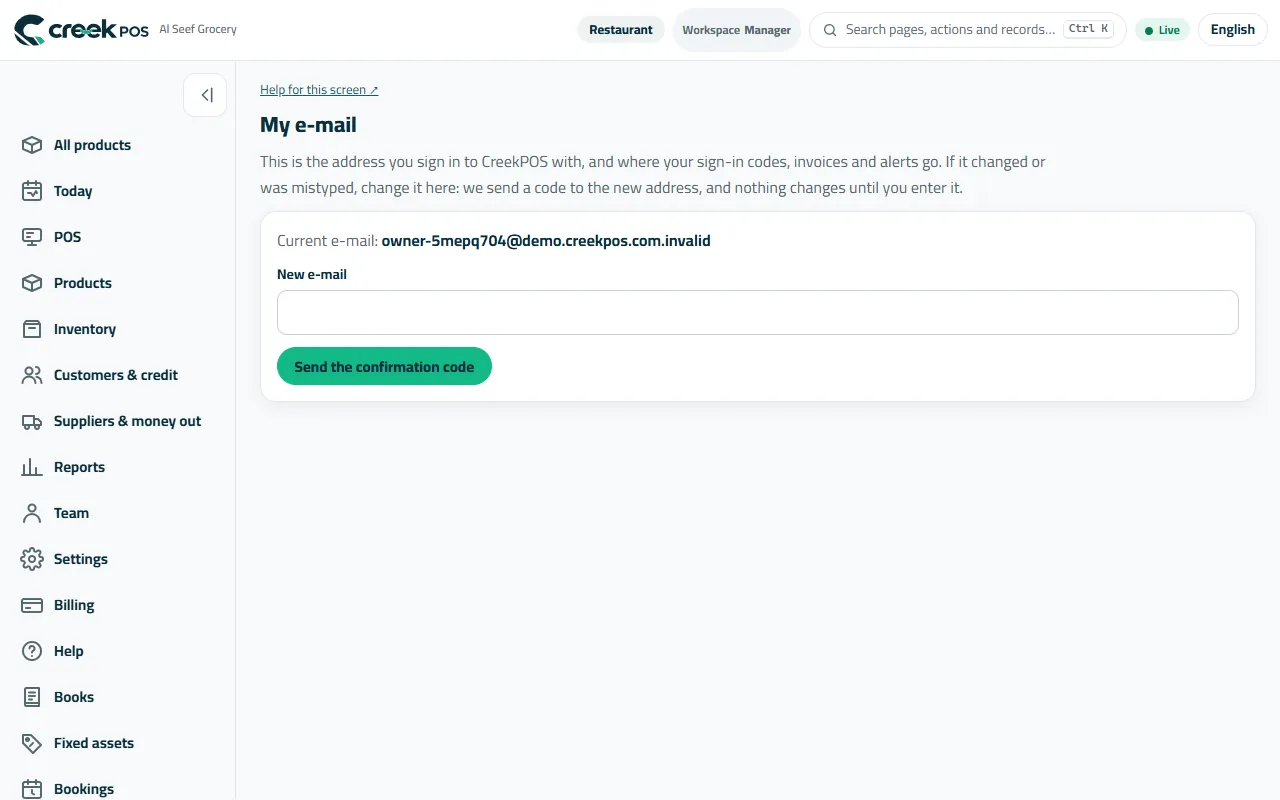
My e-mail: the address you sign in with, changed with a code.
The words on the screen
| On the screen | What it means |
|---|---|
| Shop | Name, receipt lines, VAT, tax number, review link. |
| Selling | The rules every till follows. |
| Business type & features | Shows the tools of your trade. |
| Tills | Paired devices; New pairing code. |
| Data | Download a copy of everything; delete the account. |
Common mistakes
- Changing VAT from included to added on top in the middle of a month. Do it at the start of a period.
- Looking for the printer under Settings in the browser — it is on the till.