

Selling: the till, barcodes, discounts, returns and receipts
Everything a cashier does happens on the Sell screen of the till. The owner and the manager set the rules once (discount limit, receipt, VAT) in Settings → Selling. Every sale reaches the account at once — or, when the line is down, as soon as it is back.
Step by step
1Find the product: tap, search or scan
Tap a tile (the category chips above them narrow the list), type part of the name in Search by name or barcode, or scan into the Barcode box — the scanner types the barcode and presses Enter by itself. Scan the same item twice and its quantity goes up. Change a quantity by typing it in the cart line.
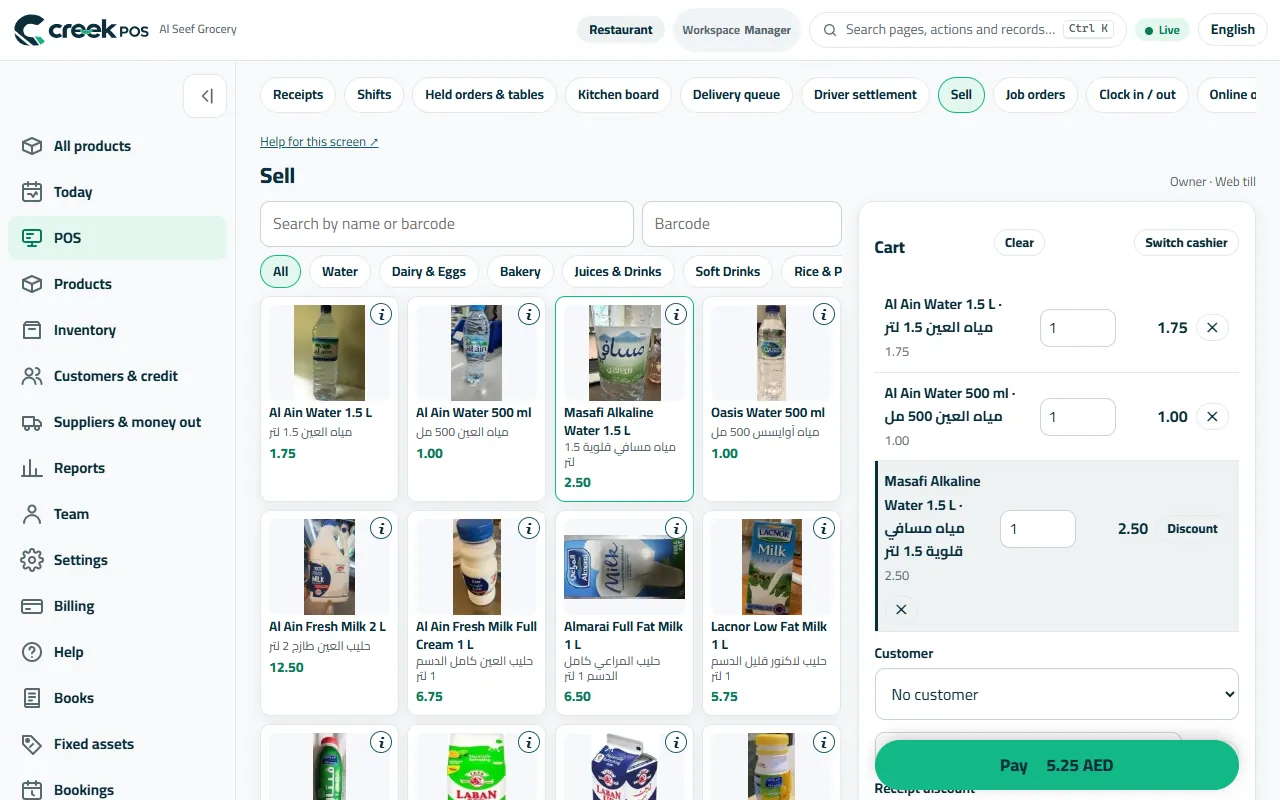
Sell: categories on top, product tiles with pictures, the cart on the side. 2Give a discount or let an offer apply itself
In the cart, Discount on a line takes money off that item; Receipt discount takes it off the whole sale. A cashier can discount up to the Cashier discount ceiling % set in Settings → Selling; above it a manager has to approve. Regular offers — a percent or amount off, buy X get Y, bundles, happy hours — go in Settings → Promotions and the till applies them by itself.
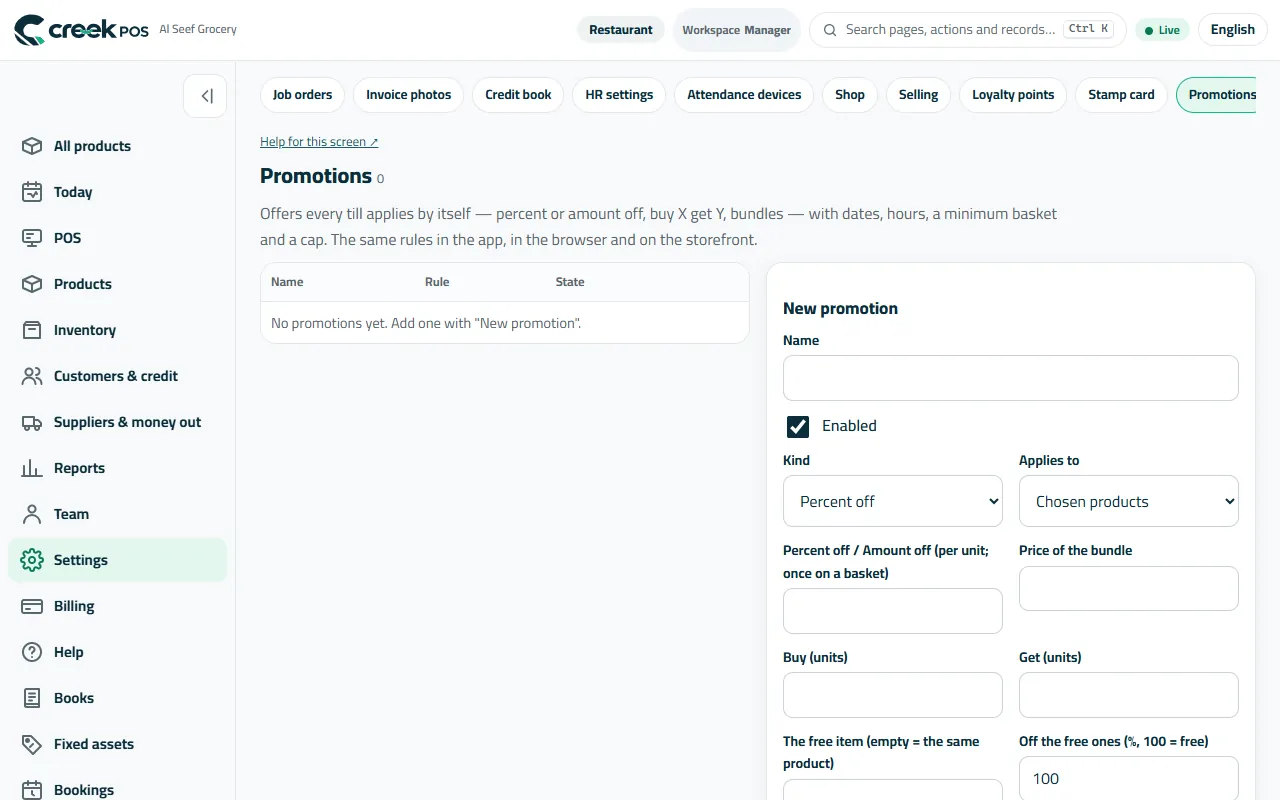
Settings → Promotions: offers every till applies by itself, with dates and hours. 3Take the payment
Cash: type what the customer gave and the till shows the change. Pay by card: take the card on your terminal, then confirm on the till. Cash + card splits one sale. Credit puts the sale on a customer's account (choose the customer first). The same Sell screen works on a tablet or a phone-sized screen in the Android till app.
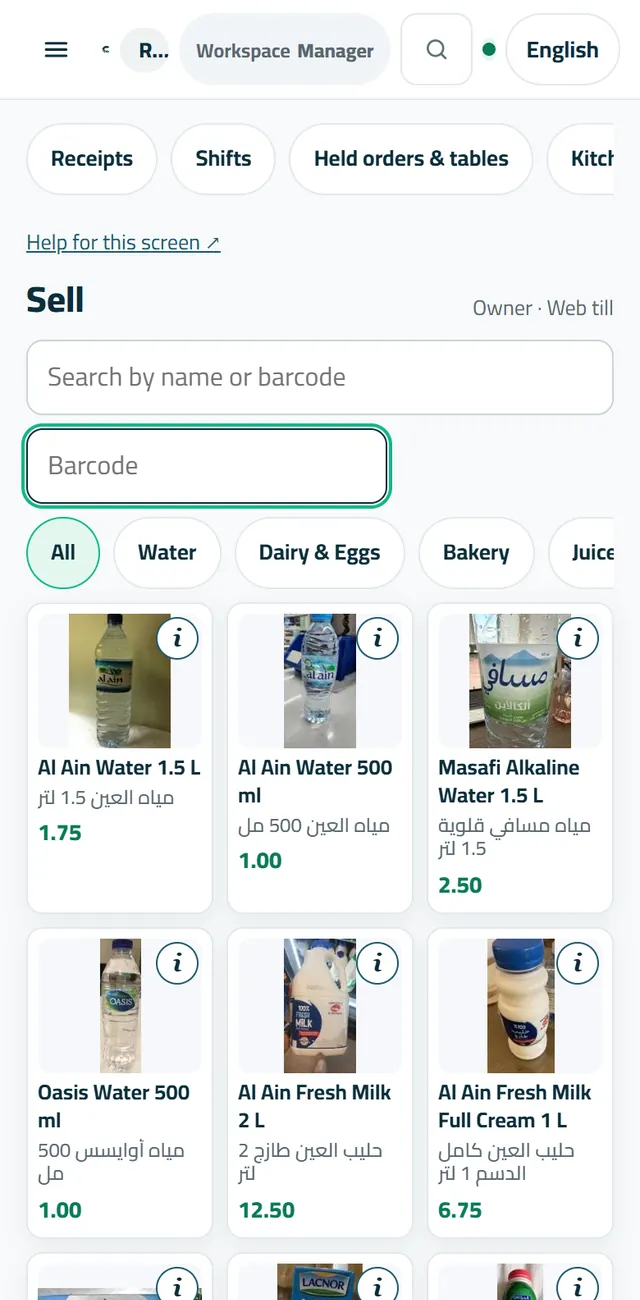
The same Sell screen on a phone-sized screen. 4Choose paper or a digital receipt
Settings → Selling → Receipt at checkout: Print, Digital (QR) — the customer scans a code and keeps the receipt on the phone — No copy, or let the cashier choose for each sale. A paper receipt is required forces paper on every sale. Your TRN and the 5% VAT print on every receipt from Settings → Shop.
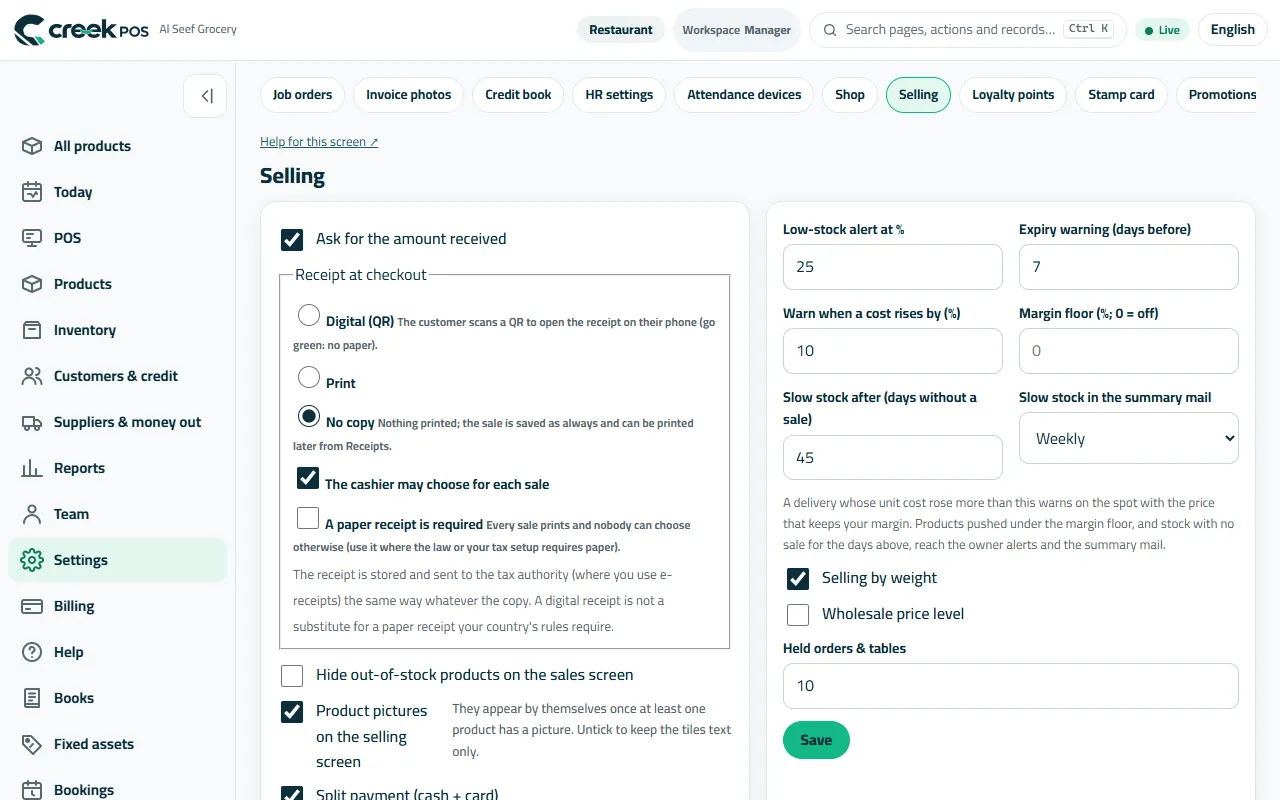
Settings → Selling: the receipt at checkout, the discount ceiling, VAT and service. 5Find an old receipt, reprint it or send it on WhatsApp
POS → Receipts lists every sale with its time, cashier, items and total; filter by dates or search. Open one to Print it again, send it on WhatsApp (it opens your WhatsApp with the receipt link ready for the customer's number) or copy the receipt link.
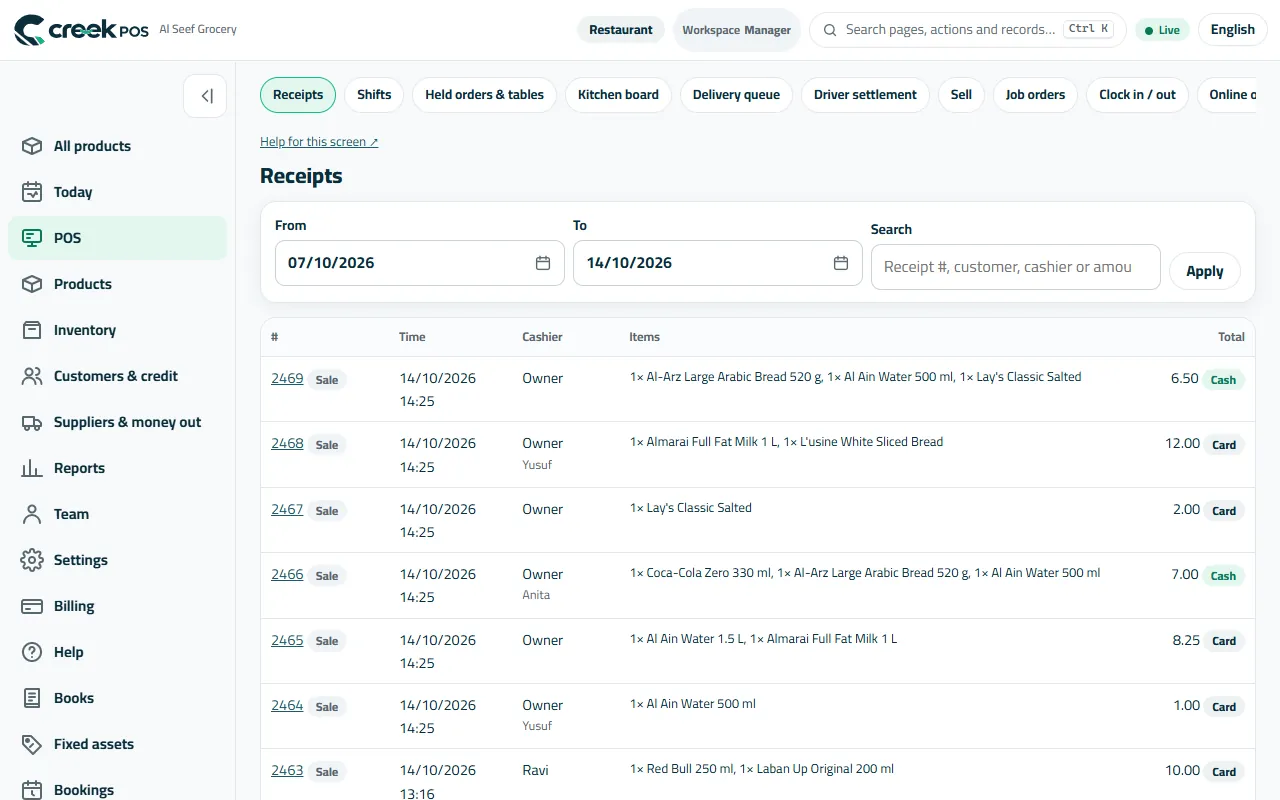
Receipts: every sale, searchable, with its cashier and how it was paid. 6Return or void a sale
Open the receipt. Return: type the quantity coming back on each line, choose Back to stock or Thrown away (record as waste), choose Cash or Card for the refund and press Return — a return receipt is made and the stock is corrected. Void cancels the whole receipt with a reason. Both need the right on the cashier's account (Team → Rights).
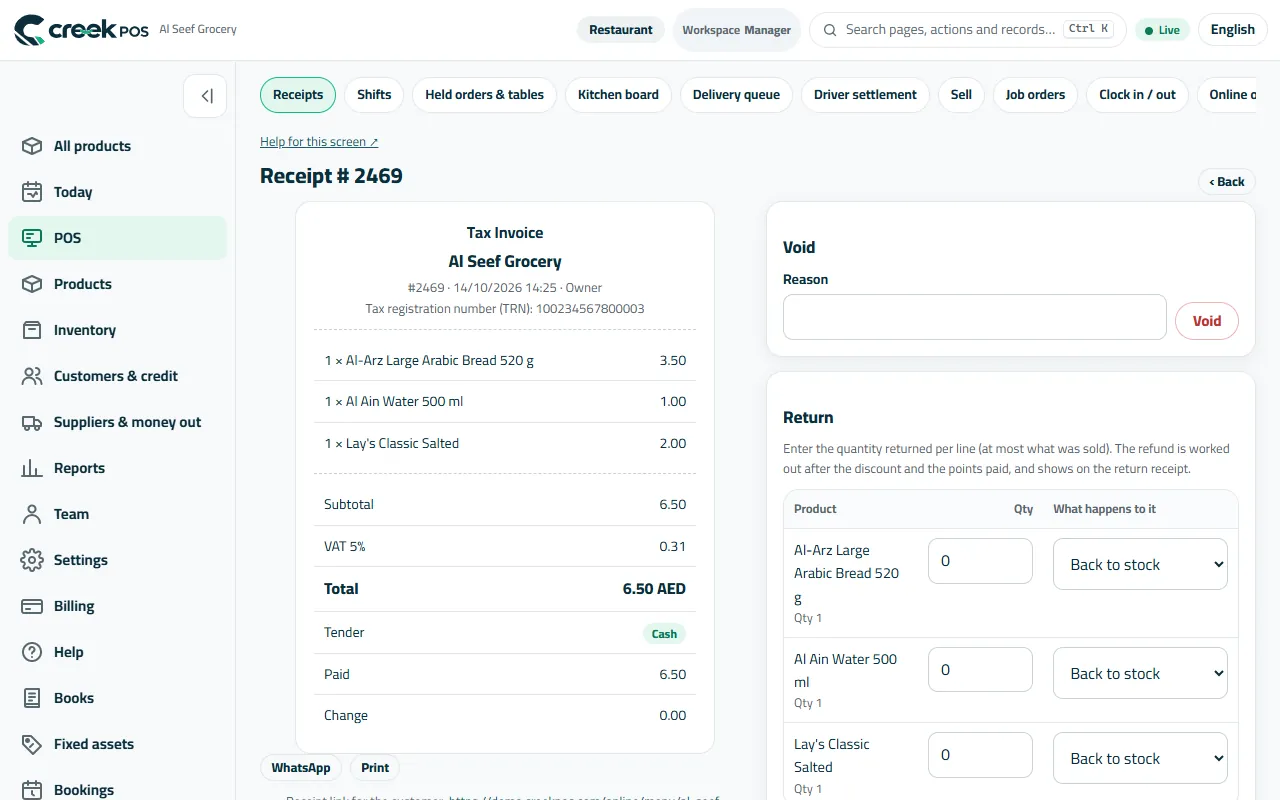
A receipt: Print, WhatsApp, the customer's link, Void and Return with what happens to each item. 7Open and close the shift
If your plan has shifts, the cashier opens a shift with the float in the drawer and closes it at the end by counting the cash. The X report shows the shift so far; the Z report closes it. POS → Shifts shows each shift's Expected and Counted cash and the Difference, so a short drawer is visible the same evening.
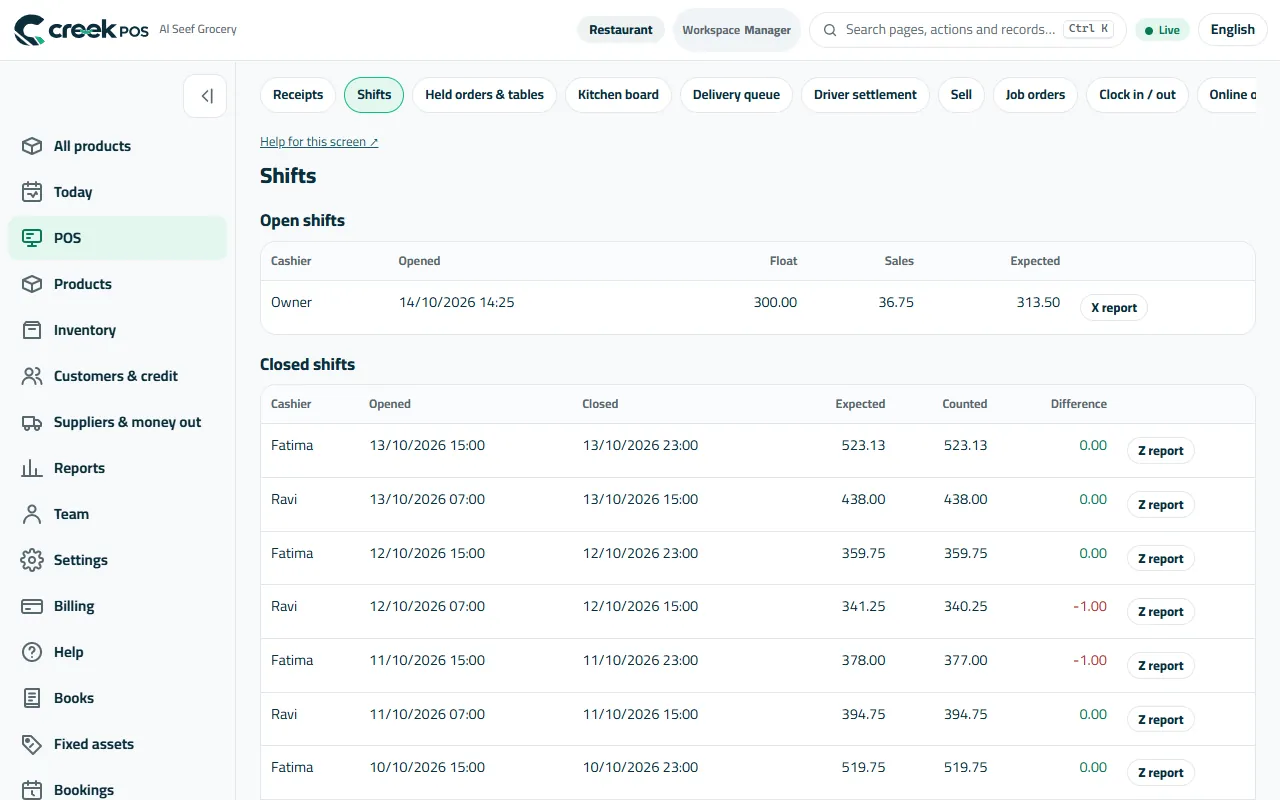
Shifts: open shifts with their X report, closed ones with Expected, Counted and Difference. 8When the internet drops
The till app keeps selling. An amber strip says Selling offline — N receipts waiting; receipts get a provisional number and print with a note, and every one is sent, in order, when the line is back — nothing is doubled. Cash, card, credit, split payments, returns of receipts the till holds, cash in / out and shifts all work offline. What waits for the line: editing products and settings, the reports and the phone.
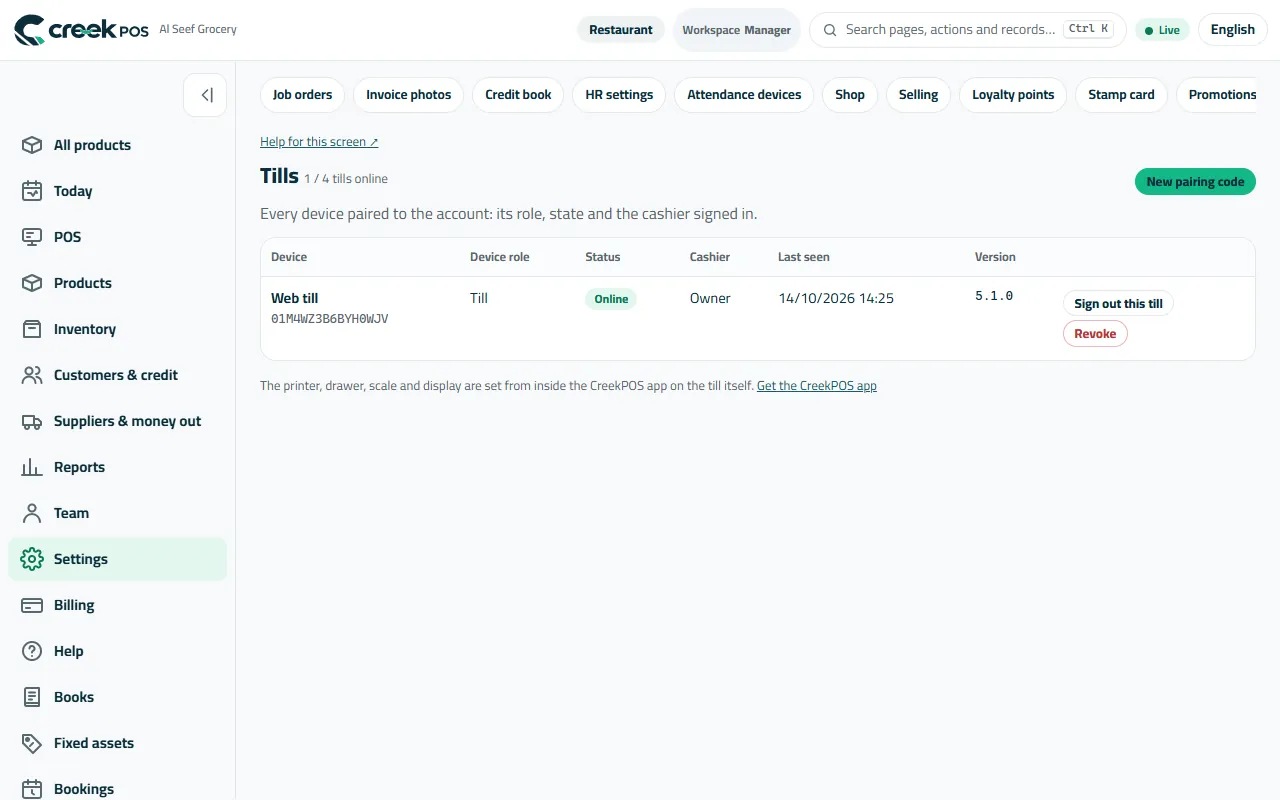
Settings → Tills shows each till's state and when it was last seen.
The words on the screen
| On the screen | What it means |
|---|---|
| Barcode box | Where the scanner types; scanning adds the product to the cart. |
| Receipt discount | Money off the whole sale (Discount on a line is for one item). |
| Cash + card | One sale paid partly in cash and partly by card. |
| Credit | The sale goes on the customer's account to be paid later. |
| Digital (QR) | No paper: the customer scans a QR and keeps the receipt on the phone. |
| X report / Z report | The shift so far / the shift closed with the cash counted. |
| Selling offline | The till is selling without the internet; the receipts wait and are sent later. |
Common mistakes
- Giving a cashier the Void and Returns rights without need. Keep them for managers; owner alerts can tell you about every void.
- Choosing Digital (QR) only where your tax rules require a paper receipt. Use A paper receipt is required there.
- Closing the till app while it says receipts are waiting. Leave it open until the strip turns back; the receipts are safe, but they are sent only from that till.
- Selling on Credit without choosing the customer first — the till asks for one.