

Start: your first sale in 10 minutes
Your account opens with a short checklist: name the shop, add products, connect a till, make the first sale, add a second account. Follow it in this order and you can sell within ten minutes. You need an e-mail address, a computer or an Android tablet for the till and, if you print receipts, a thermal receipt printer.
Step by step
1Sign up at app.creekpos.com
Type your shop's name, your e-mail and your phone. A 6-digit code arrives by e-mail — there is no password to invent and no card to enter. Your trial is 14 days with every feature. No code in your inbox after a minute? Look in Junk / Spam.
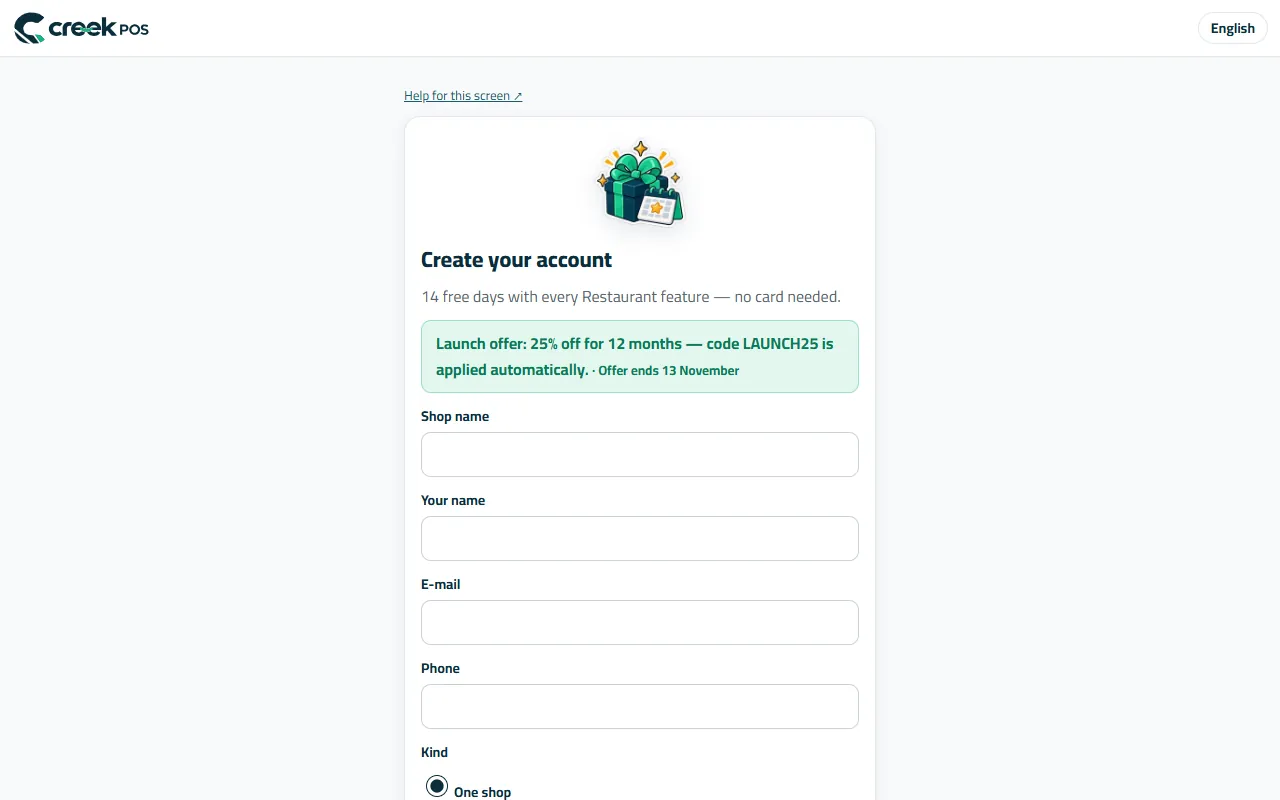
Create your account: shop name, e-mail and phone, then the code from the e-mail. 2Follow the getting-started checklist
After sign-in, open Get started in the menu. Each line has its own button: Set up the shop, Add products, Connect the till, Make the first sale, Add an account. A line ticks itself when it is done; come back to it any time.
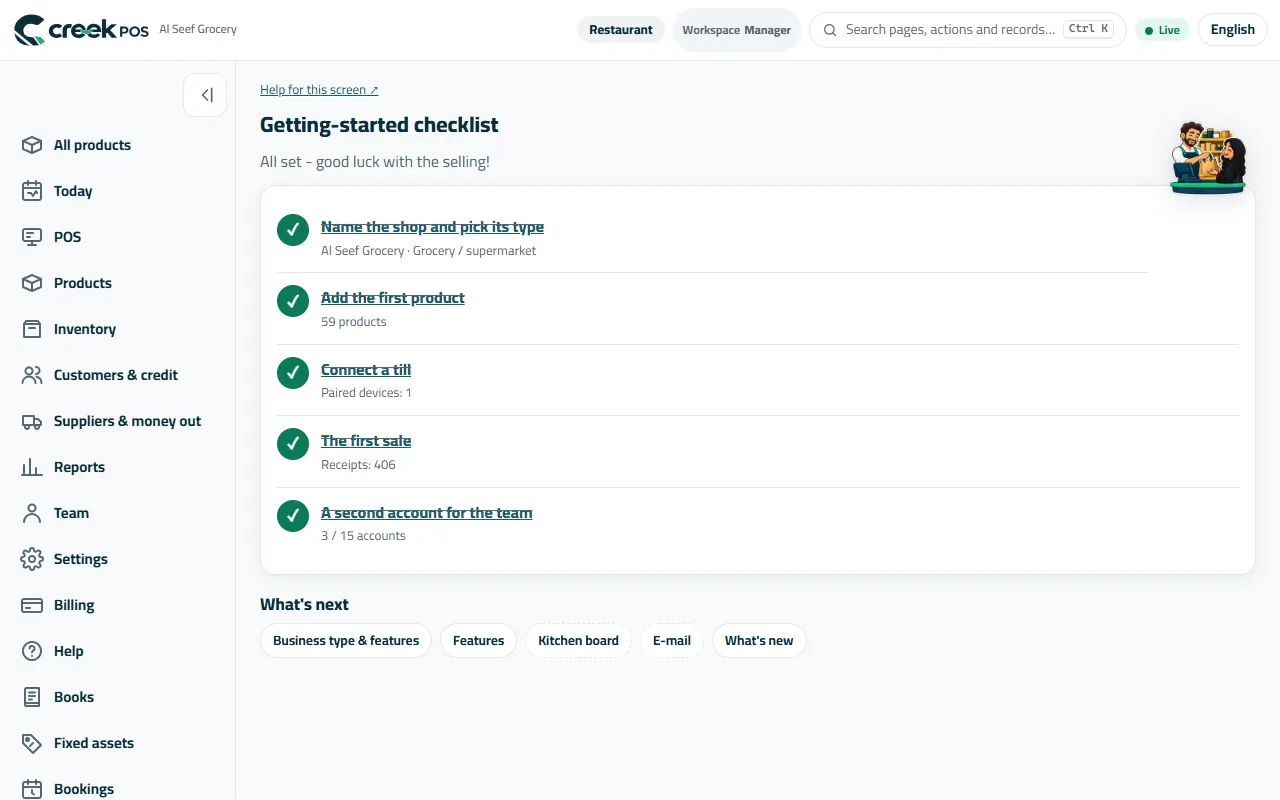
Get started: five steps, each ticks itself when it is done. 3Name the shop and pick its type
Set up the shop asks for the shop name, the type (grocery, café, restaurant, pharmacy, boutique…), the language and how VAT works (5% included in the price or added on top). The type switches on the screens your trade needs and hides the rest — you can change it later in Settings → Business type & features. The receipt preview on the right shows your changes as you type.
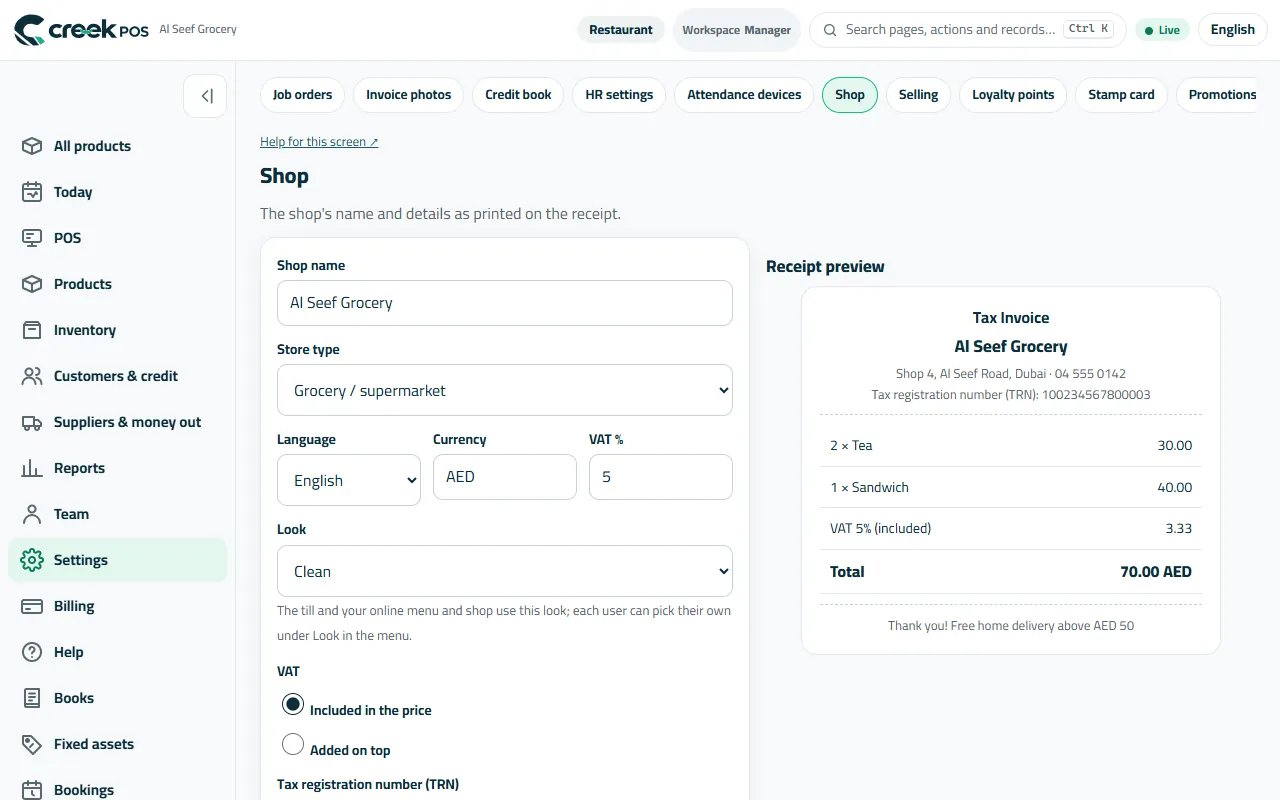
Set up your shop: the name and lines printed on the receipt, the shop type and VAT. 4Add your first products
Add products offers three ways: the Catalogue picker (a ready catalogue of products sold in the UAE, most with pictures — search or scan a barcode, tick what you sell, type your price), a CSV / Excel file, or New product to type them one by one. Ten products are enough to start; add the rest as you go.
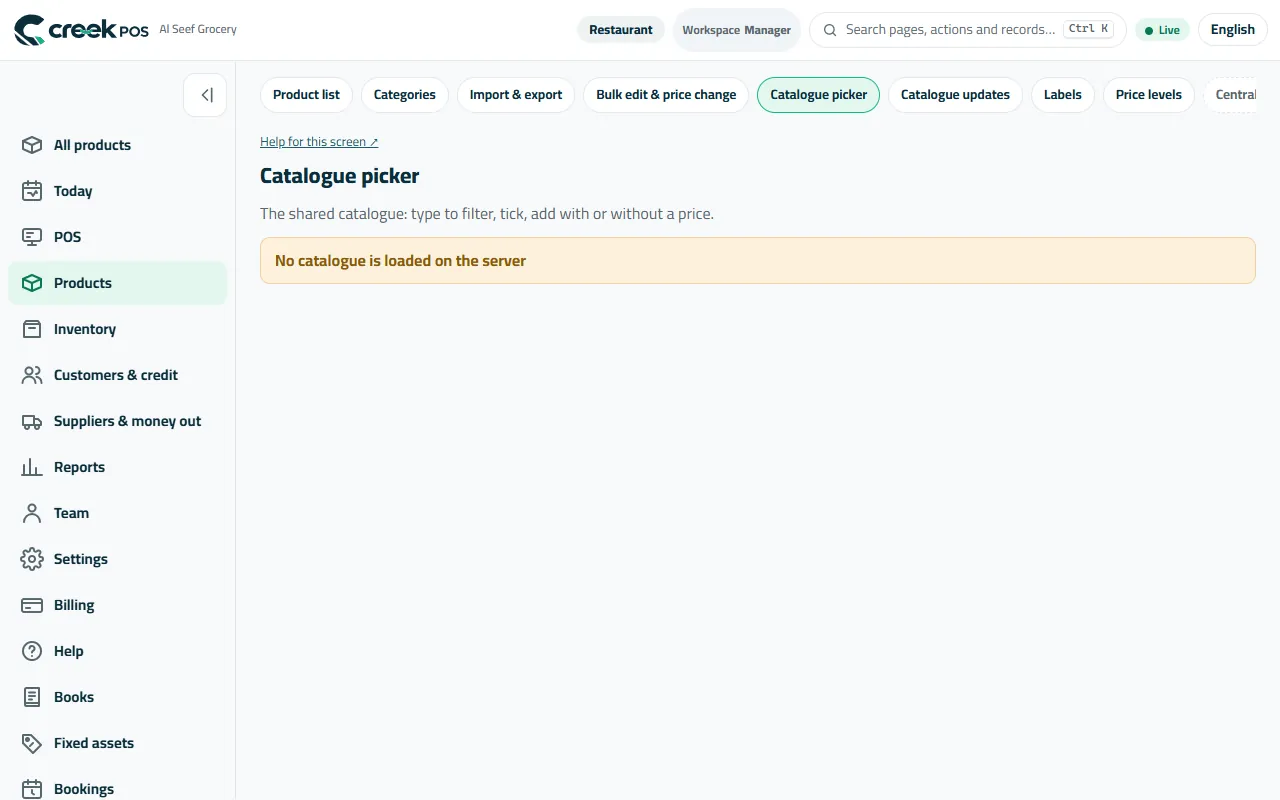
The Catalogue picker: tick the products you sell and give each one your price. 5Connect a till
On the computer or tablet at the counter, download the CreekPOS till app (Windows, Mac, Linux or Android — from the Download page or the link on this screen) and open it. In the browser press New pairing code under Settings → Tills: a 6-digit code shows, valid for 10 minutes. Type it in the till app and press Connect. The till appears in the list as Online within a second.
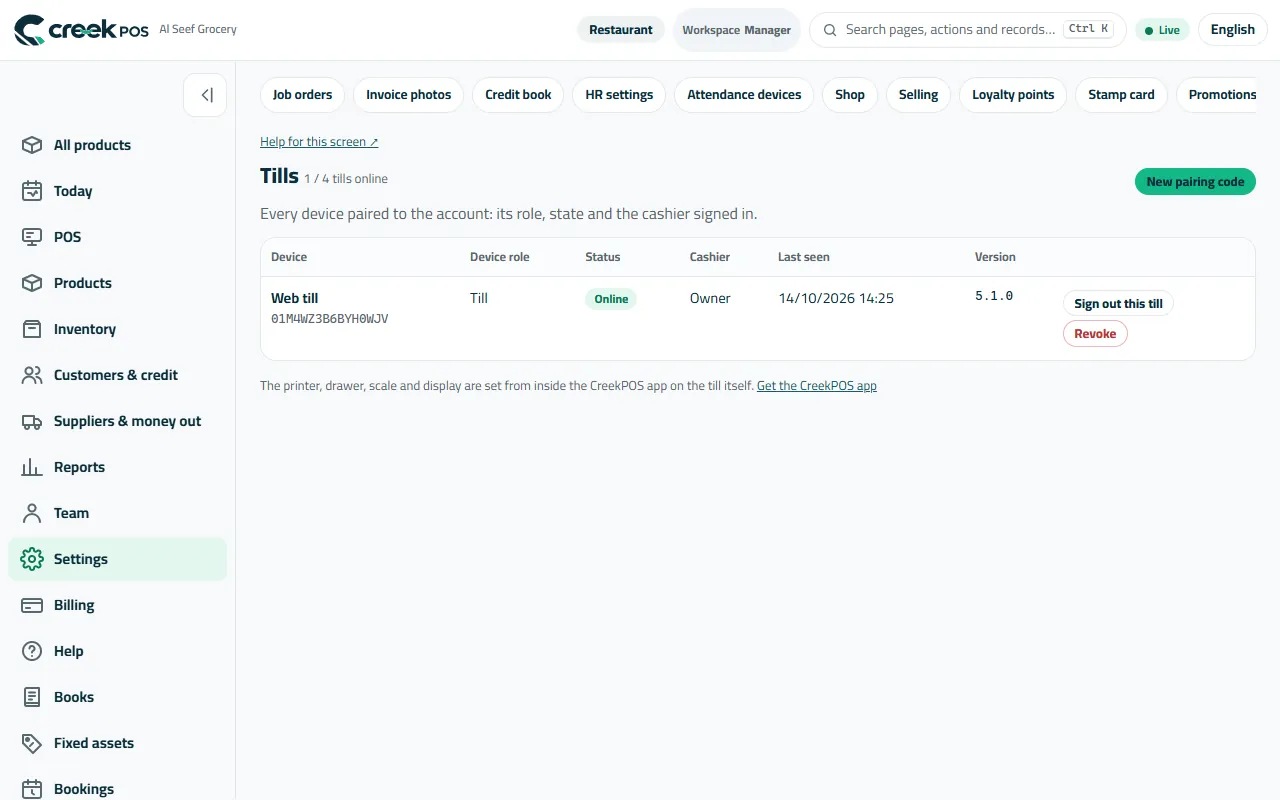
Settings → Tills: every paired till, its cashier and its state; New pairing code connects one more. 6Set up the printer on the till
The receipt printer, cash drawer, scanner, scale and customer display are set in the till app itself (Settings → Devices on the till), because they are plugged into that computer. On Windows the common USB receipt printers set themselves up; pick the printer and press the test. A USB barcode scanner works as soon as it is plugged in.
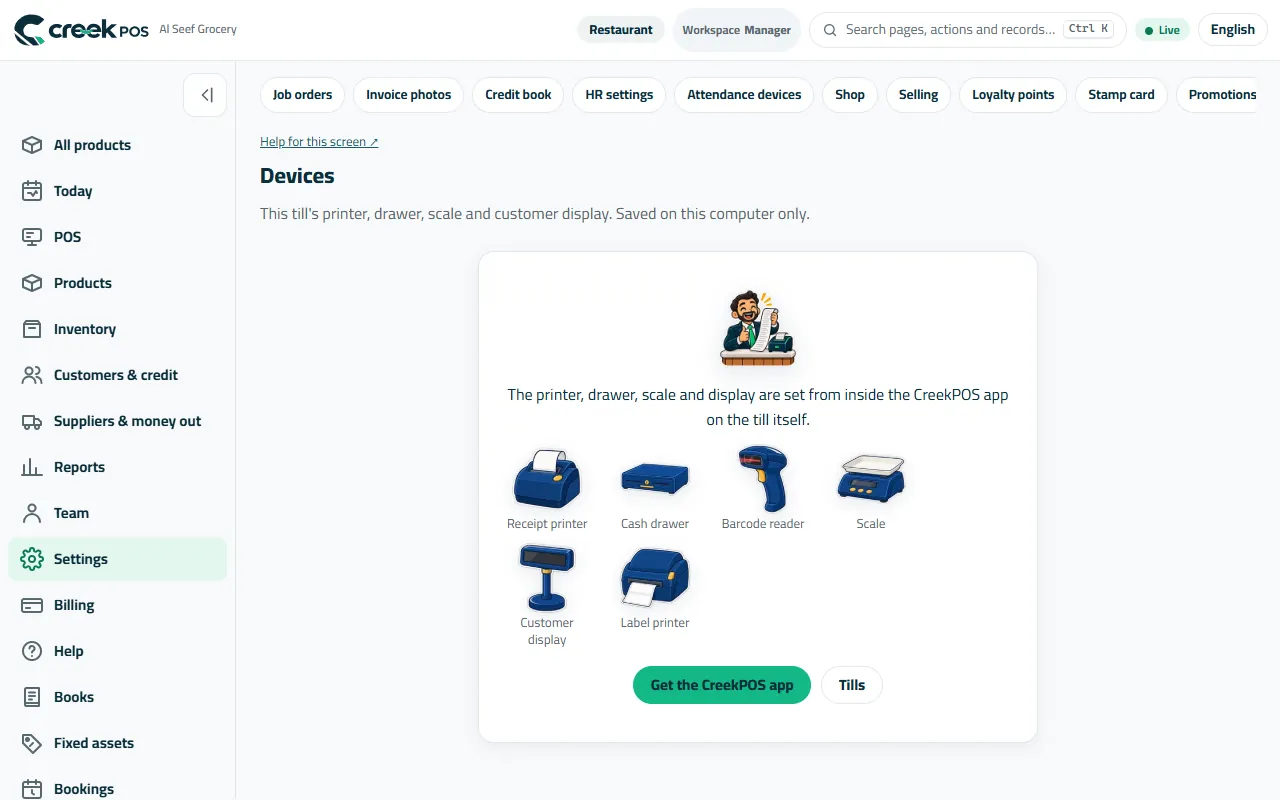
Devices: printer, drawer, scanner, scale and display are chosen on the till that they are plugged into. 7Make the first sale
On the till open Sell. Tap a product tile or scan its barcode; it lands in the Cart on the side. Choose how the customer pays — Cash, Pay by card, Cash + card or Credit — type what you received for cash and press Pay. The receipt prints and the drawer opens.
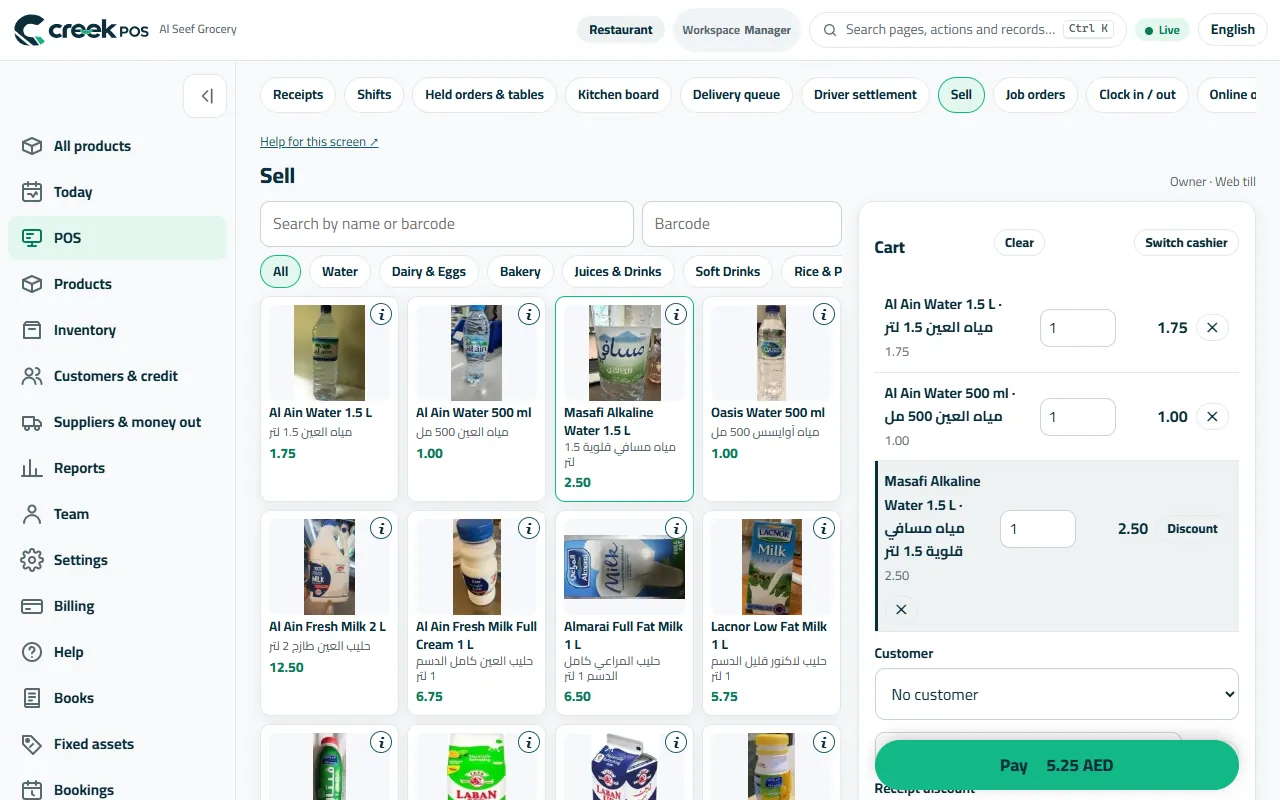
Sell: tap or scan on the left, the cart adds itself up on the right, then Pay. 8See it on your phone
Open app.creekpos.com on your phone and sign in with your e-mail: Today shows the sale you just made — sales, receipts, profit, cash and card. In the phone's browser menu choose Add to Home screen and it opens like an app from then on.
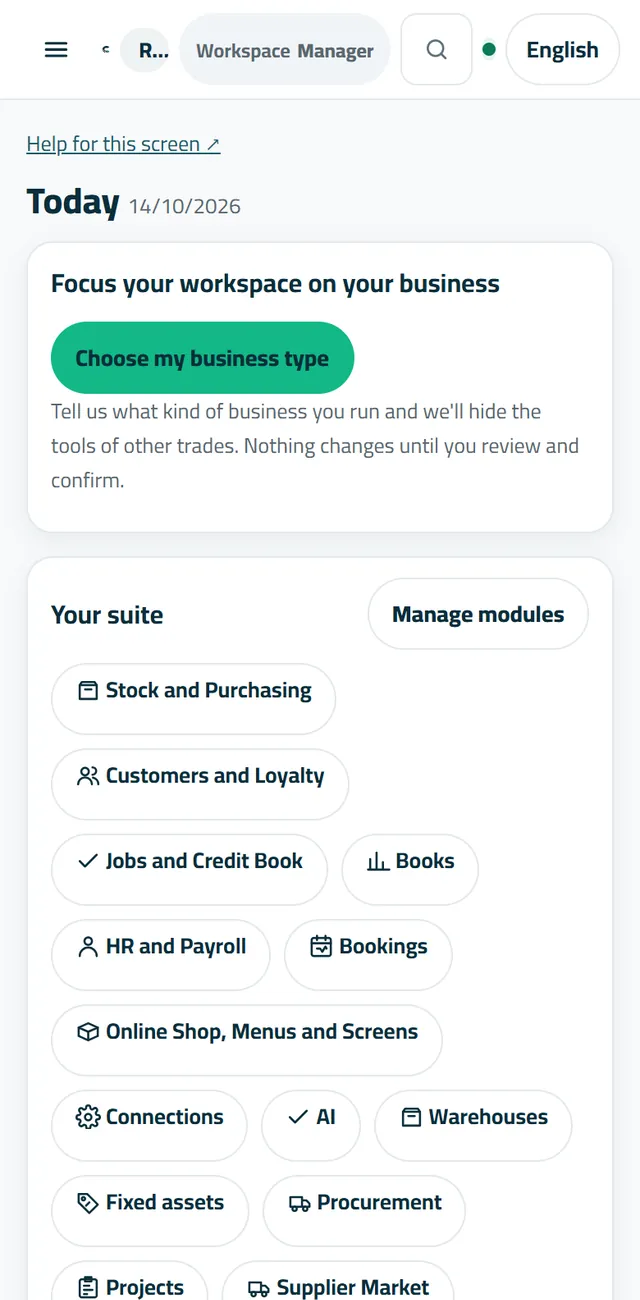
Today on the phone: the same figures as the till, live.
The words on the screen
| On the screen | What it means |
|---|---|
| Get started | The checklist of the first five steps. |
| Catalogue picker | The ready list of products to pick from instead of typing them. |
| New pairing code | Makes the 6-digit code that connects a till to your account (valid 10 minutes). |
| Till | A computer or tablet that sells, with the CreekPOS till app and a code. |
| Devices | Printer, drawer, scanner, scale and display — set on the till, not in the browser. |
| Today | The owner's page: today's sales, profit, cash and card, the week and the month. |
Common mistakes
- Trying to take payments in the phone's browser. The browser is for managing; selling is on a till with the till app (the demo's “Web till” is only for trying).
- Typing the pairing code after 10 minutes. Press New pairing code again — a new one replaces the old.
- Looking for the printer in the browser's settings. It is set in the till app on the computer it is plugged into.
- Typing hundreds of products by hand on day one. Pick them from the catalogue or import your list, then fix prices as you sell.
- Waiting for the sign-up code without looking in Junk / Spam.