

Help: the WhatsApp assistant, the guides and the error help
Every screen of the app has a Help for this screen link at the top that opens its guide. For anything else, write to us on WhatsApp — an automated assistant answers first, in seconds, and a person takes over when you need one.
Step by step
1Help in the app
Help in the menu: How do I… lists per page (reprint a receipt, import an Excel file, record a payment…), the till's shortcuts and a link to this manual. Help for this screen at the top of any page opens the guide of that page.
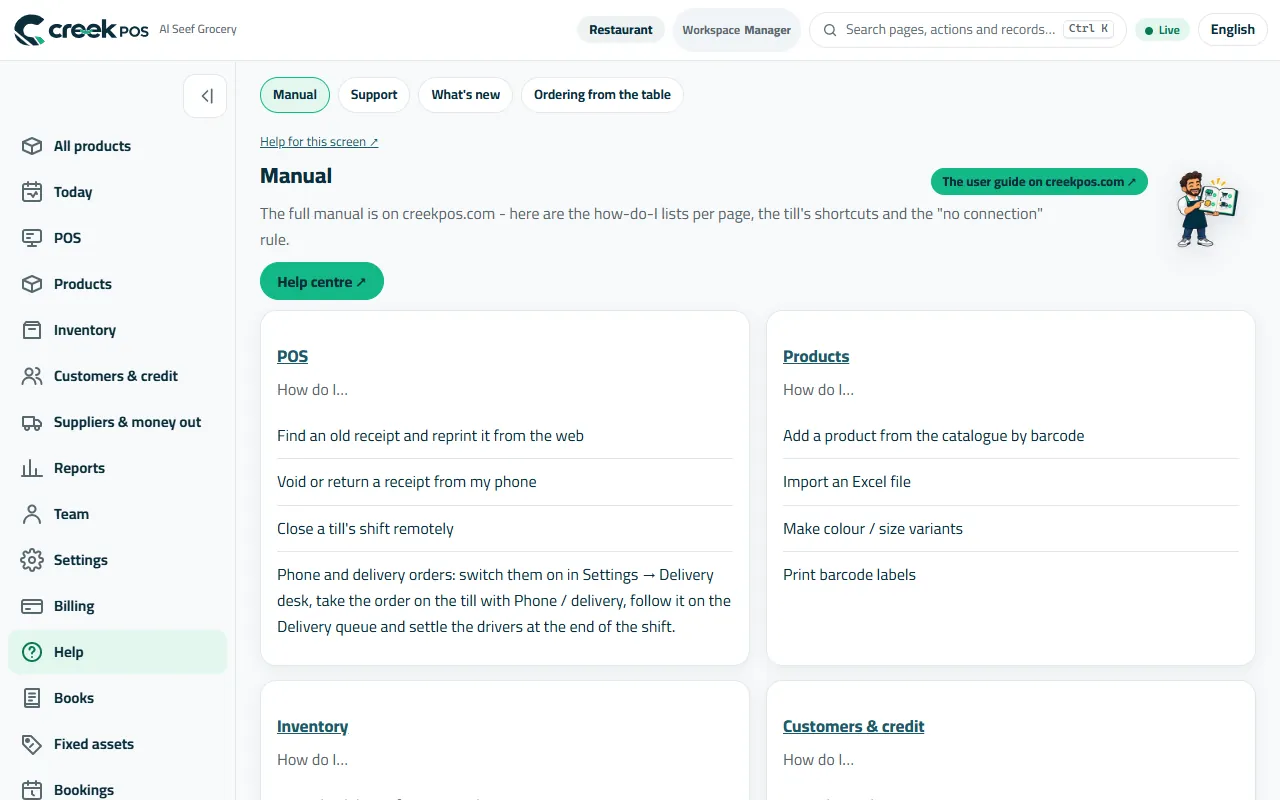
Help: “How do I…” per page, and the manual. 2An error code on the screen
When the app refuses something it shows a short message with a code and What happened?. The error guide on our site explains each code and what to do. Note the code before you ask us.
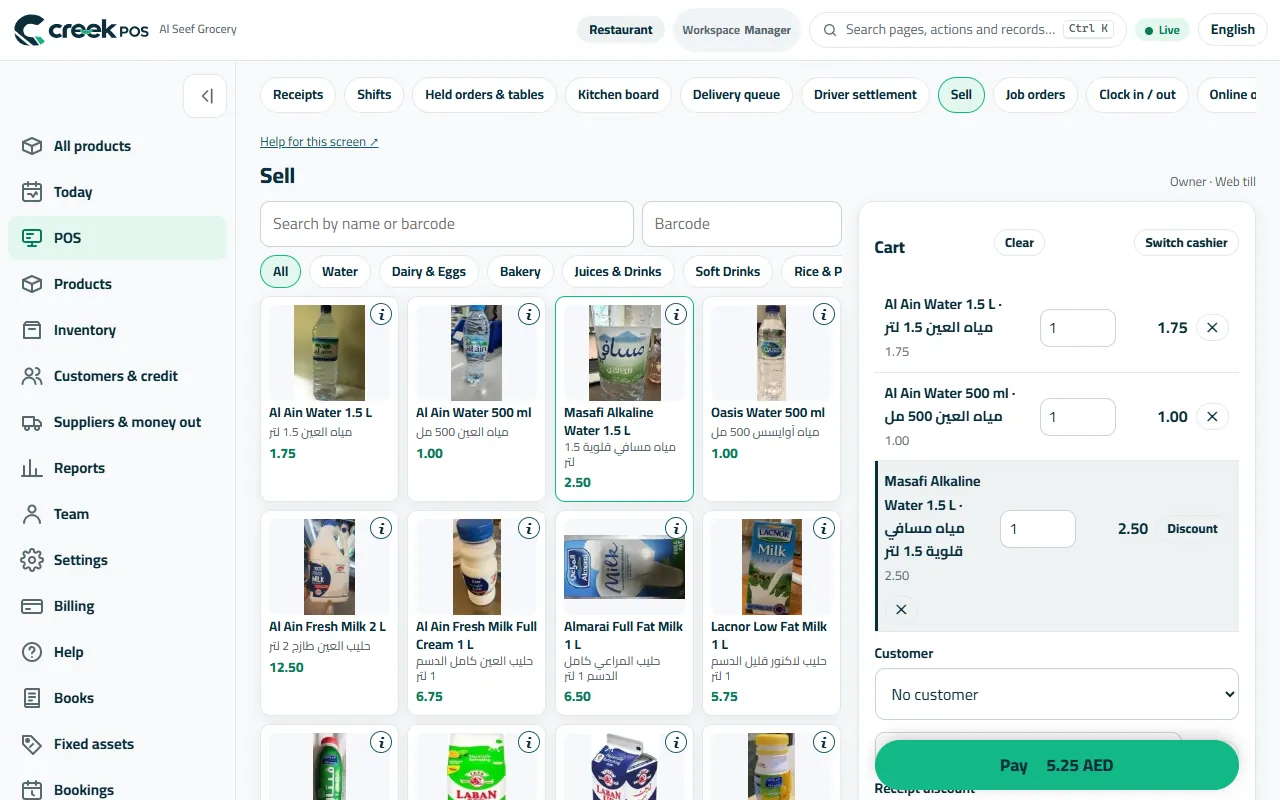
Every page has Help for this screen at the top. 3Ask on WhatsApp
Message +1 650 442 5630 on WhatsApp, any time, in Arabic or English. Say what you were doing and on which screen; a screenshot helps (hide passwords and customers' details). Help → Support also has a form that answers to your e-mail.
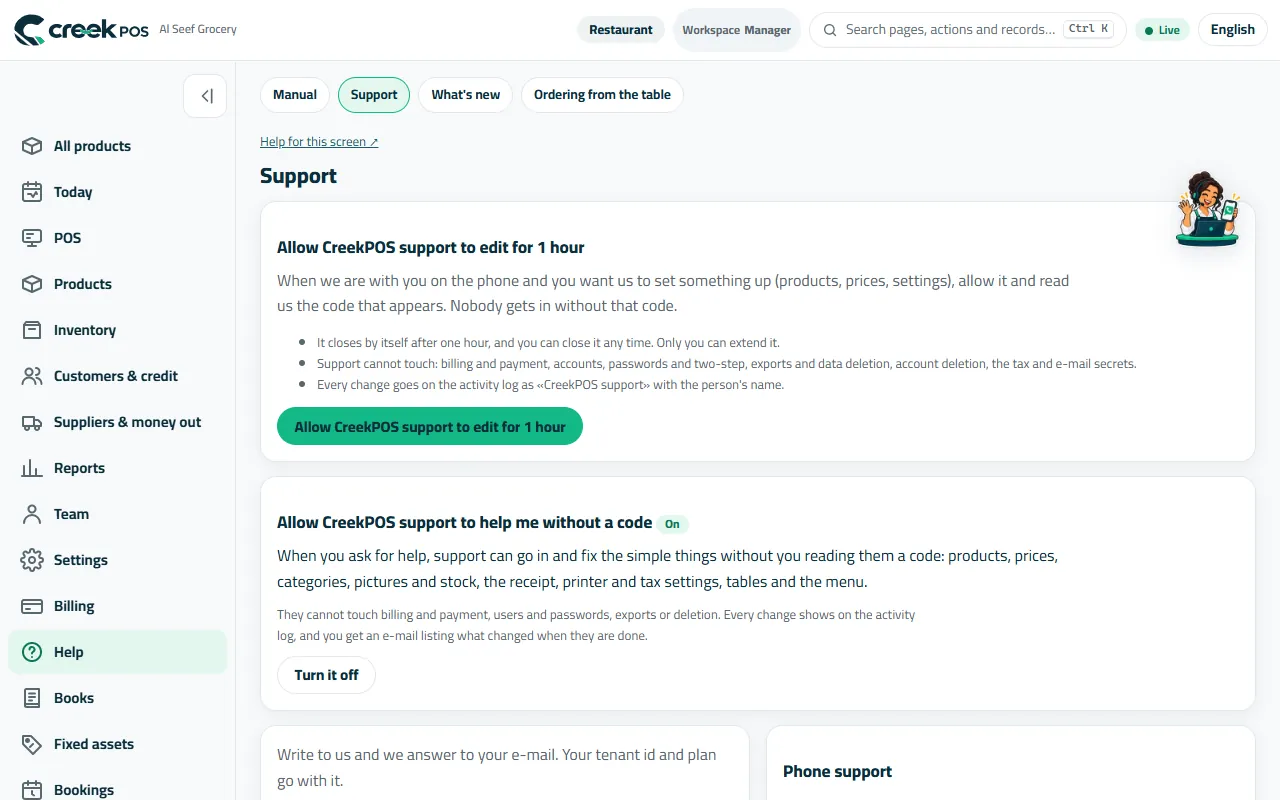
Help → Support: write to us, or allow our support to set something up. 4Let our support set it up for you
Help → Support → Allow support to edit for 1 hour: read us the code that appears and we can set up products, prices or settings with you on the phone. It closes by itself after one hour; billing, accounts, passwords, exports and deletion are out of reach, and every change is written in your activity log.
Support access: one hour, with your code, every change logged. 5What's new
Help → What's new lists the latest changes to the app — it updates itself, there is nothing to install on the browser side.
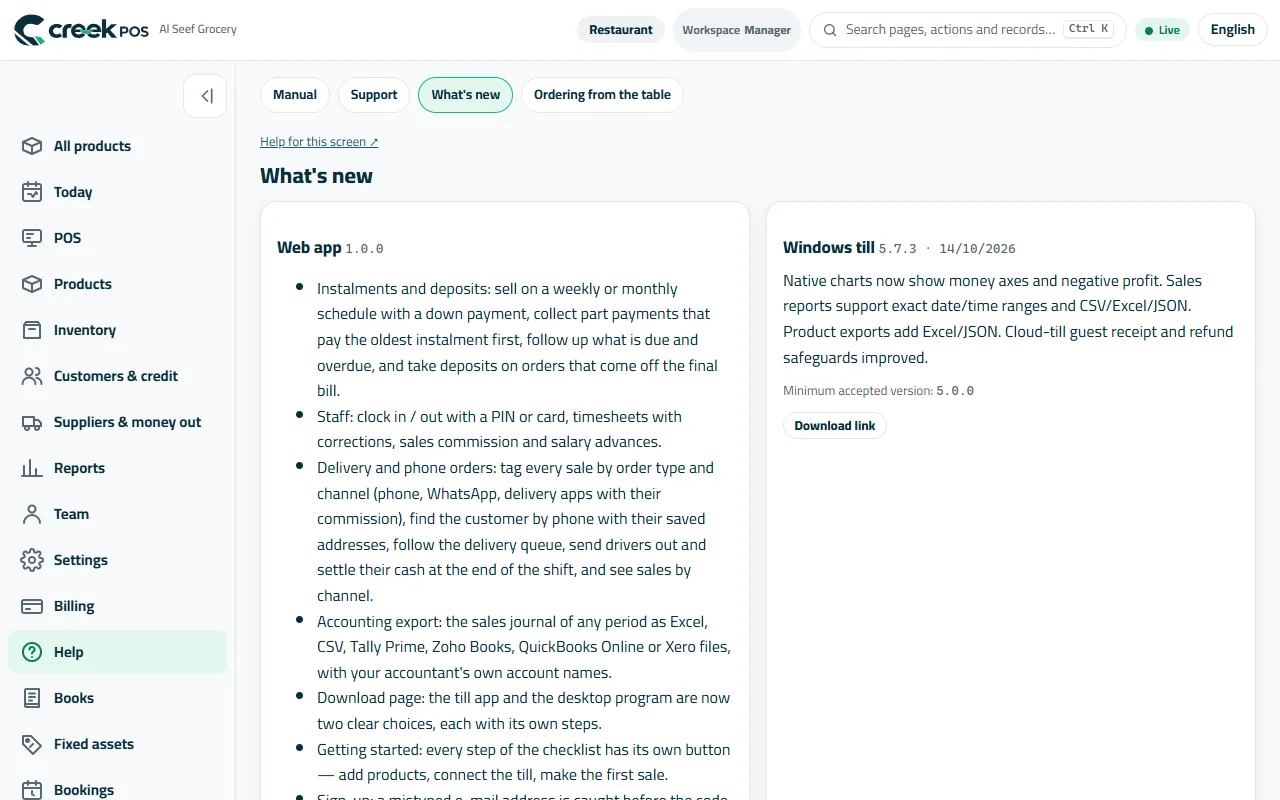
What's new: the latest changes.
The words on the screen
| On the screen | What it means |
|---|---|
| Help for this screen | Opens the guide of the page you are on. |
| What happened? | Opens the explanation of an error code. |
| Support | Write to us; allow support access for one hour. |
Common mistakes
- Sending a screenshot with a password or a customer's phone on it.
- Giving support access “just in case” — allow it only while we are with you.