

Online shop and menu: QR codes, table orders and the delivery desk
Three public pages read the same products and prices as your tills, so there is nothing to keep in step: the online menu, ordering from the table, and the online shop. They are included in the Restaurant and Chain plans and are monthly add-ons on Retail.
Step by step
1Choose your shop's address and what is on
Settings → Online: pick your shop's address (letters, digits and dashes — it is printed on the table codes, so choose it once). Then switch on the Online menu, the Online shop and Table QR codes. Open the menu shows the public page as your guests see it.
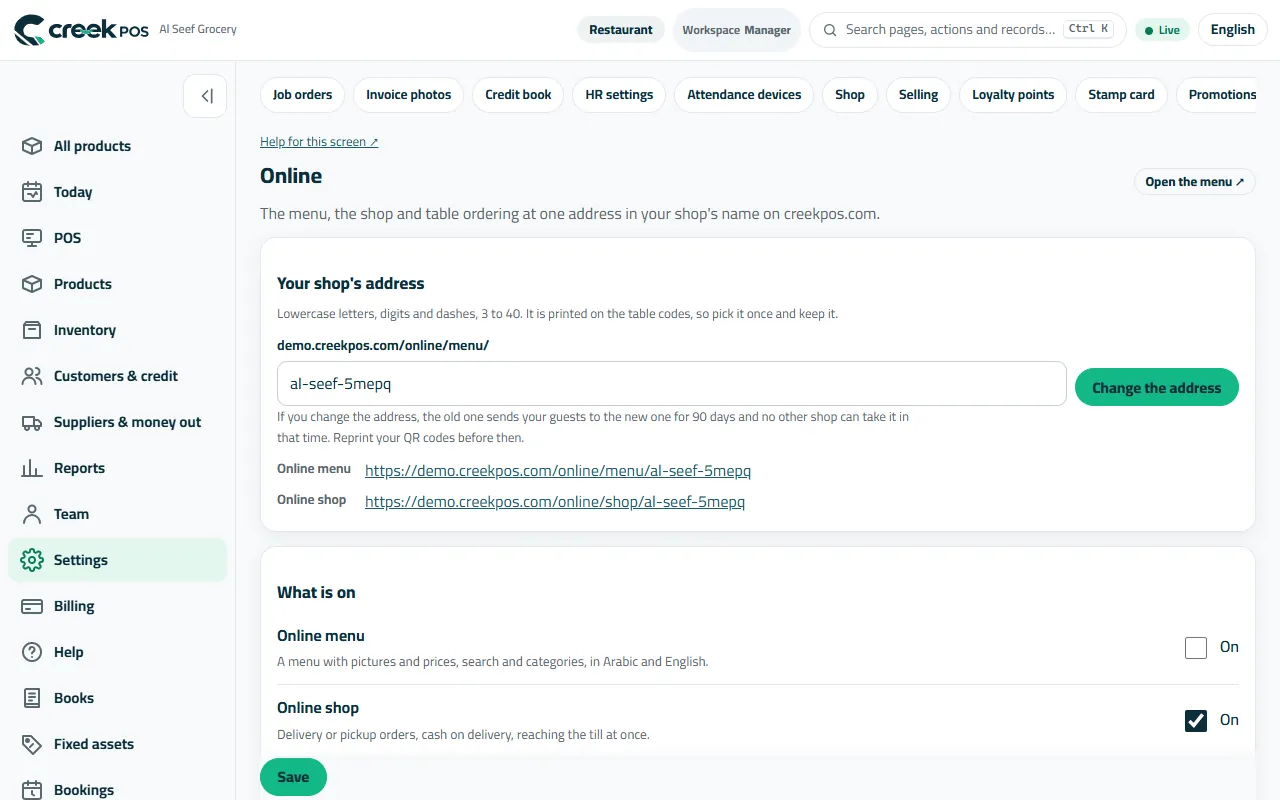
Settings → Online: the shop's address and the three switches. 2Set up ordering from the table
Settings → Online → Table ordering walks you through nine short questions: your tables or seats, when guests pay (one bill per table), whether staff confirm each order before the kitchen, where orders go, and who serves. The Summary shows your answers; press Print table QR codes and put a code on every table.
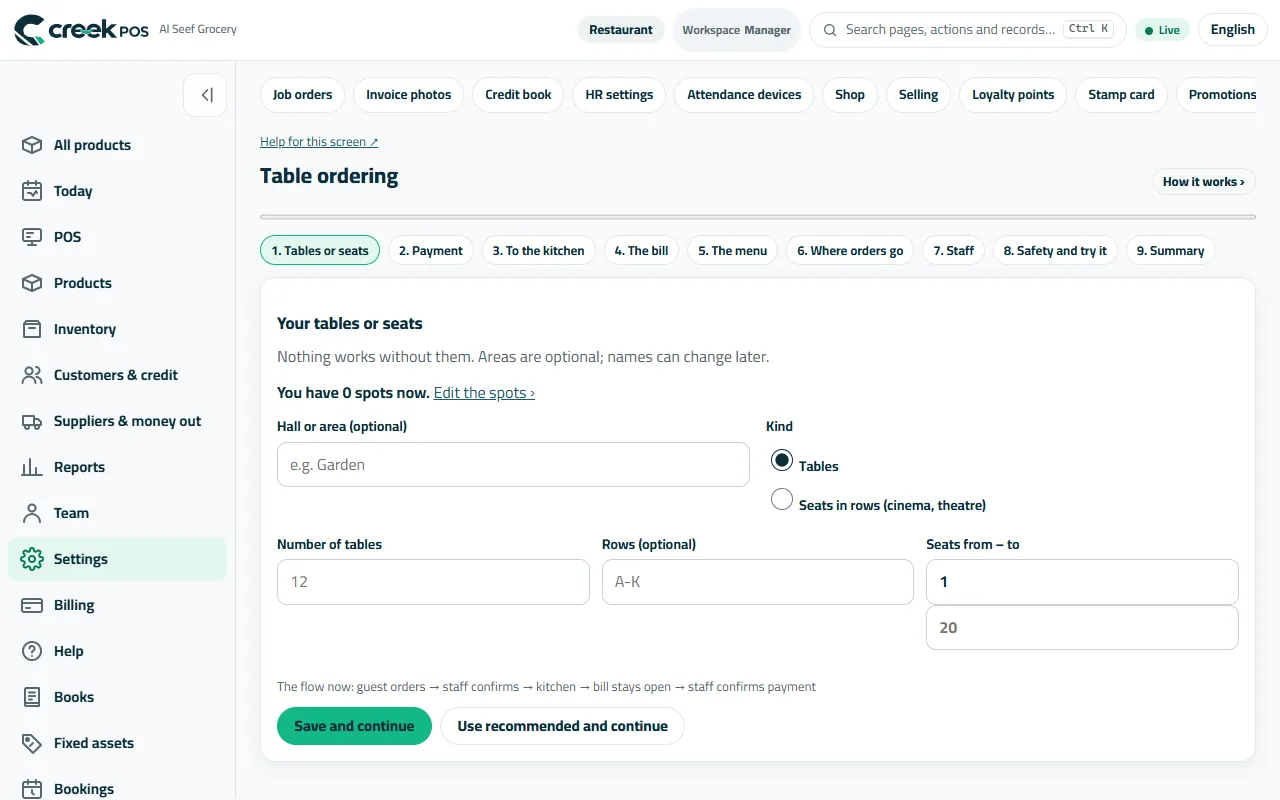
Table ordering: nine answers, then print the codes. 3The online shop: delivery areas, minimum and hours
Settings → Online → Shop: your delivery areas with a fee and a minimum each, pickup at the shop, the minimum order and your opening hours. Choose whether orders go straight to the till or wait for Accept. Customers pay cash on delivery or when they collect.
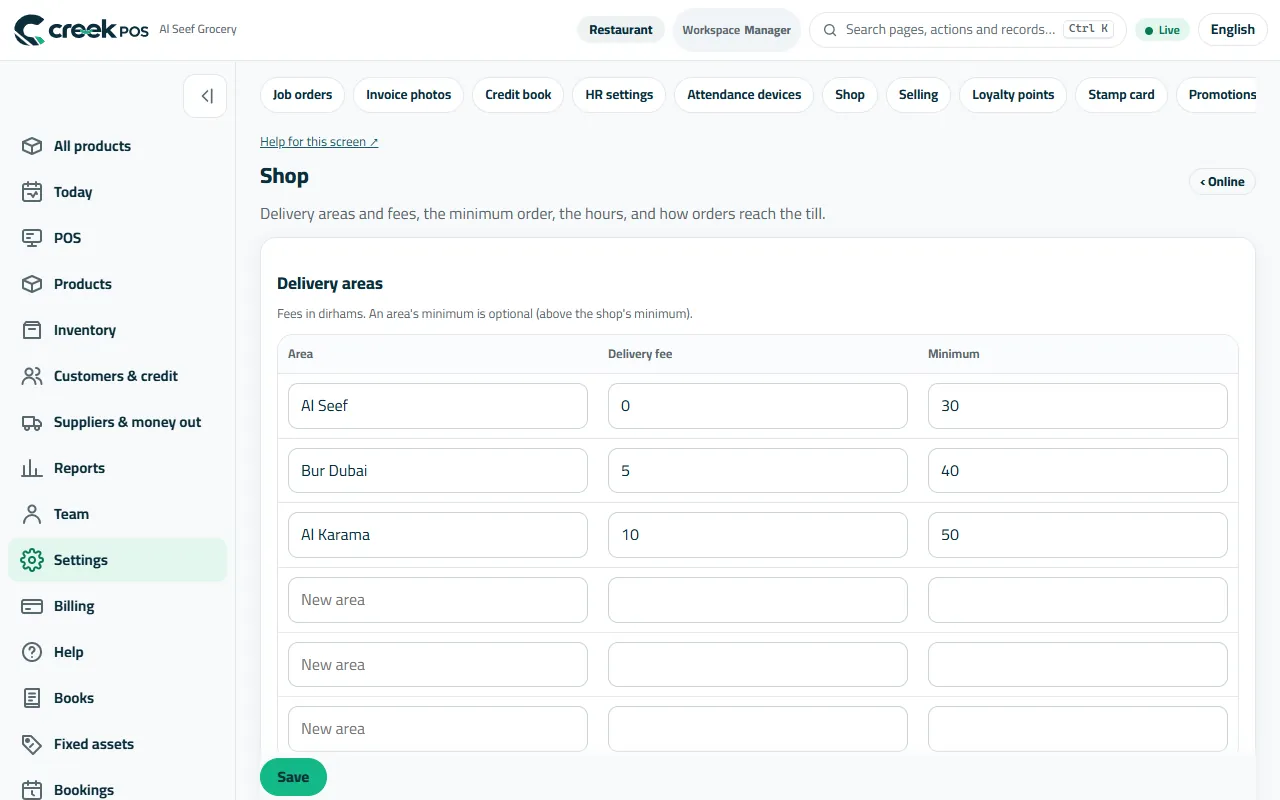
Shop: delivery areas and fees, pickup, the minimum order and the hours. 4Take the orders
POS → Online orders lists every order from the shop and the tables with its status: Received, Being prepared, On the way, Delivered. Accept an order and it reaches the till as a held order, ready to finish as a normal sale.
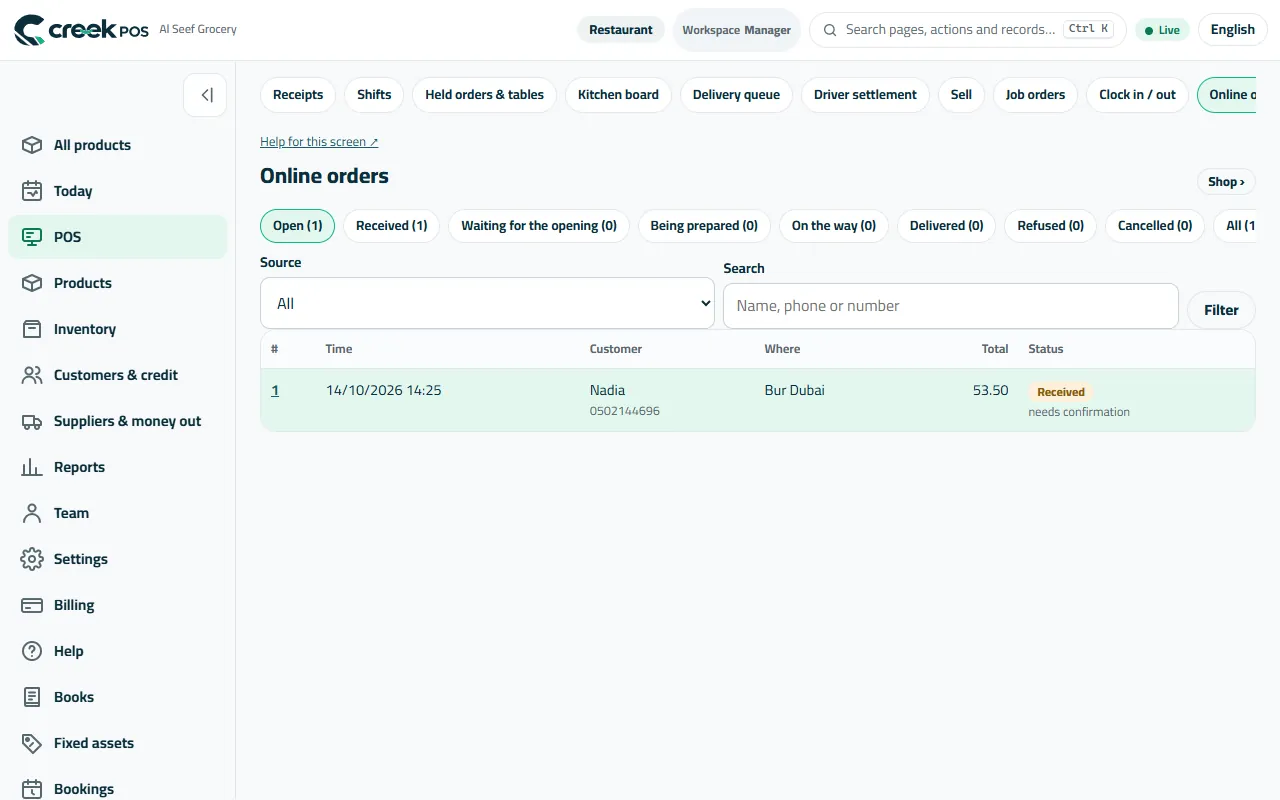
Online orders: the shop and the tables in one list, by status. 5The waiter's phone
Waiters open POS → Waiter on their phone, press Start service and choose their tables. Tables that need someone — an order waiting, the bill asked, a guest calling — come first. Orders go to the kitchen board by station.
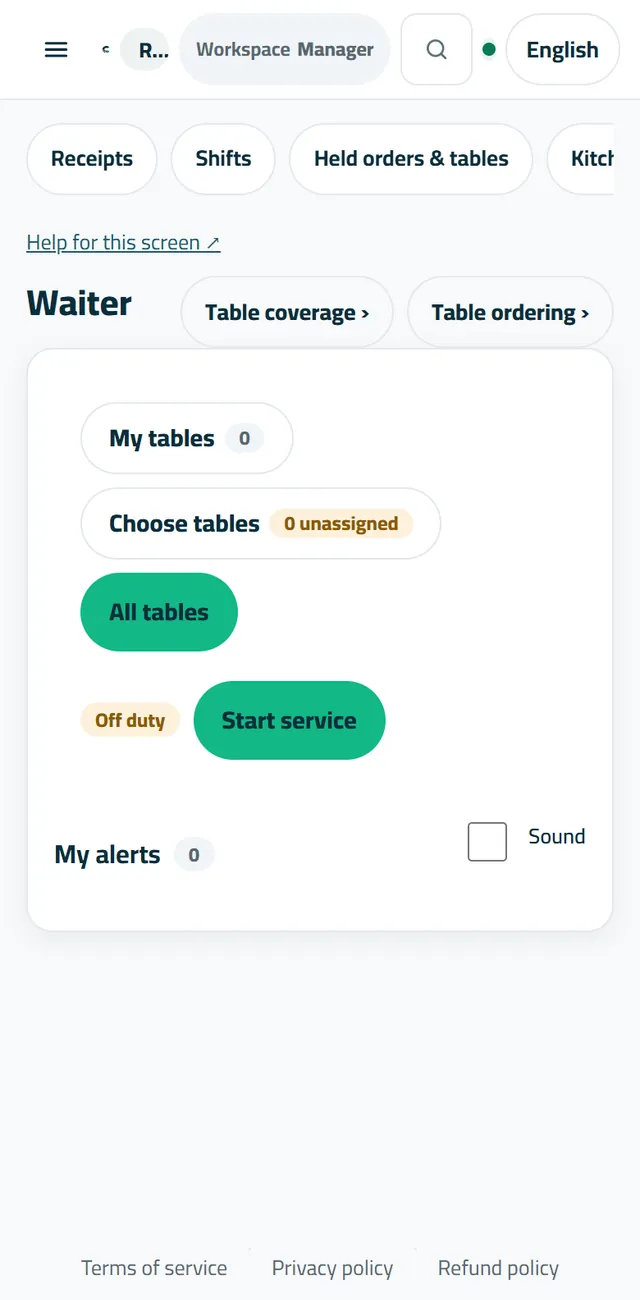
Waiter: the tables, most urgent first. 6Phone, WhatsApp and delivery-app orders
Settings → Delivery desk tags each sale as dine-in, takeaway or delivery and where it came from (phone, WhatsApp, your own shop, a delivery app with its commission). Add your drivers; POS → Delivery queue follows each order and the driver settlement closes their cash at the end of the shift.
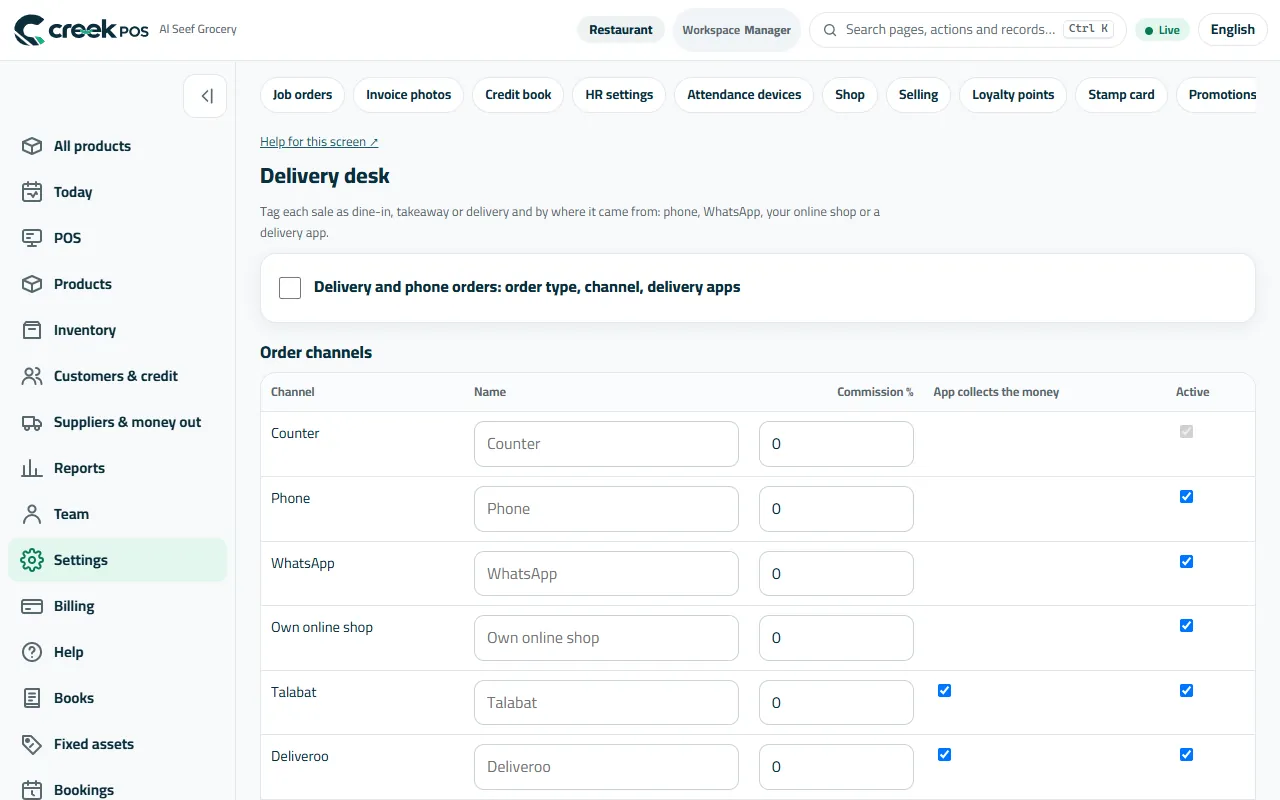
Delivery desk: order channels with their commission, drivers and areas.
The words on the screen
| On the screen | What it means |
|---|---|
| Online menu | A public page with your products, pictures and prices. |
| Table QR codes | A code per table: guests see the menu, order and call the waiter. |
| Online shop | Delivery or pickup orders with cash on delivery. |
| Online orders | Every order from the shop and the tables. |
| Delivery queue | Delivery orders and their drivers. |
Common mistakes
- Changing the shop's address after printing the codes. The old address forwards for 90 days — reprint before then.
- Leaving opening hours empty, so orders arrive at night.
- Letting the kitchen get orders nobody confirmed. Keep Staff confirms every order until you trust the flow.