

Products and stock: catalogue, expiry, low stock, counts and suppliers
Products is what you sell; Inventory is how many you have. Every sale takes the quantity off, every delivery you receive puts it back, and the lists tell you what is running low, what expires first and what to buy today.
Step by step
1Add products from the catalogue
Products → Catalogue picker: search by name or scan the pack, tick what you sell, type your price and add. The name, barcode, category and picture come with it. A pack that is not in the catalogue: scan it at the till or press New product.
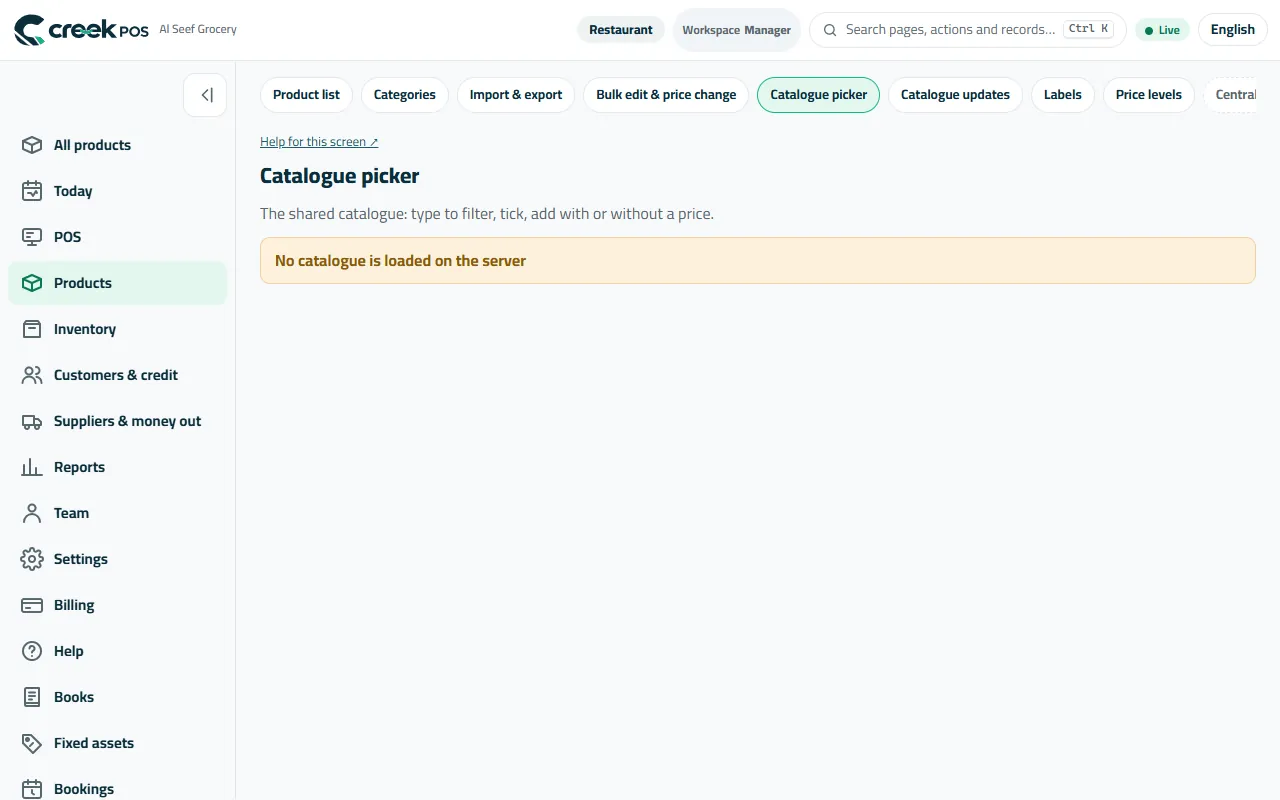
The Catalogue picker: products already typed in, with their pictures. 2Edit a product: price, cost, barcode, picture, expiry
Open a product from Products → Product list. Set the price and the cost (the cost makes the profit report true), the barcode (or generate one for products without), the category, a picture from your phone's camera, a second name in another language, and whether it tracks stock and expiry. Sizes, add-ons and colour / size variants have their own buttons on the product.
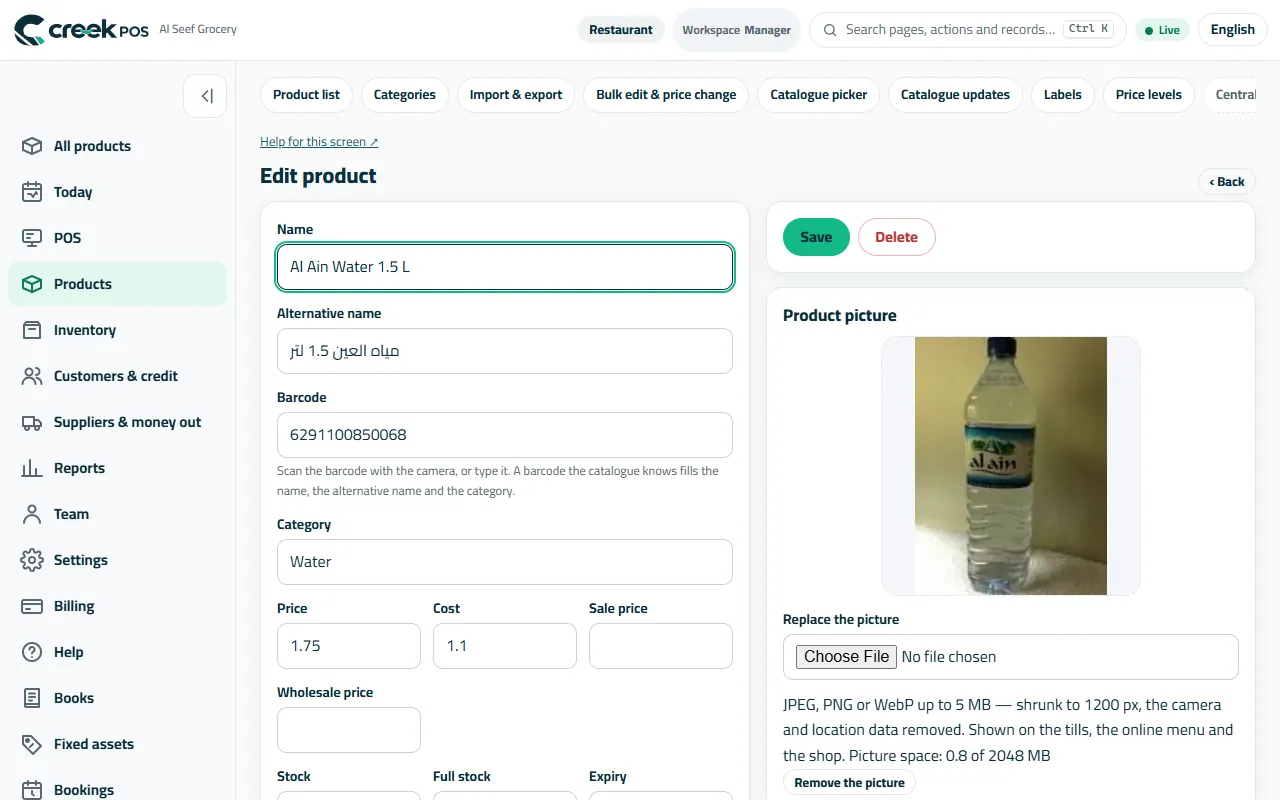
Edit product: price, cost, barcode, picture, category and stock settings on one page. 3Receive a delivery
Inventory → Receive: pick the supplier, then one line per product with the quantity, the unit cost and the expiry date, and press Receive. The stock goes up and the cost is updated. A paper invoice? From a photo reads it for you (the invoice reader, an AI feature) and fills the lines; you check and confirm.
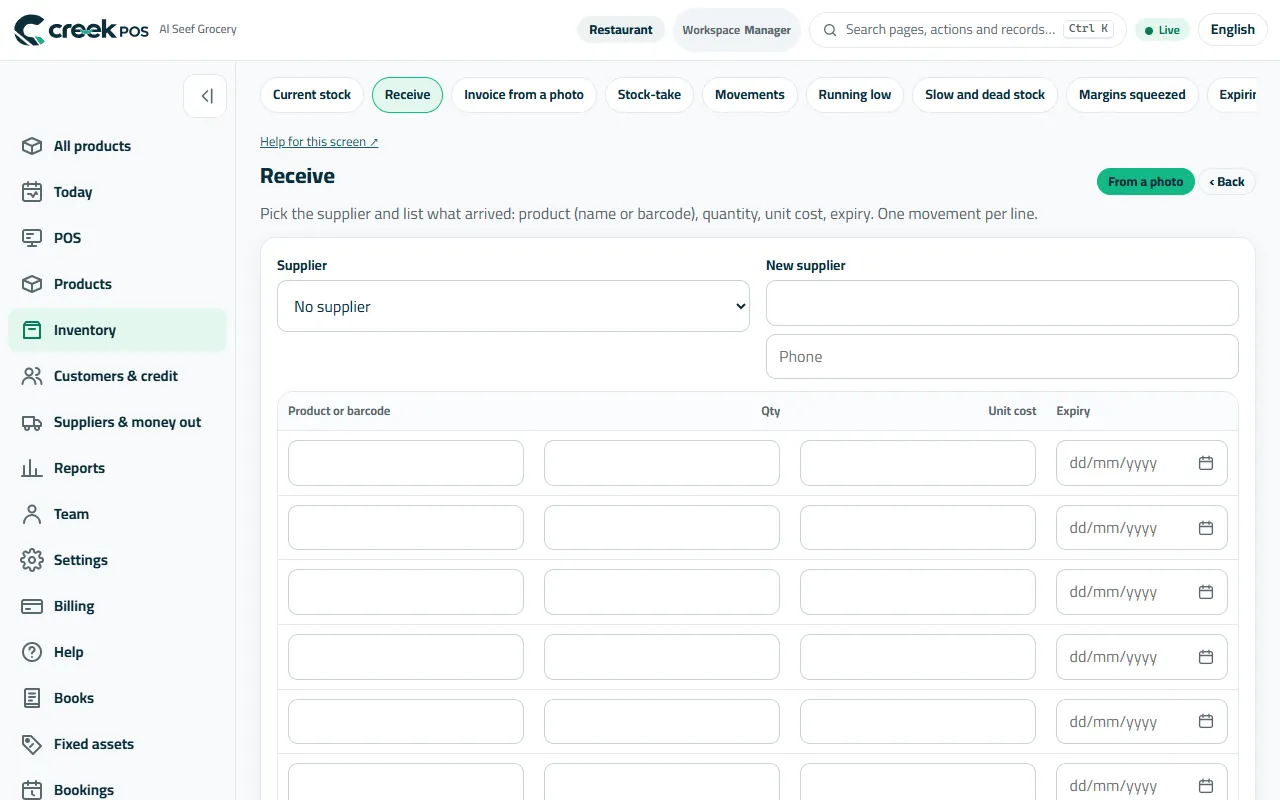
Receive: supplier, product or barcode, quantity, unit cost and expiry. 4See what is running low and what to buy
Inventory → Running low lists products under their alert level (set the level % in Settings → Selling). What to buy today goes further: from what sold recently it suggests how much to order from each supplier and what it will cost.
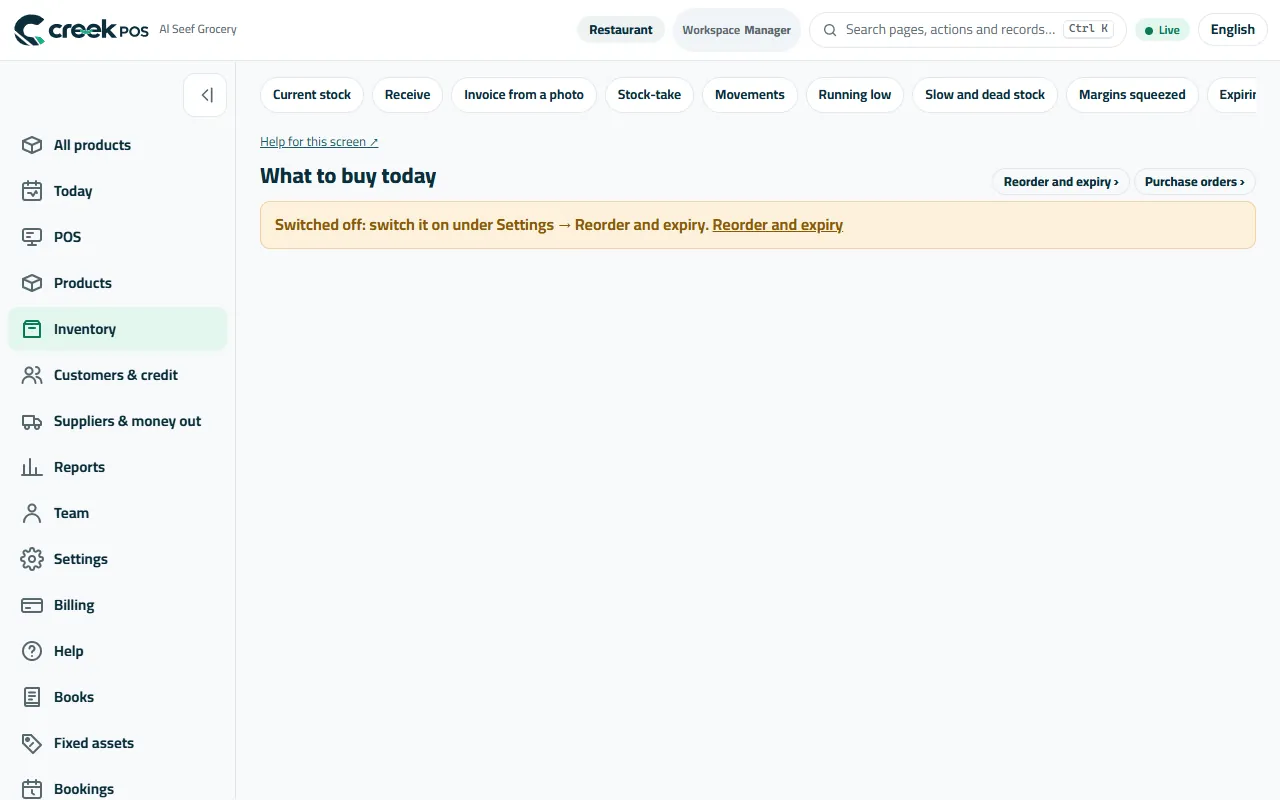
What to buy today: quantities suggested from your recent sales, per supplier. 5Watch the expiry dates
Products that track expiry get their date when you receive them. Inventory → Expiring lists what expires soonest (the warning days are in Settings → Selling), so you can sell or return it in time.
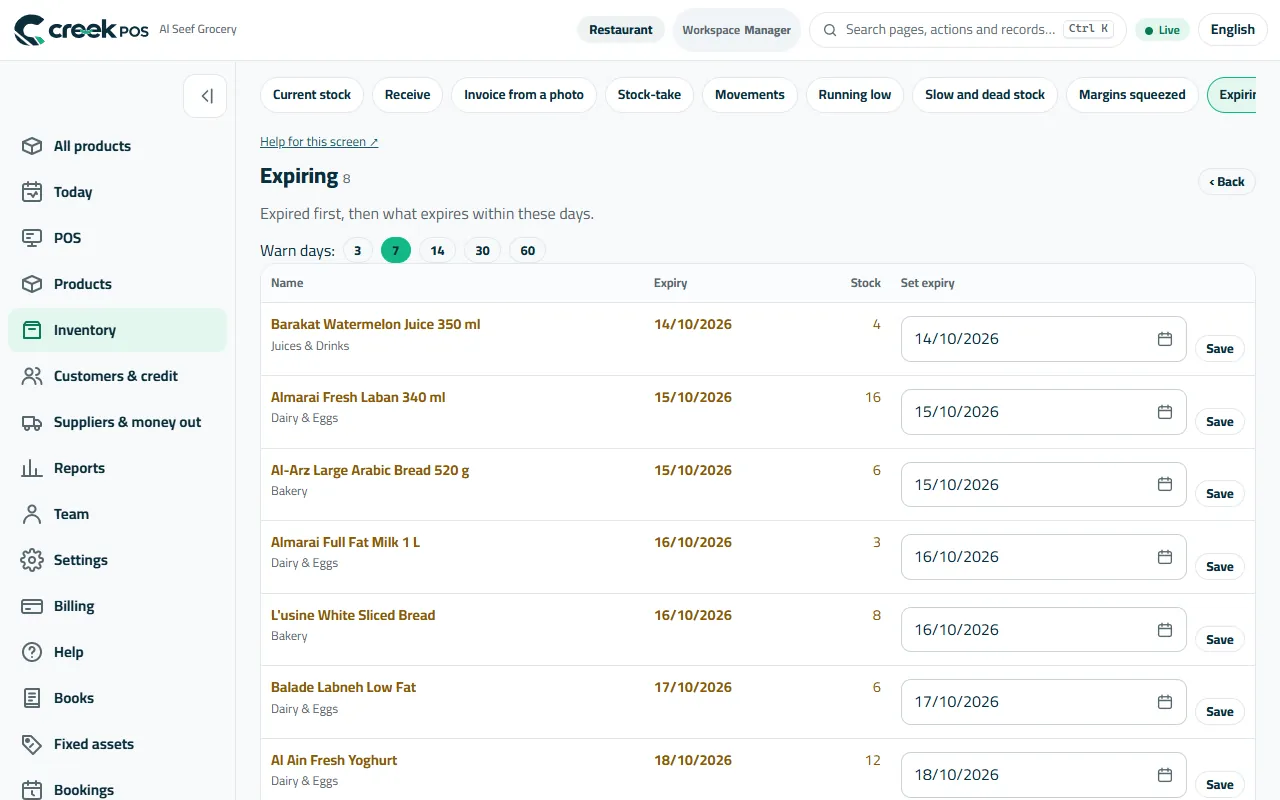
Expiring: what expires first, with the quantity you hold. 6Count the stock (stock-take)
Inventory → Stock-take → Open a stock-take. Count with several phones at once — each opens the same stock-take and scans with its camera; the last count of a product wins. Check the differences and their value, then apply: the stock becomes what you counted.
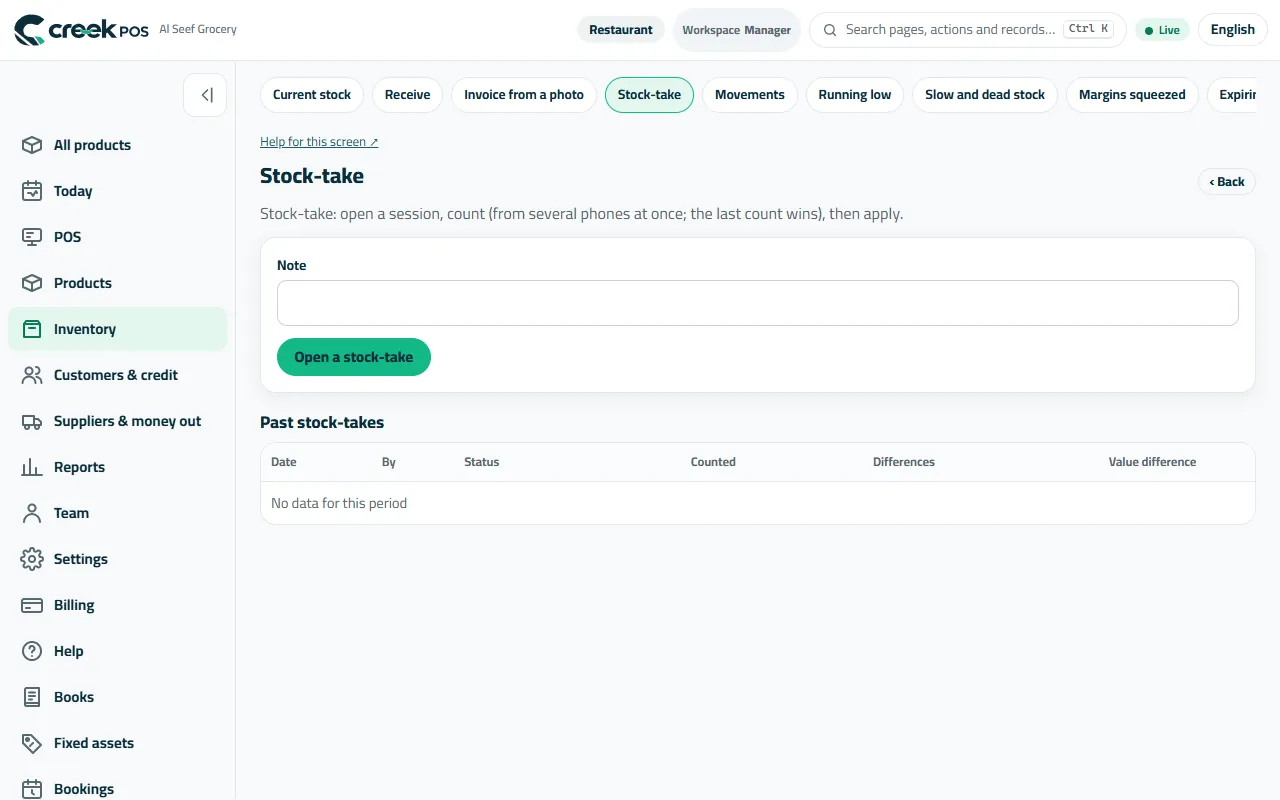
Stock-take: open, count from several phones, review the differences, apply. 7Suppliers and purchase orders
Suppliers & money out → Suppliers keeps each supplier with what you received from them and what you owe. A purchase order (Inventory → Purchase orders → New order) is what you asked for; receive it in one or more deliveries and what is still to come stays outstanding.
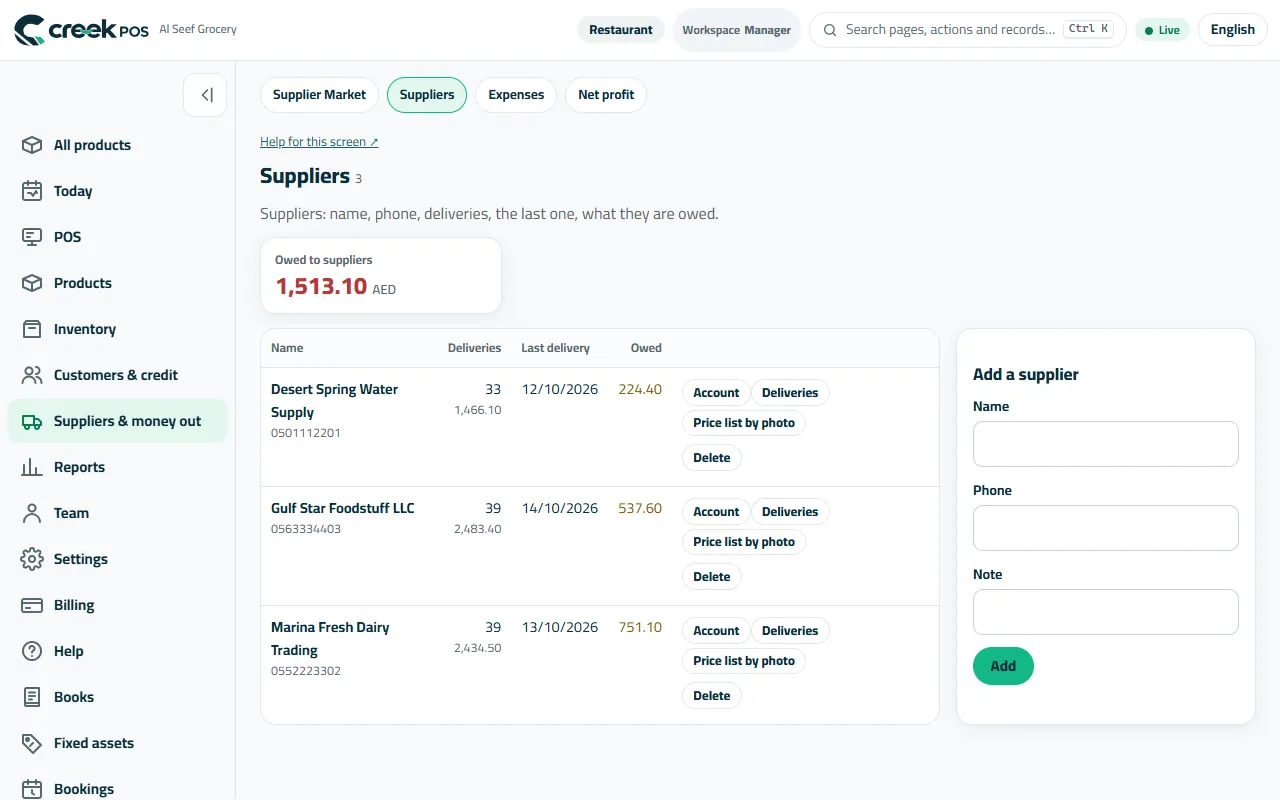
Suppliers: each one with deliveries, invoices and the balance you owe.
The words on the screen
| On the screen | What it means |
|---|---|
| Product list | All your products, with filters (no barcode, no picture, out of stock…). |
| Current stock | How many you hold of each product, and its value. |
| Receive | Record a delivery: stock goes up, cost is updated. |
| Running low | Below the alert level you set. |
| Expiring | Products whose expiry date is near. |
| Stock-take | A full count that replaces the stock with what you counted. |
| Purchase order | An order to a supplier, received in one or more deliveries. |
Common mistakes
- Leaving the cost empty. Profit then shows the full price as profit.
- Correcting stock by editing the product. Use Receive for deliveries and a stock-take for counts, so every change has its reason in Stock movements.
- Two products with the same barcode — the till cannot tell which one you scanned. The product list shows duplicates.
- Counting while the till is selling the same shelf. Count when it is quiet, or count that shelf again before you apply.