

Money: shifts, cash, the phone dashboard, reports and VAT
Every number comes from the receipts themselves, so the phone, the reports and the till always agree. You can read them from anywhere; your accountant can get a view-only account.
Step by step
1Today, on your phone
Open app.creekpos.com on the phone and sign in. Today shows sales (cash, card, credit), receipts, items, profit, the week and the month; the arrows move to another day. Add it to the home screen so it opens like an app.
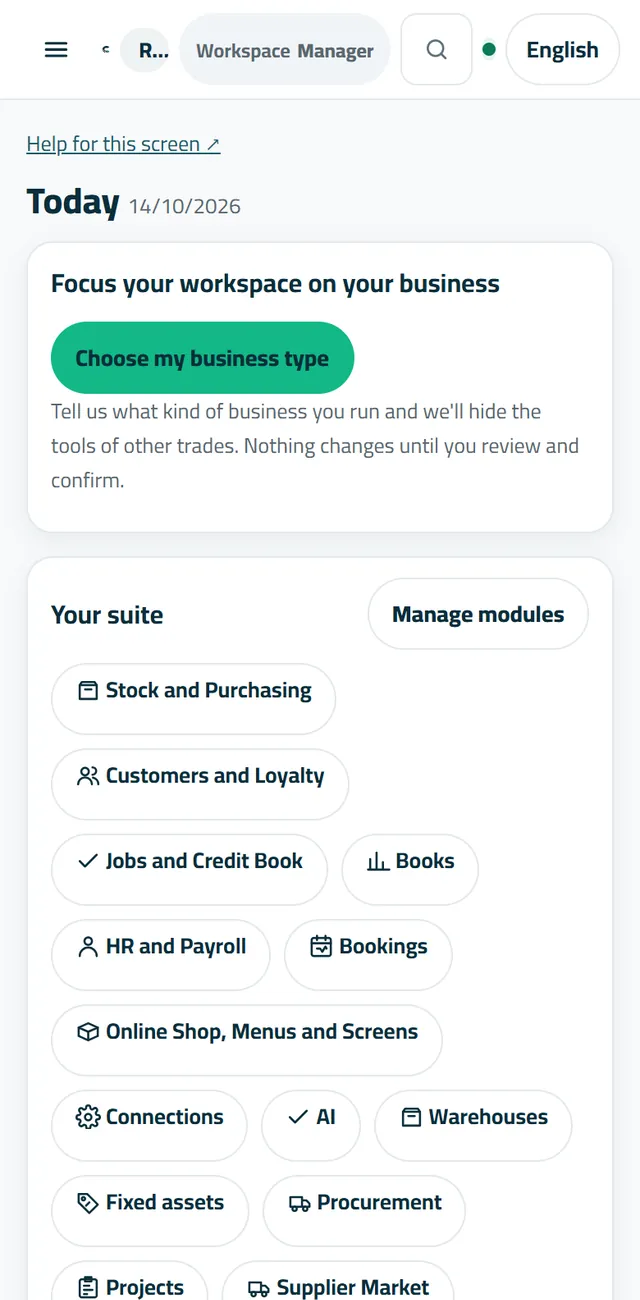
Today on a phone: sales, receipts, profit, the week and the month. 2Sales and profit reports
Reports → Sales shows sales by day, hour, product and cashier for any period. Reports → Profit shows what you earned after the cost of what you sold — it is only right if your products have their cost. Every report prints, and exports to Excel or CSV.
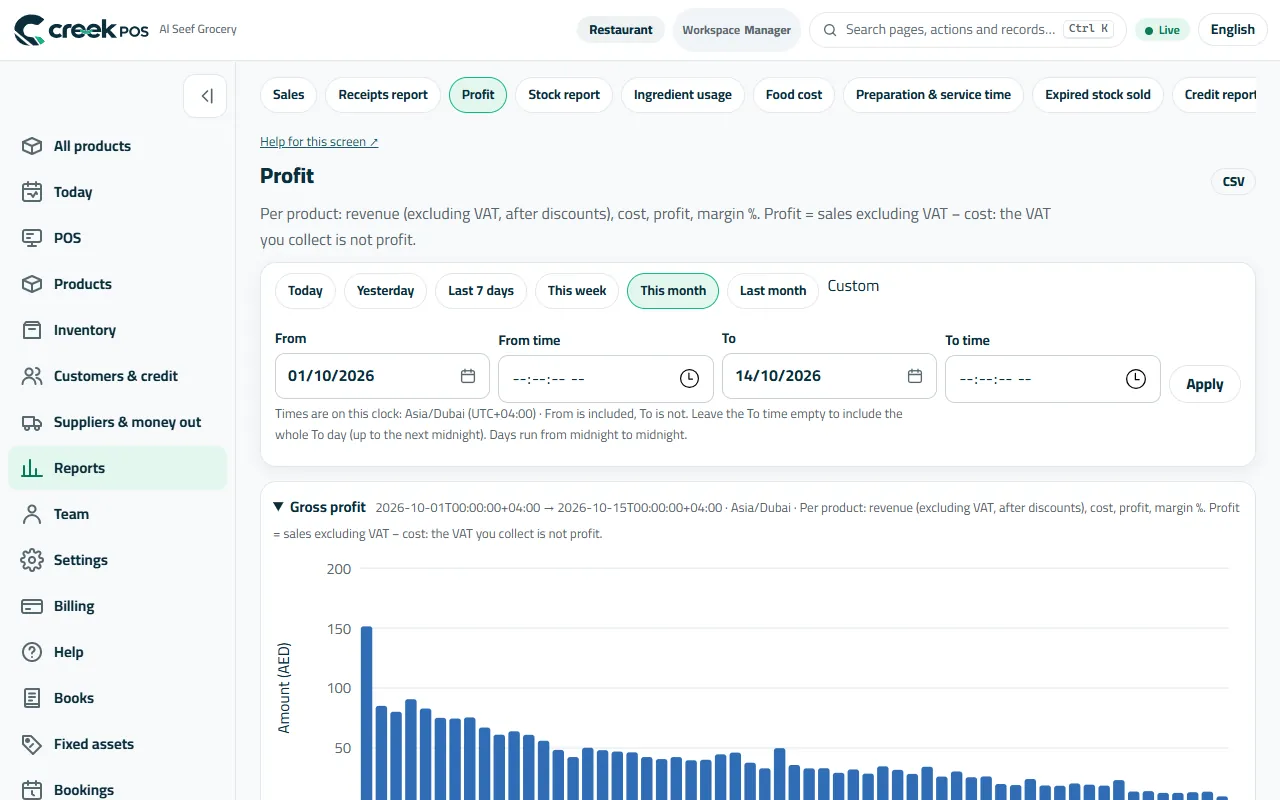
Reports → Profit: sales, cost and profit for the period you pick. 3The cash of every shift
Reports → Shifts & Z: each shift with its cashier, sales, Expected cash, Counted cash and the Difference (red when it is not zero). Open the Z report of any shift to see its details.
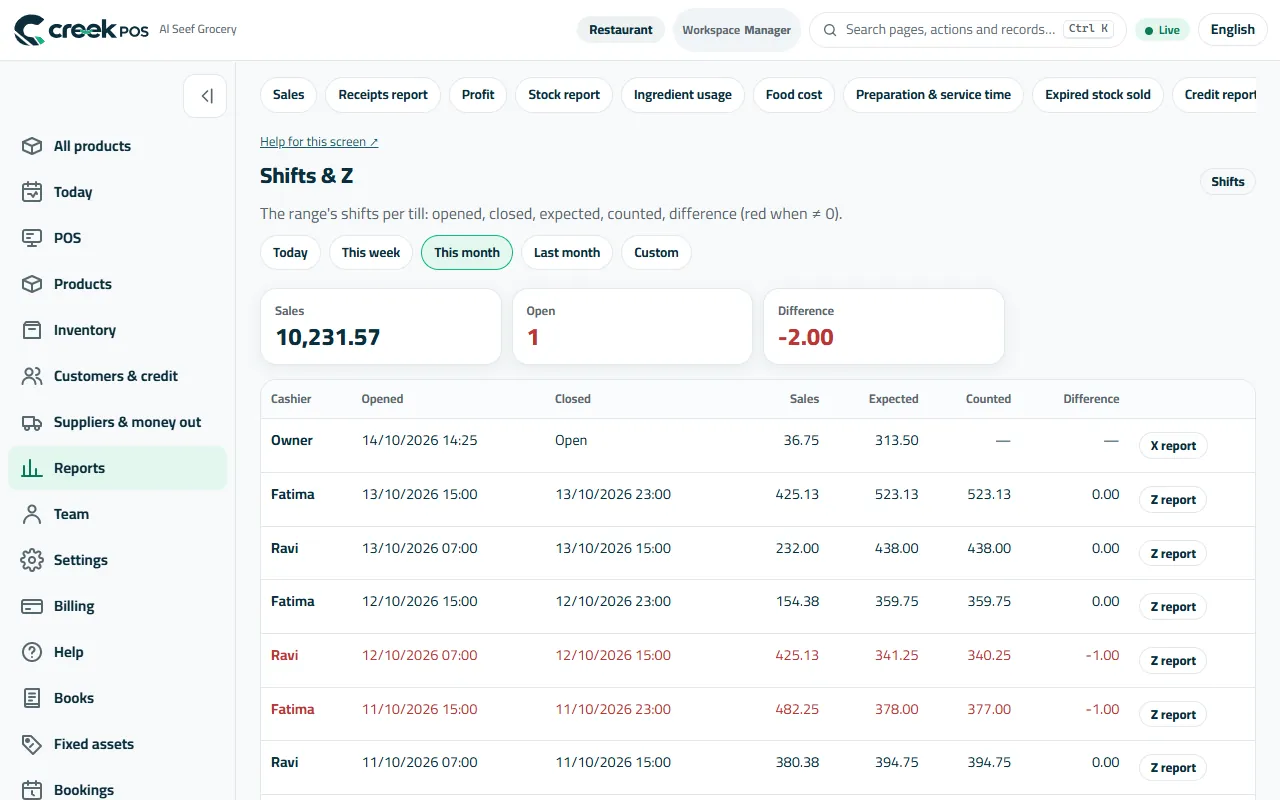
Shifts & Z: expected and counted cash per shift, the difference in red. 4Expenses
Suppliers & money out → Expenses: rent, salaries, electricity, cash taken from the drawer for the shop. Expenses bring the profit down to what you really keep.
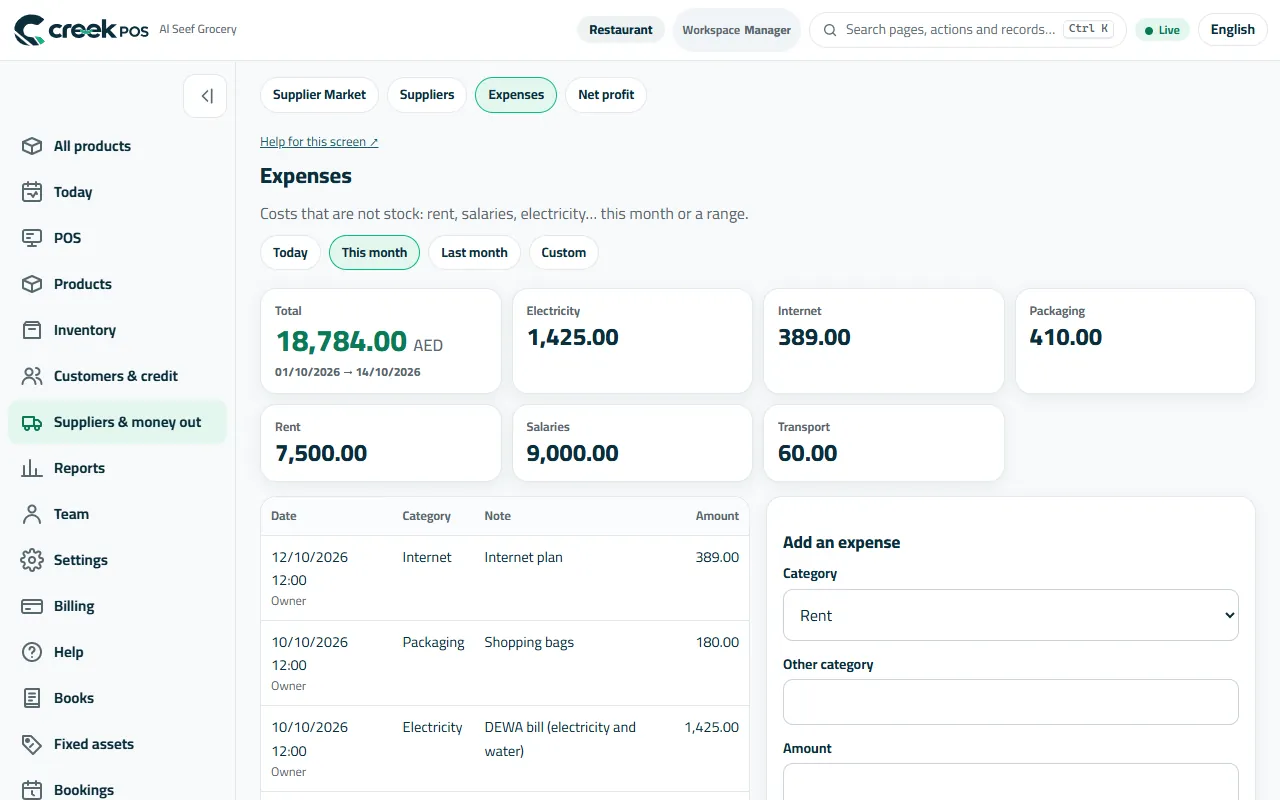
Expenses: what the shop spends, by category. 5Ask your shop
Reports → Ask your shop: type a question in plain words — “sales today?”, “who owes me?”, “what is running low?” — and get the exact figure from your own data. It is one of the AI features; it reads your reports and never invents a number.
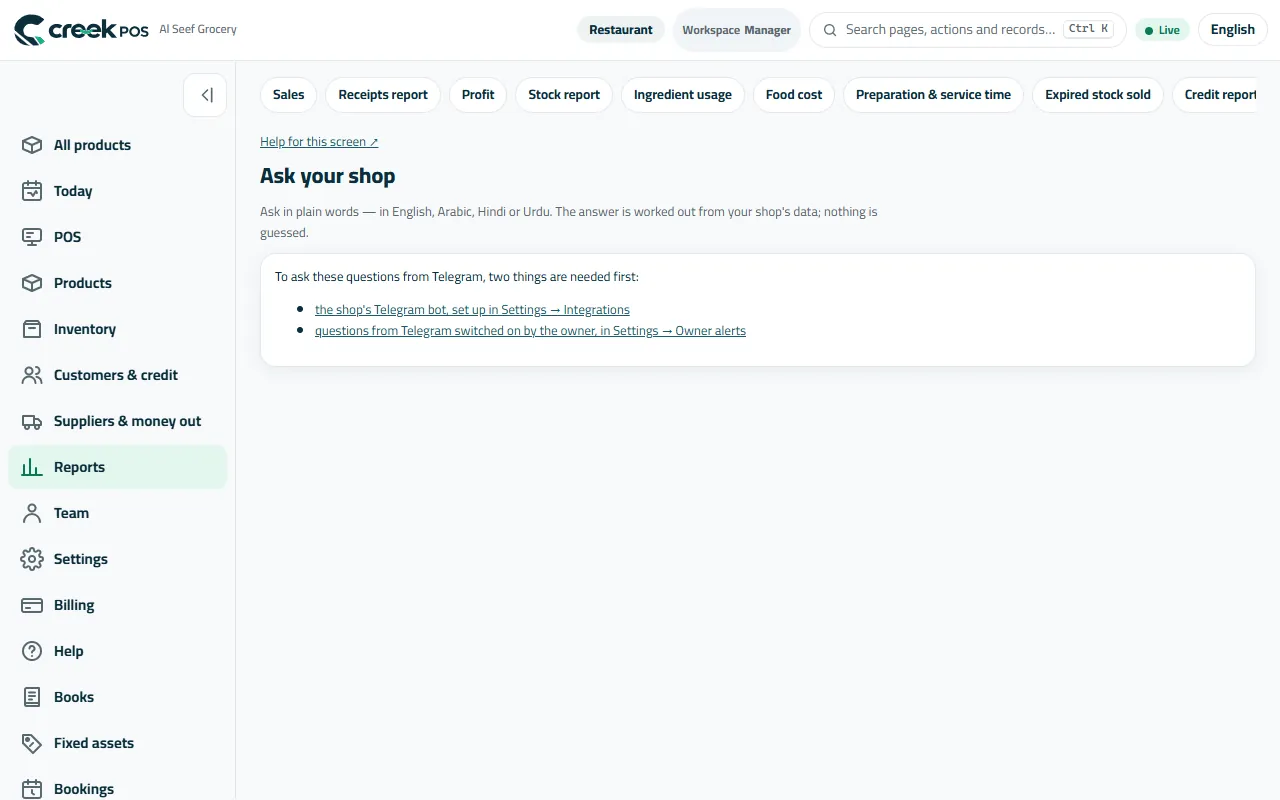
Ask your shop: a question in plain words, the figure from your own reports. 6VAT: the tax collected
Reports → Tax collected: the 5% VAT and the service charge collected on the receipts of a month or a quarter, by rate and by day — the very amounts printed on each receipt. Print it or export it for your accountant or your VAT return. It is for your records, not tax advice.
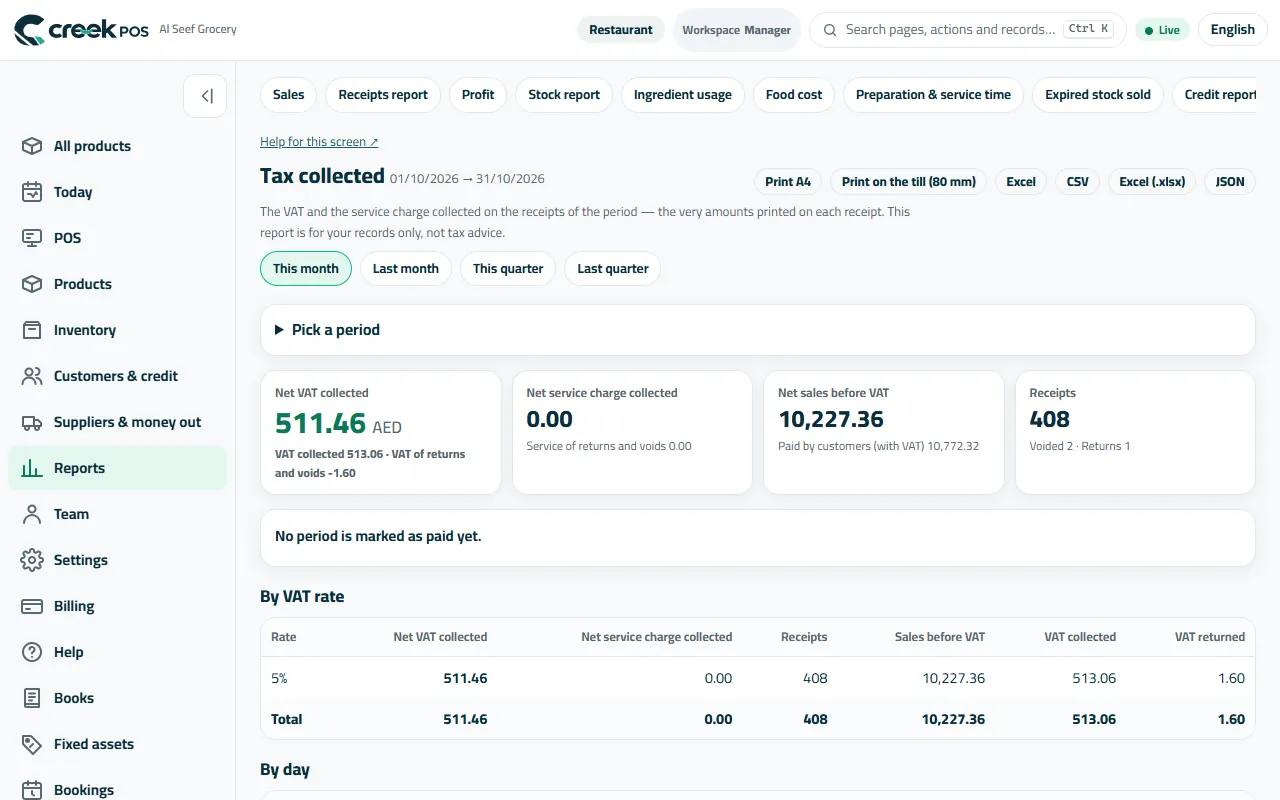
Tax collected: net VAT for the period, by rate and by day. 7Hear about it first: owner alerts
Settings → Owner alerts sends a message when something needs your eye: a void, a big discount, a refund, a drawer that does not add up. A daily summary by e-mail after closing is in Settings → Daily summary.
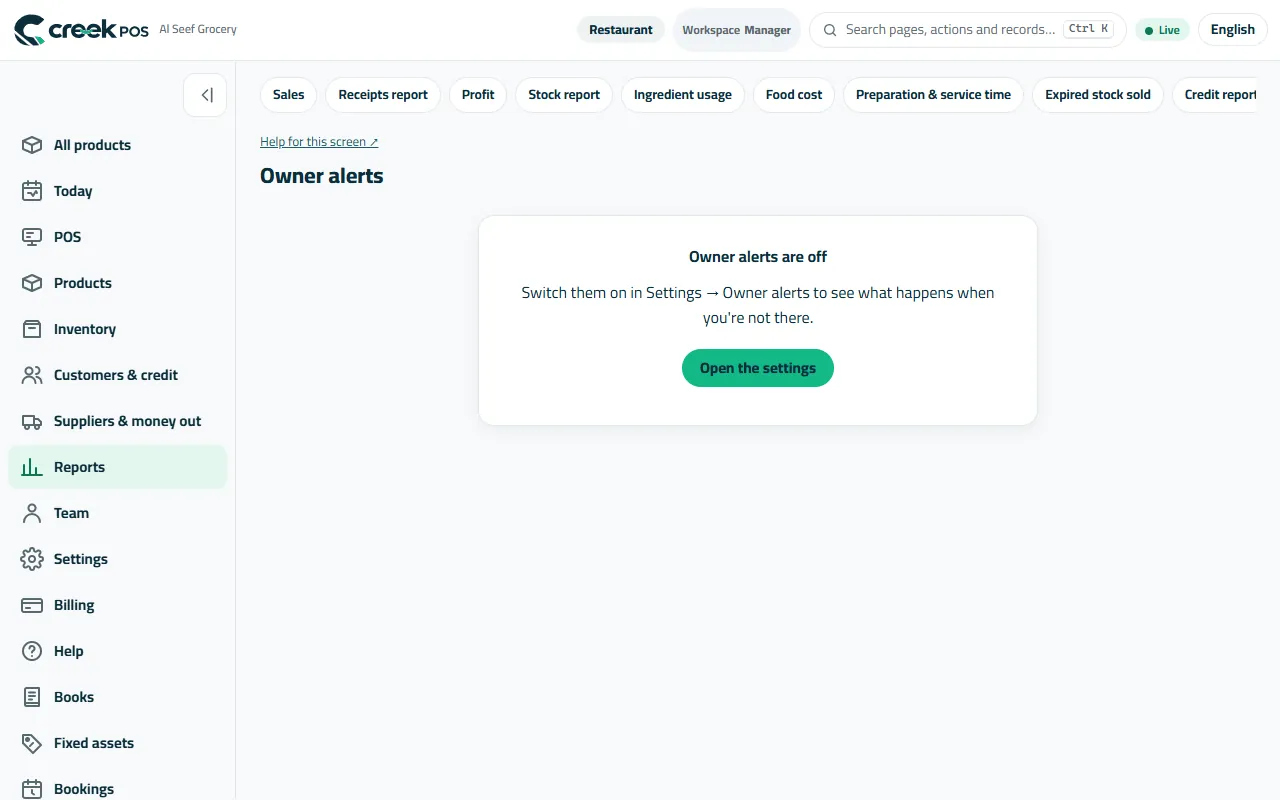
Owner alerts: switch them on in Settings → Owner alerts.
The words on the screen
| On the screen | What it means |
|---|---|
| Today | The day's sales, profit, cash and card. |
| Profit | Sales minus the cost of what was sold (needs product costs). |
| Expected / Counted / Difference | The cash the drawer should hold, what was counted, and the gap. |
| Tax collected | The VAT and service charge on your receipts for a period. |
| Ask your shop | Questions in plain words, answered from your own reports. |
Common mistakes
- Reading profit with no costs on the products.
- Letting differences pile up. Look at Shifts & Z every evening; a small gap is easy to explain the same day.
- Sharing the owner's login with the accountant. Give them their own account with the Accountant (view only) preset.