

Staff: accounts and rights, attendance and HR basics
Every person who works the till gets their own account, so each receipt, void and discount carries a name. The owner decides what each account may do. Attendance and HR are separate switches for when you need them.
Step by step
1Add an account for each employee
Team → Users. Under New cashier account type the name and a password, pick a preset (Cashier, Senior cashier, Stock-taker, Accountant, Waiter, Chef / kitchen, Accountant (view only)) and press Add. Managers who use the browser can be invited by e-mail with Invite. Your plan sets how many accounts you have (shown at the top).
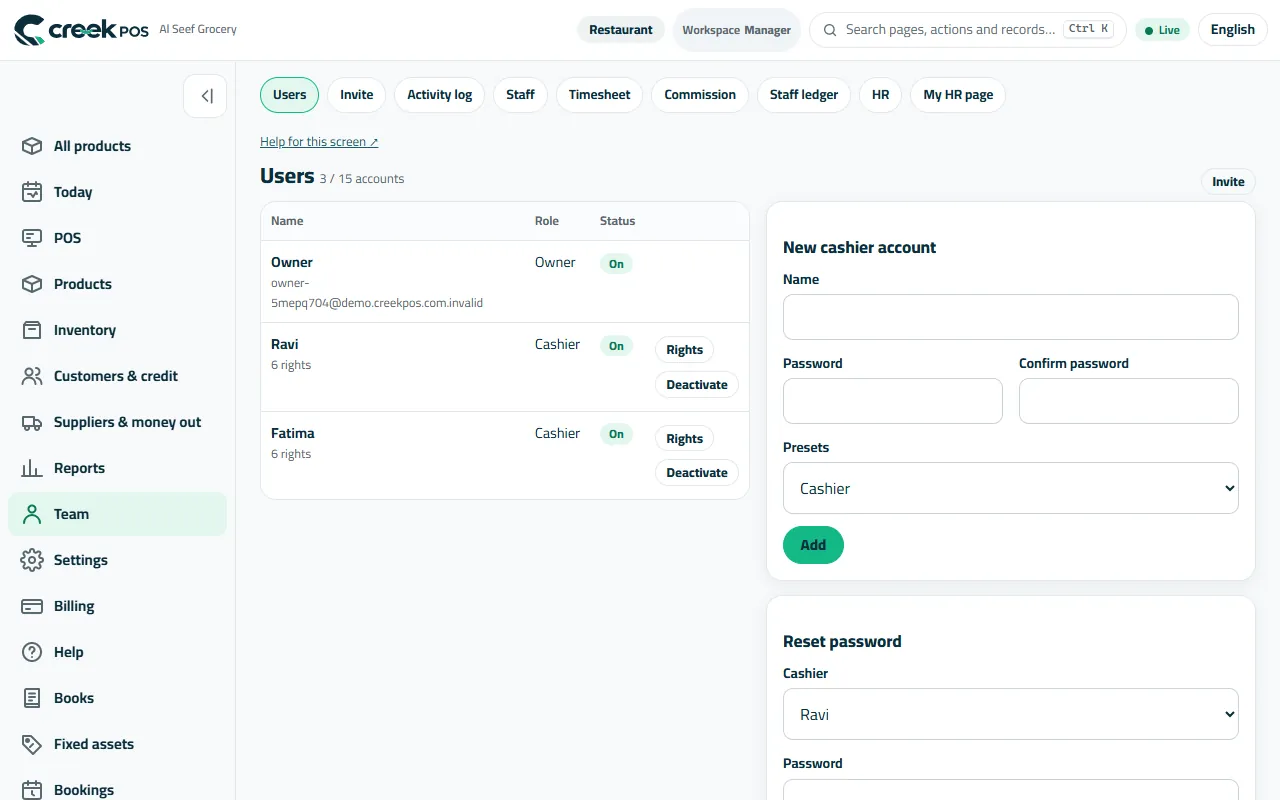
Team → Users: the accounts, their role and rights, and a new cashier account. 2Decide what each one may do
Press Rights next to an account. Tick what it may do without a manager: take payment, open the drawer, reprint, void, returns, discount over the ceiling, see reports, edit products, credit… A preset ticks a sensible set; change any line. Deactivate an account when someone leaves — their history stays.
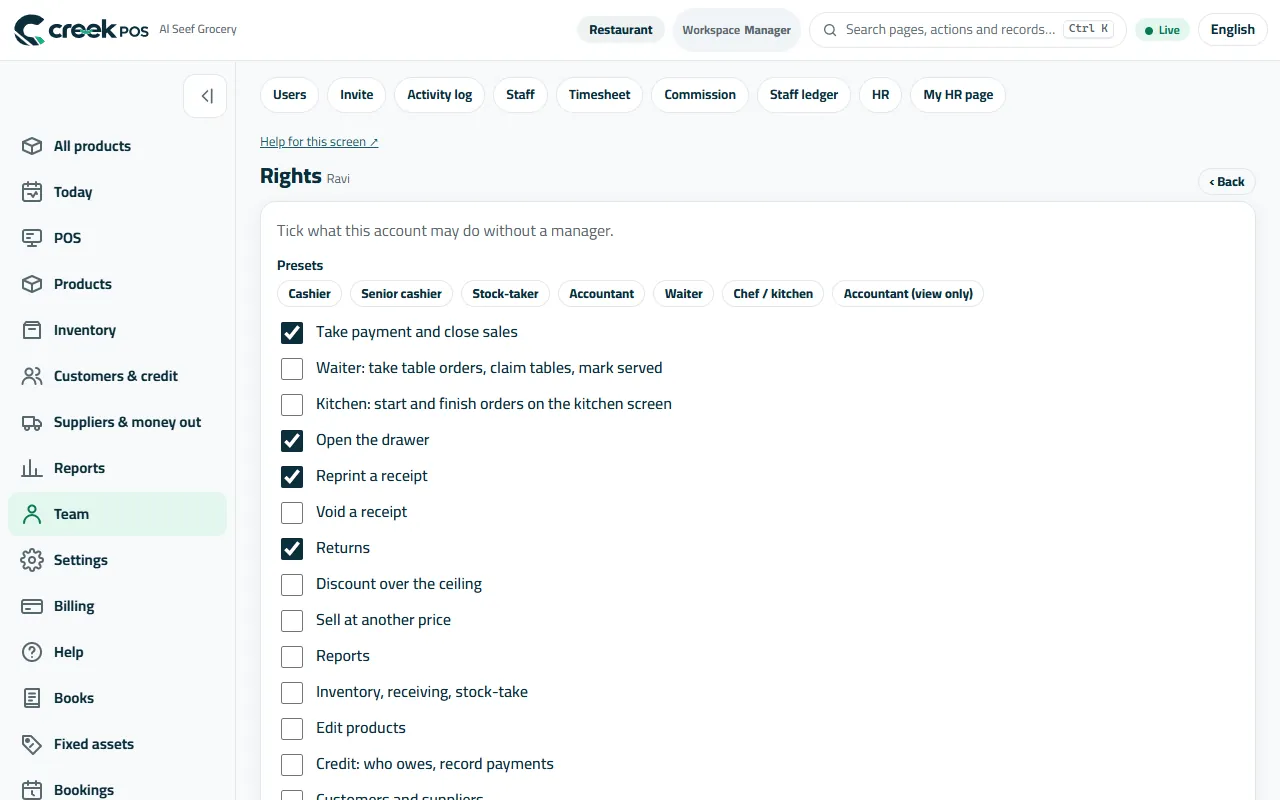
Rights: tick what this account may do without a manager. 3Clock in and out
Switch on Staff in Settings → Staff. Each person — even one who never sells — clocks in and out with a PIN or card on POS → Clock in / out; the timesheet adds the hours. Commission and advances are on the plans that have them.
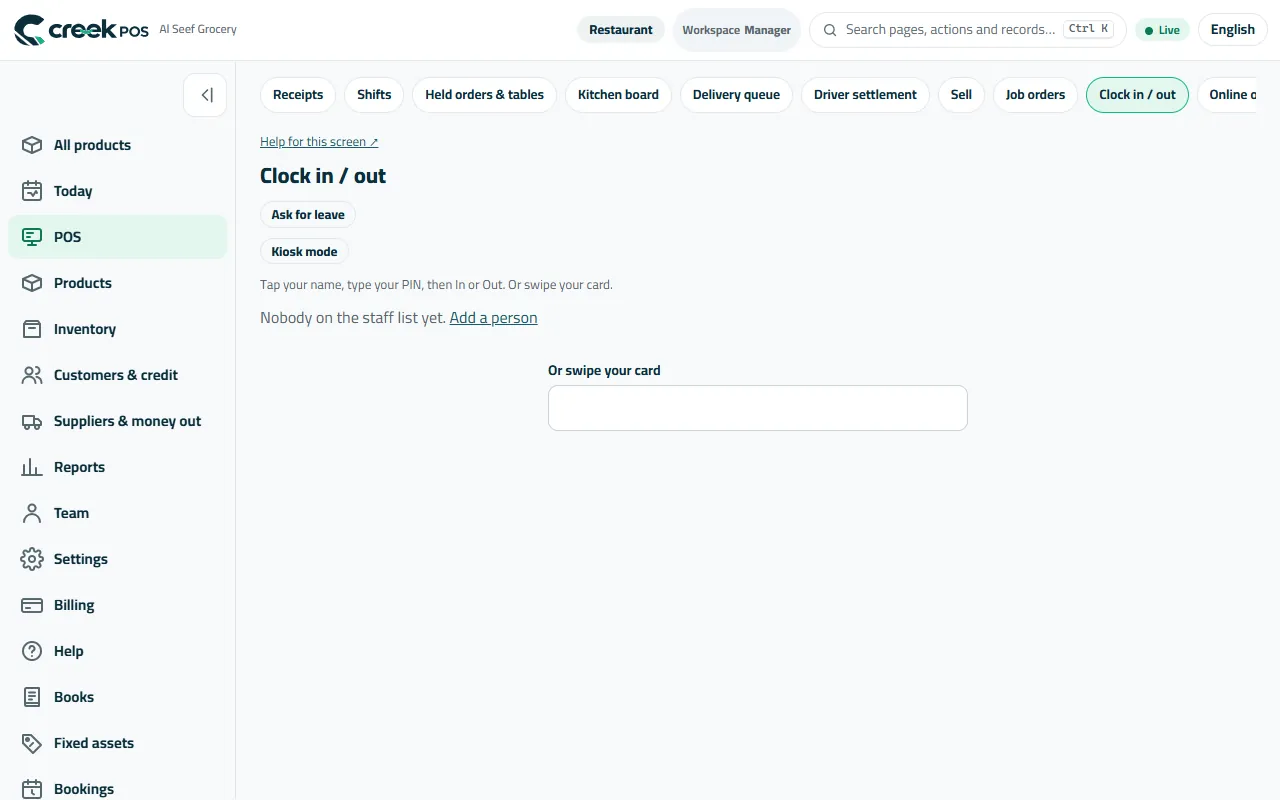
Clock in / out: switched on from Settings → Staff. 4HR: files, leave, roster and payroll
HR (switch it on in Settings → Modules, then Settings → HR) keeps employee files and documents with expiry reminders, leave, the roster and attendance devices; payroll with payslips and the WPS salary file are on the Restaurant and Chain plans.
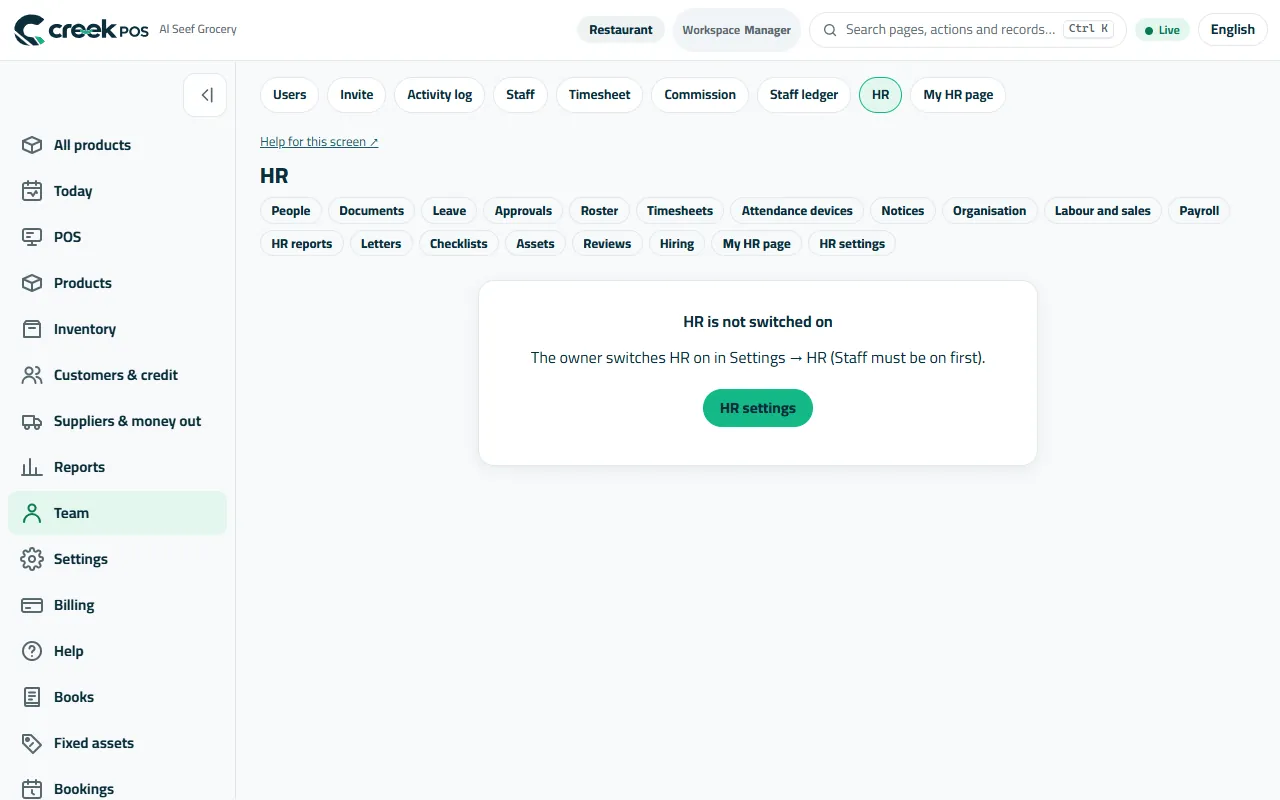
HR: people, documents, leave, roster, timesheets and payroll.
The words on the screen
| On the screen | What it means |
|---|---|
| Owner | The account that signed up; it has every right and pays the bill. |
| Manager | Works in the browser and the till with wide rights. |
| Cashier | Sells on the till with the rights you ticked. |
| Presets | Ready sets of rights for common jobs. |
| Deactivate | Stops an account signing in, keeps its history. |
Common mistakes
- One shared cashier login. You lose who did what — and owner alerts lose their point.
- Giving everyone Void and Discount over the ceiling.
- Forgetting to deactivate the account of someone who left.