

Customers: credit, the stamp card, reminders and WhatsApp receipts
A customer is a name and a phone number. Attach one to a sale and you can sell on credit, give points or stamps, and find all their receipts later. Everything here is under Customers & credit in the menu.
Step by step
1Keep your customers
Customers & credit → Customers: add a customer with a name and mobile number, or let the cashier type the number on the Sell screen and press Find. Each customer shows their balance, points and receipts.
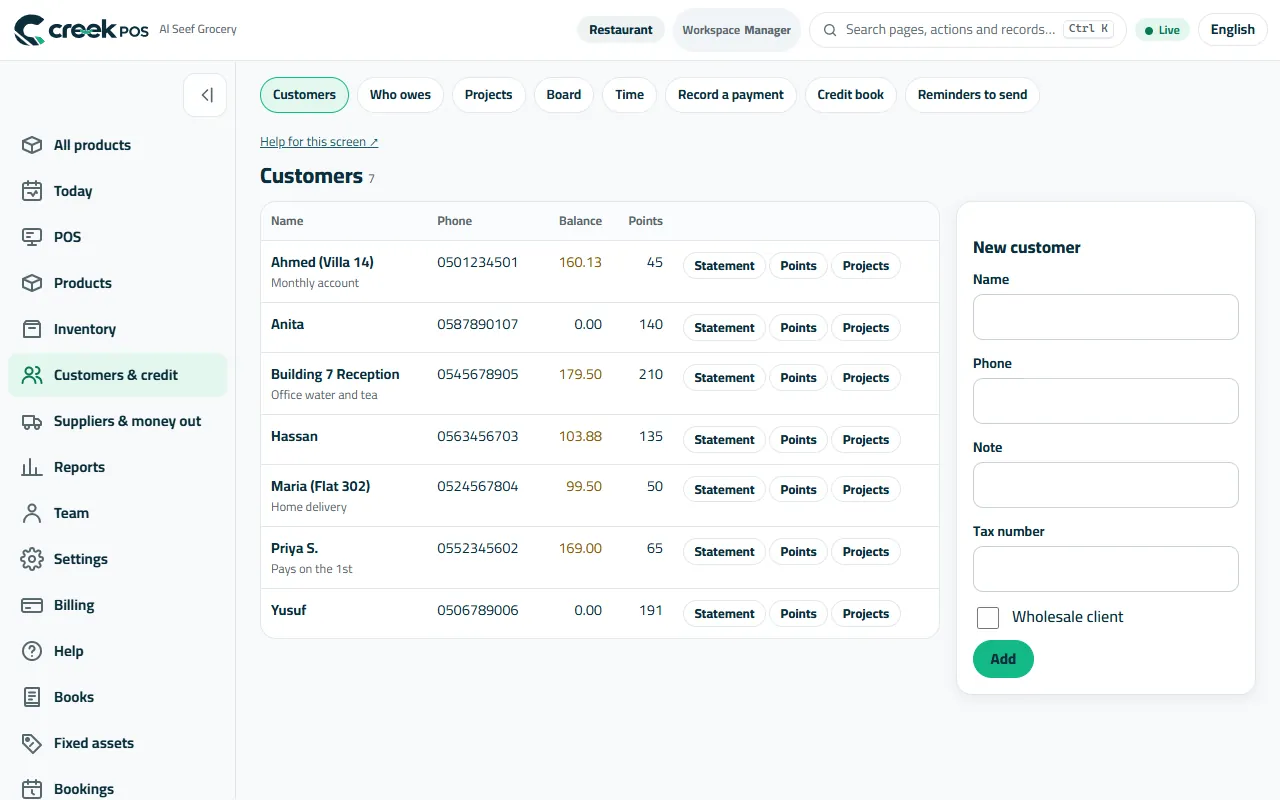
Customers: names, phones, balances and points. 2Sell on credit and take payments
On the Sell screen pick the customer and press Credit: the sale goes on their account. When they pay, record it from Who owes (Record a payment). The Statement lists every sale and payment with the running balance — print it or send it on WhatsApp.
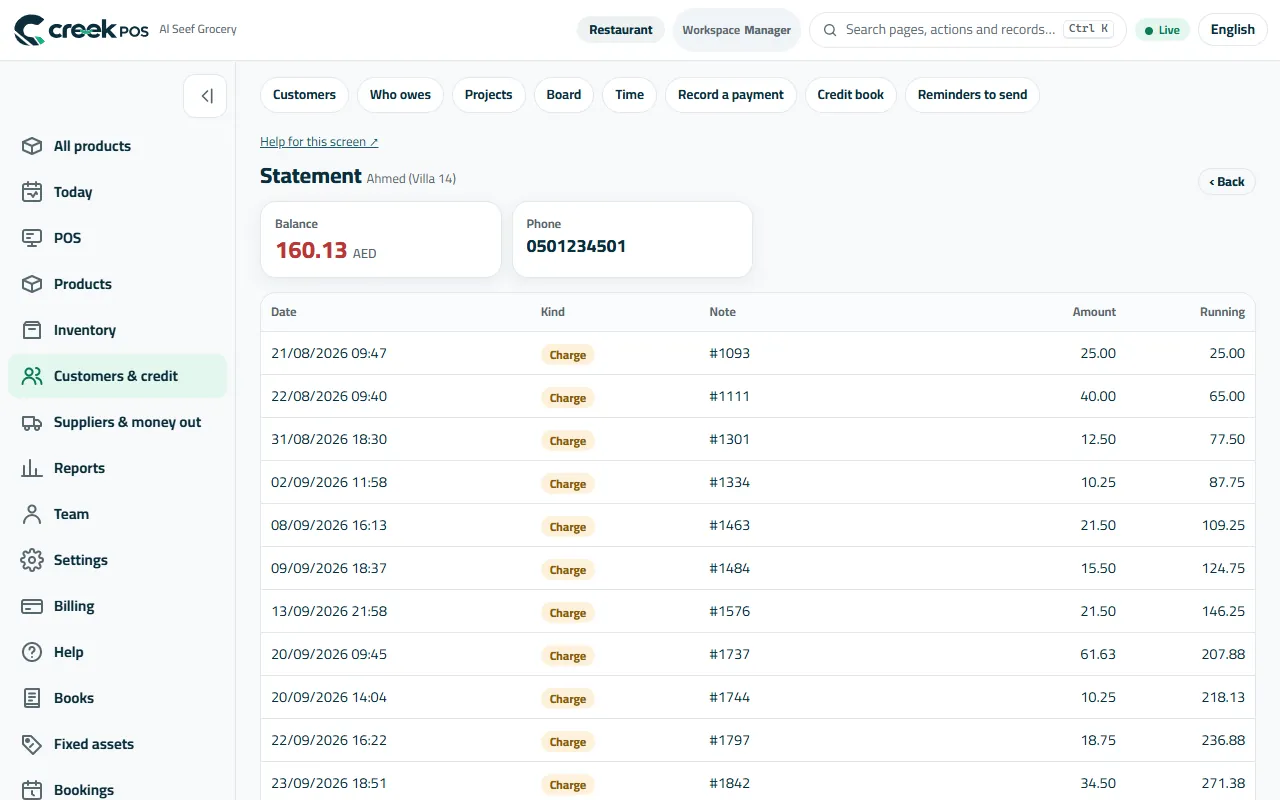
A customer's statement: every sale on credit and every payment, with the balance. 3Reminders that go out by themselves (credit book)
Settings → Credit book → Credit book and reminders. Set the days to pay and a credit limit (warn or refuse at the till), then the reminders: before the due day, on it, and every few days after. E-mails go by themselves; WhatsApp reminders wait in a list and go with one tap each from your own WhatsApp. Quiet hours stop anything at night.
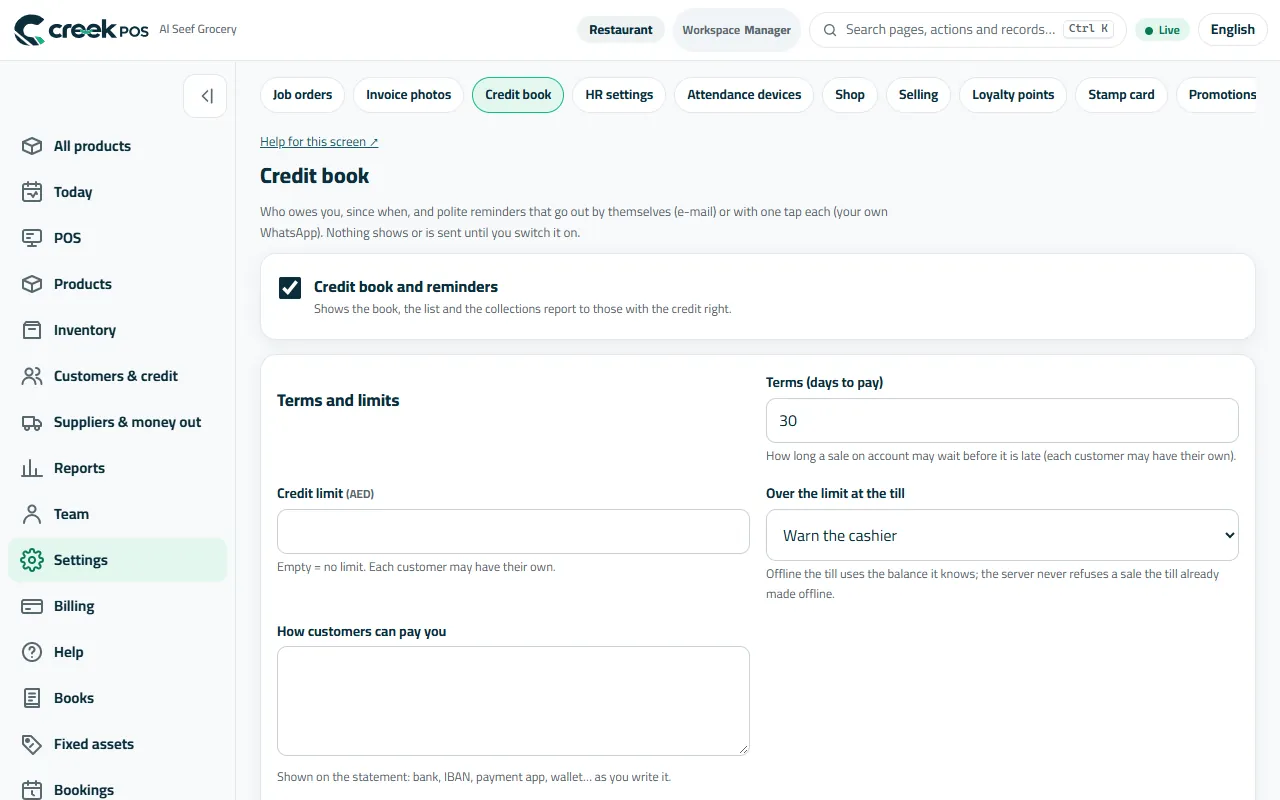
Settings → Credit book: terms, limits, reminders and quiet hours. 4A stamp card on the customer's phone
Settings → Stamp card → Switch the stamp card on. Choose how many stamps fill the card and the reward, and what earns a stamp (a visit above an amount, or certain items). Nothing to install: the customer scans the code at the counter or on the receipt and keeps the page.
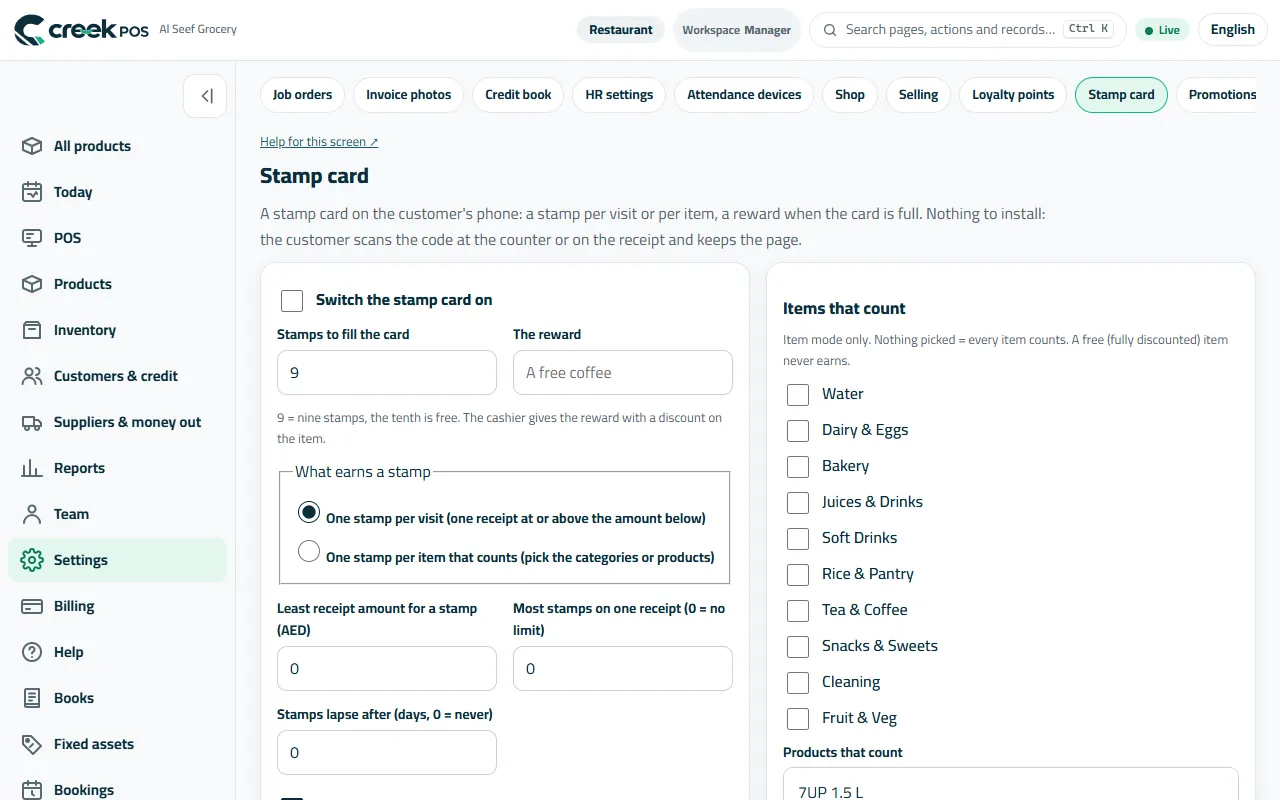
Stamp card: stamps to fill the card, the reward and what earns a stamp. 5Or loyalty points
Settings → Loyalty points → Turn on loyalty points: how many points per amount spent, what a point is worth, the smallest redemption and when points expire. The example line shows what a customer earns. Customers pay with points at the till.
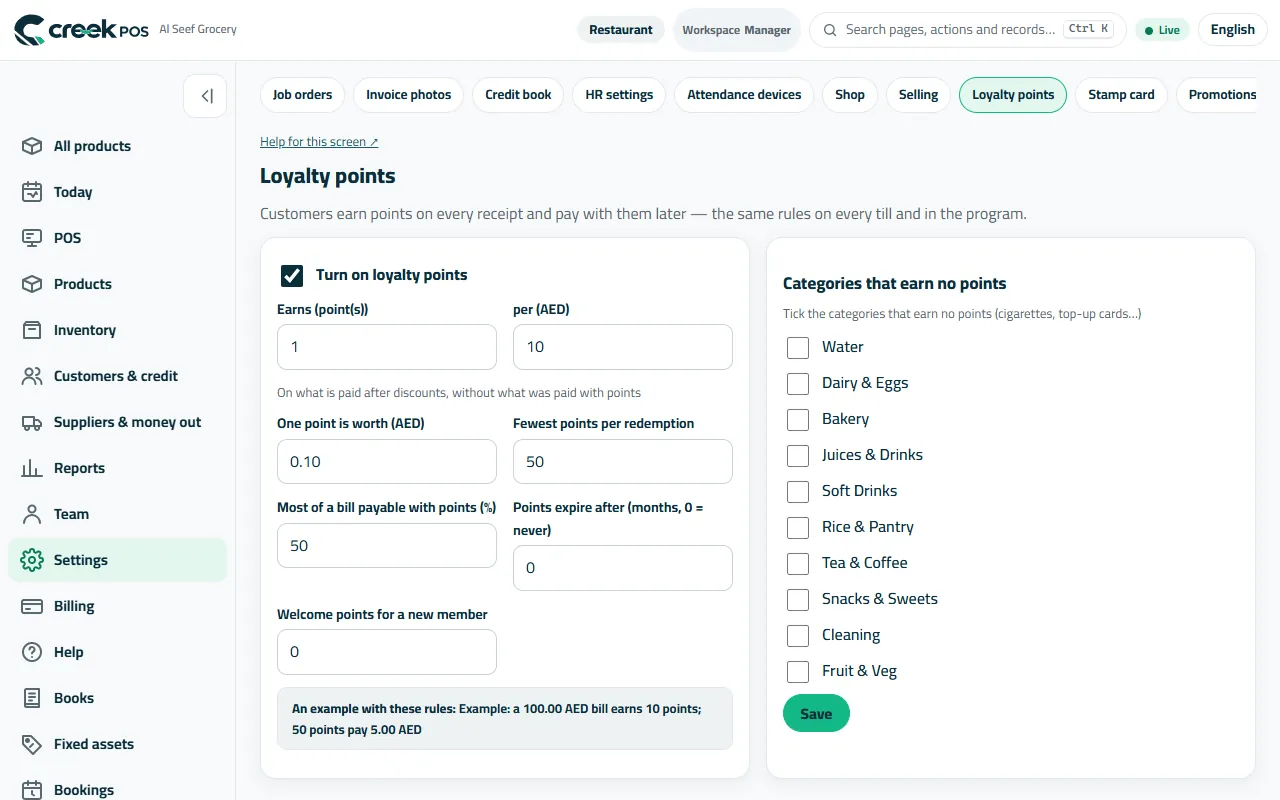
Loyalty points: earning, value, limits and an example. 6Send the receipt on WhatsApp
Open any receipt and press WhatsApp: your WhatsApp opens with the customer's receipt link ready to send. From that page the customer can see the receipt, ask for a return or ask a question (switch those on in Settings → Shop).
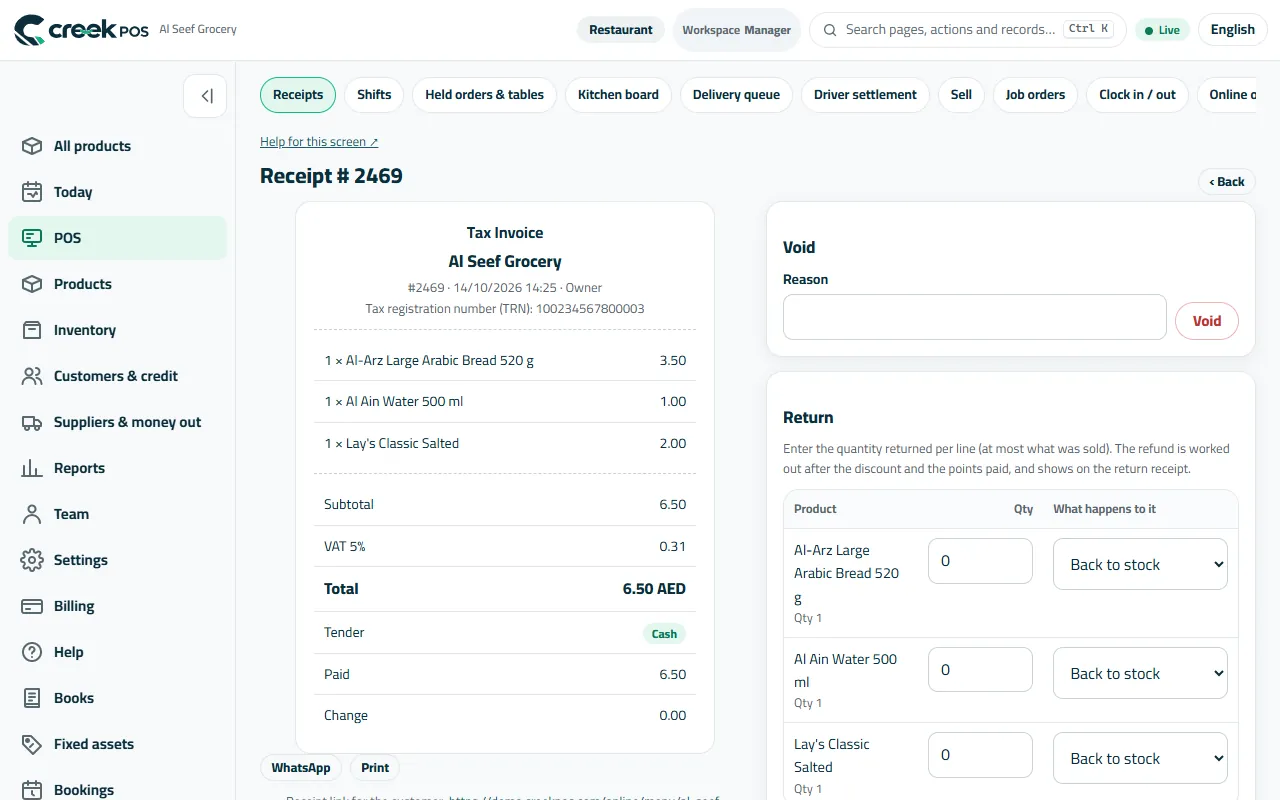
The receipt with its WhatsApp button and the customer's link.
The words on the screen
| On the screen | What it means |
|---|---|
| Who owes | Every customer with an open balance. |
| Statement | A customer's sales and payments with the running balance. |
| Credit book | The list of who owes since when, with automatic reminders. |
| Stamp card | A card of stamps on the customer's phone; a full card earns the reward. |
| Loyalty points | Points earned on what is paid, spent at the till. |
Common mistakes
- Selling on credit without a phone number — reminders and WhatsApp need it.
- Switching on both points and the stamp card for the same customers. Pick one; two schemes confuse the cashier and the customer.
- Sending reminders from a personal number at night. Set quiet hours and use the shop's WhatsApp.