


Help centre · Step-by-step manual
Features
Choose the appropriate workspace and branch. Your plan, enabled modules and team permissions determine which actions are available.
On the program, Settings (F10) is for managers. Changes apply when you press Save; the settings are saved for the whole shop, on this PC. On CreekPOS Online the settings are in the Settings menu of the web app and reach every till by themselves.
The tabs of the program's Settings
| Tab | What is there |
|---|---|
| General | Shop name, logo, header and footer lines, language, look, shop type, which name the cashier sees first, the clients list, the kitchen, updates, a second till |
| Printer & receipt | Receipt, label and A4 printers, paper width, font, copies, logo width, printing on every sale, the alternative name on the receipt |
| Cash drawer | How the drawer is connected and when it opens |
| Products | The product list (see Products) |
| Users | Accounts and rights (see Users) |
| Features | Every optional feature, VAT and the TRN, discounts, service charge |
| Remote | The phone view and the daily Telegram summary (Platinum) |
| Tests | Test print, drawer tests, receipt preview, recent errors |
| Backup | Back up now, automatic backup, restore (see Backups) |
| License | Trial, activation, package, release (see Activation) |
| Scale | A scale connected to the PC |
| The close report by e-mail (Platinum) | |
| Support | Updates, the remote support session, diagnostics |
| Export & link | A daily copy for your accountant |
| CreekPOS | The online edition: connect this till to CreekPOS Online, or move your data there |
| Devices | Printers, drawer, scale and display found on this PC (see Devices) |
| Loyalty points | See Loyalty |
| Sync | Link this PC with other PCs or with CreekPOS Online |
The shop: name, logo and receipt lines
Settings → General: the Shop name (top bar, receipts, labels), the logo (shown on the top bar and printed on receipts), a header line under the name (the address and phone) and a footer line (Thank you! Free home delivery above AED 50). The receipt preview on the Tests tab shows the result.
On CreekPOS Online: Settings → Shop has the shop name, the shop type, the receipt language, the currency, VAT, the look, the TRN and the receipt lines, with a preview.
VAT and the TRN
The UAE settings are ready from the start: VAT 5 %, prices include VAT. To check or change them, open Settings → Features and find the VAT block:
- VAT % (0 = no VAT line): 5. The
UAE5% button sets it. - VAT mode: Prices include VAT (amount shown only) (the usual way in the
UAE: the shelfpriceis what the customer pays) or Added on top of the prices. - Tax registration number (printed on the receipt): your 15-digit TRN.
With a TRN, receipts are titled Tax Invoice and print the TRN and the VAT amount; returns print as Tax Credit Note; the A4 invoice carries the client's TRN when the client has one. The VAT you collect is reported in Tax collected.
VAT is set for the whole shop, not per product. If some products carry no VAT, ask your accountant how to handle them before you start selling.
On CreekPOS Online: Settings → Shop (VAT %, Included in the price or Added on top, and Tax registration number (TRN), which must be 15 digits) and Settings → Selling.
The receipt
Settings → Printer & receipt:
- the receipt printer and the Paper width (80 mm unless you choose 58, or 57, 76, 110);
- the printable width, the font size and the number of copies;
- the logo width (0 prints no logo) and the blank space after the receipt;
- Print a receipt on every sale (off at first: switch it on if every customer should get one);
- Print the alternative
nameunder the main one for bilingual receipts; - the label printer and the A4 printer.
Settings → General → Ask for the amount received (to show the change) decides whether PAY asks what the customer gave.
Look and language
Settings → General → Language: English, العربية, हिन्दी or اردو for the whole program. Look: Clean (the default), Classic or Dark.
On CreekPOS Online each person chooses for themselves at the foot of the menu: Your language (English, Arabic, Hindi, Urdu) and Your look (Clean, Classic, Dark, or as the shop).
Features
Settings → Features lists every optional part of CreekPOS: every feature here is optional and off by default; turn on only what your shop needs. Its buttons and fields appear after you save. A feature your package does not include shows — needs the ….
| Feature | See |
|---|---|
| Discounts, and the cashier's limit | Discounts |
| Returns | Returns |
| Shifts | The daily close |
| Split payment | Split payment |
| VAT, TRN | above |
| Service charge | Service charge |
| Variants | Variants |
| A4 invoice | Receipts |
| Customer display | Customer display |
| Payment QR (a bank or wallet app code on the customer display) | Customer display |
| Price levels | Price levels |
| Fractional quantities & units | Units and weight |
| Scale barcodes | Scale labels |
| Sizes & add-ons | Sizes and add-ons |
| Recipes & ingredient stock | Recipes |
| Tables & held orders | Tables |
| Product pictures on the sales buttons | Products |
| Suppliers: invoices & payments, plus expenses | Suppliers |
| Lots | Lots |
| Purchasing | Purchase orders |
| Product editor fields: cost, expiry, stock | Products |
On CreekPOS Online: Settings → Features (owner) has the same switches, each marked with the plan that includes it.
Settings → Selling on CreekPOS Online
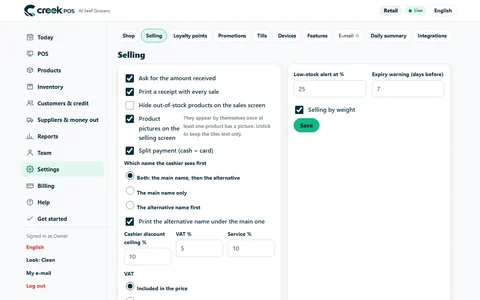
CreekPOS Online → Settings → Selling: the till's options for every till of the shop.Ask for the amount received; print a receipt with every sale; hide out-of-stock products; product pictures on the selling screen; split payment; which name the cashier sees first and printing the alternative name; the cashier discount ceiling; VAT % and service %; the low-stock alert % and the expiry warning days; selling by weight.
The other pages of Settings on CreekPOS Online: Loyalty points, Promotions, Tills, Devices, Features, E-mail, Daily summary, Integrations, Branches, Data, Sync and Online (menu, shop and table QR). See CreekPOS Online.
Two tills in one shop
With the Gold package, two PCs on the shop network can work together: in Settings → General → This till is choose the primary (keeps products and stock) on one and a secondary (follows the primary) on the other, then pair them with Find the primary till and pair (a 6-digit code valid for 2 minutes). The secondary takes its products and stock from the primary.
Settings → Sync does the same over the internet with one code: products, prices, pictures, stock and sales move by themselves every minute between linked PCs (or with CreekPOS Online). With no internet each PC keeps working and catches up later.
Settings are saved on the PC
The program's settings are a file in its data folder (C:\ProgramData\CreekPOS\data) and are part of every backup. To copy them to another PC, back up and restore only Settings & logo (see Restore); passwords and tokens must be typed again there.
On this screen
Online · Branches
Visible · Hidden · Name · Phone · Address · Tax number · Branch code · Block negative stock · Save · Deactivate · Activate · Tills · Users · Add a branch
Online · E-mail
The daily report is sent from the shop's own e-mail (SMTP), not ours. Set the recipients and the time, then test.
Daily report on · Recipients · Send time · Enabled · SMTP host · Port · User · Password · (kept - type it to change) · From · SSL/TLS · Save · Send a test · Send today's report now
Online · E-receipts
Status · Environment · Pre-production · Production · Channel · POS · ERP system · Receipt type · RIN · POS serial · Branch code · Service · Shop name · Activity code
Online · Features
Every feature has a switch and a plan. The ones outside your plan say so.
Upgrade · On · Off · Save
Online · Selling
They appear by themselves once at least one product has a picture. Untick to keep the tiles text only.
Ask for the amount received · Print a receipt with every sale · Hide out-of-stock products on the sales screen · Product pictures on the selling screen · Split payment (cash + card) · Which name the cashier sees first · Both: the main name, then the alternative · The main name only · The alternative name first · Print the alternative name under the main one · Cashier discount ceiling % · VAT % · Service % · VAT
Online · Shop
The shop's name and details as printed on the receipt.
When you ask for help, support can go in and fix the simple things without you reading them a code: products, prices, categories, pictures and stock, the receipt, printer and tax settings, tables and the menu.
The shop's name and details as printed on the receipt. · Allow CreekPOS support to help me without a code
Online · Daily summary
Every day after closing: a short e-mail with today's sales, receipts, average ticket, returns and discounts, cash and card, the top 5 items and a comparison with the same day last week — and what's running low when the shop tracks stock.
Sign-in codes, invitations and invoices always arrive.
Send me the daily summary · Time · On by default on every plan. · No summary is sent on a day without receipts. · Last summary · Tips and offers from CreekPOS · Sign-in codes, invitations and invoices always arrive. · Save
Desktop · A QR picture is set (data\payqr.png)
More than one till in the shop: make one PC the primary (with remote monitoring on) and the others secondary. A secondary pulls the products, stock and clients from the primary every minute and sends it every receipt and credit entry (queued while the network is down). Receipt numbers come from the primary. Edit products, receive stock and count on the primary or from the phone page.
Secondary: after saving it starts pulling the products from the primary. Tables, shifts and the drawer stay per till.
Print the product description under its name
The drawer cable (RJ11) plugs into the thermal printer. The program sends an open pulse to the printer. Try it from the Tests tab.
The drawer is connected to the PC through an RJ11 to USB/serial trigger. Pick its port, or use "Detect" on the Tests tab to try every port.
The printer is on the network (LAN cable or Wi-Fi) with the drawer plugged into its RJ11 socket. Enter the printer's IP and port 9100 — the pulse goes straight to the printer, bypassing the Windows driver.
Every feature here is optional and off by default. Turn on only what your shop needs; its buttons and fields appear after saving.
The UAE's VAT rate is 5% (the "UAE" button fills it in); leave 0 if the shop is not VAT-registered.
Products · Settings · Users · Close · Save · Cancel · General · Shop name · Product name (brand) · Change logo · Line under the name (address / phone) · Footer line · Review link (Google) · Currency
Desktop · Shop type
Pick the closest type; the program turns on the features that suit it, and you can change any of them later in Settings → Features.
none — everything stays off until you enable it yourself · What kind of shop is this? · Skip — just the basics