

Choosing a POS for a cafeteria, café or restaurant in the UAE
What a UAE cafeteria, café or small restaurant needs from a till, from fast counter orders and add-ons to kitchen tickets, tables, split bills and food cost.
A latte in three sizes with four milks and five syrups is sixty products if you do it wrong, and one product with two option groups if you do it right. A practical way to build a café menu on the till.

The menu board of a karak shop or a specialty café looks short: karak, latte, cappuccino, iced latte, a few sandwiches and parottas. On the till it can become a mess. "Latte large oat milk", "Latte medium oat milk", "Latte large vanilla" — owners who create a product for every combination end up with hundreds of tiles, a price list nobody can update, and sales reports that split one drink into thirty lines.
The fix is to separate what the customer orders (a latte) from how they want it (large, oat milk, extra shot). This article shows how.
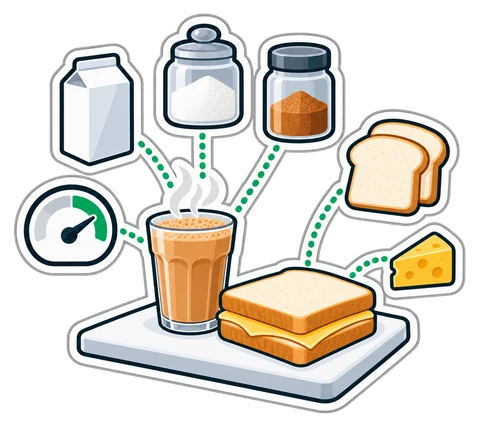
Think of three layers:
Set the groups once on the product, and every time it is rung up the till asks the same questions in the same order.
Because "Latte" is one product, the report tells you how many lattes you sold this week, in one line, while each receipt still shows exactly how every drink was made. A list of thirty "latte" products answers neither question well.
Sizes and add-ons are also where your food cost hides. A large latte uses more milk than a small one; an oat milk add-on uses a carton of oat milk, not of dairy. If you track ingredients, link each size and add-on to what it uses. Our article on food cost and recipes shows how to start with the ten best sellers rather than the whole menu.
In the UAE most cafés show prices with 5 % VAT included. Set the till to "VAT included" so the price on the board, the button and the receipt total are the same number, and the VAT amount is printed separately.
Once the menu is built in layers, it can be reused: the online menu and table QR ordering ask the guest the same size and add-on questions, and menu boards on a TV show the same prices without retyping.
Sizes and add-ons are part of the Restaurant plan of CreekPOS Online, and the desktop program has them too (pricing shows which edition): set them per product, print them on the receipt and the kitchen ticket, and see them on the kitchen screen. See sizes and add-ons in the manual and the café and restaurant page.
This article is general information as of its date, not legal or tax advice. Rules change; check the official source or ask your accountant before acting.
What a UAE cafeteria, café or small restaurant needs from a till, from fast counter orders and add-ons to kitchen tickets, tables, split bills and food cost.
How to cost a recipe, why yield and VAT change the answer, and a weekly routine that shows where food money goes in a UAE café, cafeteria or restaurant.

When guests order from their phones, the waiter's job moves from writing orders to checking them, serving and closing bills. A walk through one evening, role by role, and the settings that make it work.
CreekPOS Online free for 14 days, or the program on your PC for 7 days. Every feature, no card.
Search by feature, screen or task. Open a guide and share its link with your team.