

Table QR ordering for cafés: what it changes and what it doesn't
A QR code on the table lets guests order, call the waiter and ask for the bill. What that really changes in a UAE café, what stays the same, and how to start.
When guests order from their phones, the waiter's job moves from writing orders to checking them, serving and closing bills. A walk through one evening, role by role, and the settings that make it work.
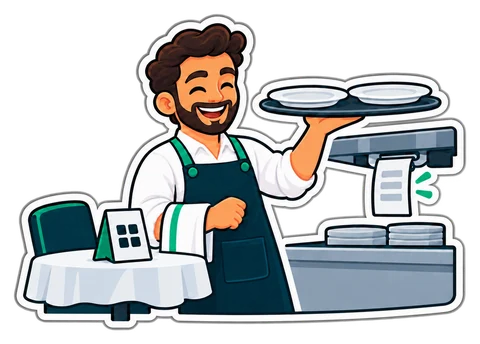
Our guide to table QR ordering explains what it is and how to set it up. Owners of small restaurants usually ask a different question next: what will my staff do now? With twelve tables and three people on the floor, nobody wants a system that adds work or confuses guests.
Here is one evening, role by role.
They scan the code on the table. The menu opens on their phone in their language, with pictures, sizes and add-ons and prices including VAT. They add two mixed grills, a chicken shawarma plate, three lemon-mints, and a note: "one grill without onions". They give a first name and send.
What used to happen: a waiter walked over, waited for everyone to decide, wrote on a pad, walked to the kitchen. Five to ten minutes of one person's time per table.
The order appears on the till and on the waiter's page, marked table 6, new. A member of staff glances at it — does it make sense, is the table really occupied, is anything unavailable tonight — and confirms it. Only then does it go to the kitchen.
Confirmation is the step most owners want to skip, and the one you should keep. It stops prank orders from a photo of the code, catches "twenty lemon-mints" typed by a child, and gives your team a moment to say "the grill will take twenty minutes tonight". The setting is per shop: confirm each order, or let orders from tables you trust go straight through.
Who confirms? Choose the people. In a small restaurant it is usually the cashier and the senior waiter, not everyone.
The order prints on the kitchen ticket printer, or appears on the kitchen screen, split by station if you use stations (grill, cold drinks). The waiter does not walk anywhere.
The guest orders two more drinks from the same phone. The new lines join the table's open bill, not a new bill. If they need a person — more bread, a high chair — they press call the waiter, and the floor staff see which table.
The guest presses ask for the bill. The cashier sees it, prints the bill for table 6 and takes payment at the table or at the counter, in cash or by card on your terminal. Paying online from the phone is not part of this; guests pay your staff, as before.
Most restaurants keep the same number of people on the floor; the difference shows in how many tables turn on a busy night.
QR ordering helps where guests sit for a while and order more than once: casual restaurants, cafés and family places. A takeaway counter with a queue does better with a fast till and a screen that calls out ready orders.
Table QR ordering, the online menu and the online shop come with the Restaurant and Chain plans of CreekPOS Online, and are a monthly add-on on Retail. The setup in Settings → Online walks through the tables, payment at the end, who confirms and who takes payment, the kitchen stations and the safety limits. See table QR in the manual and the online shop page.
This article is general information as of its date, not legal or tax advice. Rules change; check the official source or ask your accountant before acting.
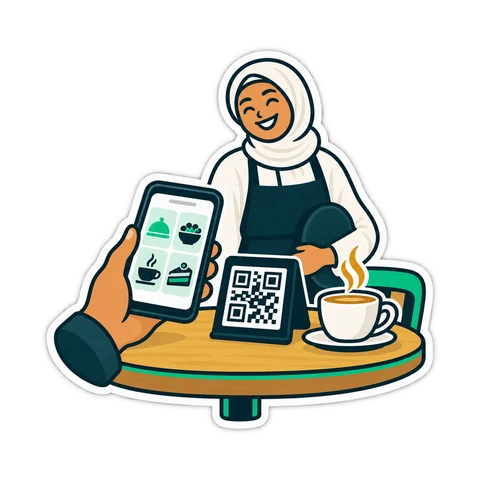
A QR code on the table lets guests order, call the waiter and ask for the bill. What that really changes in a UAE café, what stays the same, and how to start.
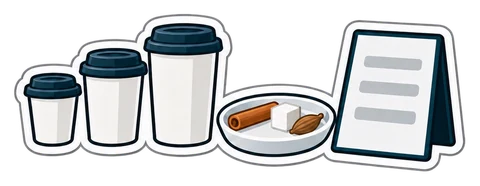
A latte in three sizes with four milks and five syrups is sixty products if you do it wrong, and one product with two option groups if you do it right. A practical way to build a café menu on the till.
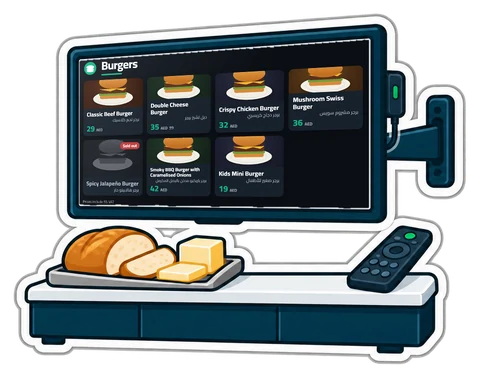
Printed menu boards go out of date the day a price changes. What a digital menu board and a "Preparing / Ready" screen should do, the hardware you actually need, and how to set them up in an afternoon.
CreekPOS Online free for 14 days, or the program on your PC for 7 days. Every feature, no card.
Search by feature, screen or task. Open a guide and share its link with your team.