

Help centre · Step-by-step manual
Selling
Choose the appropriate workspace and branch. Your plan, enabled modules and team permissions determine which actions are available.
Everything in this chapter happens on the sales screen of the CreekPOS program, the same on the PC edition and when the program is connected to CreekPOS Online. Where the online edition differs, a note says so. The CreekPOS till app (CreekPOS Online on Windows, Mac or Linux) has the same functions on its own Sell screen.
The sales screen
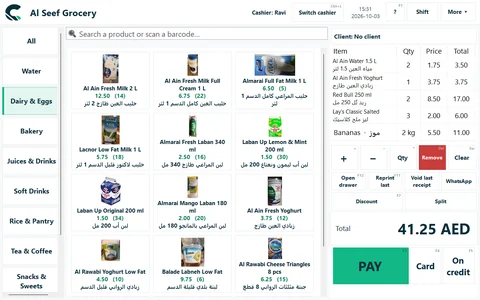
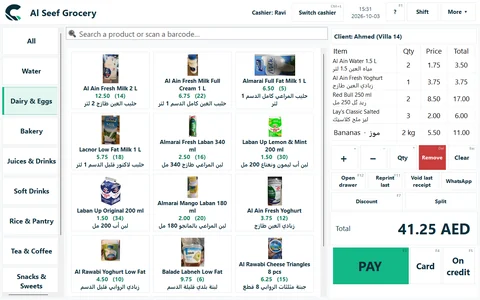
- Categories (left). All shows every product. PgUp / PgDn move between categories.
- Search box (top): Search a product or scan a
barcode…. You never need to click it first: anything typed or scanned goes into it. - Product tiles (middle): the
name, thepriceand, for stock items, the quantity in stock in brackets. A second line shows the alternativename. A promotion shows as a green badge. Tap a tile to add one. - The receipt (right): the client (when the clients list or loyalty is on), then the lines with Item, Qty, Price, Total.
- Under the lines: +, −, Qty, Remove (Del) and Clear (Esc); then Open drawer (F12), Reprint last (F11), Void last receipt and WhatsApp; then the buttons of the features you use (Discount, Split, Hold, Tables, A4 invoice, Pay with points…).
- Total, then PAY (F3), Card (F4) and On credit (F5).
- Top bar: the cashier's
name, Switch cashier (Ctrl+L), the clock, ? (F1, the list of keys), and the management buttons each person is allowed to use: Shift, Reports, Receipts, Inventory, Purchase orders, Suppliers & clients, Credit, Expenses, Kitchen, Products, Promotions, Users, Settings, Backup. Buttons that do not fit go under More ▾; their keys still work.
Make a sale
- Add products: tap the tiles, scan the barcodes, or type part of a
nameand press Enter. - Change a quantity: select the line and press + / −, or Qty (*) to type it. Remove drops the line.
- Take payment: PAY for cash, Card, or On credit. See Take payment.
- The receipt prints (if printing is on) and the drawer opens.
Enter with an empty search box is the same as PAY.
Finding products
When you press Enter in the search box, CreekPOS tries, in this order: a product with exactly that barcode; a scale label; a carton (pack) barcode; a single product whose name, alternative name or barcode matches; and finally the UAE catalogue. If nothing matches you see No product with barcode: ….
Typing filters the tiles as you go: search works on the main name, the alternative name and the barcode. F2 jumps to the search box.
A barcode you do not sell yet
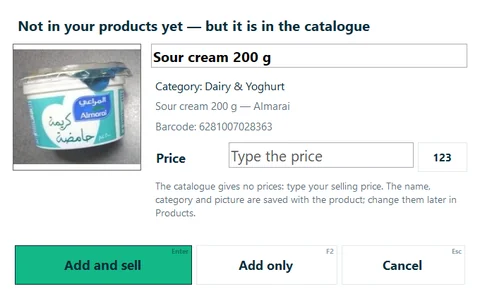
UAE catalogue does: type the price and sell it.If the barcode is not one of your products but is in the UAE catalogue, the window Not in your products yet — but it is in the catalogue shows the product's name, category and picture. Type your price, then:
- Add and sell (Enter): the product is saved and added to this sale;
- Add only (F2): saved for later, not sold now.
The catalogue has no prices; the name, category and picture are saved with the product and can be changed later in Products. A cashier needs the Products right, or a manager's sign-in.
Weighed items
Fruit, vegetables, meat, nuts: products marked Fractional (by weight) in the product editor (see Units and weight). They need the feature Fractional quantities & units in Settings → Features. A weighed item always gets its own line.
- Scale labels. A label printed by a shop scale is scanned like any
barcode: the till reads theprice(or the weight) from it. Set the format once in Settings → Features → Scale barcodes; see Scale labels. - A scale connected to the PC. With a scale set up in Settings → Scale, tapping a weighed product reads the weight. If the scale does not answer, the number pad opens with Weigh on the scale. Ctrl+W weighs the selected line again.
- No scale. The product is added as 1 kg; press Qty (or *) and type the weight, for example
0.75.
Sizes, add-ons and variants
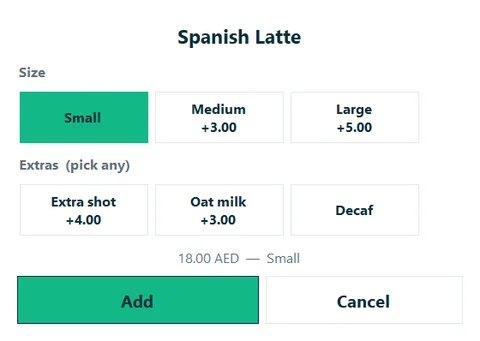
price updates as you pick.Sizes and add-ons (Small / Medium / Large, extra shot, oat milk, less sugar…): when a product has them, a window opens as you add it. A group where you pick one starts on its first option; a group marked (pick any) takes several. Each option shows what it adds to the price. Press Add. The choices print on the receipt and on the kitchen ticket. Setting them up: Sizes and add-ons.
Variants (a T-shirt in three colours and four sizes, each with its own barcode, price and stock): tapping the product opens a list of its variants with their price and stock; pick one. Scanning a variant's own barcode adds it directly. Setting them up: Variants.
Discounts
Discounts need the feature Discounts in Settings → Features.
- Press Discount (F7). If a line is selected you are asked Discount on?: Discount on the selected line or Discount on the whole receipt.
- Type an Amount or a Percent % (they convert into each other), or press one of the quick percentages (5, 10, 15, 20, 25, 50).
- OK. No discount removes it.
A product can also have a sale price in the product editor: while it is set, the tile shows the new price and the old one.
The cashier's limit
Settings → Features → Max discount a cashier may give without a manager (%) (10 % unless you change it). A bigger discount from a cashier asks for Manager sign-in to continue: the manager types a password or swipes a manager card, for that one discount. A cashier with the right Discount above the allowed limit is not asked. On the program, 0 means every discount needs a manager.
On
CreekPOS Onlinethe limit is Settings → Selling → Cashier discount ceiling %, line and receipt discounts are added together, and 0 means no limit.
The till has no "change the price" button: a price comes from the product (retail, wholesale or sale price) and its add-ons. To sell at a different price, use a discount.
Promotions
Promotions apply by themselves; the cashier does nothing. They need the Gold package on the program (the Promotions button on the top bar) or Settings → Promotions on CreekPOS Online.
Kinds: Percent off, Amount off, Buy X get Y and Bundle price. Each can be limited to dates, days of the week and hours (a happy hour), a minimum basket, a price level, loyalty members or tagged customers, and a cap. A promotion is either stackable or exclusive; between two exclusive ones the till applies whichever saves the customer more.
The tile shows a badge (-10%, 2+1…), the line shows the offer and what it saves, and the total shows Promotions with the saving; the receipt prints one line per promotion. Promotions do not count toward the cashier's discount limit.
Customers and credit
With Settings → General → Enable suppliers & clients lists on, a client button sits at the top of the receipt (Client: No client). Press it to pick a client or type a new name and phone. A client with a tax registration number gets it printed on their invoices.
name and what they owe show above the receipt.On credit (F5) puts the whole sale on the client's account: the client already on the sale, or the one you pick in Charge to whom?. The status line confirms Charged to … (owes …). Payments are recorded in Credit; see Customers and credit.
With loyalty on, the client button finds the member by mobile number and the sale earns points; Pay with points uses them. See Loyalty.
Take payment
Cash
Press PAY (F3). When Ask for the amount received is on (the default), type what the customer gave or press Exact; the +5, +10, +20, +50, +100 and +200 buttons add up. The change shows in large digits and the drawer opens.
Card
Card (F4) asks Pay … by card? Make sure the card terminal approved it first. CreekPOS records the payment as card; the card terminal itself is separate and is not connected to the program. The drawer does not open.
Split payment
With Split payment on in Settings → Features, Split takes part in Cash and part by Card. Type one; the other is the rest.
There are four ways to be paid: cash, card, cash + card, and credit. Gift cards and vouchers are not part of CreekPOS.
Receipts
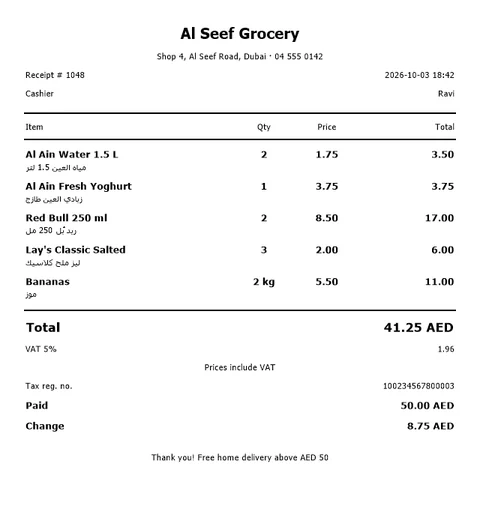
- Printing. Switch on Print a receipt on every sale in Settings → Printer & receipt (it starts off). Reprint last (F11) prints the last receipt again.
- Tax invoice. When the shop has a TRN (see VAT and the TRN), the receipt is titled Tax Invoice, shows the VAT and prints the TRN. A return prints a Tax Credit Note.
- A4 invoice. With A4 invoice on in Settings → Features, the A4 invoice button prints a full-page tax invoice with the client's
nameand TRN; a company client can get one automatically. - WhatsApp. WhatsApp asks for the customer's mobile number (for example 0501234567) and opens WhatsApp with the receipt as a message.
- Numbers. Receipts are numbered 1, 2, 3… On
CreekPOS Onlinea till that is offline gives a provisional number until it syncs; see Selling offline. - Old receipts. Receipts on the top bar (or Reports → Receipts) lists every receipt with a search box: reprint, void or return from there.
Returns
Returns need the feature Returns in Settings → Features.
- Press F8 (or Receipts on the top bar) and find the receipt: search by number, client, cashier or amount.
- Select it and press Return (F8).
- In Return from receipt #… choose the lines and the quantity (Return qty), or Return all.
- Choose how the money goes back: cash, card, or Deduct from credit account. It starts on the way the sale was paid.
- Confirm return.
The stock goes back on the shelf (into its lot, if you use lots), and discounts, service and VAT are refunded in proportion. A cashier needs the right Returns (refund items), or a manager's sign-in. With a TRN, the return prints as a tax credit note.
Voids
A void cancels a whole receipt as if it never happened: the stock, the client's credit and the loyalty points go back, and the receipt keeps its number marked as voided.
- Void last receipt cancels the last receipt of this session.
- Reports → Receipts → Void selected receipt cancels any receipt.
A cashier needs the right Void a receipt (cashiers do not have it unless you give it). A receipt that already has a return cannot be voided.
On
CreekPOS Online, returns and voids are also done from the receipt's page in the web app (Receipts → the receipt), and a void asks for a reason.
Held orders
Hold (F6) parks the current sale so you can serve the next customer; hold it on a table or as Takeaway. With an empty receipt F6 opens the held orders. Resume brings an order back to the screen. Held orders, tables and splitting the bill are explained in Tables and the kitchen.
After Resume, the order is on the screen and no longer in the list: pay it or hold it again.
Shifts and the cash drawer
With Shifts on (Settings → Features), each cashier works in a shift:
- Open shift: the first sale asks for the opening float (the cash already in the drawer).
- During the shift: Cash in and Cash out record money put in or taken out (change from the bank, paying a delivery from the drawer…). X report (interim) shows the numbers so far.
- Close shift: count the cash in the drawer and type it. CreekPOS shows what was expected, what was counted and the difference, and prints the Z report.
Expected cash = opening float + cash sales + credit payments collected in cash + cash in − cash out. Closing another cashier's shift needs the right Close another cashier's shift. See The daily close.
Open drawer (F12) opens the drawer without a sale; a cashier needs the right Open the drawer without a sale (on by default).
The customer display
A second monitor turned toward the customer shows each line as it is added, the total, and after payment what was paid and the change. Set it up in Devices → Customer display.
Keyboard shortcuts
The most used keys on the sales screen; the full list is in Keyboard shortcuts.
| Key | Action |
|---|---|
| F3 / F4 / F5 | Pay cash / card / on credit |
| F6 | Hold the order, or the tables when the receipt is empty |
| F7 | Discount |
| F8 | Returns |
| F11 / F12 | Reprint the last receipt / open the drawer |
| Del / Esc | Remove the line / clear the receipt |
| Ctrl+L | Switch cashier |
On this screen
Online · Your receipt
Happy with us? A review helps others find us.
Opens the online shop with these items in your cart, at today's prices.
About this receipt: the shop answers on this page.
This receipt was voided · Discount · Service · VAT · Total · Happy with us? A review helps others find us. · Rate us · Order the same again · None of these items can be ordered online right now. · Order the same again at the counter · Sent. The shop answers on this page. · Your requests and the shop's answers were removed. · Your requests · The shop's answer
Online · Receipt #
Enter the quantity returned per line (at most what was sold). The refund is worked out after the discount and the points paid, and shows on the return receipt.
Back · No receipt with that number · Voided · Return · Original receipt · Customer · Discount · Subtotal · Service · VAT · Total · Tender · Paid · Change
Online · Receipts
From · To · Search · Receipt #, customer, cashier or amount · Apply · Time · Cashier · Items · Total · No data for this period · Voided · To check · More
Online · Back to the shop
Online · Sell
Type your till password (the one a manager set on the Team page).
The shop works in shifts: open one on this till with the float in the drawer.
F2 search · F3 cash · F4 card · F5 credit · F6 hold / tables · F7 discount · F11 reprint · F12 drawer · Esc clear · + / − / Delete on the selected line
The receipt is the whole sale on the customer's account; what is paid now is taken off it, the rest follows the schedule. 0 instalments: the rest stays on the account.
A manager types their password or swipes their card to approve this discount once.
Return requests and questions customers sent from their receipt page.
Pick how much of each item goes to the new bill; the rest stays on the table. Each bill is paid on its own.
Sync now · Sell from the CreekPOS Online app · Get the CreekPOS Online app · Connect a till · This computer is not connected · This computer is not connected to the account yet. · Connect this computer · Manager · Till sign-in · Cashier · Till password · Sign in · Open a shift first · Float
Desktop · Selling
Amount · Percent % · OK · No discount · Cancel · The discount exceeds the amount
Desktop · Selling · 2
Select an item and press “Return qty”, or “Return all”. The refund goes back the way it was paid.
Product · Qty · Price · Return qty · Refund · Return all · Clear · Refund total · Refund cash · Refund to card · Deduct from credit account · Cancel · No quantity selected to return
Desktop · Warning: products about to expire
🔍 Search a product or scan a barcode… · Jump to the search / barcode box · Previous cart line · Next cart line · Next category (also Ctrl+→) · Previous category (also Ctrl+←) · Pay cash — with a code in the box: add the item · This list of shortcuts · Return: open the receipts list in Reports · weigh the selected line on the scale · Sales screen · Cashier · Switch cashier · Shift