


Help centre · Step-by-step manual
Account and sign-in
Choose the appropriate workspace and branch. Your plan, enabled modules and team permissions determine which actions are available.
CreekPOS comes in two editions that share the same sales screen. This chapter helps you pick one, install it and reach your first sale. If you already sell with CreekPOS, skip to Selling.
Program on the PC or CreekPOS Online?
| The CreekPOS program (desktop) | CreekPOS Online | |
|---|---|---|
| How you pay | Once per register PC (Silver, Gold or Platinum) | Monthly or yearly (Retail, Restaurant or Chain) |
Where your data lives | On the shop PC, in C:\ProgramData\CreekPOS\data | On our servers; the till keeps a copy so it can sell offline |
| Without internet | Works fully, always | The till keeps selling and sends the receipts when the line is back |
| Reports from home | With the Platinum package (the phone view) | From any browser or phone, on every plan |
| Several branches | One shop | The Chain plan |
| Free trial | 7 days | 14 days |
The program runs on Windows. CreekPOS Online sells either with that same program connected to your online account, or with the CreekPOS till app on Windows, Mac or Linux, and you manage it from the web app at app.creekpos.com. You can start on the PC and move to CreekPOS Online later without retyping anything; see Moving to CreekPOS Online.
Not sure? One shop, one till and no need to look at the numbers from home: the program on the PC. Two tills or more, a branch, or you want to follow the shop from your phone:
CreekPOS Online. The Which one? page asks four questions and recommends one.
What you need
- For the program: a Windows PC, Windows 10 or later, 64-bit. A touch screen is optional; everything also works with a mouse and keyboard.
- For
CreekPOS Online: the same, or the till app on a Mac (macOS 14 or later) or a Linux computer (Ubuntu 24.04, Debian 13, Linux Mint 22 or later). - For
CreekPOS Online: an internet connection when you set it up (selling continues without it) and an e-mail address. - Optional devices: a receipt printer (80 or 58 mm), a cash drawer that plugs into the printer, a USB
barcodescanner, a scale, a second monitor for the customer. See Devices.
Install on Windows
- Download the installer from the Download page. The file is called
CreekPOS-Setup-v5.5.3.exe(the number is the version). - Run it and click Next until
Finish. Windows asks for administrator permission once. - On the options page you can tick:
- a desktop shortcut (ticked);
- Kitchen screen shortcut (CreekPOS-Kitchen) on the desktop (not ticked; tick it on the PC that will show the kitchen orders);
- Set up connected devices (printer and USB devices) (ticked). Plug in and switch on the receipt printer before you install, and the setup prepares it for you.
- The last page starts CreekPOS.
The program installs under Program Files\CreekPOS and keeps your products, sales and settings in C:\ProgramData\CreekPOS\data. Updating or uninstalling never removes that folder.
Updates
CreekPOS looks for a newer version every hour. When one is out, it tells the manager (never a cashier, and never in the middle of a sale) with Update now and Later. Updating downloads the new setup, checks it, installs it and restarts the till; your data stays as it is.
To change this, open Settings → Support → Updates: Ask me (the default), Automatic (download in the background and install when you close the program) or Never. Check for updates now looks at once.
The first start
The first time CreekPOS opens it asks a few questions, in this order.
1. How to run CreekPOS
The window How would you like to run CreekPOS? has two choices:
- On this PC: everything stays on this computer, no internet needed. This is the desktop edition with its 7-day trial.
- CreekPOS (the online edition; in Arabic «النسخة الأونلاين»): the till connects to your
CreekPOS Onlineaccount with a 6-digit code. Choose it only after you have created the account; see Connecting a till.
You can switch later from Settings → CreekPOS (the online tab).
2. The manager account
Create the manager account: type a name and a password twice, then OK. The manager can do everything; every other account you add later is a cashier who sells and does only what you allow (see Users and rights).
Choose a password you will remember. The program accepts a blank one, but then anyone at the till can open Settings.
3. The shop type
What kind of shop is this? Pick the closest type: Grocery / supermarket, Café / coffee shop, Restaurant / takeaway, Canteen / cafeteria, Pharmacy, Boutique (clothes / shoes), Mobiles & electronics, Bakery / pastry, Butcher / greengrocer, Warehouse / wholesale, or General shop / other. Or press Skip — just the basics.
The type switches on the features that usually suit that kind of shop: tables and the kitchen for a café, selling by weight and scale labels for a grocery, expiry warnings for a pharmacy. A message lists what was switched on. You can change any of them in Settings → Features, and the type itself in Settings → General → Shop type → Change.
Check the VAT after this step. Open Settings → Features, find VAT and make sure it reads 5 % (press
UAE5% if it does not) with Prices include VAT chosen. See VAT and the TRN.
4. The printer
If no receipt printer is found, the panel Printer and devices explains what to plug in. Look again searches again; I have no printer now carries on without one. You can set the printer up later from Settings → Devices.
5. Your products
When the shop has no products yet, CreekPOS offers the ready-made catalogue: thousands of products sold in the UAE with their names, barcodes and most of them with a picture. Tick what you sell, add your prices and you are ready. See The UAE catalogue. You can also import an Excel file or type products yourself.
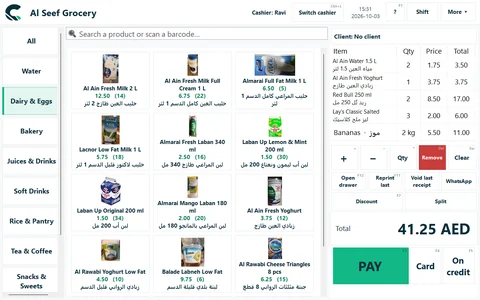
Signing in and switching cashier
Every start shows the sign-in: pick your name, type the password and press Log in (or swipe your login card). The arrow keys choose the name and Enter moves on.
At the end of a shift, Switch cashier (Ctrl+L) on the top bar hands the till to the next person without closing the program. Every receipt records who issued it.
Language and look
CreekPOS speaks English, Arabic, Hindi and Urdu. A new shop starts in English. To change it, open Settings (F10) → General → Language and pick English, العربية, हिन्दी or اردو. The whole program changes when you close Settings; Arabic and Urdu read from right to left.
On the same tab, Look changes the colours: Clean (white with one green accent, the default), Classic or Dark. The language and look apply to the whole shop.
Product names can be shown in two languages at once: each product has a main name and an alternative name. See Second names.
Your first day, in order
- Set the shop
name, logo and receipt lines: Settings. - Check VAT 5 % and type your TRN: VAT and the TRN.
- Add products from the catalogue or a file: Products.
- Print a test receipt and open the drawer: Devices.
- Add your cashiers: Users.
- Make a test sale, then void it: Selling.
- Switch on the daily backup: Backups.
On this screen
Online · My e-mail
This is the address you sign in to CreekPOS Online with, and where your sign-in codes, invoices and alerts go. If it changed or was mistyped, change it here: we send a code to the new address, and nothing changes until you enter it.
Below it, Sign-in password lets you set, change or remove an optional password: see Sign-in password.
Current e-mail · Code · Send a new code · Cancel the change · New e-mail · That code isn't right — check the e-mail or ask for a new code.
Online · Sign-in password
An optional password, so you can sign in at once without waiting for the e-mail. Open My e-mail → Sign-in password (the address /account/email#password), or the Password link at the bottom of the menu.
Type the new password (at least 8 characters) twice and press Set password. To change it, type the current password with the new one; if you signed in with the e-mail code in the last 30 minutes, you don't need the current password. Remove password takes you back to the e-mail link and code only.
The e-mail code always works, with a password or without one.
Sign-in password · Current password (optional if just signed in via email) · New password (at least 8 characters) · Confirm new password · Set password · Update password · Remove password (use email link & code only) · Password
Online · Your language
Pick the language the pages speak to you. It is saved on your account: every device you sign in from opens in it.
Save
Online · Your look
Pick how the pages look to you. It is saved on your account: every device you sign in from and the CreekPOS Online app open in it.
As the shop · Save
Online · Accept invitation
You were invited to join a shop on CreekPOS Online. Confirm your name and enter.
Log in · Display name · Accept · This invitation was already used — log in. · The invitation link is wrong or expired (7 days).
Online · Log in
Type your e-mail. You can sign in two ways: with a code we e-mail you, or with your sign-in password if you set one.
E-mail code: leave the password empty and press Send the code. Type the 6-digit code from the mail on the sign-in page, or open the link in the same mail. Since 21 October 2026 the link opens a page with a Sign in button: press it to finish signing in. Mail scanners open links by themselves, so the link alone no longer signs you in.
Password: if you set a sign-in password (My e-mail → Sign-in password), type it and you are in at once. The e-mail code always works too, even when you have a password.
If two-step verification is on (Settings → Security), the code from your authenticator app is still asked after the password, as it is after the e-mail code.
5 wrong passwords in a row from one device or internet address lock password sign-in to that e-mail from that address for 15 minutes. It never locks the owner out on another device, and the e-mail code keeps working. If it wasn't you, set a new password and turn on two-step verification.
E-mail · Remember my e-mail on this device · Send the code · No account yet? · Create your account · Lost your sign-in? · Password (optional — if you set one) · Leave blank to get a sign-in link & code by email · Sign in
Online · Two-step sign-in
Enter the code from your authenticator app (or a recovery code).
It is asked after the e-mail code and after the password alike: a password never skips this step.
Two-step verification · Second step · Enter the code from your authenticator app (or a recovery code). · Code (6 digits) · Verify · Log in
Online · Log out
Log out? · Log out here · Log out everywhere · Cancel
Online · Lost your sign-in?
The e-mail code always works: forgot your sign-in password? Leave it empty, sign in with the code from the e-mail, then set a new one on My e-mail → Sign-in password. The three real cases:
A cashier's till password · A manager resets it on Team → Users. · Lost access to the e-mail · A lost owner account · WhatsApp us with the tenant id from the Billing page. · Log in · Support on WhatsApp · E-mail
Online · Create your account
14 free days of the Restaurant plan — no card needed.
Have a discount code, or another shop's invitation code? Enter it here; the discount applies from your first payment.
CreekPOS support can help you with settings and products if you ask — you can turn this off in Settings.
We'll e-mail you a code — check Junk / Spam if it doesn't arrive.
14 free days of the Restaurant plan — no card needed. · Log in · Shop name · Your name · E-mail · Phone · Kind · One shop · A chain of branches · Your plan after the trial · a month · per extra branch · I'll decide after the trial · Coupon code
Online · Session expired
Your session ended or you signed out everywhere. Log in again. · Log in
Online · Two-step sign-in · 2
Two-step verification on your browser sign-in: after the e-mail code or your password, a code from an authenticator app (Google Authenticator or another).
Keep them safe - each works once if the phone is lost.
Turning it off needs a right code from the authenticator app. After 5 wrong codes, turning it off is locked for 15 minutes.
Back · Set up · Open in the authenticator app · Key · Recovery codes · Keep them safe - each works once if the phone is lost. · Code (6 digits) · Verify · Two-step is on · Turn two-step off · Two-step is off
Online · Verify your e-mail
Code · You can ask for another code after 60 seconds. · Send another code · Back · That code isn't right — check the e-mail or ask for a new code.
Desktop · Account and sign-in
Manager sign-in to continue · Log in · Manager (full access) · Cashier (sell only) · Password · Cancel · Or swipe your card · This card is not registered to any user · This card is not a manager's card · Pick the cashier · From the cashier to the password, and from there: sign in · Login card · Swipe a card on the reader: sign in without a password · Wrong password
Desktop · Account and sign-in · 2
First run: create the manager account (full access). Other accounts are cashiers who can only sell.
Create the manager account · Name · Password · OK · Enter the customer name · Passwords do not match