“What happened?”: a help link on every error message
An error message at a busy counter usually means a phone call and a wait. In CreekPOS every error carries a "What happened?" link that opens its own section of the troubleshooting guide, with what it means, what may have happened and how to fix it.
By the CreekPOS team4 min read
It is Friday evening, there are five customers in the queue, and the till says something you have never seen. The cashier calls you, you call support, and everyone waits. Most of the time the fix takes ten seconds once you know what the message means.
That is the idea behind the small What happened? link that every error message in CreekPOS now carries.
How it works
When something goes wrong, the message tells you what happened in a sentence, and the What happened? link beside it opens the troubleshooting guide at that exact message. Each section has the same four parts:
What it means: the message in plain words.
What may have happened: the usual causes, most likely first.
How to fix it: numbered steps.
Still stuck?: what to tell support so they can help at once.
Take the message about not enough stock. Its section explains that the stock count for the item is lower than what you are selling, and that a sale is refused only when the branch has Block negative stock ticked. The usual causes: goods arrived but were not received in Stock, another till sold the last ones, or the last stock-take was off. The fix: check the item, record the delivery in Stock → Receive or correct the count with a stock-take, then sell again.
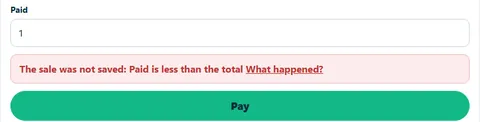
An error on the Sell page with its "What happened?" link
On the till, in the back office and in the desktop program
The link is everywhere the message is:
In the till app, after the error's words on the Sell page, in the payment and shift dialogs, and next to each row of the sync list. It opens the guide in your browser.
In the back office, in the error banner at the top of the page.
In the desktop program, as a What happened? button in the message box. The guide opens in your browser and the message stays on screen, so you can read both.
A few messages come from the computer itself rather than from CreekPOS, such as a printer that does not answer or a full disk. They have no code, so they have no link.
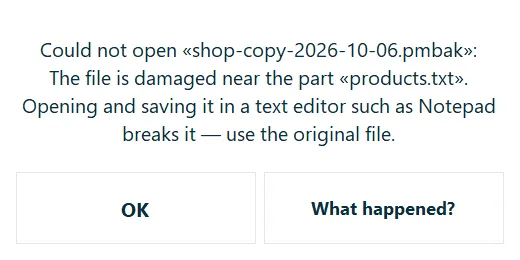
The desktop program's message box with its "What happened?" button
The whole guide, any time
You do not have to wait for an error. The troubleshooting guide explains about 500 messages, grouped by area: signing in and devices, selling and shifts, products and imports, plans and billing, the online shop, sync and tax, Books, Bookings and HR. A search box finds a message by its words or by its code. The guide is written in English, Arabic, Hindi and Urdu: each page shows it in its own language.
It is worth ten minutes when you train a new cashier. Show them the link once, and they will try it before they call you.
What to do with any error
The guide starts with six steps that solve most problems before you even open a section:
Read the message once more. Most messages say what to change: a field to fill in, a number to correct.
Check the connection. The till app keeps selling offline and sends its sales by itself when the internet is back.
Reload the page, or close and open the screen again. Someone may have changed the same thing on another device a moment ago.
Check who is signed in. Some actions need the owner, a manager, or a right a manager can give in Team.
Check the plan. Some features and limits depend on the shop's plan, shown on the Billing page.
Still stuck? Contact support, and quote the code.
Quote the code
The part of the link's address after the # is the message's code, for example stock_short. When you contact support from Help → Support in the app, tell us that code, what you were doing, and on which till, page or branch it happened. A screenshot helps. With the code, we know exactly which message you saw, whatever language your screen is in, and we can skip straight to the fix.
We answer every day from 9:00 to 21:00 UAE time.
Good to know
The link is on every plan, online and in the buy-once desktop program.
The guide explains what a message means and how to fix the usual causes; for anything it does not cover, support is the next step.
This article is general information as of its date, not legal or tax advice. Rules change; check the official source or ask your accountant before acting.