

When the internet drops — keep selling, sync later
What a shop till should do when the connection goes down, the questions to ask any online POS, and a short checklist so a dropped line never stops the queue.
The router restarts while a customer is paying. A minute-by-minute walk through what a well-built till does with the cart, the cash, the receipt, the stock and the card terminal, and what it sends when the line comes back.
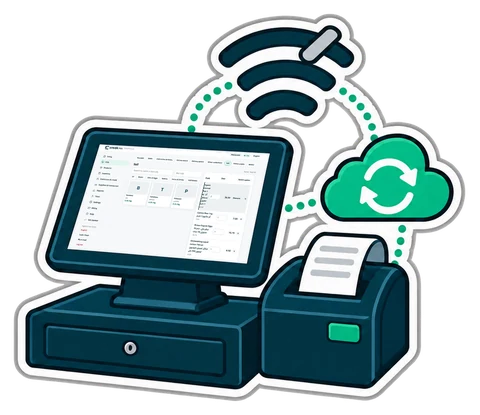
Our article on selling when the internet drops explains why connections fail and which systems keep selling. This one zooms in on the worst moment: the line drops while a customer is at the counter, with five items in the cart and a AED 100 note in their hand. Here is what should happen, second by second, on a till that works offline.
Nothing visible happens. The products, prices, promotions and customers the till needs are already on the till itself, so scanning the next item works exactly as before. A small sign on the screen changes from "online" to "offline". The cashier does not need to do anything.
If your till shows an error at this point, or the scan stops working, it is a web page that needs the internet to sell. That is the moment to choose another one, not during Ramadan's evening rush.
The cashier takes the AED 100, types it, and the till works out the change. The sale is saved on the till, the drawer opens, the receipt prints. Nothing about it is "pending" for the customer.
A receipt needs a number. A careful system cannot ask the server for the next number while offline, so it prints a provisional number that clearly belongs to this till. When the sale reaches the server, it takes its place in the shop's record, in the order the sales happened. You and your accountant still see one readable sequence.
The till takes the five items off its own copy of the stock immediately, so the next customer is not sold the last bottle twice from this till. When it reconnects, the server applies the same sale to the shop's real stock.
The card terminal is a separate device with its own connection. If it uses a SIM card, it may keep working; if it uses the shop's Wi-Fi, it stops too. The till still records the sale as a card sale once the terminal approves it. If the terminal cannot reach the bank, offer cash, or put a regular customer's sale on their account. Ask your bank today whether your terminal can fall back to mobile data.
The till checks the customer's account limit against what it knew when it last synced, and adds the sale. The account is updated on the server when the till reconnects.
The owner's dashboard shows sales up to the moment the line dropped. Sales made offline appear when the till reconnects, with the time they actually happened, and any alert they raise says so: "happened at 21:15, synced now".
The till sends the queued sales in the order they were made, each exactly once. A sale sent twice is recognised and refused the second time, so nothing is counted double. The receipts, the stock, the accounts and the shift totals line up with what happened at the counter.
The CreekPOS till app on Windows, Mac and Linux keeps selling with no internet: sales, receipts, the drawer, shifts and customer accounts, then sends everything when the line returns, each sale once and in order. The desktop program never needs the internet to sell. See selling offline in the manual and which one is right for you.
This article is general information as of its date, not legal or tax advice. Rules change; check the official source or ask your accountant before acting.
What a shop till should do when the connection goes down, the questions to ask any online POS, and a short checklist so a dropped line never stops the queue.
A shift routine that makes the cash drawer and the card terminal agree with the till every night. Opening float, cash in and out, the Z report and a worked drawer count.
A baqala is not a small supermarket. It sells to the same families every day, on account, by phone and by the kilo, from a counter one metre wide. A checklist built around that counter.
CreekPOS Online free for 14 days, or the program on your PC for 7 days. Every feature, no card.
Search by feature, screen or task. Open a guide and share its link with your team.