

Receipt printer, cash drawer and scanner: what to buy
What a UAE shop or café really needs at the till: a 58 or 80 mm thermal printer, a cash drawer that opens from the printer, the right scanner, and what to skip.
Till hardware is cheap to buy and expensive to get wrong. Ten checks to make at the supplier's counter, with your own receipt and your own barcodes, before you pay.
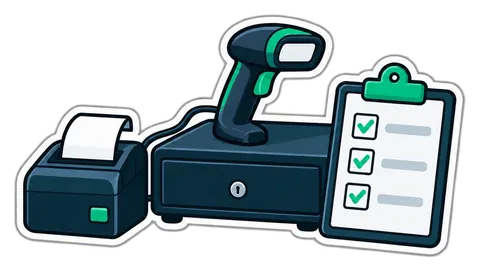
Our guide to what to buy for the till explains the basic set: a thermal printer, a cash drawer that opens from the printer, a barcode scanner. This article is the next step: you are standing at a supplier's counter in Deira or on a website, ready to pay. Here are ten things to check first. Most take a minute.
USB is the simplest for one till. A network (LAN) printer makes sense when the kitchen printer is far from the till or two tills share a printer. Avoid printers that only work over Bluetooth or only with one maker's software.
80 mm is easier to read, holds bilingual lines and VAT details comfortably, and is what most shops use. 58 mm printers are smaller and cheaper, fine for a kiosk. Whichever you choose, buy paper in the same width from at least two suppliers.
Bring a receipt with Arabic product names, or ask to print one from the till software you will use. Modern tills draw the receipt themselves and send it as an image, so the printer's built-in fonts matter less; but ask, and look at the result.
A cash drawer usually connects to the receipt printer with a small cable (an RJ11 plug, like an old phone cable) and opens when a receipt prints. Check the drawer and the printer are made for each other, or that the supplier gives you the right cable.
Take five products from your shelf: a normal barcode, a small one on a cigarette pack or a medicine box, one on a curved bottle, a scale label, and a QR code from a phone screen. A 1D laser scanner reads most packaged goods; a 2D imager also reads QR codes and screens. Scan all five before you pay.
The simplest scanners act as a USB keyboard: they "type" the barcode into the till. They work with every till software, no driver needed. Check it ends with Enter, so the product is added without a tap.
If you sell by weight, ask whether the scale connects to a computer (often an RS-232 serial port with a USB adapter) and which protocol it uses, or whether it prints its own barcode labels. Either works; a scale that does neither means typing every weight.
Ask how long the warranty is, whether it is replaced the same day or sent away for repair, and whether the supplier keeps spare units. For a one-till shop, a spare printer in the store room is cheaper than a day without receipts.
Avoid all-in-one terminals that run only one maker's software. A normal Windows PC or laptop, an Android tablet, or any computer with a browser gives you more choice when something breaks.
Before the first customer: print a receipt, open the drawer, scan your five products, weigh something, pull the network cable and see what the till does. Our hardware page lists the models the CreekPOS installer sets up by itself.
CreekPOS works with standard USB and network thermal printers, USB scanners that type like a keyboard, cash drawers that open from the printer, serial scales and scale labels, and customer displays. The CreekPOS program runs on Windows, CreekPOS Till on Android tablets, and CreekPOS Online in any browser. See the hardware page and the devices chapter of the manual.
This article is general information as of its date, not legal or tax advice. Rules change; check the official source or ask your accountant before acting.
What a UAE shop or café really needs at the till: a 58 or 80 mm thermal printer, a cash drawer that opens from the printer, the right scanner, and what to skip.
How barcodes work in a UAE shop: EAN-13 numbers from GS1, in-store codes starting with 2, scale labels that carry a weight or a price, and the mistakes that slow a till.
A baqala is not a small supermarket. It sells to the same families every day, on account, by phone and by the kilo, from a counter one metre wide. A checklist built around that counter.
CreekPOS Online free for 14 days, or the program on your PC for 14 days. Every feature, no card.
Search by feature, screen or task. Open a guide and share its link with your team.