

Choosing a POS for a grocery or minimarket in the UAE
What a baqala or minimarket needs from a point of sale, from scanning speed and scale labels to monthly accounts, expiry dates and VAT, plus questions to ask first.
What a shop till should do when the connection goes down, the questions to ask any online POS, and a short checklist so a dropped line never stops the queue.
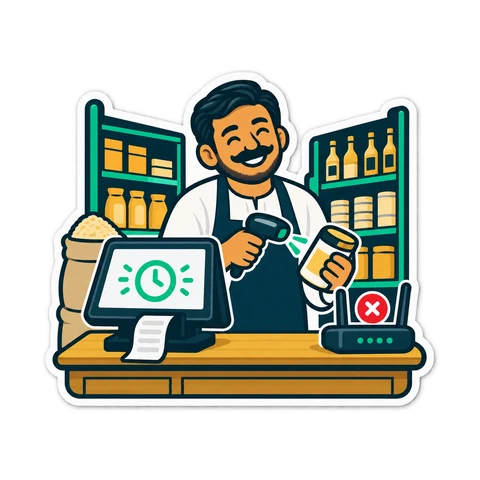
Sooner or later the internet in your shop will stop. Usually it is back in a few minutes, but a few minutes at the evening rush or just before iftar is a long queue of customers who will not wait. Whether those minutes cost you sales depends on decisions you make long before the line drops.
In a small shop the cause is rarely dramatic:
Most of these last minutes, a few last hours. Your plan should cover both.
Many systems say they work offline. Ask exactly what keeps working. These are the questions that matter at the counter:
| Question | A good answer |
|---|---|
| Can the till keep selling? | Yes, with the same products, prices and promotions as a moment ago |
| Does the customer get a receipt? | Yes, printed as usual, with a receipt number |
| What happens to stock? | It is deducted locally and corrected on the server when the till reconnects |
| What happens on reconnection? | Sales are sent in the order they happened, without duplicates |
| Can a sale be counted twice? | No; each sale is sent once and the server refuses a copy |
| What about cash and shifts? | The drawer, cash in and out, and the shift close keep working |
If the answer to the first question is "the screen shows an error", you have a system that needs the internet to sell. That may be fine for an office, but not for a counter.
| Kind | Sells without internet? | Notes |
|---|---|---|
| Program on the shop PC, data in files on that PC | Always | Nothing to sync; backups are your job |
| Online system with a till that can work offline | Yes, then syncs | Data on a server; owner sees all tills and branches |
| Browser page that needs a live connection | No | Stops when the line stops |
None of these is wrong in itself; the third is just a poor fit for a busy counter. For help choosing between the first two, see which one is right for you.
A receipt number must be unique. When a till cannot reach the server, it cannot ask the server for the next number. A careful system solves this in a visible way: it prints a provisional receipt number that clearly belongs to that till, then the sale gets its place in the record when it arrives at the server. The sales are sent in the order they were made, so the day's sequence stays readable for you and your accountant.
Your bank's card terminal has its own connection. Some terminals use the shop's internet, some have a mobile SIM, some can switch between the two. Ask your bank what yours does, and whether it can fall back to mobile data. If the terminal is down as well:
A till can sell offline; the rest of the world cannot see those sales until the till reconnects. The owner's phone dashboard, stock levels seen from another branch and e-mailed summaries catch up when the connection returns. That is normal. What should never happen is a lost sale or one counted twice.
CreekPOS comes in two editions. The Windows program bought once per register keeps all data in files on the shop PC and never needs the internet to sell; backups go to a USB drive or folder on a schedule. CreekPOS Online keeps your data on servers in the EU, encrypted and backed up daily, and its tills keep selling when the internet drops: each till works from a local copy, prints a provisional receipt number, and sends its sales in order when the line returns, with nothing doubled. Details are on the online page.
How long can a till sell offline? A well-built offline till keeps selling until the line returns; the longer the gap, the longer the owner's reports wait for the catch-up.
Will prices I change at home reach the till while it is offline? No; changes reach the till when it reconnects. Avoid price changes during a known outage.
Do I still need backups with an online system? The provider backs up the server; keep your own exports for your records too.
Is a phone hotspot enough as backup? For a single till, often yes. Test it at your busiest hour first.
Want to try it on your own counter? Open the live demo or start a 14-day trial with your own products.
This article is general information as of its date, not legal or tax advice. Rules change; check the official source or ask your accountant before acting.
What a baqala or minimarket needs from a point of sale, from scanning speed and scale labels to monthly accounts, expiry dates and VAT, plus questions to ask first.
What a UAE cafeteria, café or small restaurant needs from a till, from fast counter orders and add-ons to kitchen tickets, tables, split bills and food cost.
A shift routine that makes the cash drawer and the card terminal agree with the till every night. Opening float, cash in and out, the Z report and a worked drawer count.
CreekPOS Online free for 14 days, or the program on your PC for 7 days. Every feature, no card.
Search by feature, screen or task. Open a guide and share its link with your team.