Setting up a grocery means thousands of names, categories and pictures. Scan a barcode or search the UAE catalogue and the name, category and picture come in; you set the price. What it holds, honestly, and where the data comes from.
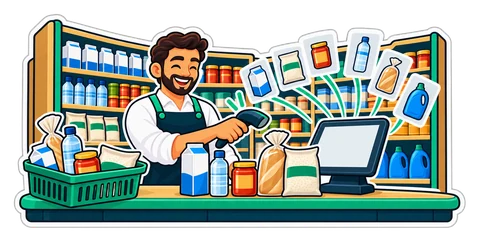
Imagine a baqala in Al Qusais getting ready for its new till. Two thousand products on the shelves: water, milk, rice, tea, biscuits, shampoo, washing powder. Typing each name, choosing a category and taking a photo for each one is weeks of evenings, and the cashier who does it will spell "Basmati" three different ways.
Most of those products already have a barcode, and most of those barcodes are already known. That is what the UAE product catalogue is for.
How it works
- Open Add from the catalogue on the products page, or the catalogue button while you add a product.
- Scan the barcode on the pack, or search by name ("laban 1 L", "basmati 5 kg").
- If the catalogue knows the product, its name, category and picture come in. When the catalogue has the name in both English and Arabic, the name in your shop's language goes in the name field and the other one in the second name.
- You set the price, and the stock if you want, then save.
The catalogue never brings a price: prices are yours, and they differ from one shop to the next. It does not add stock or a supplier either. And a barcode you do not sell yet, scanned at the till, can take its name from the catalogue too.
The honest numbers
The catalogue is large, but it is not everything on a UAE shelf. Here is what it holds:
- 29,274 products sold in the Gulf, each with a real barcode.
- 7,029 of them tagged as sold in the UAE. The others are tagged in Saudi Arabia, Qatar, Kuwait, Bahrain and Oman. Many of those are on UAE shelves too, but nobody has checked each one here.
- 23,485 with a product picture.
- Arabic names for about half, and many of those Arabic names are machine-translated. Read them before you save: a translation can be stiff, or simply wrong.
- About six in ten come with a category. For the rest, you choose one.
Food and drink are covered best. Beauty, household and pet products are thinner. Loose items without a barcode, your bakery's bread and your own packed dates are not in it at all; those you add once by hand.
Where the data comes from
The products come from Open Food Facts and its sister databases for beauty products, other products and pet food: free, open databases built by volunteers around the world who scan products and photograph their packs. Their data is shared under the Open Database Licence (ODbL) and the pictures under Creative Commons Attribution-ShareAlike 3.0. Both licences ask for credit, so wherever the catalogue is shown you will see this line:
Product data: Open Food Facts, ODbL · Pictures: Open Food Facts contributors, CC BY-SA 3.0
The names are typed by contributors, so some come in lower case, some carry a spelling mistake, and a few are longer than a receipt needs. Fixing them is a few seconds per product, and it is still much faster than typing every name.
Your own product list stays yours: what you add or change in your shop is never fed back into the catalogue.
Tips for a baqala
- Start with the fast movers. On day one, scan the two hundred products you sell most, straight from the shelf behind the counter. The rest can follow shelf by shelf.
- Check every Arabic name you keep. A machine translation on a customer's receipt looks careless.
- Shorten long names. "Mineral water 500 ml" is enough; the receipt and the till's buttons will thank you.
- Look at the category. On an English screen the categories read in English. If the catalogue chose none, pick one now, so your reports group the product properly.
- Keep the picture or replace it. The catalogue picture becomes your product's picture, on the till and in your online shop if you have one. Your own photo is always welcome.
Good to know
- The catalogue is in CreekPOS Online and in the desktop program, which carries it inside its installer.
- It is refreshed from Open Food Facts from time to time, as the community adds products.
- Products it does not know are added by hand once, like any product.
See the catalogue on the smart stock page, the products chapter of the manual and the credits.
This article is general information as of its date, not legal or tax advice. Rules change; check the official source or ask your accountant before acting.