

Reading your daily reports in ten minutes
A ten-minute closing routine for a small UAE shop or café: sales, margin, average receipt, the drawer, discounts and stock alerts, in the same order every day.
A shift routine that makes the cash drawer and the card terminal agree with the till every night. Opening float, cash in and out, the Z report and a worked drawer count.
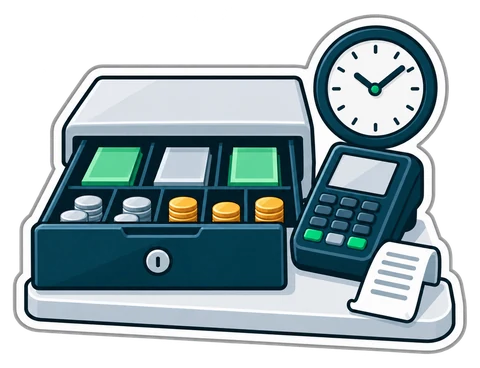
At the end of every shift someone counts the drawer, and the number almost never matches exactly. Whether a small difference is a counting slip, a card sale rung up as cash or money walking out of the door depends on one thing: whether the shift was run by a routine. This article sets out that routine, from the opening float to the last line of the Z report.
The float is the cash in the drawer before the first sale, so the cashier can give change. It should be the same amount every shift and made of small notes and coins, because the first customers of the morning often pay a AED 2 tea with a AED 50 note.
Here is a AED 300 float for a grocery. It is an example, not a rule; adjust it to your average sale.
| Denomination | Count | Value (AED) |
|---|---|---|
| 25 fils | 20 | 5 |
| 50 fils | 30 | 15 |
| 1 dirham | 30 | 30 |
| AED 5 | 10 | 50 |
| AED 10 | 10 | 100 |
| AED 20 | 5 | 100 |
| Total | 300 |
Count the float in front of the cashier who takes the shift, and record it on the till. From that moment the drawer is that cashier's responsibility.
During the day money goes in and out of the drawer for reasons that are not sales: AED 60 paid to the water delivery, AED 200 of change brought from the safe, a staff advance. Every one of these needs an entry on the till with a short note, at the moment it happens. A paper slip in the drawer is easy to lose; an entry is not.
Without these entries the evening count starts with an unexplained gap, and after a few weeks nobody believes the numbers any more.
In most small shops the card is taken on the bank's terminal, and the till only records that the sale was paid by card. Two habits keep this clean:
Split payments (part cash, part card) must be recorded as two amounts. Otherwise one of the two totals is wrong all evening.
At closing, the till knows how much cash should be in the drawer. The cashier counts what is there, without seeing the expected figure first. These are example numbers, not a statistic:
| Line | AED |
|---|---|
| Opening float | 300.00 |
| + Cash sales | 2,450.00 |
| − Cash refunds | 35.00 |
| + Cash in (change from the safe) | 200.00 |
| − Cash out (water delivery) | 60.00 |
| + Account repayments in cash | 150.00 |
| Expected in drawer | 3,005.00 |
| Counted | 2,995.00 |
| Difference | −10.00 |
What counts as acceptable is your decision. Many owners write down any difference, look into anything above a small fixed amount, and look into any repeated pattern, even a small one. A cashier who is AED 5 short every evening for a month is a bigger story than one who was AED 40 out once.
The fils matter too. Smaller fils coins are rarely in circulation, so cash totals are often rounded at the counter while VAT is still calculated to the fils. Agree one clear rounding practice with your accountant and make sure every cashier follows it, or small differences will appear every day.
The Z report closes the shift. It is the shift's summary and the record your accountant will want: sales by payment type, refunds, voids, discounts, cash in and out, VAT, and the drawer result. Once it is printed the shift is closed and a new one begins.
Keep the Z reports, on paper or as files, together with the card terminal's settlement slips. For your monthly routine with the accountant, see month-end with your accountant.
When one cashier leaves at 3 pm and another starts, do not let them share a drawer. Either close the shift with a count and open a new one, or use a handover where the till records who was responsible for what. Two people on one drawer means nobody is responsible for the difference.
A CreekPOS shift opens with the float, records cash in and out with a note, and closes with a Z report. At close the till shows expected, counted and the difference by cashier. Card payments are recorded while the drawer stays shut, split payments keep cash and card apart in the reports, and a cashier can hand over mid-shift. The owner can also receive a daily summary by e-mail or Telegram at closing. See the payment features and reports.
How big should the float be? Big enough to give change to the first hour of customers. Many small shops use AED 200 to AED 500, mostly in small notes and coins.
Should the cashier see the expected amount before counting? No. A blind count is more honest and catches errors faster.
What if the card total and the terminal disagree? Look for a sale rung as the wrong type, a split payment entered as one amount, or a refund done on only one of the two.
Who should count? The cashier, with the manager present or checking afterwards. Never count in view of customers.
Want to see a Z report and drawer count on demo data? Open the grocery demo or start a 14-day trial.
This article is general information as of its date, not legal or tax advice. Rules change; check the official source or ask your accountant before acting.
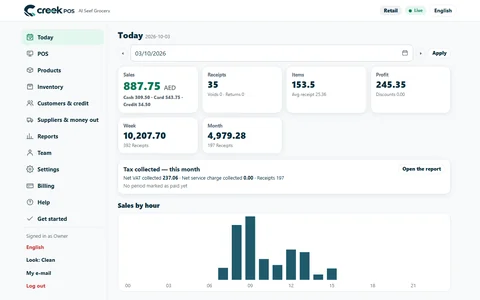
A ten-minute closing routine for a small UAE shop or café: sales, margin, average receipt, the drawer, discounts and stock alerts, in the same order every day.

Small counter discounts add up fast. How much a discount really costs, where it leaks, and how a cap per role with quick manager approval keeps your margin intact.

A month-end pack for a small UAE shop or café: which reports and documents your accountant needs, what to reconcile first, and a timeline that keeps VAT returns calm.
CreekPOS Online free for 14 days, or the program on your PC for 7 days. Every feature, no card.
Search by feature, screen or task. Open a guide and share its link with your team.