

Monthly accounts and regulars: credit without the notebook
The baqala monthly account keeps regulars loyal, but a notebook loses money. How to set credit rules and limits, record sales and repayments, and collect at month end.
A diary at the counter and a phone full of WhatsApp messages work until two customers turn up for the same chair. Bookings gives your shop its own booking page and one calendar, and ends every visit as an ordinary sale at your till.

In most salons, barbershops and small clinics, appointments live in three places: a diary at the counter, the owner's WhatsApp, and the memory of whoever answered the phone. It works until two customers arrive for the same chair at 7 pm on a Thursday, or a regular does not turn up and nobody reminded her. Then the visit is paid at the till, which knows nothing about the booking.
Bookings, in CreekPOS Online, puts the appointments in the same app as the till. It suits salons and barbers, clinics, car washes, studios and trainers, and restaurants that take table reservations.
Your shop gets a booking page in its own name. Customers open it from a link or a QR code, pick a service, a team member and a time, in their language and on their phone, without an account or an app. While they type their details the slot is held for ten minutes, so nobody else can take it.
The calendar shows the day, week, month or a list, by team member or by room, chair or bay. Each service carries its duration, buffer time and add-ons; each team member has their own hours, breaks and days off. A team member, room or chair holds one booking at a time: two people cannot book the same chair, not even in the same second.
A visit can have several services, one after another or side by side. Holidays and the Ramadan hours you set apply to the slots offered. Recurring visits, such as a weekly physiotherapy session, are placed eight weeks ahead. A today board shows the front desk who is expected, arrived, in service and done.
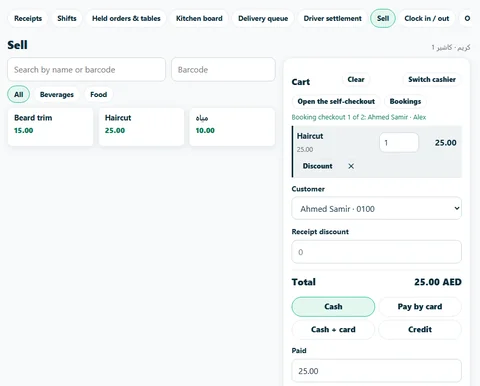
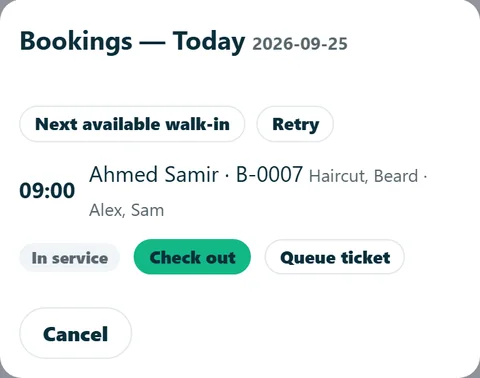
On the Sell page, the Bookings button lists today's visits. The flow follows the customer:
A visit with two team members, say a haircut and a manicure, becomes two carts, one per team member, because each receipt has one seller. Add a shampoo from the shelf, take the payment, and the visit closes by itself. A deposit already paid is taken off the bill.
Next available walk-in finds the first free team member for the service and books it in one tap. A printed queue ticket tells the customer their place. Walk-ins work when the internet is down: the till keeps them and sends them when the line is back. If the slot has gone by then, the walk-in is flagged for the front desk instead of overlapping another booking.
When a slot opens, the waitlist can offer it to the next customer for a limited time. Studios and trainers can run classes with a seat count.
Eleven message templates cover confirmed, reminder, moved, cancelled, thanks, birthday and more, with quiet hours and an opt-out. Messages go by e-mail. WhatsApp messages wait in a to-send list and go with one tap from your phone; nothing is sent on WhatsApp or by SMS automatically.
A no-show or late-cancel fee applies only when you switch it on, with a reason. The reports show no-shows and what they cost you, next to utilisation, revenue, new and returning customers, and the busiest hours.
A booking that needs a deposit shows your payment instructions and waits as requested. The customer pays at the counter or by the method you gave, and you record the deposit at the till; it is taken off the bill at checkout. There is no online card payment.
Packages and memberships, such as ten sessions or a monthly plan, are sold at the till. Every booking lands on the same customer record your till, credit book and stamp card use: history, favourite team member, notes and intake questions. For clinics, intake notes are general notes, not a medical record.
The reservation page asks for the party size first, offers the nearest free times and takes a seating preference and the occasion. The host list picks the smallest table that fits and joins tables only where you said they can be joined. Each party size has its own turn time, and seating a party opens its table order.
See what Bookings does, the Bookings chapter of the manual and the plans.
This article is general information as of its date, not legal or tax advice. Rules change; check the official source or ask your accountant before acting.
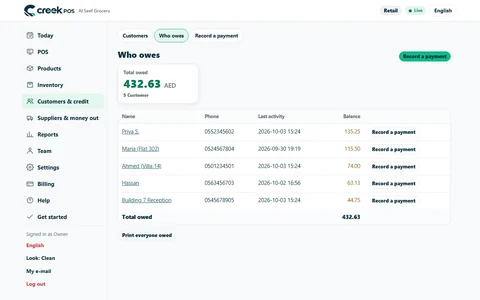
The baqala monthly account keeps regulars loyal, but a notebook loses money. How to set credit rules and limits, record sales and repayments, and collect at month end.
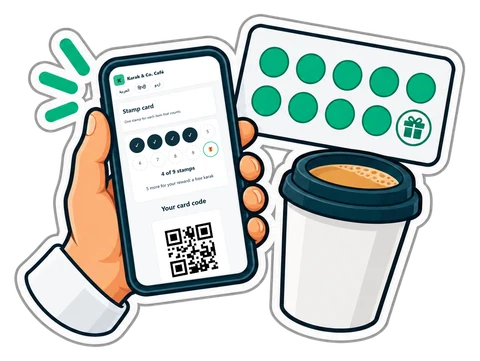
Paper stamp cards get lost and copied; loyalty apps never get downloaded. A stamp card that lives on the customer's phone through a link, filled automatically from the till, keeps the simplicity and drops the problems.
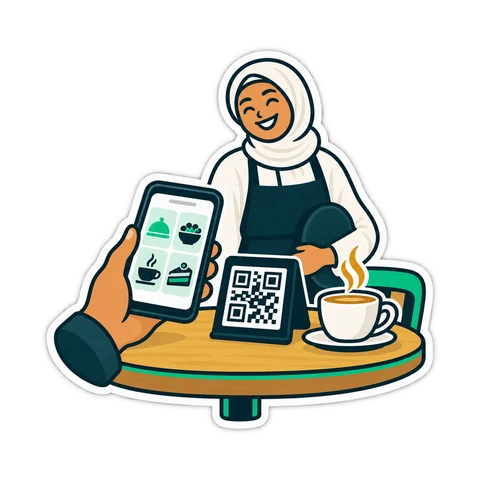
A QR code on the table lets guests order, call the waiter and ask for the bill. What that really changes in a UAE café, what stays the same, and how to start.
CreekPOS Online free for 14 days, or the program on your PC for 7 days. Every feature, no card.
Search by feature, screen or task. Open a guide and share its link with your team.