

Help centre · Step-by-step manual
Devices
Choose the appropriate workspace and branch. Your plan, enabled modules and team permissions determine which actions are available.
CreekPOS works with the usual shop hardware and needs no special drivers for most of it. The Hardware page lists the models the installer sets up by itself.
Settings → Devices
Plug the device in, switch it on, then open Settings → Devices. CreekPOS lists what is connected now and what is already set up on this till, with a status for each: Port ready — test the device to confirm, Needs setup, USB driver is not ready, Device not recognized…
- Set up now prepares the printers it knows (Windows asks for administrator permission once). It never changes printers that are already set up. The first receipt printer becomes the till's printer, and the drawer is set to open through it.
- Test next to a device: a printer prints a test receipt and opens the drawer; for a scale, zero it and put a known 1 kg weight on it.
- Which one is yours? shows pictures of models to pick yours by its look.
- Find printers looks for network printers (port 9100) on the shop network.
- A USB-serial adapter (for a scale, a pole display or a drawer) shows Use this port as: choose what is connected to it.
Plugging in a known printer later starts the same setup by itself. If you ticked Set up connected devices in the installer, it was already done.
Receipt printer
Thermal receipt printers of 80 mm and 58 mm paper (ESC/POS) are supported: Epson TM-T20 series, Citizen CT-S310II, Bixolon SRP-350plus, Xprinter, Rongta and the common POS-80 / POS-58 models are set up automatically; many others work once their Windows printer is chosen.
- Settings → Printer & receipt: choose the receipt printer and the Paper width (80 or 58 mm).
- Settings → Tests → Test print prints a sample receipt.
- Switch on Print a receipt on every sale when it prints well.
If a sale finishes and nothing prints, the panel Printer and devices opens: check the cable and the power, press Look again, or carry on and print later with Reprint last (F11).
Cash drawer
Most drawers plug into the receipt printer with an RJ11 cable and open when the printer tells them to. Settings → Cash drawer:
- Cash drawer: No drawer, Connected to the printer (RJ11 on the printer) (the usual), Connected to the PC (COM port) or Connected to a network printer (IP) (port 9100).
- Open the drawer on every sale (on).
- If the drawer does not open: try the other Drawer pin on the printer (2, 5 or both), another Drawer command, or Send the pulse inside a print job (if a bare pulse does nothing).
Settings → Tests has Test drawer, a drawer diagnosis that tries every command, and a search for the right COM port. At the till, Open drawer (F12) opens it without a sale.
Barcode scanner
Any USB scanner that works as a keyboard (the factory setting of almost every scanner) works without setup: scan, and the code goes into the search box with an Enter. You do not need to click the search box first; CreekPOS catches the scan wherever the focus is.
Settings → Devices → Barcode input test shows exactly what the scanner sends. If letters come out wrong, set the scanner to USB Keyboard mode with an Enter at the end (its manual has the setup barcodes).
Scale
Two ways to sell by weight:
- A label scale prints a
barcodelabel for each weighed item; the till reads thepriceor weight from it. See Scale labels. - A scale connected to the PC (RS-232 or a USB-serial cable). Settings → Scale: tick Read the weight from the scale (turns on fractional quantities), choose the Scale port and speed (9600 unless the scale says otherwise) and the Protocol: Auto, CAS, Mettler Toledo, DIGI DS or Generic. Keep Accept a stable weight only ticked. Test the scale (put something on it first) shows the reading.
At the till, tapping a weighed product reads the weight; Ctrl+W weighs the selected line again.
Customer display
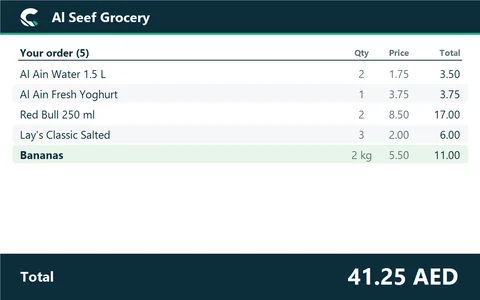
Switch on Customer display in Settings → Features and choose the Customer display type:
- Second monitor: a monitor turned toward the customer. In Windows, set the displays to
Extend(Win+P), then pick the screen in Settings. It shows each line, the total, then what was paid and the change, and your logo with a welcome message between customers. It also works on a small 1024 × 600 screen. - A 2-line pole display (VFD, 20 characters × 2): choose its COM port and the Command set (EPSON first; AEDEX for the common VFD-220 units). These displays cannot show Arabic: the
barcodeor ITEM is shown instead of an Arabicname. Test the display (3 seconds). - An 8-digit LED amount display, or a monitor with a pole or LED display.
Payment QR (Settings → Features) can show your bank or wallet app's payment code on the customer display.
Kitchen screen and kitchen printer
The kitchen screen runs on the till or on a second PC in the kitchen; tickets print on the receipt printer or a separate kitchen printer. See The kitchen screen and Kitchen tickets.
Label printer
Label printers (TSC, Xprinter, Zebra, GoDEX, Honeywell…) print through their Windows driver. Choose it in Settings → Printer & receipt → Label printer and set the label size in the labels window; see Printing labels. Do not use the receipt test on a label printer.
Card terminal
The bank's card terminal is not connected to CreekPOS: take the payment on the terminal, then press Card (F4) to record it.
The Tests tab
Settings → Tests: Test print, Raw ESC/POS test print, Test drawer, the drawer diagnosis and COM-port search, a preview of the receipt at real size, the data folder, and Recent errors, which helps support see what went wrong.
The Tests tab also has Clear all sales (testing). It deletes every sale and starts the receipt numbers again. Use it only before you open, never on a working shop.
Devices on CreekPOS Online
A till that runs the CreekPOS program uses the settings in this chapter. A till that runs the CreekPOS till app (Windows, Mac or Linux) has its own Devices screen in its menu: the receipt printer and paper width (80 or 58 mm), printing as an image (Arabic prints right on any printer) or as ESC/POS text, a test print, the drawer (none, through the printer, serial or network), the scale and a 2-line customer display. These settings stay on that computer. In a plain browser, Settings → Devices of the web app only shows a note.
On this screen
Online · Device blocked
Tills · Log in
Online · Port check
Nothing from this check is kept. CreekPOS's server connects to your current public address, so open this page from a device on the shop's network.
Type a port number from 1 to 65535. · The check could not run right now. Try again in a minute. · Port · Check again
Online · Devices
This till's printer, drawer, scale and customer display. Saved on this computer only.
Find your printer by its look and tap its picture. If it is installed on this computer, it is chosen for you above.
Get the CreekPOS Online app · Tills · Reading the connected devices… · Receipt printer · Printers · The default printer · Paper width · Print mode · Image (Arabic right on any printer) · ESC/POS text (faster; the printer must handle Arabic) · Code page · Test print · Cash drawer · No drawer
Online · Devices · 2
Federal Decree-Law No. 8 of 2017 on VAT: Art. 25(7) and 26(1) (the date of supply is the earliest of the supply, the tax invoice or the receipt of payment); Art. 61–63 and 70 (adjustments and tax credit notes). Cabinet Decision No. 52 of 2017: Art. 42 (financial services: credit is exempt unless charged as an explicit fee) and Art. 59–60 (tax invoices and tax credit notes); FTA Financial Services VAT Guide VATGFS1, 4.3.14 (a finance charge included in the instalments follows the goods; a separately charged interest is exempt). Confirm these choices with your tax adviser.
Desktop · Printer and devices
The receipt did not print — no printer is connected · Looking for your printer and devices… · Receipt printer · Cash drawer (plugs into the printer) · Barcode reader (needs no setup) · Look again · I have no printer now · OK