

Table QR ordering for cafés: what it changes and what it doesn't
A QR code on the table lets guests order, call the waiter and ask for the bill. What that really changes in a UAE café, what stays the same, and how to start.
You do not need a website, a second price list or a developer to take orders online. What an online shop fed by your till looks like, how to set it up, and how to run delivery and pickup without chaos.
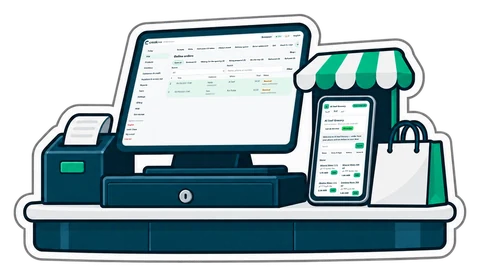
Many shops already take orders online: by WhatsApp messages, voice notes and photos of handwritten lists. It works until the evening rush, when an order gets lost in the chat, a price on an old photo is wrong, or the item the customer wanted sold out an hour ago.
An online shop fed by your till fixes those three problems at once, without building a website.
The products, pictures, prices, offers and stock on the shop page are the till's own. There is no second list to keep up to date:
They open your link (from WhatsApp, Instagram, your Google profile, or a QR code on your bag or door), browse the categories, fill a cart, and give a name, phone number, address and a note ("no onions", "call before you arrive"). A status page follows the order. They pay cash on delivery, or when they collect.
New orders appear live on the online orders page. You accept an order, and it waits on the tills as a held order, like a phone order; or you let orders go straight to the till. You mark it out for delivery and delivered, print a delivery slip, and the sale is made at the till when it is paid, so stock, receipts and reports stay exactly as they are for counter sales.
For cafés and restaurants, the same address can carry an online menu to share or print as a QR code, and ordering from the table: guests scan the table's code, order, call the waiter and ask for the bill, and staff confirm each order. Read table QR ordering for how to roll that out.
CreekPOS Online includes the online shop, the online menu and QR ordering at the table on the Restaurant and Chain plans; on Retail each is a monthly add-on. Switch them on in Settings → Online: claim your address, tick what you want, set delivery areas or pickup. Customers pay cash on delivery or when they collect; online card payment is not available yet. See the online shop page and the manual section.
This article is general information as of its date, not legal or tax advice. Rules change; check the official source or ask your accountant before acting.
A QR code on the table lets guests order, call the waiter and ask for the bill. What that really changes in a UAE café, what stays the same, and how to start.
What a baqala or minimarket needs from a point of sale, from scanning speed and scale labels to monthly accounts, expiry dates and VAT, plus questions to ask first.
What a shop till should do when the connection goes down, the questions to ask any online POS, and a short checklist so a dropped line never stops the queue.
CreekPOS Online free for 14 days, or the program on your PC for 7 days. Every feature, no card.
Search by feature, screen or task. Open a guide and share its link with your team.