

Discount caps and approvals: stop discounts leaking your margin
Small counter discounts add up fast. How much a discount really costs, where it leaks, and how a cap per role with quick manager approval keeps your margin intact.
Most till losses are small, repeated and invisible on the day. A routine of personal logins, discount caps, counted shifts and alerts on your phone makes them visible, without treating your staff as suspects.
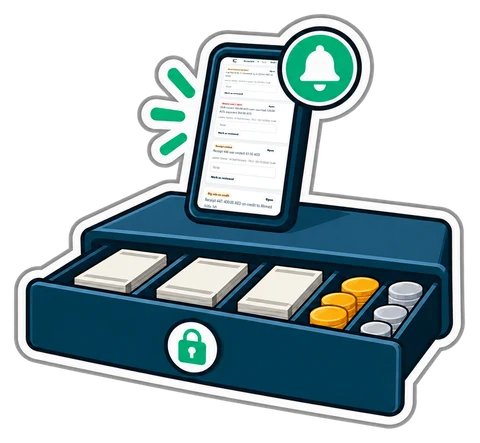
Almost every owner who has run a shop for a few years has a story: the drawer that was short by fifty dirhams every Thursday, the "friend discount" that turned out to be daily, the voided receipt after the customer had left with the goods. Theft at the till is rarely one big event. It is small, repeated, and invisible unless the system makes it visible.
The goal of this routine is not to watch your cashiers. It is to make honest work easy to prove and dishonest work hard to hide. Good staff appreciate that: when the drawer is short, nobody is guessing who did it.
Every person gets their own PIN or card, and the till shows who is serving. Change PINs when someone leaves. This single step makes every later report meaningful.
Decide how big a discount a cashier may give without asking. Above the cap, a manager approves on the till with their own PIN, and the approval is recorded with the receipt. The same goes for voids, returns and price changes: the cashier can ask, the manager decides. Our article on discount caps and approvals has examples of sensible limits.
Open each shift with a counted float. At the end, the cashier counts the drawer and types what is there, and the till compares it with what should be there: cash sales, cash payments on accounts, minus cash taken out. A difference is recorded against that shift and that person. Small differences happen; a pattern does not. See cash and card shifts.
The events above are only useful if someone sees them the same day. Owner alerts send them to your phone: a voided receipt, a discount over the cap, a sale below the listed price, a held order deleted, lines removed from a cart, the drawer opened without a sale, a shift closed short, stock lowered by hand, a sale outside opening hours. Each alert names the cashier, the till, the time and the amount, with a link to the receipt.
You decide which events matter and from what amount, and whether you want each one at once or a summary every hour. Most owners choose "serious ones at once, the rest hourly".
One void is a mistake. Six voids by the same person on the same evening is a conversation. A daily "needs a look" comparison of each cashier's day with their usual day over the last weeks catches what a single alert cannot: someone who suddenly gives three times their normal discounts.
Tell your staff which events are alerted and that shifts are counted. The point is prevention. Most problems stop the week the team knows the owner sees the drawer differences on the phone.
Owner alerts are in CreekPOS Online from the Retail plan: choose the events and the amounts in Settings → Owner alerts, and receive them in the back office, by e-mail or by Telegram. A discount cap with a manager's approval above it, counted shifts with X and Z reports, and the Team → Activity log are part of CreekPOS Online too. Read what happens when you are away and the owner alerts manual.
This article is general information as of its date, not legal or tax advice. Rules change; check the official source or ask your accountant before acting.
Small counter discounts add up fast. How much a discount really costs, where it leaks, and how a cap per role with quick manager approval keeps your margin intact.
A shift routine that makes the cash drawer and the card terminal agree with the till every night. Opening float, cash in and out, the Z report and a worked drawer count.

Voids, big discounts, a short drawer, a drawer opened with no sale: the few events worth knowing about, how to get them on your phone without drowning in messages, and what to do when one arrives.
CreekPOS Online free for 14 days, or the program on your PC for 7 days. Every feature, no card.
Search by feature, screen or task. Open a guide and share its link with your team.