

Customer Portal: getting started
A private place for customers to find purchases, documents, support and service updates.
Create a rule: choose the source module, event, optional resulting state, and the Support ticket or Service order to create. Enable both source and destination modules.
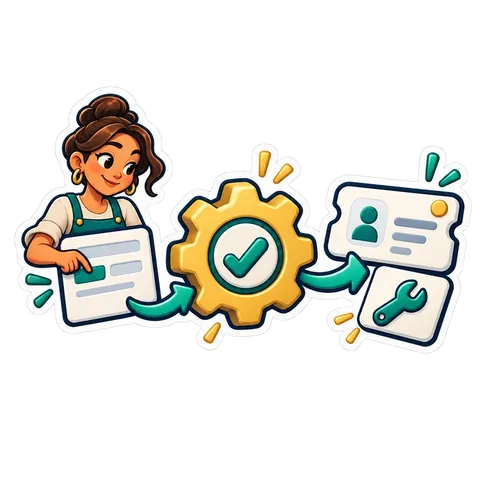
Turn module events into support tickets or service orders, with optional approval.
This article is general information as of its date, not legal or tax advice. Rules change; check the official source or ask your accountant before acting.
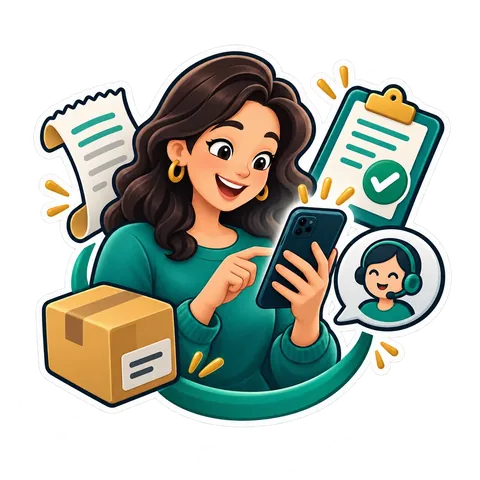
A private place for customers to find purchases, documents, support and service updates.
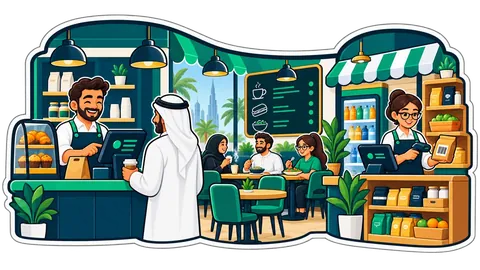
A shop changes as it grows: a second outlet, a back store, an accountant, a supplier who wants quotes. In CreekPOS Online each of these is a module of the same account, switched on in one page, Settings → Modules. Nothing to install, one login, one bill.
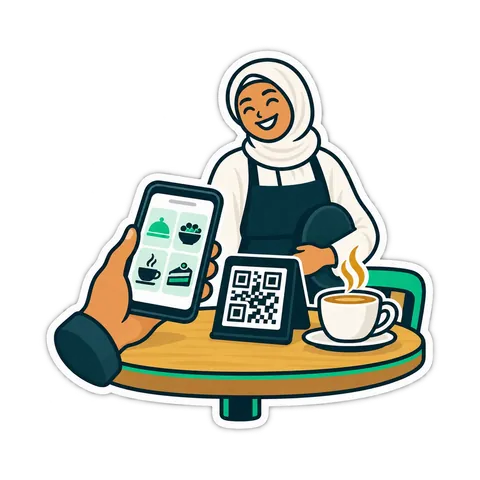
Kitchen prep SLA telemetry, waiter Ready-Bell, table QR pay, PWA digital stamp & VIP cards, BOM stock variance, hourly timers, salon & laundry tools.
CreekPOS Online free for 14 days, or the program on your PC for 14 days. Every feature, no card.
Search by feature, screen or task. Open a guide and share its link with your team.