

Reading your daily reports in ten minutes
A ten-minute closing routine for a small UAE shop or café: sales, margin, average receipt, the drawer, discounts and stock alerts, in the same order every day.
Where was that setting again? Which menu has the receipts? Quick search answers both: press Ctrl+K, or the Search button, type a few letters or a number, and press Enter.

A customer at the counter wants a copy of last Tuesday's receipt. A supplier rings about an invoice. Your manager asks where the low-stock setting is. Each time, someone clicks through menus looking for the right page, then searches again inside it.
Quick search puts one box in front of all of it.
Press Ctrl+K (⌘K on a Mac), or tap the Search button at the top of any page. It works on the till app and in the back office, in every language, and the shortcut works on an Arabic, Hindi or Urdu keyboard layout too. On a phone it opens as a full-screen sheet.
Start typing and the results update as you go. The arrow keys move through them, Enter opens one, and Esc closes the box and puts you back where you were.
Results come in this order:
Pages and settings appear from the first letter; receipts, customers, products, invoices and bookings from the second letter, or as soon as you type a number.
Type 1043, #1043 or ١٠٤٣ and that receipt or invoice comes first: digits typed on an Arabic keyboard count as the same number. Press Enter and the receipt opens. For the customer asking for last Tuesday's copy, that is the whole job: Ctrl+K, the number from their paper, Enter.
Page names match in your language and in English. A cashier who uses CreekPOS in Arabic can type "receipts" and get the receipts page with its Arabic title; someone working in English types the English word as usual. Matching ignores capital letters and accents, and for Arabic it treats the common spelling variants (ة and ه, ى and ي, hamza on the alef) as the same letter.
Every result follows the user's rights and the shop's plan. A cashier without the reports right sees no receipts; a page that is not on your plan does not appear; Books and Bookings results appear only when those are switched on and the user has access to them. Quick search never shows another shop's data, and it never opens a door the menus keep closed.
See search and help on the features page and the quick search chapter of the manual.
This article is general information as of its date, not legal or tax advice. Rules change; check the official source or ask your accountant before acting.
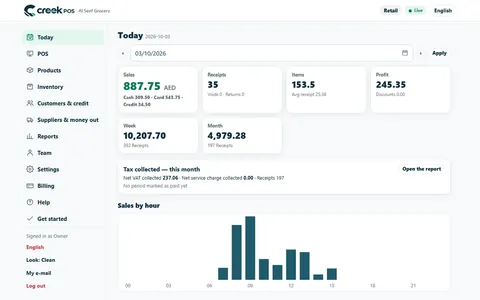
A ten-minute closing routine for a small UAE shop or café: sales, margin, average receipt, the drawer, discounts and stock alerts, in the same order every day.
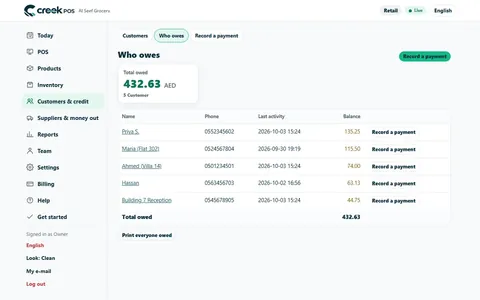
The baqala monthly account keeps regulars loyal, but a notebook loses money. How to set credit rules and limits, record sales and repayments, and collect at month end.
Many shops already have their products, prices and customer balances in a spreadsheet. With an hour of tidying and a careful import, that file becomes a working till before lunch. A plan, hour by hour.
CreekPOS Online free for 14 days, or the program on your PC for 14 days. Every feature, no card.
Search by feature, screen or task. Open a guide and share its link with your team.