Cash on delivery works, until the driver has no change or the customer is not home. Connect your own Paymob account to CreekPOS Online and your online shop takes cards and wallets in AED, your credit customers pay by link, and Paymob's settlements arrive ready for Books.
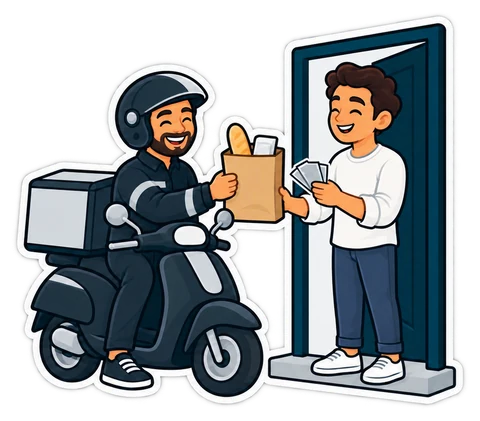
A pharmacy in Al Barsha delivers through its online shop, cash on delivery. Most evenings go fine. Then a driver comes back with a 500-dirham note he could not change, a customer who was not home, and an order the customer swears she already paid "by transfer". Meanwhile the regular customers who buy on account owe a few hundred dirhams each and keep saying they will pay "next time".
Your own Paymob account
Paymob connects your own Paymob merchant account for the Emirates, in AED, to CreekPOS Online. You open the account with Paymob; it starts in test mode with test cards, and you go live with Paymob when you are ready. Then in Settings → Connections → Paymob, paste the keys from your Paymob dashboard. The money goes from Paymob to you. We charge nothing per payment; Paymob's fees are your agreement with Paymob.
Pay online in your online shop
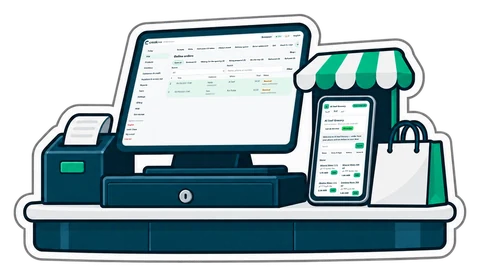
With the connection on, your online shop offers Pay online (card / wallet) beside cash on delivery. The customer pays on Paymob's page. The order counts as paid only after Paymob's signed confirmation is checked and the payment is read back from Paymob: coming back to your page proves nothing by itself, so no order is marked paid by accident. A paid order reaches the till marked as paid, and the driver collects nothing.
An order left unpaid is cancelled after a while. If you cancel an order that was paid, Refund through Paymob on the order's page sends the whole payment back, once.
Pay links for what customers owe
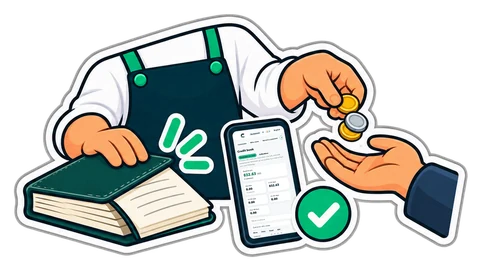
From a customer's page in the credit book, make a pay link for what they owe, or for what is left of one receipt, or less: never more. Send it on WhatsApp. The customer taps it, pays by card on the phone, and the payment lands on their account in the credit book as a card payment. Their own statement shows a Pay now button too. A link lives 30 days and can be cancelled.
Settlements ready for Books
Every day CreekPOS reads Paymob's transactions and keeps them, each once. Download the statement (CSV or OFX) for any period up to 92 days: each payment, each refund, and Paymob's fee as a line of its own when Paymob reports one. Import it in Books into an account named "Paymob", and a bank rule can book the fees as an expense. Nothing is added twice.
A payment that no order or link of yours made, a link created in Paymob's own dashboard for example, goes to a Not matched list. Nothing is booked from it until you decide and mark it handled.
Good to know
- Paymob is for the online shop and pay links; the card machine at your counter stays as it is.
- The Paymob card in Settings shows today's takings, refunds, the last settled day and whether you are in test mode.
- Payments are not AI: every one is checked against Paymob itself.
Paymob is part of Online Restaurant and Chain, with no add-on (coming soon). Read the Connections page and the manual section.
This article is general information as of its date, not legal or tax advice. Rules change; check the official source or ask your accountant before acting.