

creekpos · Classic Desktop
Charts, datetime ranges and profit · Classic Desktop
This guide uses fictional training data. Available controls depend on your enabled features, plan and permissions.
Prepared against the tested 13 October 2026 build; check your deployed build before following a new control.
Who can use this
Manager / authorized report reader
Required tools
Reports with access to their source records. Requires the appropriate enabled features and entitlement; this guide does not add plan inclusions.
Before you begin
If a control is absent, check role, branch, enabled features and entitlement. If an order or price changed, refresh and review again. Do not repeat an uncertain financial action with a new request.
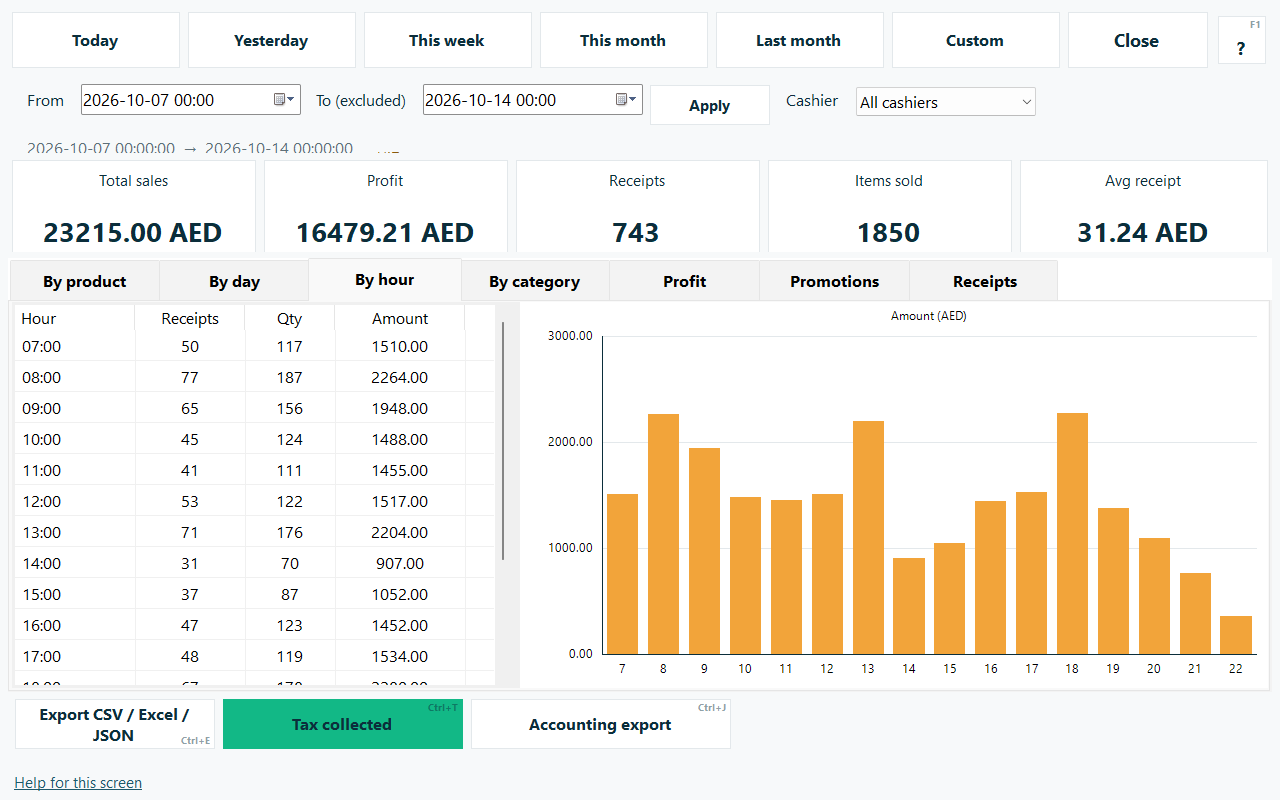
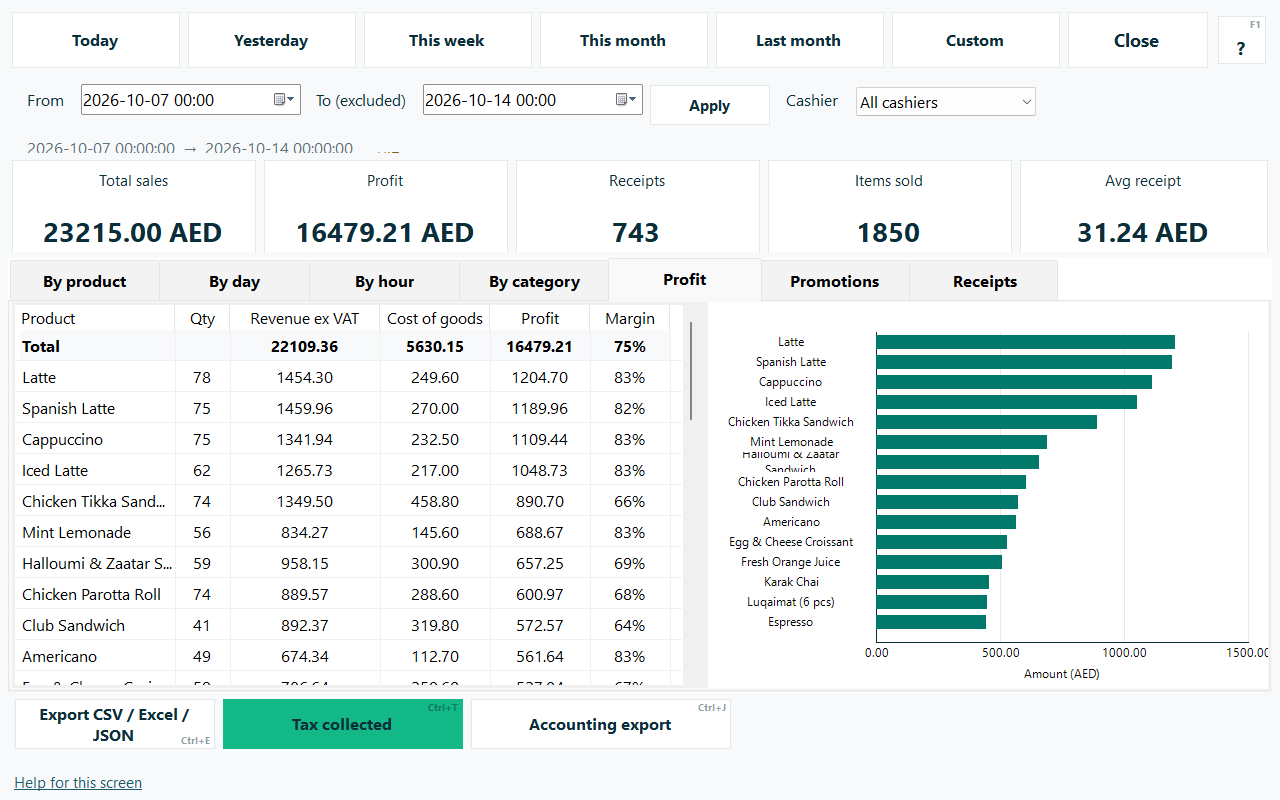
Native Reports now supports exact start and exclusive-end date/time, money axes including negative profit, and CSV/Excel/JSON. Daily expense records limit partial-day net profit.
Steps
- Open Reports and set both the starting date/time and the ending date/time. The end is excluded: 08:00 to 10:00 includes 08:00 but excludes 10:00.
- Choose the cashier filter where appropriate and refresh the range. Check the receipt list before interpreting the hourly, product or profit charts.
- Read the money axis and negative values. For a partial-day range, daily expense records cannot produce precise partial-day net profit; the profit tab explains this limitation.
- Export the selected report tab as CSV, Excel or JSON. Retain the chosen range and review the actual rows rather than comparing unlike date ranges.
Check the result
Review the saved record and its audit/stock/payment state before continuing. A preview, queued request or accepted send is not proof of completed delivery or settlement.
Edition differences and limits
Native Reports now supports exact start and exclusive-end date/time, money axes including negative profit, and CSV/Excel/JSON. Daily expense records limit partial-day net profit.