

creekpos · Classic Desktop
Checkout and paper-light receipts · Classic Desktop
This guide uses fictional training data. Available controls depend on your enabled features, plan and permissions.
Prepared against the tested 13 October 2026 build; check your deployed build before following a new control.
Who can use this
Cashier
Required tools
Sell and receipts. Requires the appropriate enabled features and entitlement; this guide does not add plan inclusions.
Before you begin
If a control is absent, check role, branch, enabled features and entitlement. If an order or price changed, refresh and review again. Do not repeat an uncertain financial action with a new request.
Use the native Sell screen, cashier sign-in and configured printer in classic Desktop. Digital delivery depends on the actual available channel and customer destination. Do not treat an unsent digital copy as delivered, or assume a printer is paired simply because preview works.
Steps
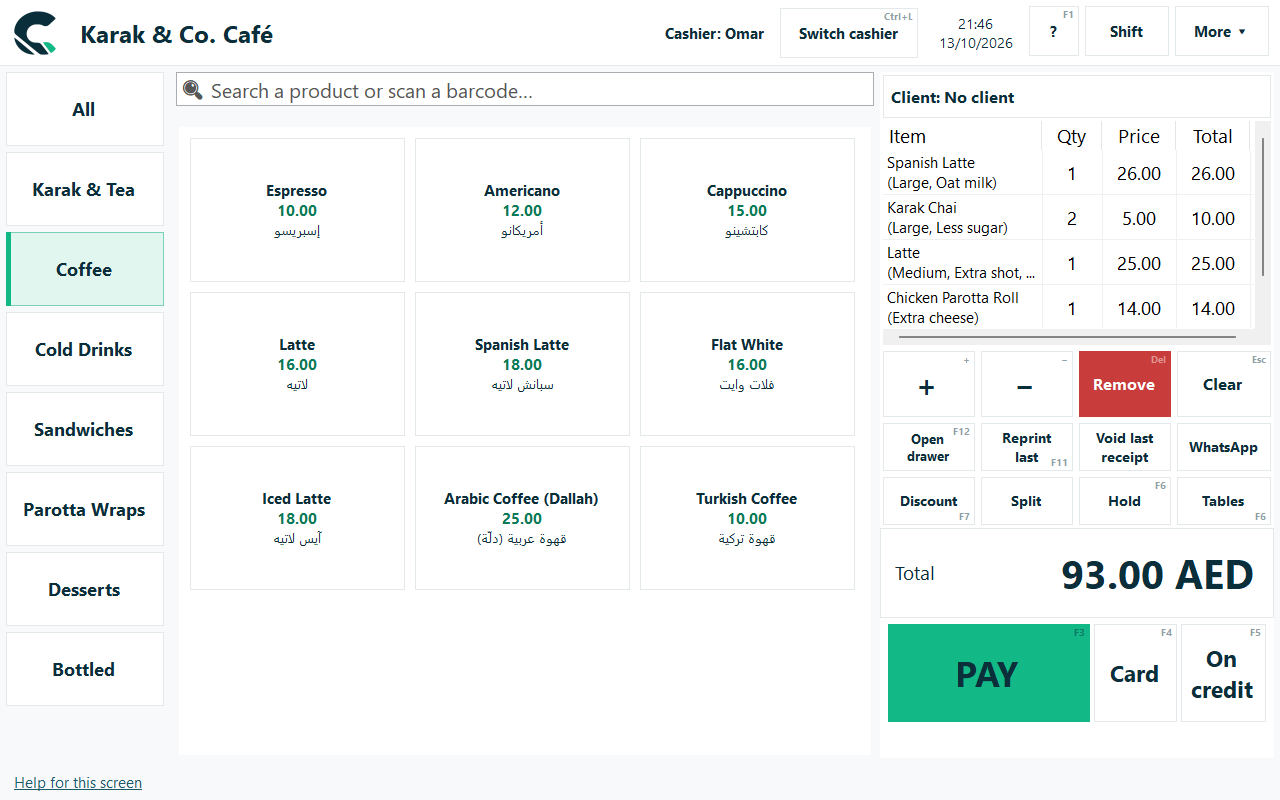
- Open Sales under the correct cashier. Search or scan the product and review its displayed name, quantity and price.
- Review discounts, tax and service settings before opening payment. Enter the amount actually received and the actual tender.
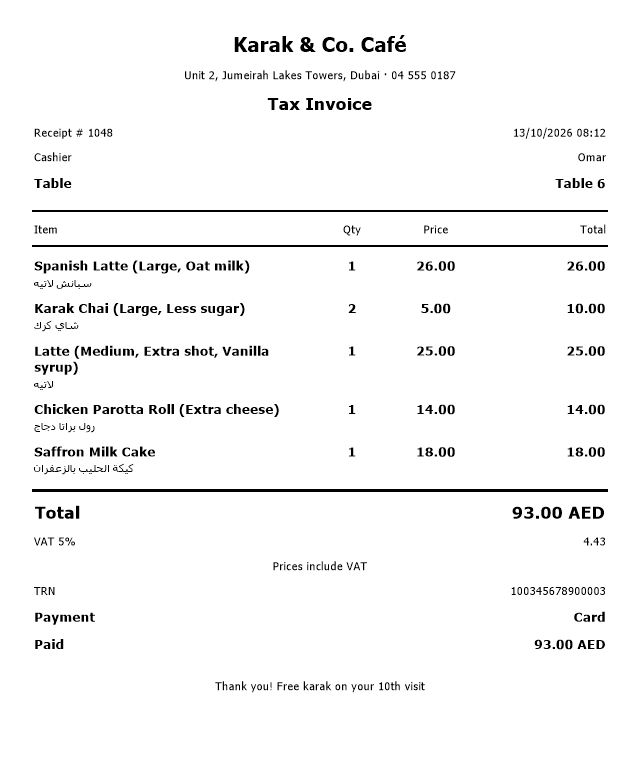
- Complete the sale once. Verify its receipt number, total and tender in Reports before retrying an uncertain action.
- Use the original receipt for a permitted return. A refund does not imply that an external card provider has returned the money.
Check the result
Review the saved record and its audit/stock/payment state before continuing. A preview, queued request or accepted send is not proof of completed delivery or settlement.
Edition differences and limits
Use the native Sell screen, cashier sign-in and configured printer in classic Desktop. Digital delivery depends on the actual available channel and customer destination. Do not treat an unsent digital copy as delivered, or assume a printer is paired simply because preview works.