Simple on the surface. Complete underneath.
A cashier learns the screen in ten minutes. Behind it sits everything a growing shop needs — switch features on as you need them.

Jump to
Features marked optional are switched on in Settings → Features; everything is off until you need it.
Selling
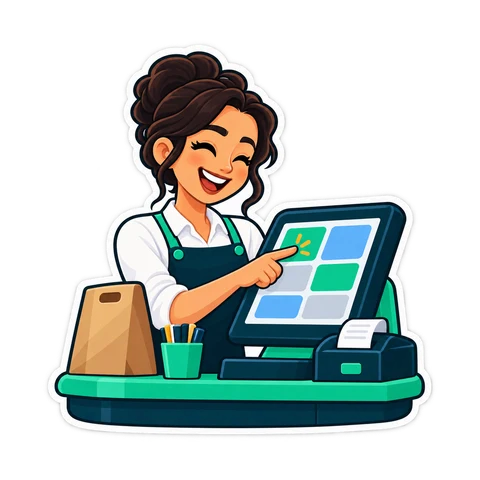
The cashier's screen: big buttons, one search box, a scanner that just works.
- Touch sales gridBig buttons by category and colour, with the stock count on the button.
- One search boxType a name or scan a barcode; the right product appears.
- Scan to addAn unknown pack pops up ready to be added and sold, with a manager's approval if the cashier lacks the right.
- Fix the cartChange a quantity, remove a line, clear the receipt; void the last receipt with manager approval.
- Discounts and sale pricesPer line or per receipt, amount or percent, with a cashier ceiling above which the manager approves. Optional.
- ReturnsFrom any old receipt; refund in cash, to the card or to the credit account; stock comes back. Optional.
- Shifts and the Z reportOpening float, cash in and out with a note, close with a Z report. Optional.
- Drawer count at closeExpected, counted and the difference, by cashier. Optional.
- Fractional quantities and unitsKilograms, grams, litres and a quantity button. Optional.
- Scale barcodesEAN-13 labels that carry the price or the weight. Optional.
- Whole program from the keyboardF1 lists the keys; every button shows its shortcut.
- Hand over mid-shiftThe login screen opens without closing the program.
Payment
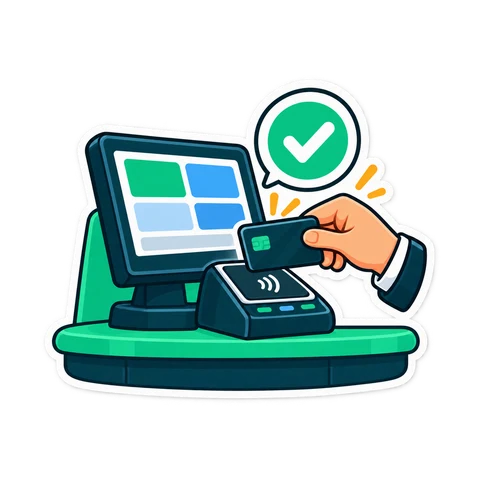
Cash, card, credit — and any mix of them.
- CashA big numpad, quick-cash buttons, Exact, and the change in large digits.
- CardRecorded as a card payment; no change; the drawer stays shut. The amount is taken on your bank's terminal.
- On the customer's accountPick or create the customer; the receipt prints the name and the new balance.
- Split paymentCash plus card, kept apart in the reports. Optional.
- Payment QRShow your own payment QR on the customer display and the receipt. Optional.
- Fast cashA setting to finish a cash sale without typing the amount received.
Receipts and printing
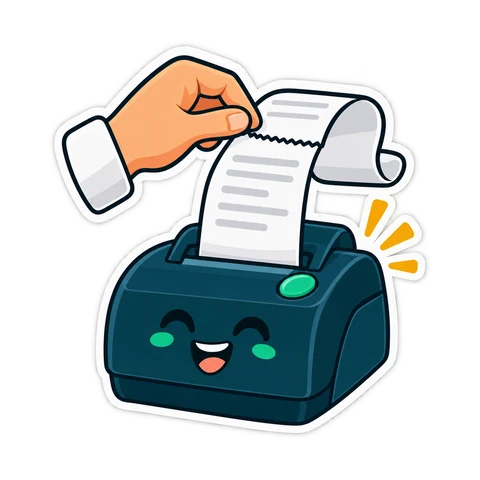
Any thermal printer. Your name, your logo, your layout.
- 58 or 80 mm thermal receiptUSB, network or the Windows default printer.
- Your name and logoAn address and phone line, a footer, product descriptions, your TRN.
- Tuned to your printerPrintable width, font size, logo width and the number of copies.
- Test print and previewA real-size preview and a raw test so you know it works before the first customer.
- Find and reprintSearch a receipt by number, customer or amount; reprint it.
- Cash drawer through printer, USB or networkRJ11 on the printer, a USB trigger or a network printer; a diagnostic tries every kick command.
- Barcode labelsName, price and barcode on every common label size, on a label printer or the receipt printer.
- Receipt on WhatsAppOne tap sends the receipt text to the customer's number.
- Categories that print nothingQuick sales you want recorded but not printed.

Products and catalogue
Getting a few hundred products in — and keeping them tidy.
- Categories in your orderReorder, merge or delete; the sales screen follows.
- Search and filterNo barcode, no price, no cost, hidden, low, expiring, duplicates.
- Bulk actionsMove category, hide, raise prices by percent or amount with rounding.
- No duplicatesThe same barcode or name is refused; importers skip and report.
- Spreadsheet import and exportCSV with a template; existing rows update; blank cells keep old values.
- Import from another programAny text file, Excel, an ODBC database or an older copy — one wizard, column mapping with a preview, automatic backup first.
- Ready shop typesGrocery, supermarket, café, restaurant, pharmacy and more on first run.
- Barcodes for products that have noneGenerate one, or give codes to all at once, then print labels. In-store codes never clash with real ones.
- VariantsColours, sizes, flavours — each with its own stock, barcode, price and cost. Optional.
- Wholesale and retail pricesTwo price levels and a toggle that resets after each receipt. Optional.
- Pictures on the buttonsOptional, and fast with hundreds of products.
- Hide what you never useCost and profit, expiry and stock switches.

Inventory and purchasing
Know what you have, what is running low and what is about to expire.
- Current stock with its valueLow in orange, out in red.
- Receive and adjustScan each unit or enter a quantity, with cost and supplier.
- Running-low listA threshold, a suggested quantity and the order cost.
- Expiry datesAn expiring-soon list for 3 to 60 days ahead, a daily alert and a warning in the cart.
- Stock-takeScan, count, apply; the variance is saved at cost. Several people can count at once from their phones.
- Inventory from your phoneAdd products, receive stock and scan with the camera.
- Suppliers and deliveriesA deliveries log, supplier invoices and payments: owed, paid, remaining. Optional.
- Expenses and net profitEnter expenses and see the real profit. Optional.
- Print the stock listAs filtered, on the receipt printer.

Customers and credit
Who owes what — without the notebook.
- Sell on creditTo a new or existing customer, in one tap.
- Who-owes-what screenEvery balance and the total owed.
- RepaymentsFull or partial, logged with the date and who took the money.
- Printed statementsFor one customer or everyone who owes.
- Customer on the receiptName and balance printed. Optional.
- Monthly view per customerSpend, balance and last visit. Optional.
- Wholesale customersSwitch to wholesale prices automatically. Optional.
- Credit payments from your phoneTake a payment anywhere; it is logged by name.

Restaurant and café
From the order to the kitchen to the table.
- Kitchen displayNew → Preparing → Ready; tap to advance. Only items that need cooking appear.
- Kitchen screen on another deviceA second monitor, or any PC or tablet on the shop's network; several screens allowed.
- Kitchen ticket printerBig font, order number, table and time.
- Tables and held ordersOpen tables, hold and recall orders. Optional.
- Sizes and add-onsA touch picker; printed on the receipt and the kitchen ticket. Optional.
- Service chargeA configurable percentage, with VAT applied the way your setup requires. Optional.
- Table QR orderingGuests order, call the waiter and ask for the bill from a QR code; staff confirm. CreekPOS Online.
- Online menuYour menu on a public page with pictures, sizes and prices. CreekPOS Online.

Reports and your phone
Today, yesterday, this month — in one tap, wherever you are.
- Any periodToday, yesterday, this week, this month, last month or custom.
- KPI tilesSales, profit, receipts, items and the average receipt.
- Best sellers and busy hoursBy product, day, hour and category.
- Profit per productCost, margin and net profit once expenses are entered.
- Receipt listOpen, void, reprint, return; filter by cashier.
- Export to spreadsheetCSV with every script intact.
- Daily copy to a folderProducts, receipts, items and stock at a set time, on the PC or a shared folder.
- Accountant feedA read-only, token-protected feed for your accountant. Off by default.
- Owner dashboard on your phoneSales, hourly sales, best sellers, low stock, credit and the kitchen queue — live.
- Daily summaryBy e-mail or Telegram at closing time. Optional.

Tax and invoices
The UAE numbers are built in. We are not tax advisors — the program gives you the fields and the printouts; your accountant tells you how to use them.
- VAT 5%Included in or added to the price, per product or per receipt, with the tax amount shown.
- Your TRN on every printoutReceipts, invoices and statements.
- Simplified tax invoice on the thermal printerThe fields the receipt needs, in your layout.
- Full A4 tax invoiceFor companies: logo, TRN, customer details, items, VAT, signature lines, multi-page. Optional.
- Tax categories per productStandard-rated, zero-rated and exempt lines, reported separately.
- E-invoicing readinessStructured invoice data today, so the UAE e-invoicing roll-out finds your records in order.
Hardware
Ordinary hardware from any computer shop. Nothing proprietary.
- Common USB receipt printers set up by the installerPlug in and print; a Devices tab lists everything connected.
- Any 58 or 80 mm thermal printerWith a Windows driver, or the generic text driver as a fallback.
- Any cash drawerRJ11 on the printer, a USB trigger or a network printer; four kick commands, three pulse lengths, a diagnostic.
- Any USB barcode scannerKeyboard-wedge, wired or wireless.
- Label printerAny model with a Windows driver.
- Touch screen or mouseAnd the whole program from the keyboard.
- Customer displayA second monitor, a 2×20 pole display or an 8-digit LED. Optional.
- Manager and cashier cardsUSB magnetic-stripe or RFID reader; revoke a lost card.
- Weighing scaleSerial or USB-serial scales from the common makers, with a raw-byte test. Optional.
- Kitchen screen on a PC or tabletCovered by the register's licence.
- Your phone as a scannerCount stock with the camera.

Staff, registers and licensing
Who may do what, and how registers work together.
- Manager and cashier accountsManagement buttons are hidden for cashiers; every receipt carries the cashier's name.
- A right at a timeReports, inventory, editing products, voids, returns, credit, expenses, exit — per cashier.
- Manager approves on the spotBy password or by card.
- Second register in the same shopPairs with a 6-digit code; works through network drops; takes over if the primary fails.
- Buy once, per registerTied to your PC; cannot be switched off remotely. Move it to a new PC with a release code.
- Online mode in the programThe same Windows program can run as a CreekPOS Online till, pairing by code instead of a key.
- Your languageEnglish, Arabic, Hindi or Urdu on the screen; receipts and labels follow.
- Your name and logo everywhereNo reinstall.
- Portable versionFor PCs without admin rights.
Backup and support
A hard disk dies on a Thursday afternoon. Here is what happens next.
- Backup tabBack up to USB or a folder, restore, open the data folder, schedule.
- Selective restoreSettings and logo, products and stock, customers, users, sales history — pick what to bring back.
- Daily automatic backupOn exit or at shift close. Optional.
- Move to CreekPOS OnlineOne file with products, pictures, customers, suppliers and sales; and back again.
- Proper installerData lives outside the program folder and survives updates and uninstalls.
- Updates you controlAsk, automatic or never; every download is verified.
- Send diagnosticsOne text file without sensitive data and a ticket number to quote.
- Human supportIn English, Arabic, Hindi and Urdu, from the people who build the program.
Buy once on your PC, or CreekPOS Online by the month
The same features, two ways to pay. The pricing page lists exactly what each plan includes.
CreekPOS مفت آزمائیں
آپ کے PC پر پروگرام 7 دن کے لیے، یا CreekPOS آن لائن 14 دن کے لیے۔ ہر خصوصیت، بغیر کارڈ، اور سیٹ اپ میں ہم مدد کرتے ہیں۔